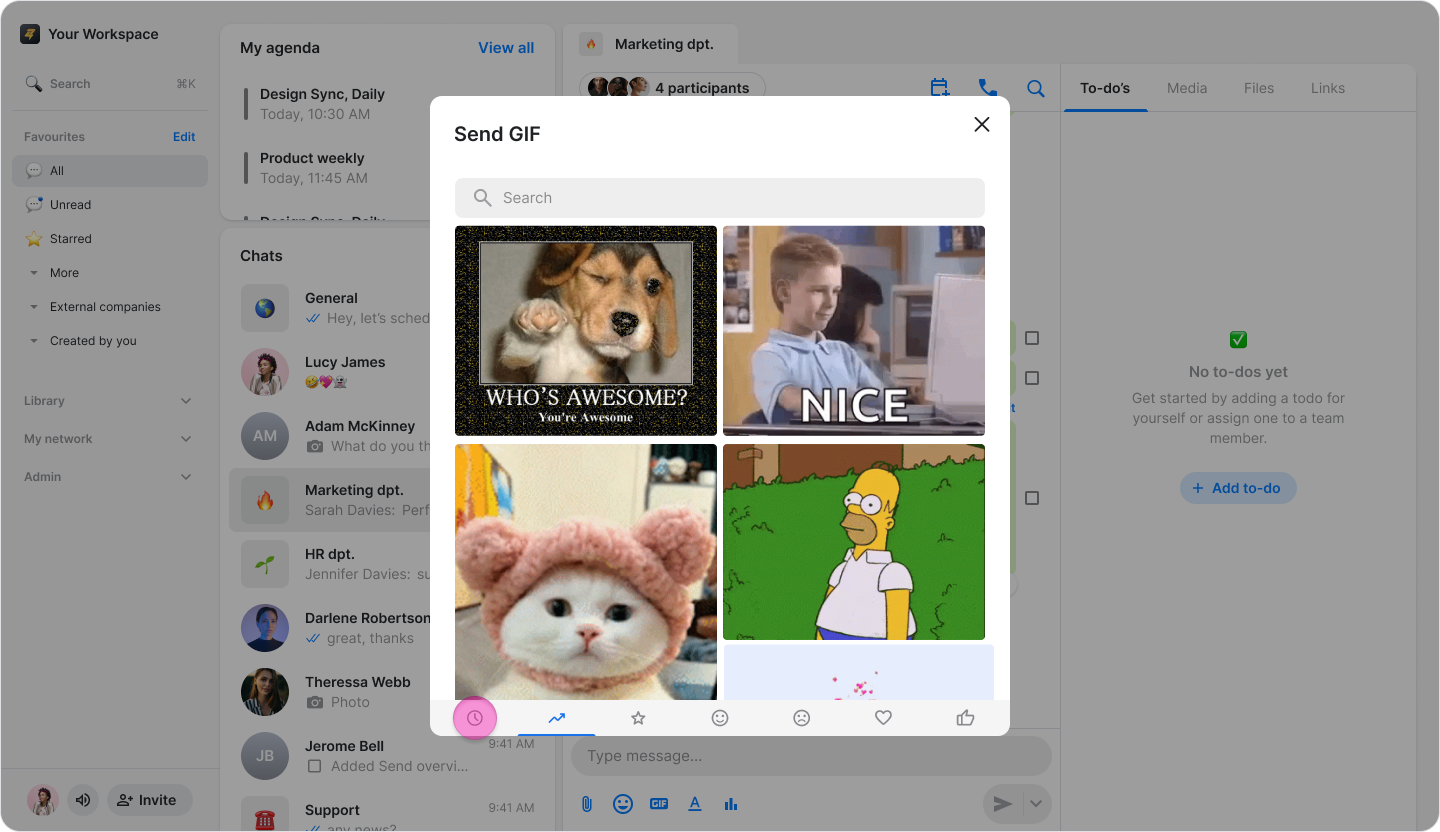
Send GIFs
Add some fun and expression to your conversations by sending GIFs.
On Mobile (iOS)
Open the chat where you want to send a GIF.
Tap the "GIF" button in the message field.

Tap the "Search" icon to find a specific GIF or select a category icon:
"Fire": trending GIFs
"Smiling face": happy/funny GIFs
"Sad face": sad GIFs
"Heart": love/affection GIFs
"Thumbs up": approval GIFs

On Mobile (Android)
Open the chat where you want to send a GIF.
Tap the "Emoji" button in the message field.

Select the "GIF" icon to access the library.

Tap the "Search" icon to find a specific GIF or select a category icon:
"Clock": your last used GIFs
"Fire": trending GIFs
"Smiling face": happy/funny GIFs
"Sad face": sad GIFs
"Heart": love/affection GIFs
"Thumbs up": approval GIFs
On Desktop (Windows, macOS, & Web App)
Open the chat where you want to send a GIF.
Click the "GIF" button near the message field (on macOS), or click the "+" icon and choose "GIF" (On Web and Windows).

Click the "Search" icon to find a specific GIF or select a category icon:
"Fire" or "Zig-zag arrow": trending GIFs
"Smiling face": happy/funny GIFs
"Sad face": sad GIFs
"Heart": love/affection GIFs
"Thumbs up": approval GIFs