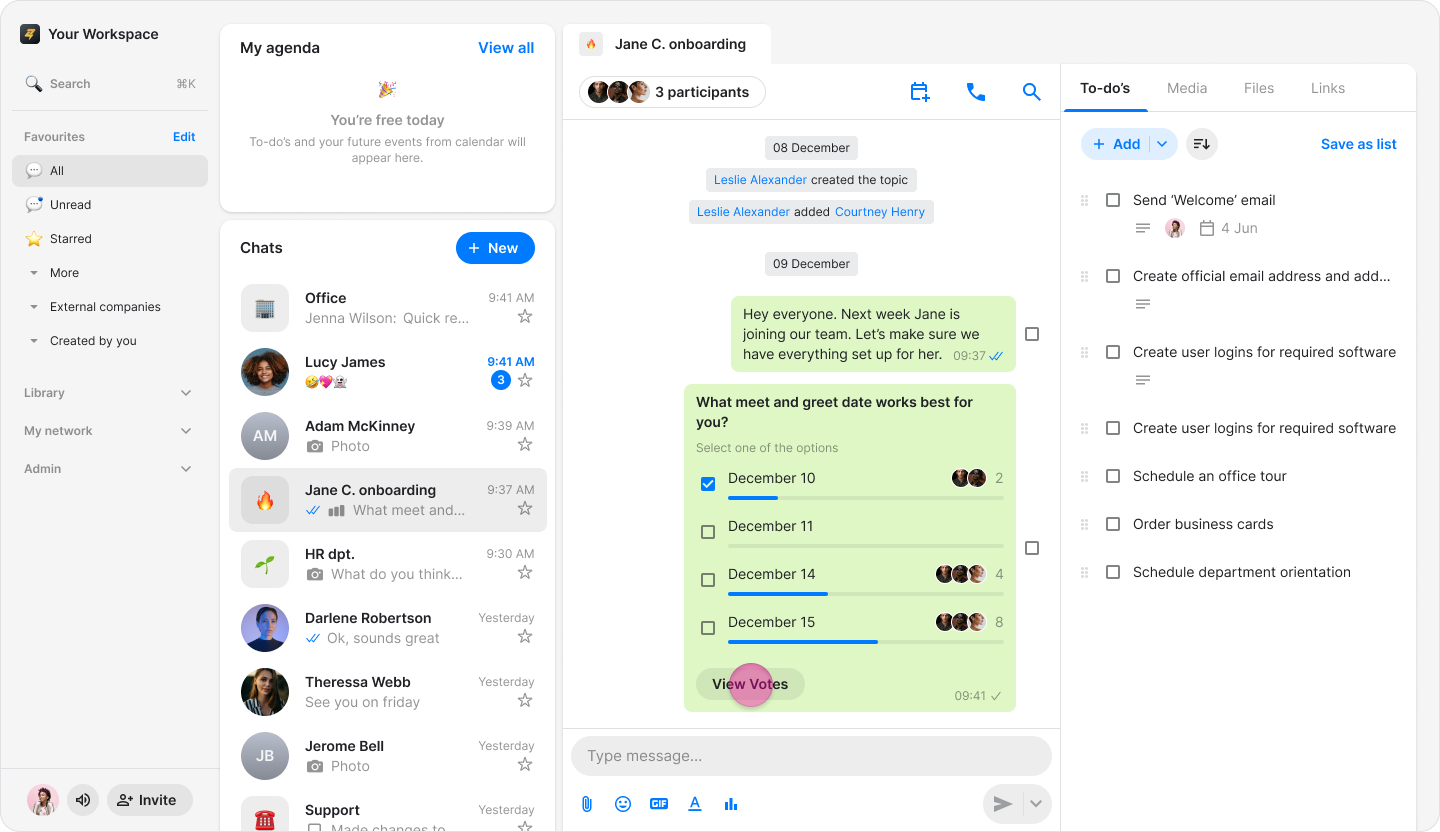
Create Polls
Gather instant feedback from your team by creating interactive polls directly within any conversation.
On Mobile (iOS & Android)
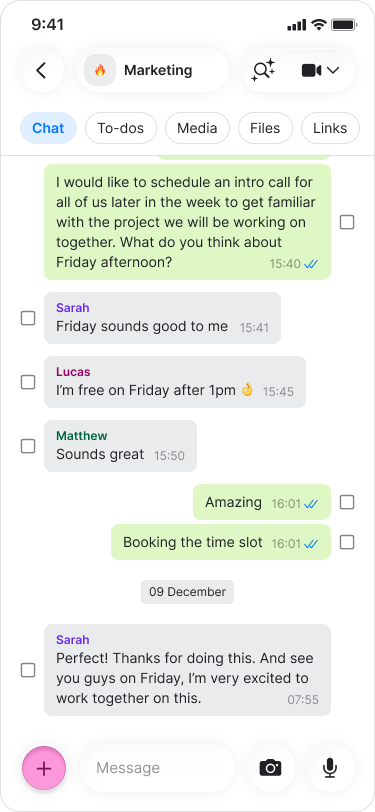
Open the chat where you want to send a poll.
Tap the "+" icon next to the message field.
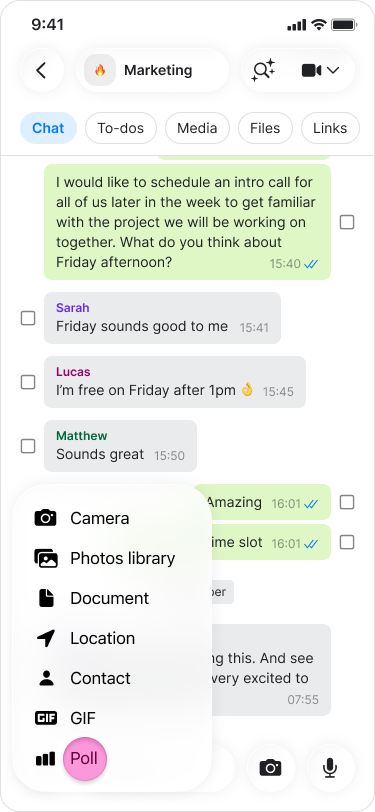
Tap "Poll".
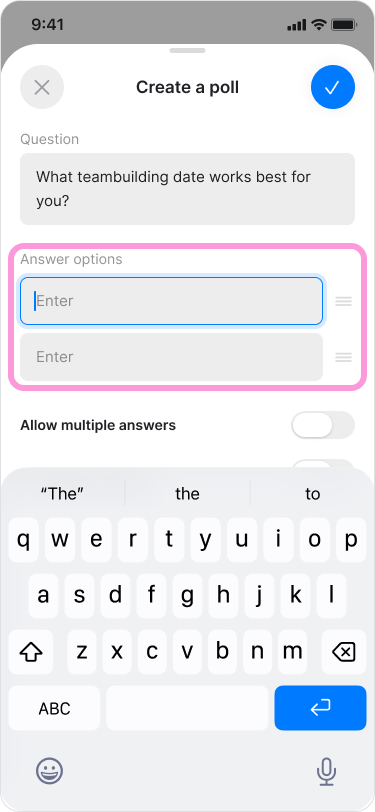
Type your question under the "Question" label.
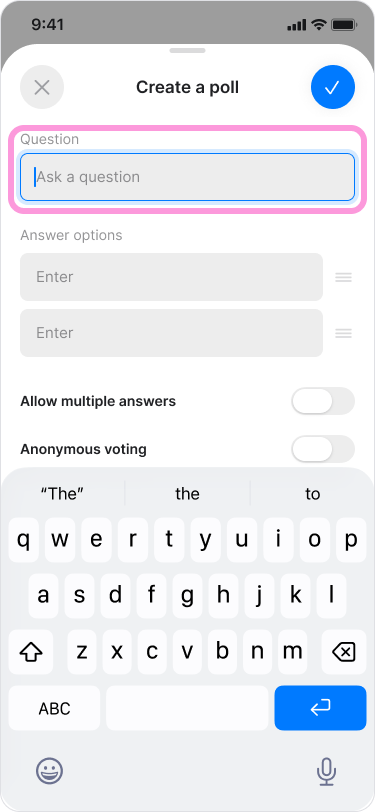
Type your poll options under the "Answer options" label.
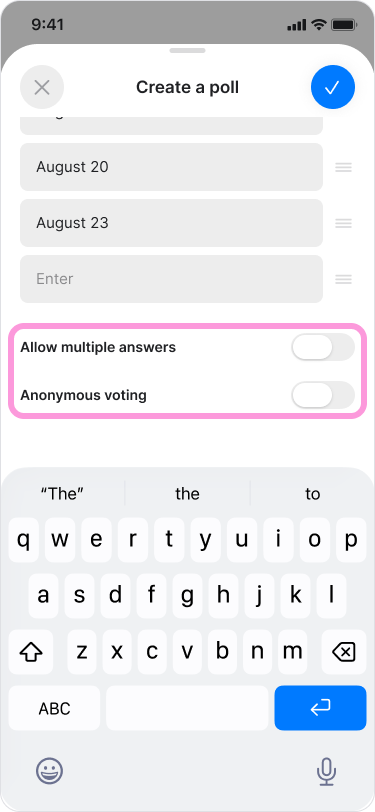
Choose whether to enable the following settings:
“Allow multiple answers”
“Anonymous voting”
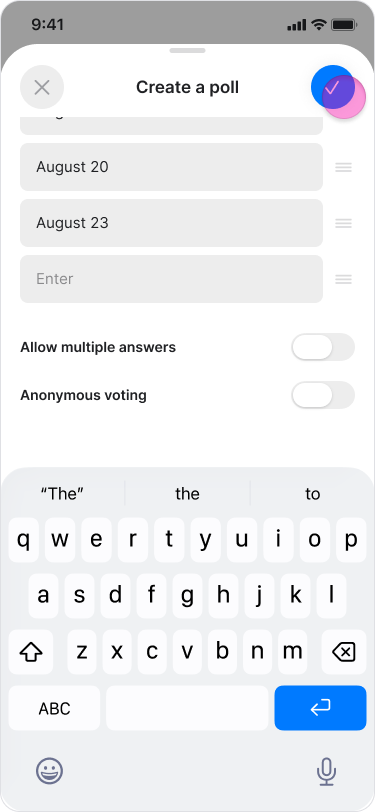
Tap "Create" to send it to the chat.
Note:
As you type your answers, a new field will automatically appear for adding more options.
To change the order of options, tap and drag an answer up or down.
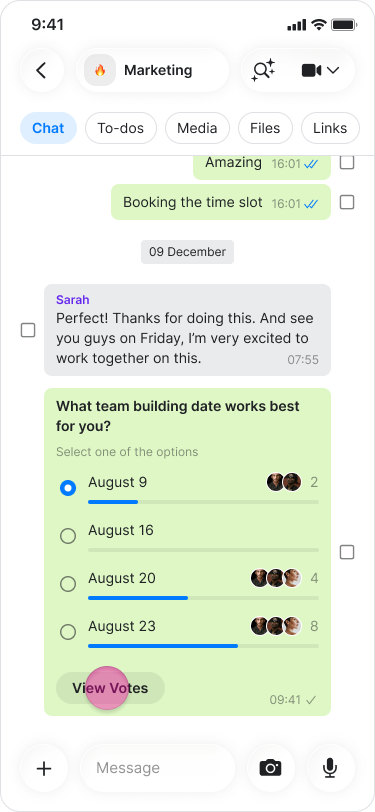
You can see the number of votes next to each option.
Unless "Anonymous voting" is enabled, tap "View Votes" to see who voted for each option.
On Desktop (Windows, macOS, & Web App)
Open the chat where you want to send a poll.
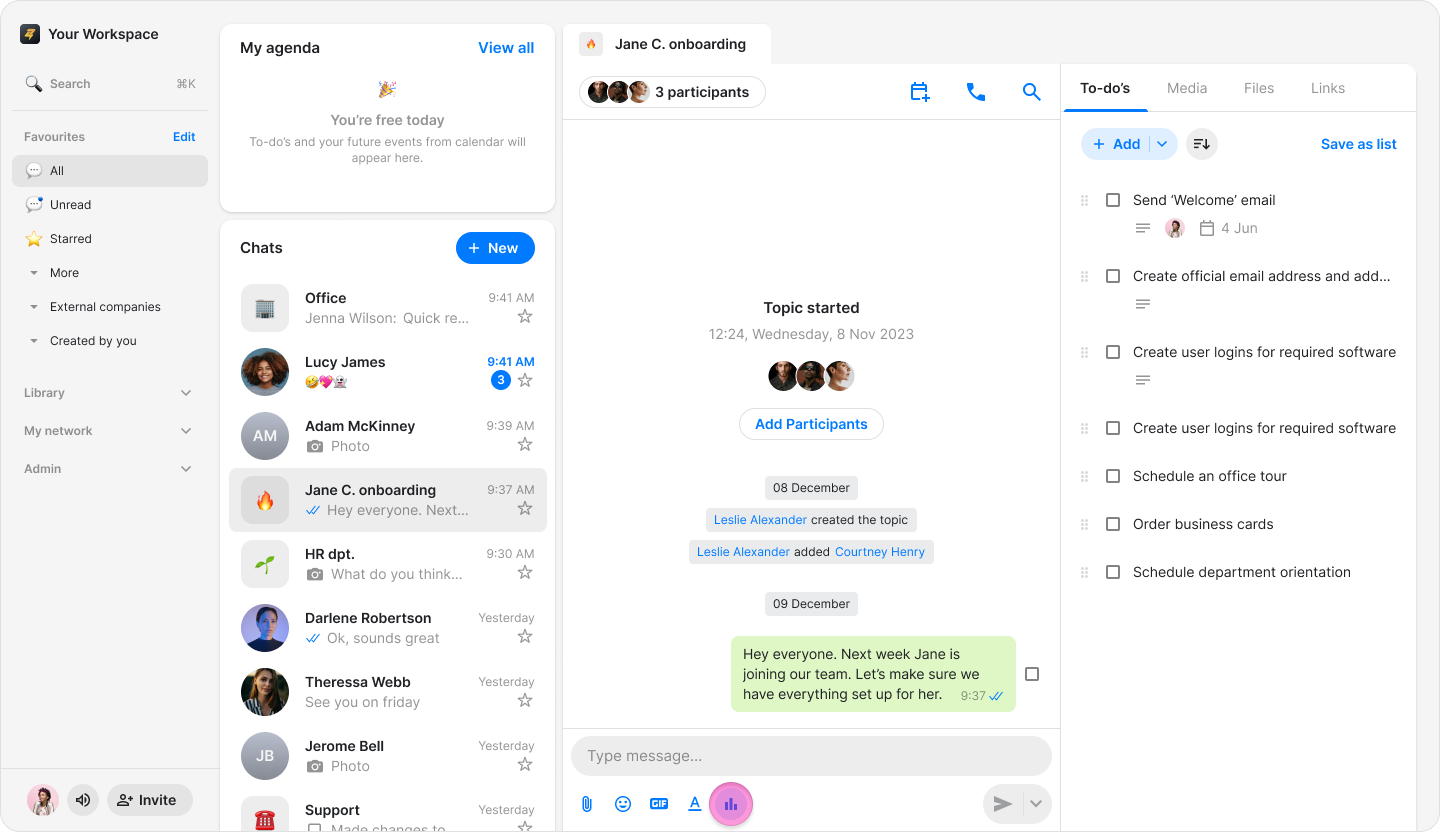
Click the "Poll" icon below the text message field (On macOS, click the "+" icon next to the message field and select "Poll" from the menu).
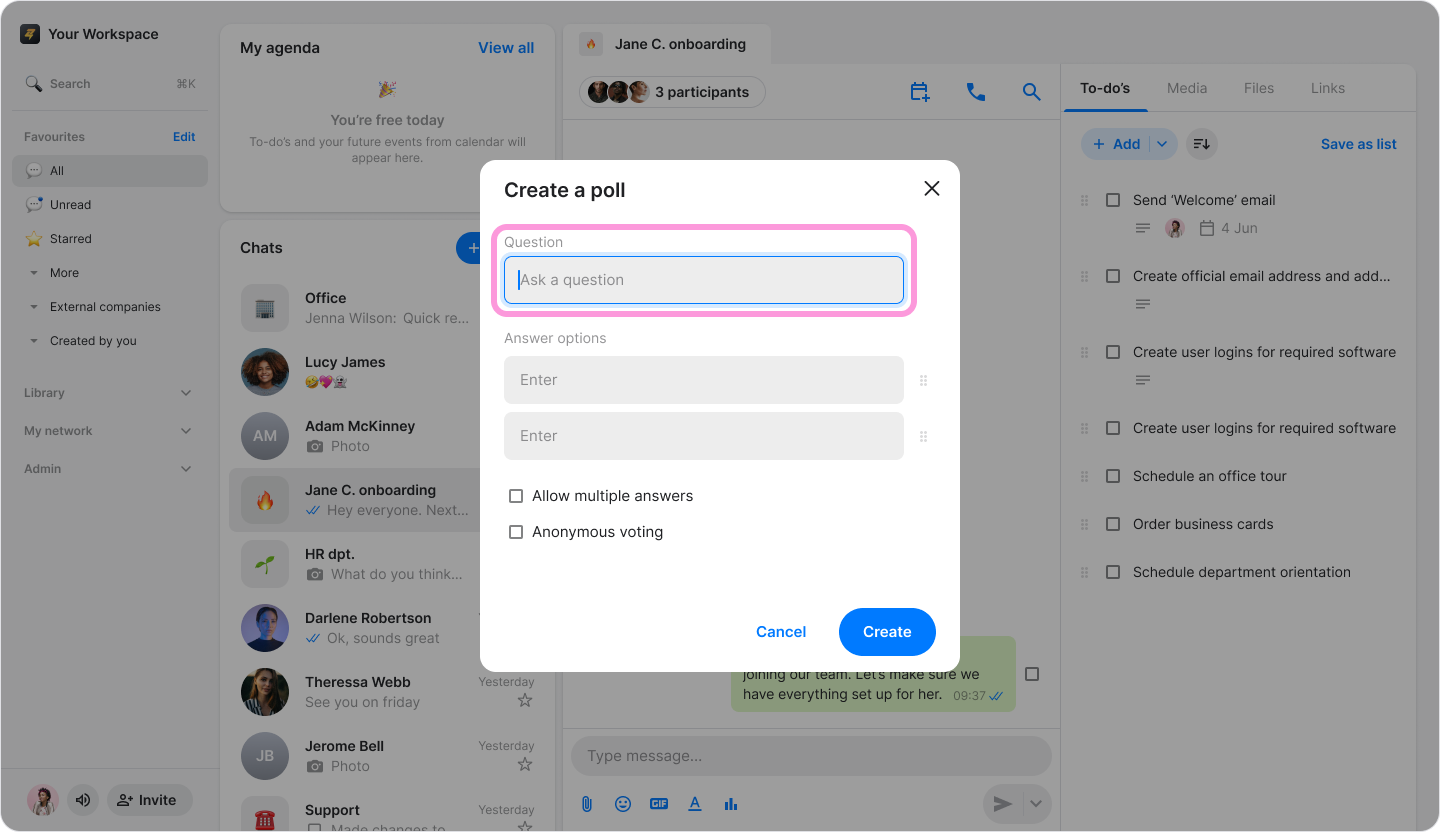
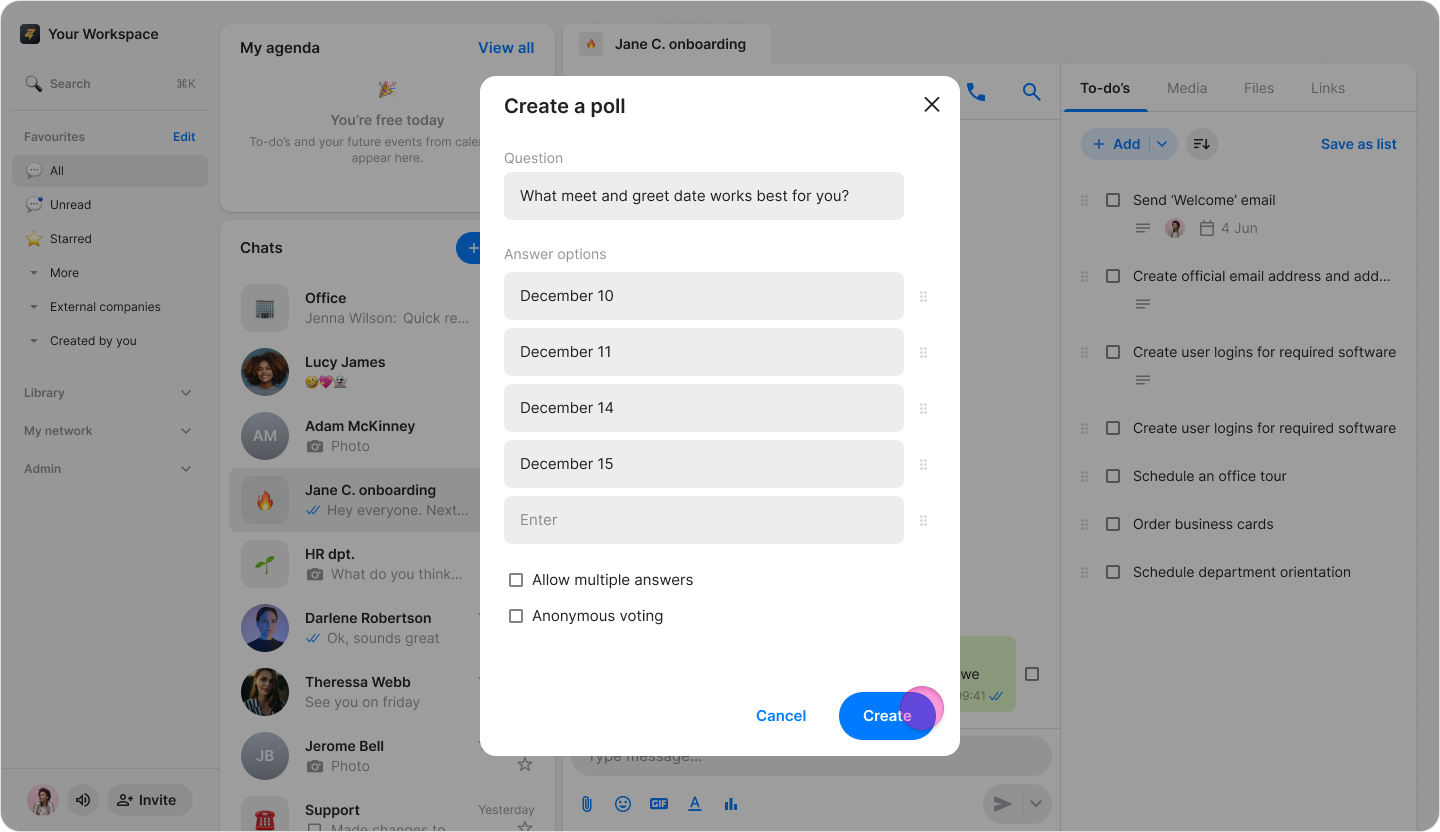
Enter your question in the "Question" text box.
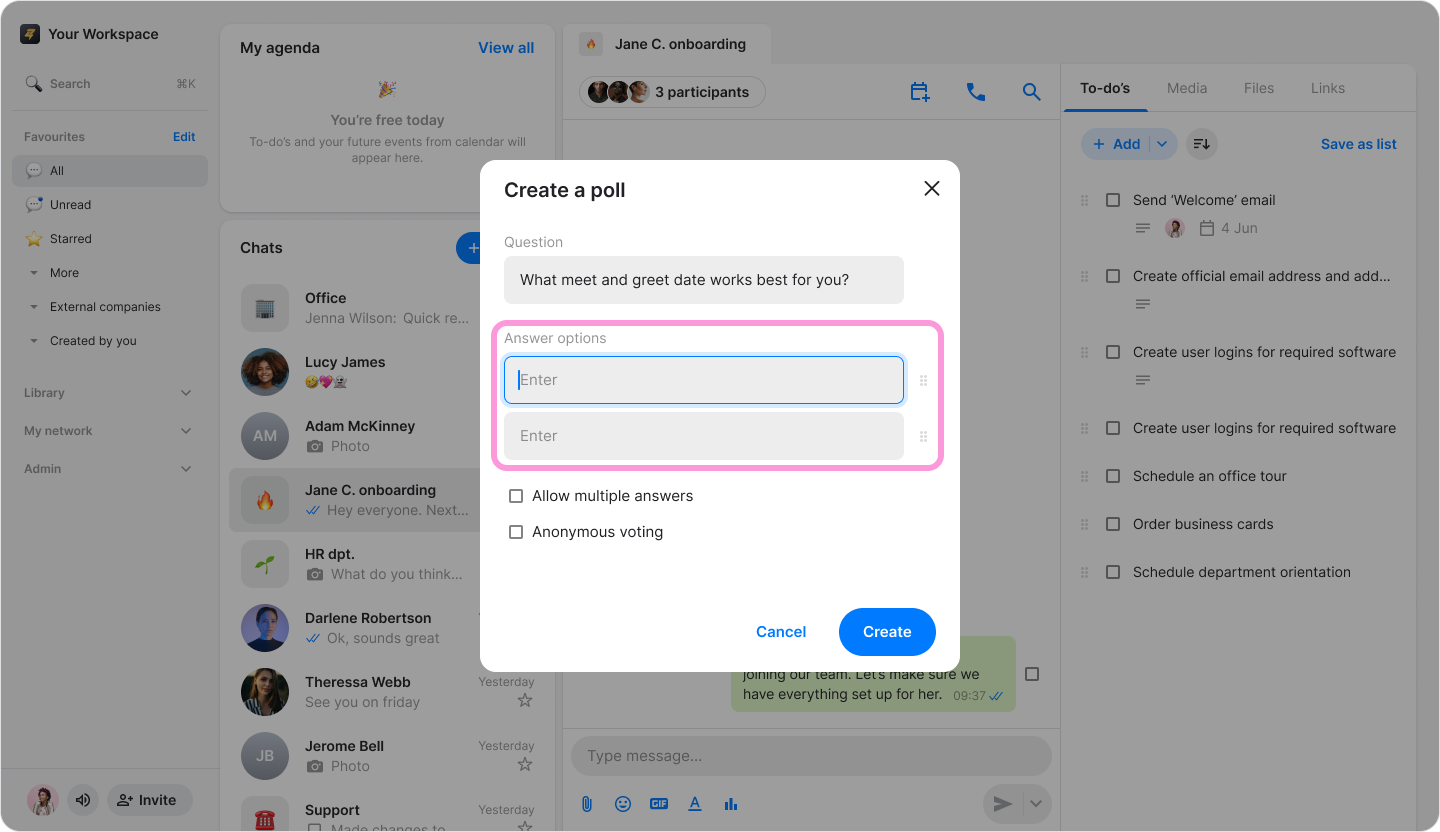
Enter your poll options under the "Answer options" label.
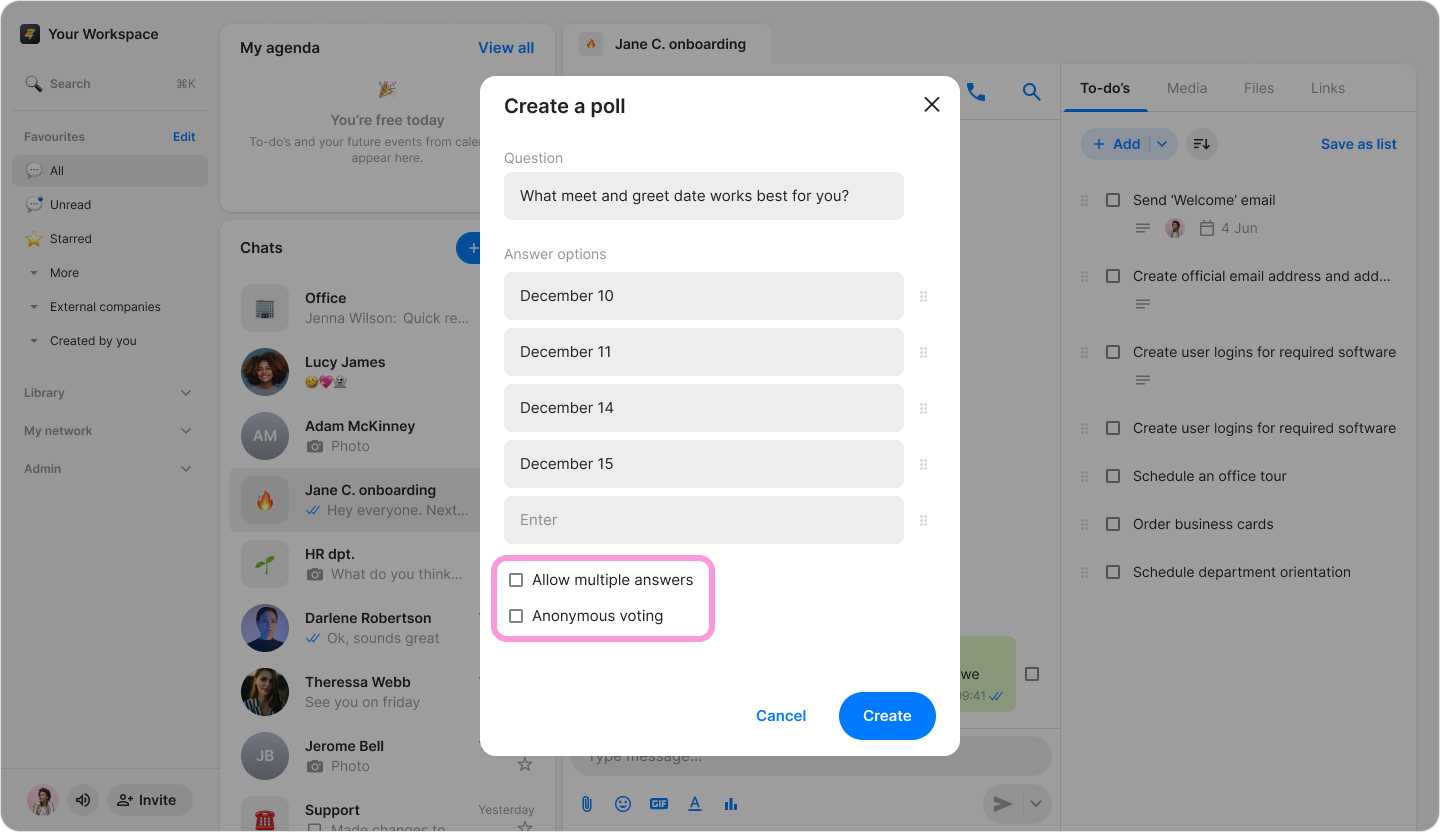
Choose whether to enable the following settings:
Allow multiple answers
Anonymous voting
Click "Create" to share it with the group.
Note:
As you type your answers, a new field will automatically appear for additional options.
To change the order of options, click and drag the "box" icon to the right of the answer up or down.
You can see the number of votes next to each option.
Unless "Anonymous voting" is enabled, tap "View Votes" to see who voted for each option.