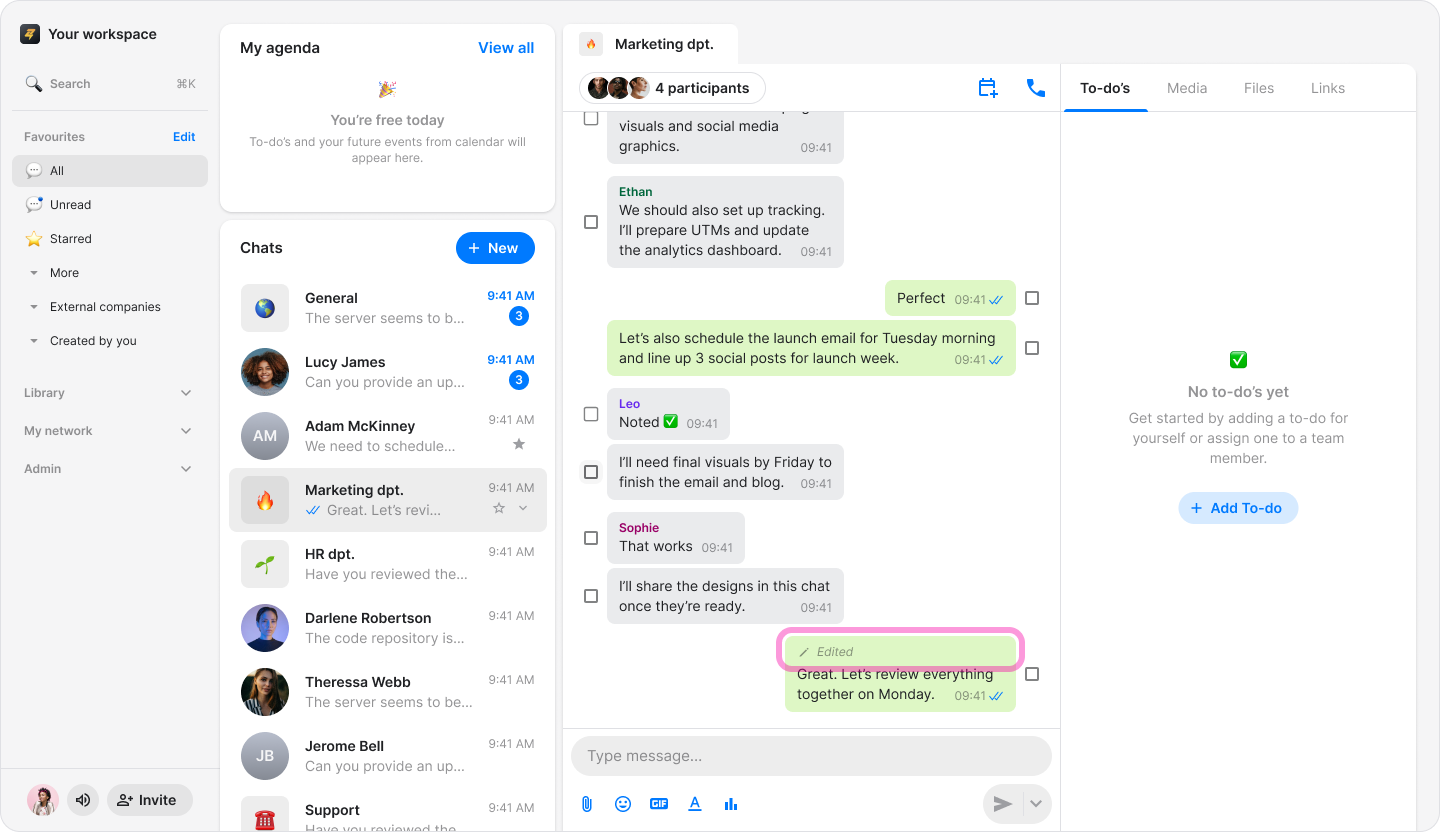
Edit Messages
You can edit your messages after sending them, giving you the flexibility to correct typos or update information.
On Mobile (iOS & Android)
Long-press the message you want to edit.
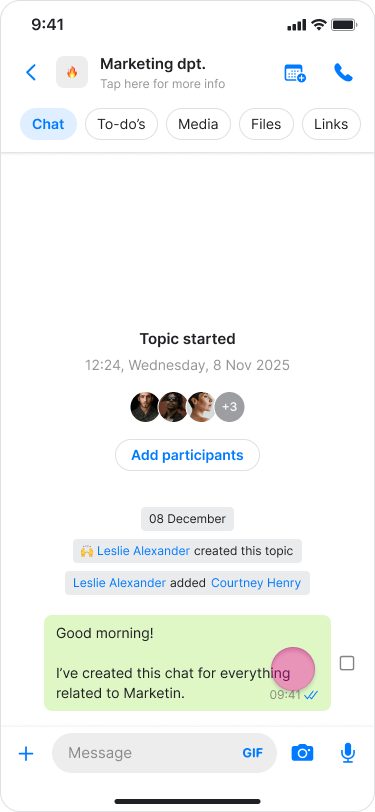
Tap “Edit” from the menu.
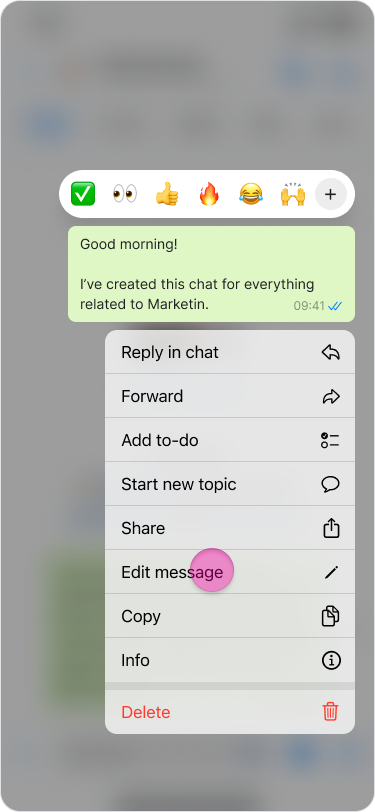
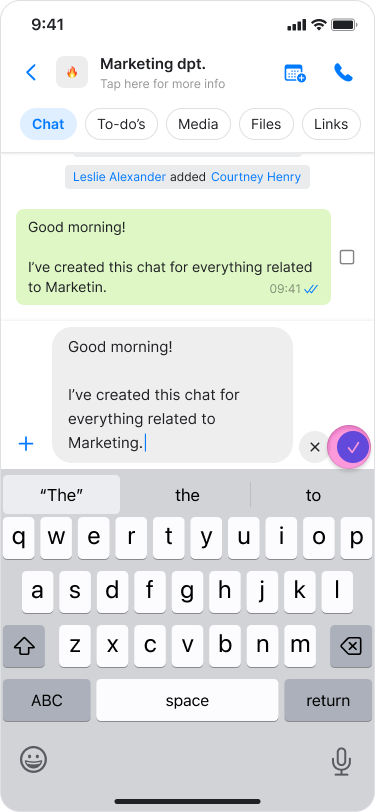
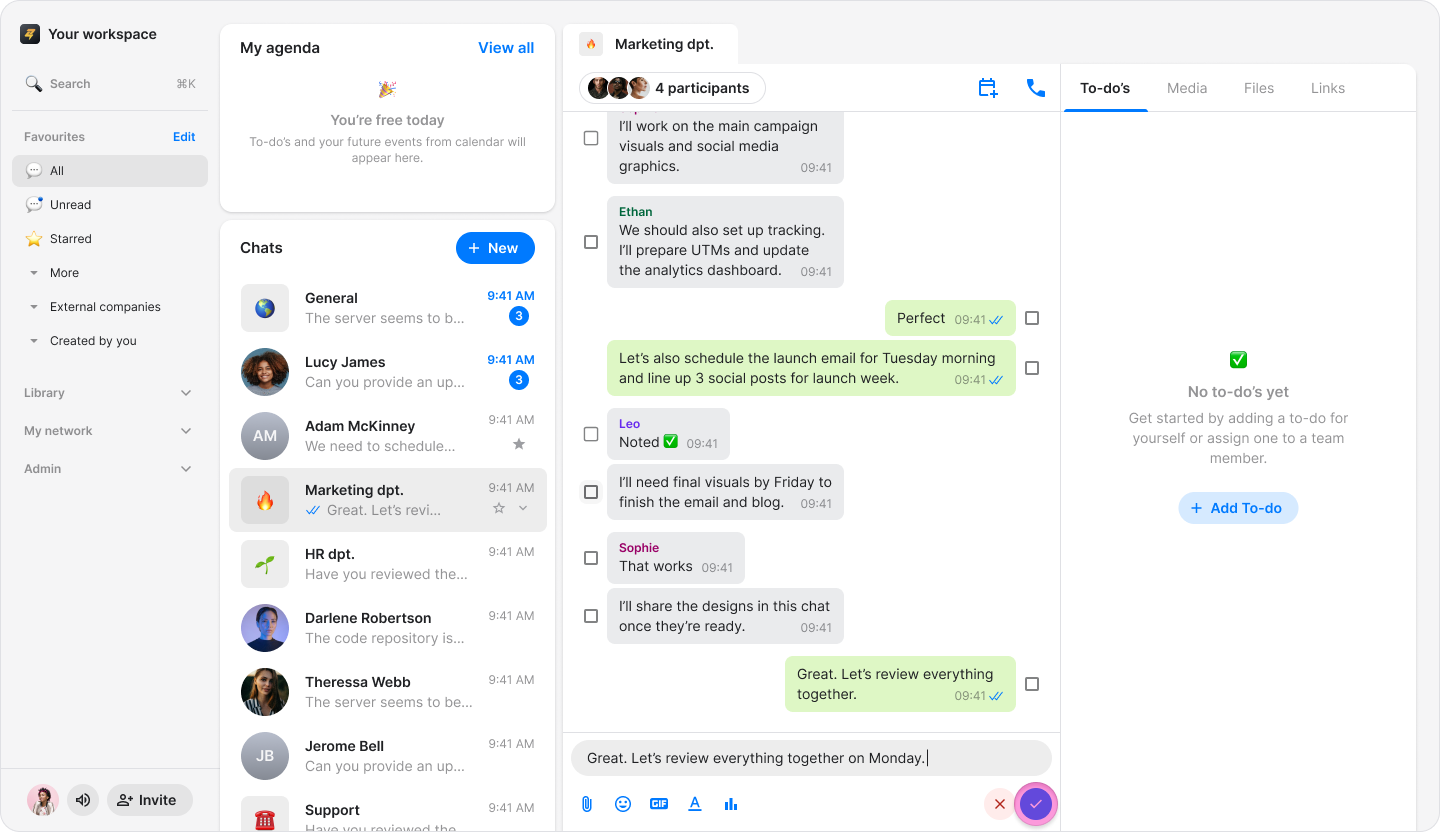
In the text box, make changes to the text.
Tap "Checkmark" to save your changes or "X" to revert to the original message.
Note:
You can edit any message you have written, regardless of how old it is, as many times as you like.
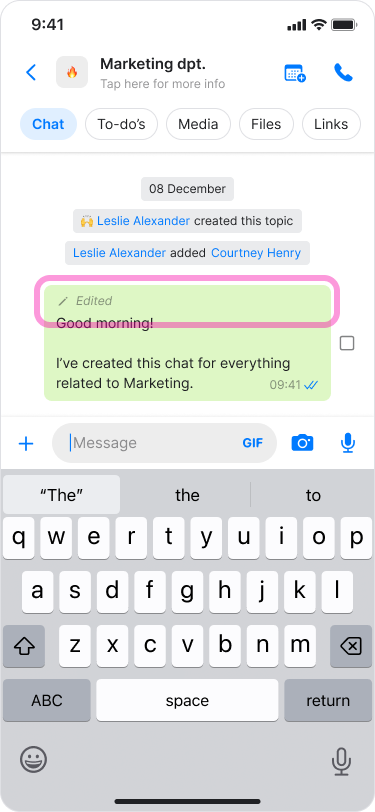
Edited messages will display an "Edited" label with a "Pencil" icon above them.
On Desktop (Windows, macOS, & Web App)
Hover your mouse over the message you want to edit.
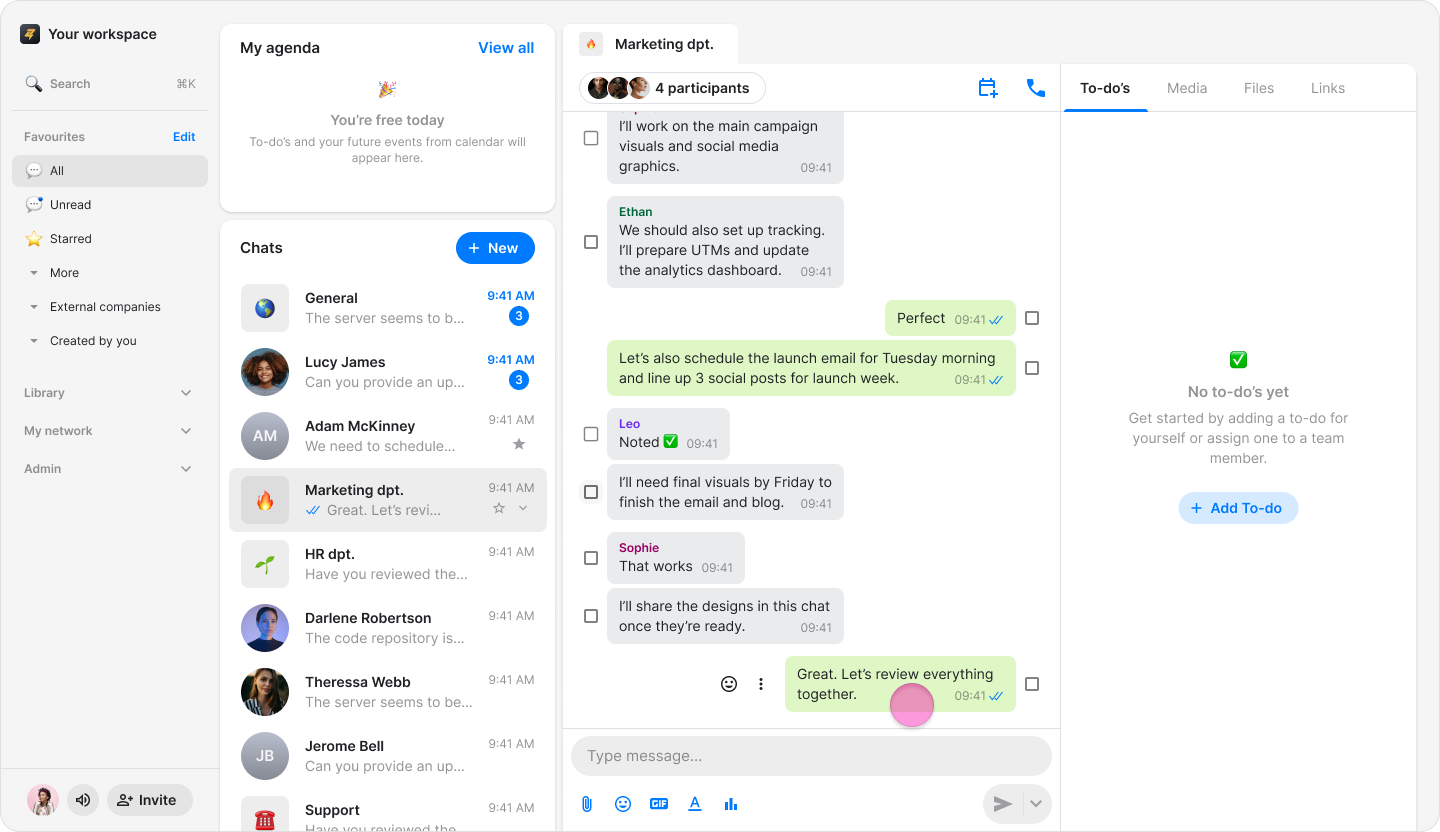
Click the "Three dots" icon to the left of the message.
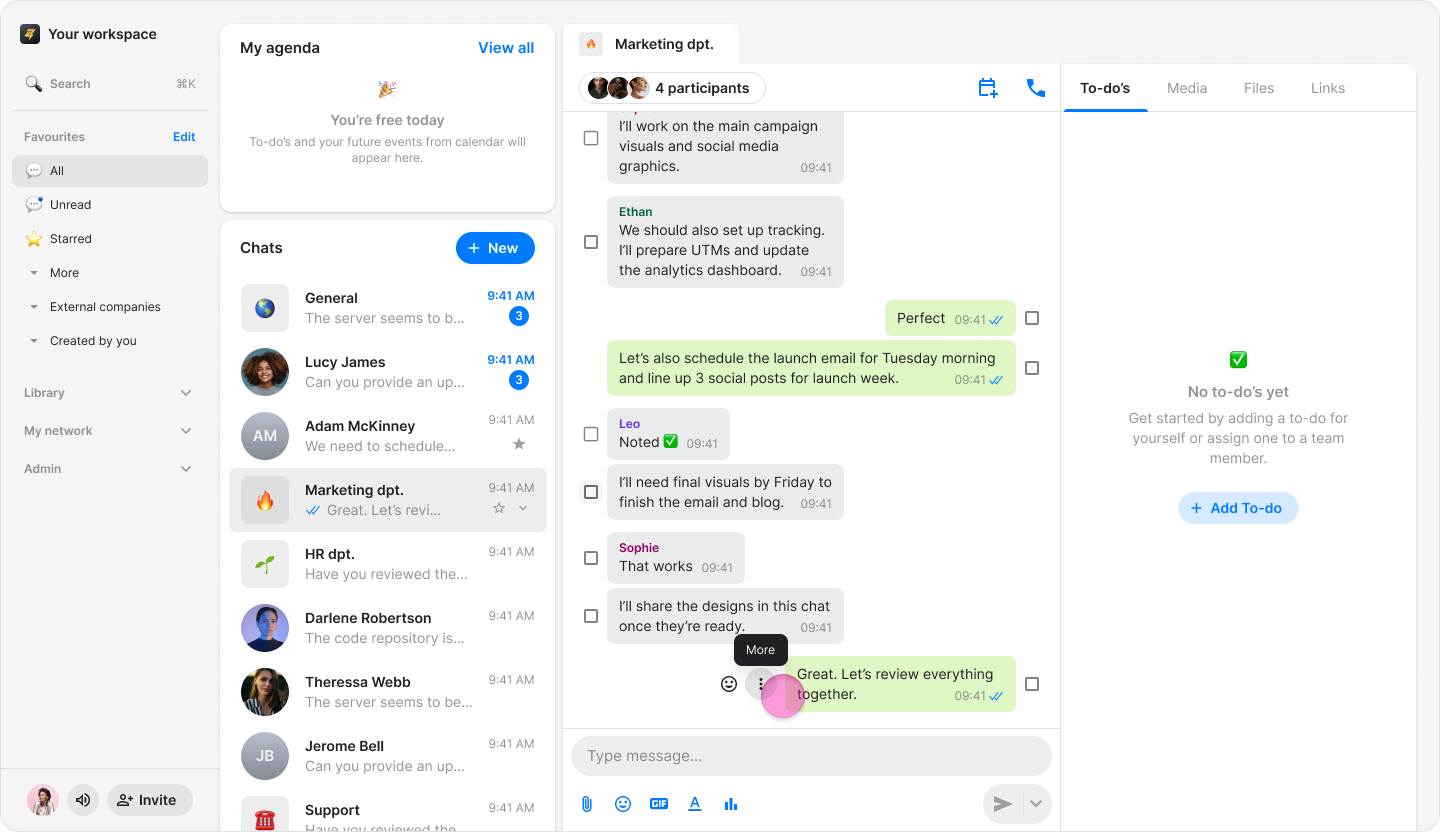
Choose “Edit” from the drop-down menu.
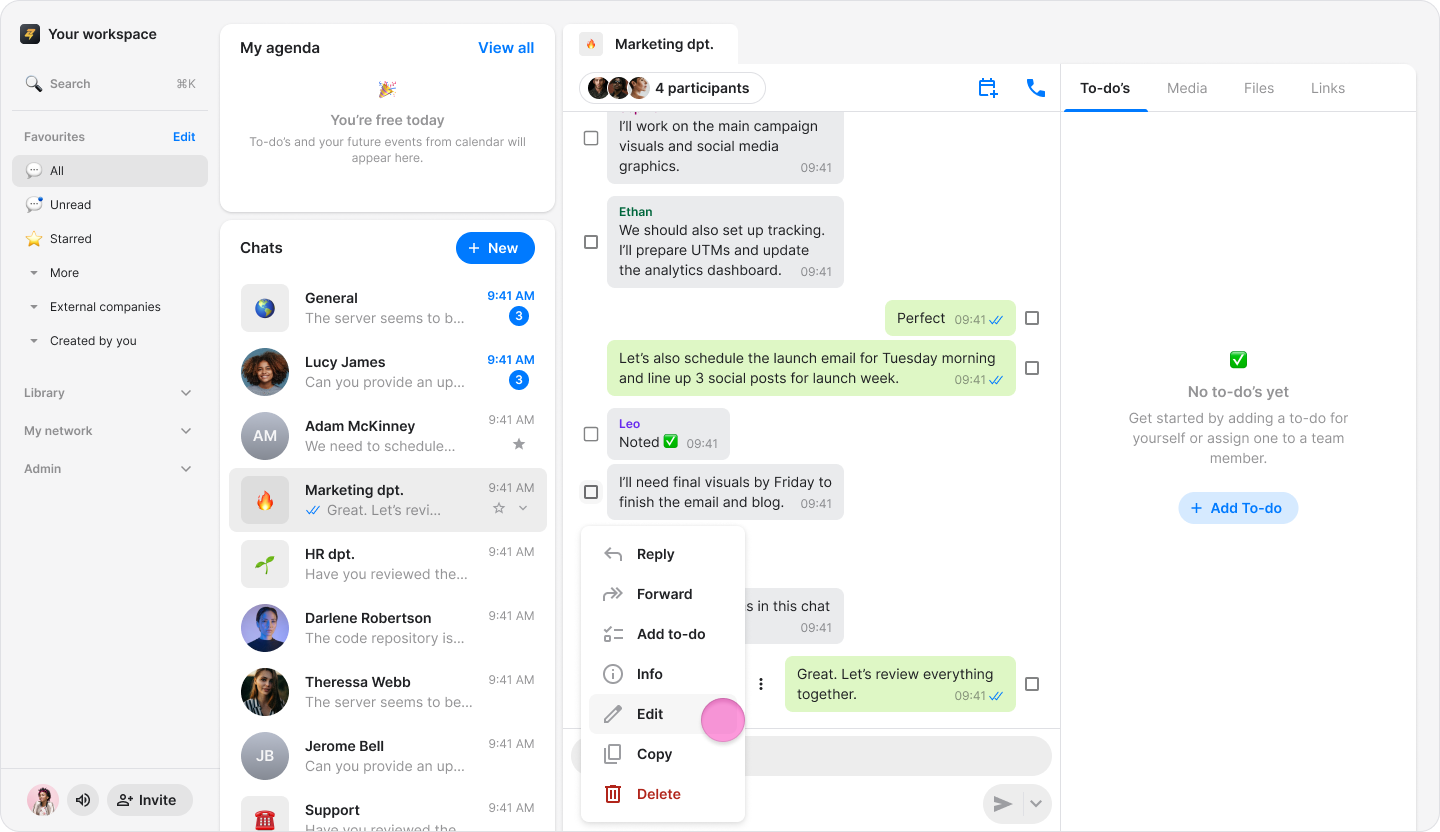
Click the "Checkmark" to save or the "X" to revert to the original message.
Note:
You can edit any message you have written, regardless of how old it is, as many times as you like.
Edited messages will display an "Edited" label with a "Pencil" icon above them.