
Create a Topic from a Message
Turn any existing message into a new topic to keep your projects and teams organized.
Learn more about how to create a new topic from scratch in this article.
On Mobile (iOS & Android)
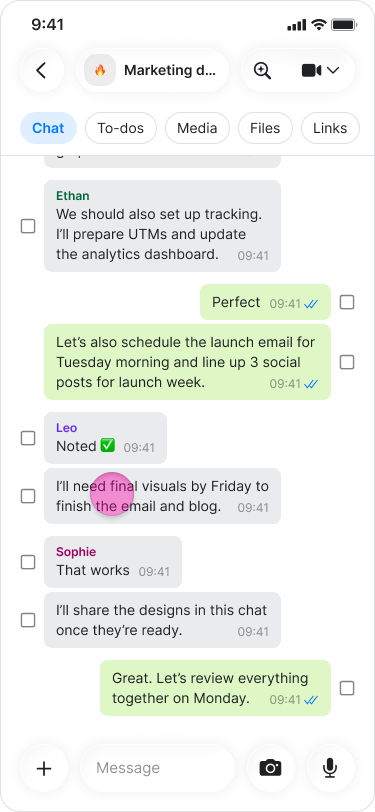
Find the message you want to use for the new topic.
Long press on the message.
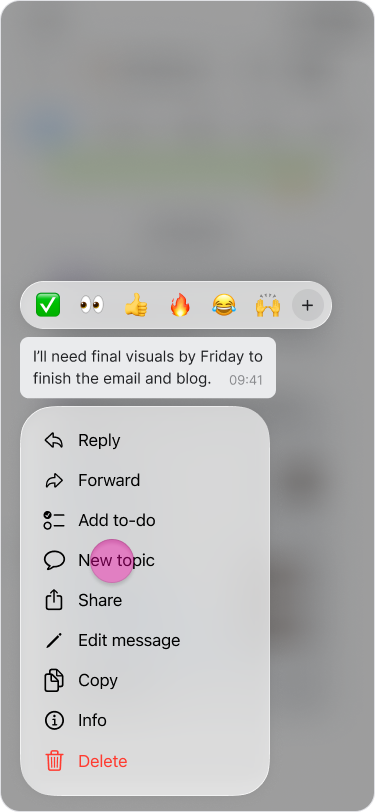
Tap "New topic".
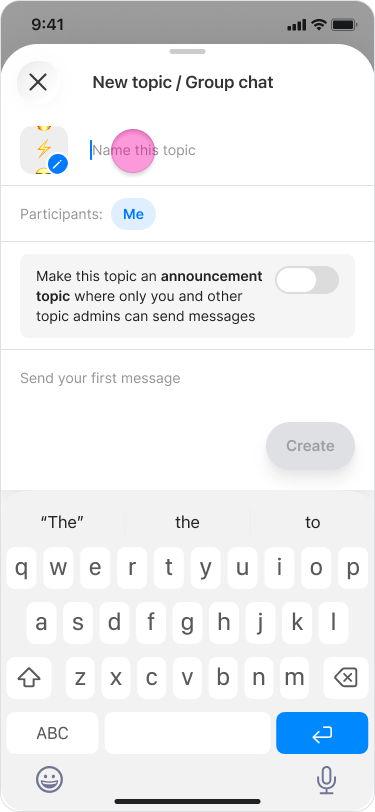
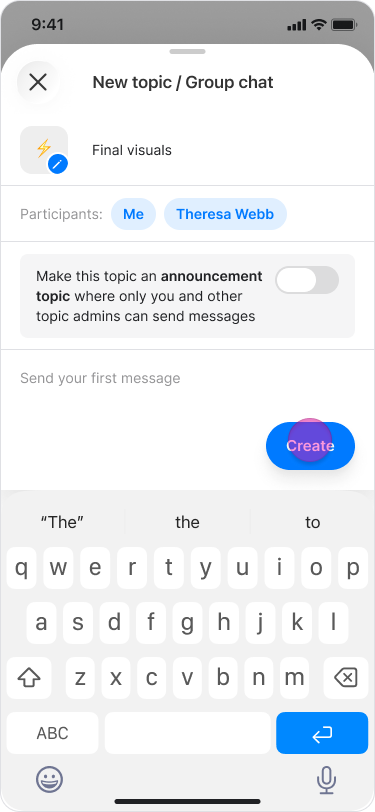
Write a name for the topic.
Tap "Participants" to select the members you want to add.
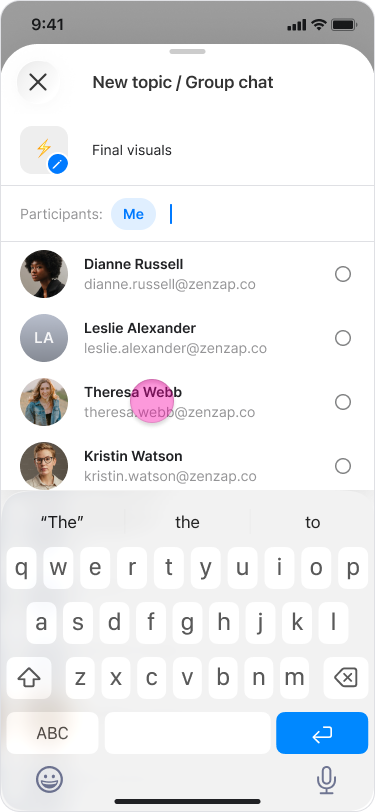
Tap "Done".
Tap "Create" and you will be directed to the new topic.
Note:
The selected message will appear as the first message in the new topic with "Forwarded" written above them.
You can select multiple messages at once to start a new topic.
You can set the new topic as an announcement topic (more about announcement topics here).
On Desktop (Windows & macOS)
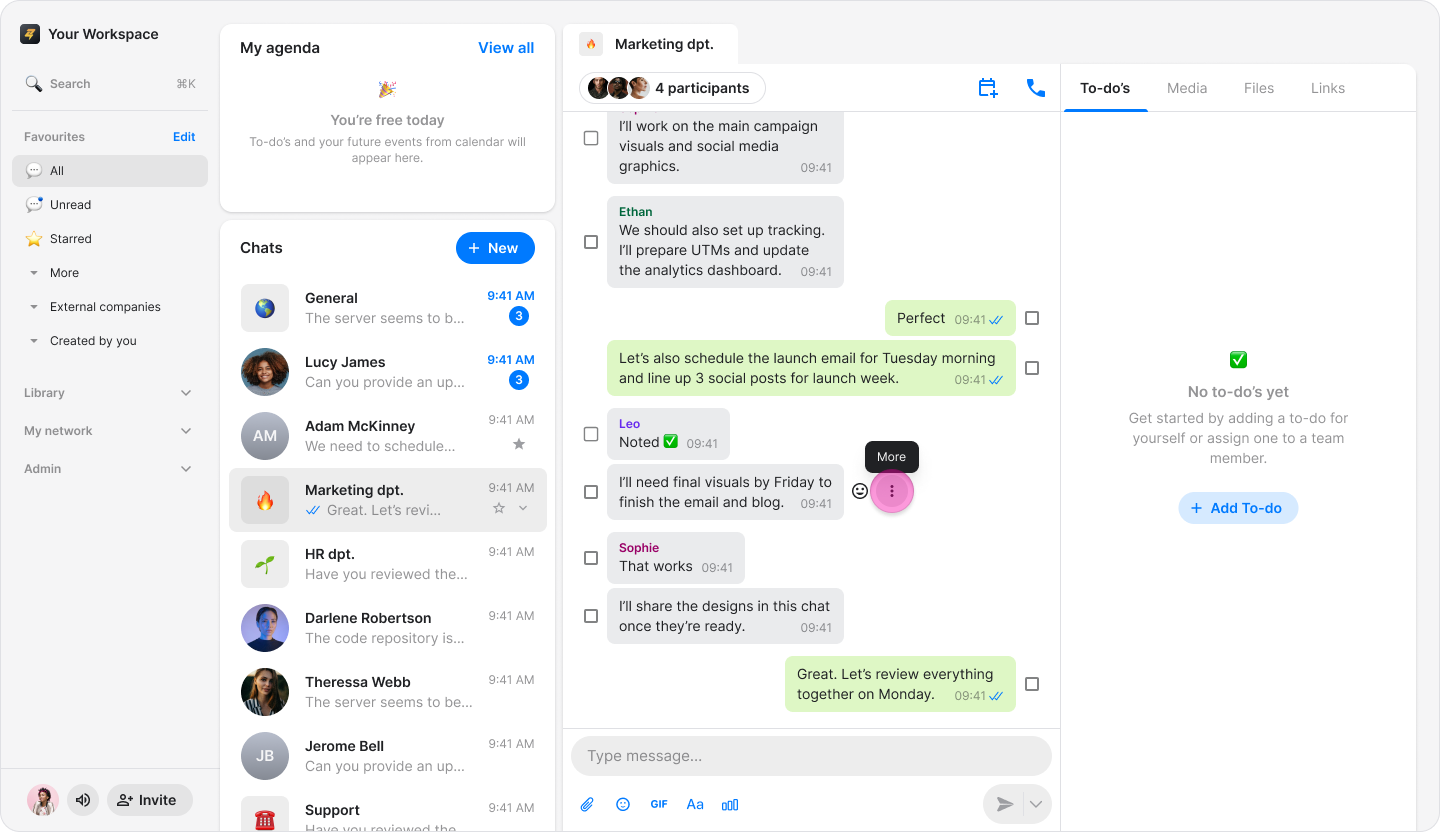
Hover over the message you want to use for the new topic.
Click the "Three dots" icon.
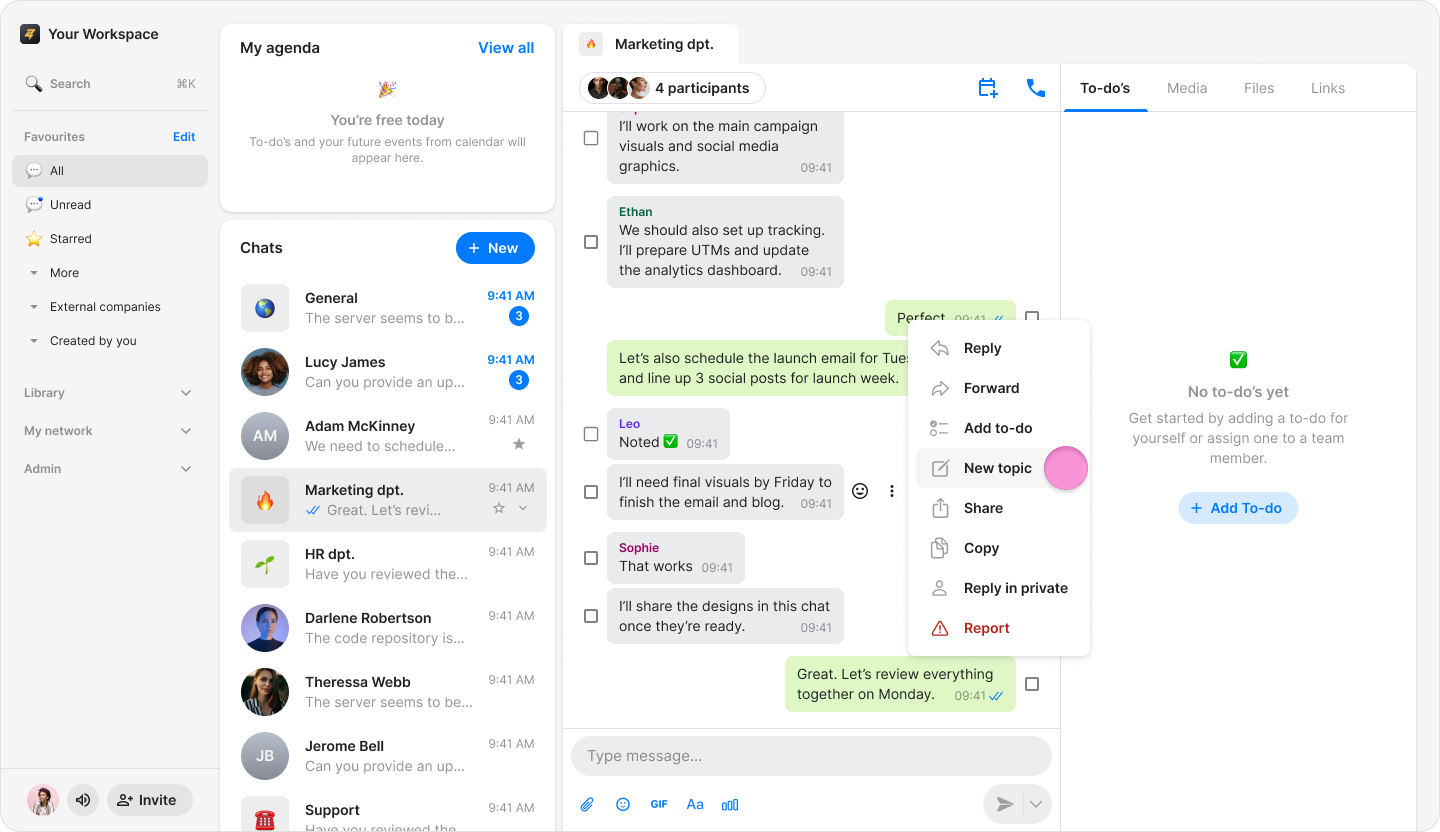
Click "New topic".
Write a name for the topic.
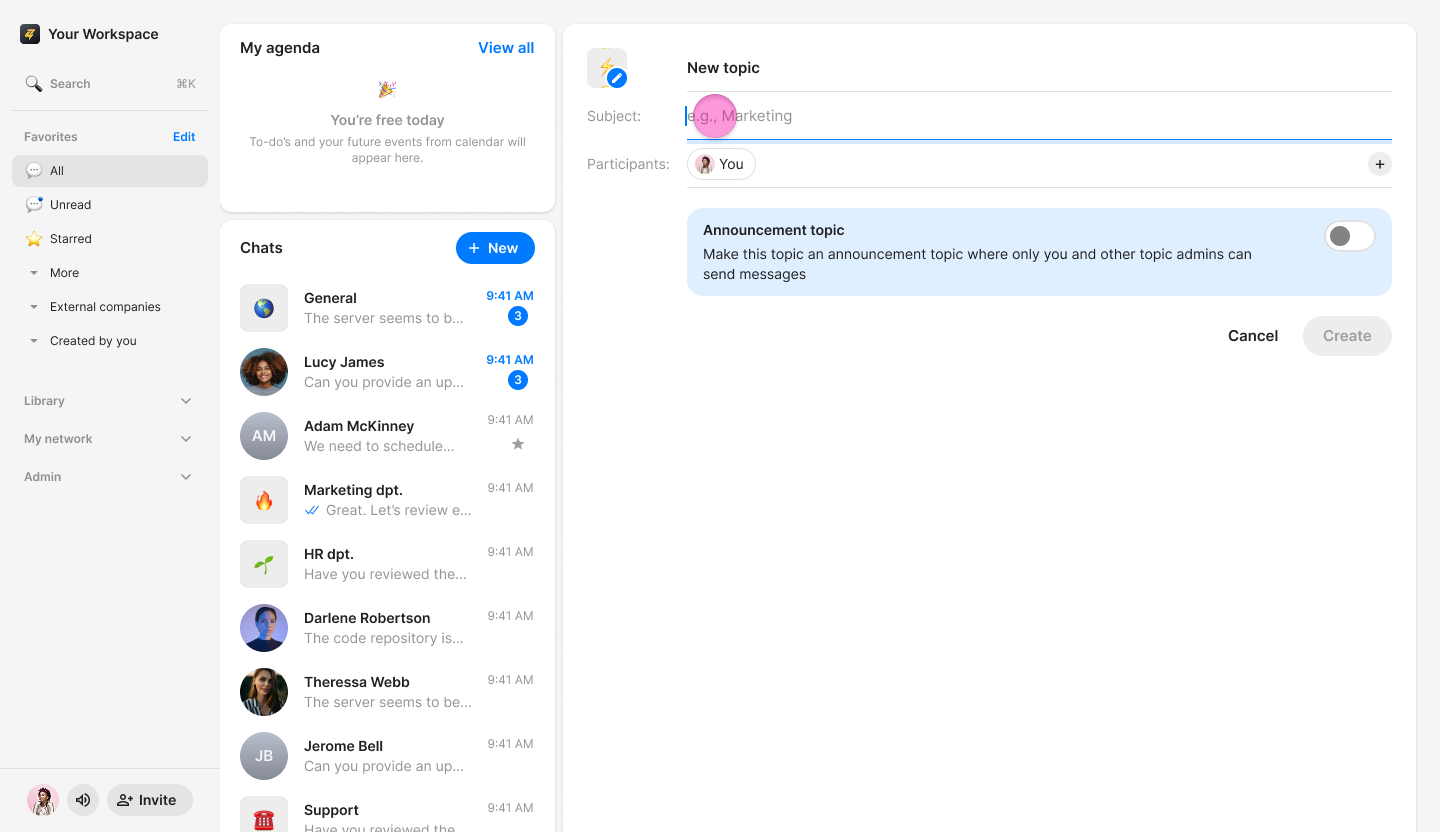
Click "Participants" to select the members you want to add.
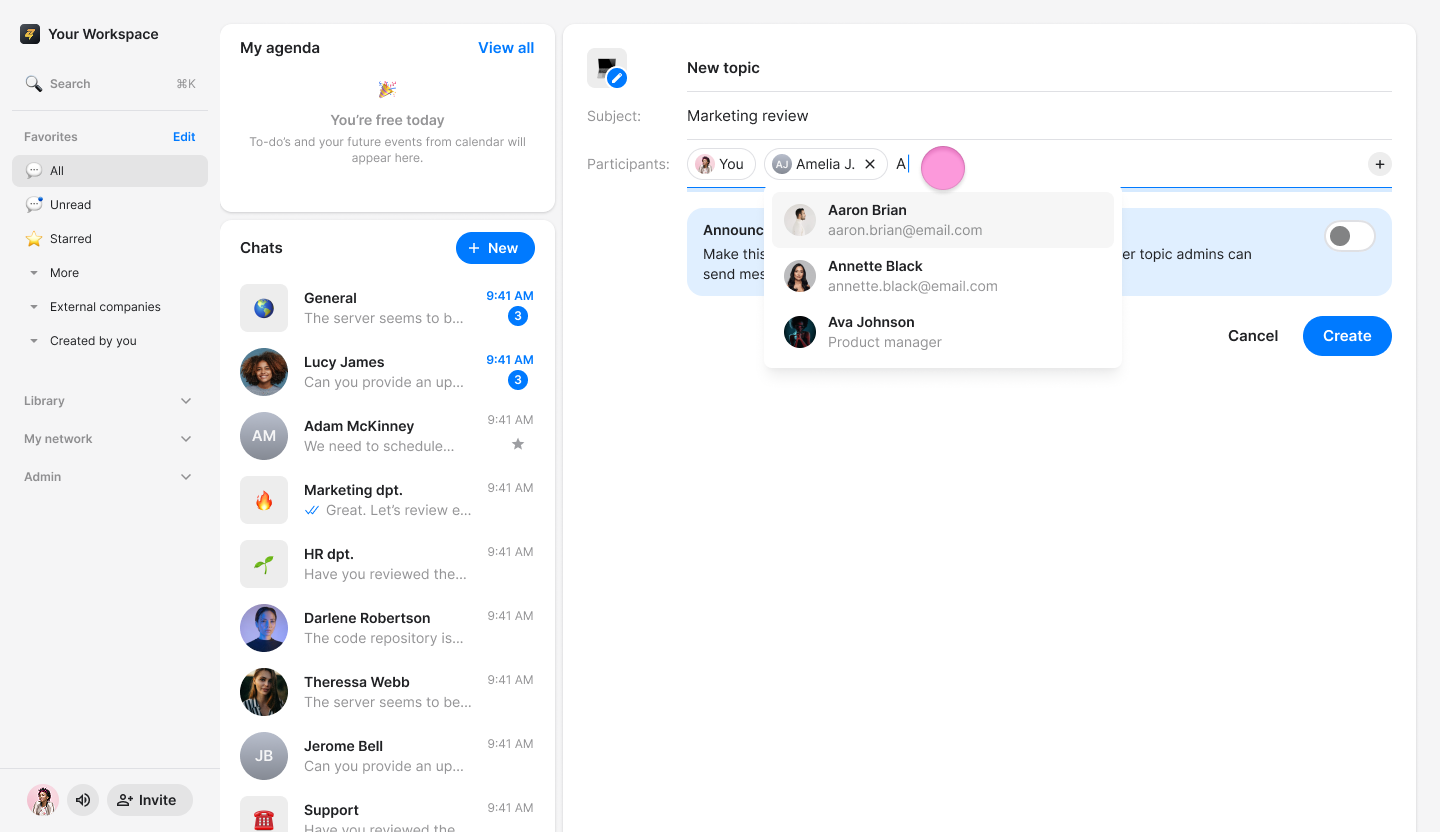
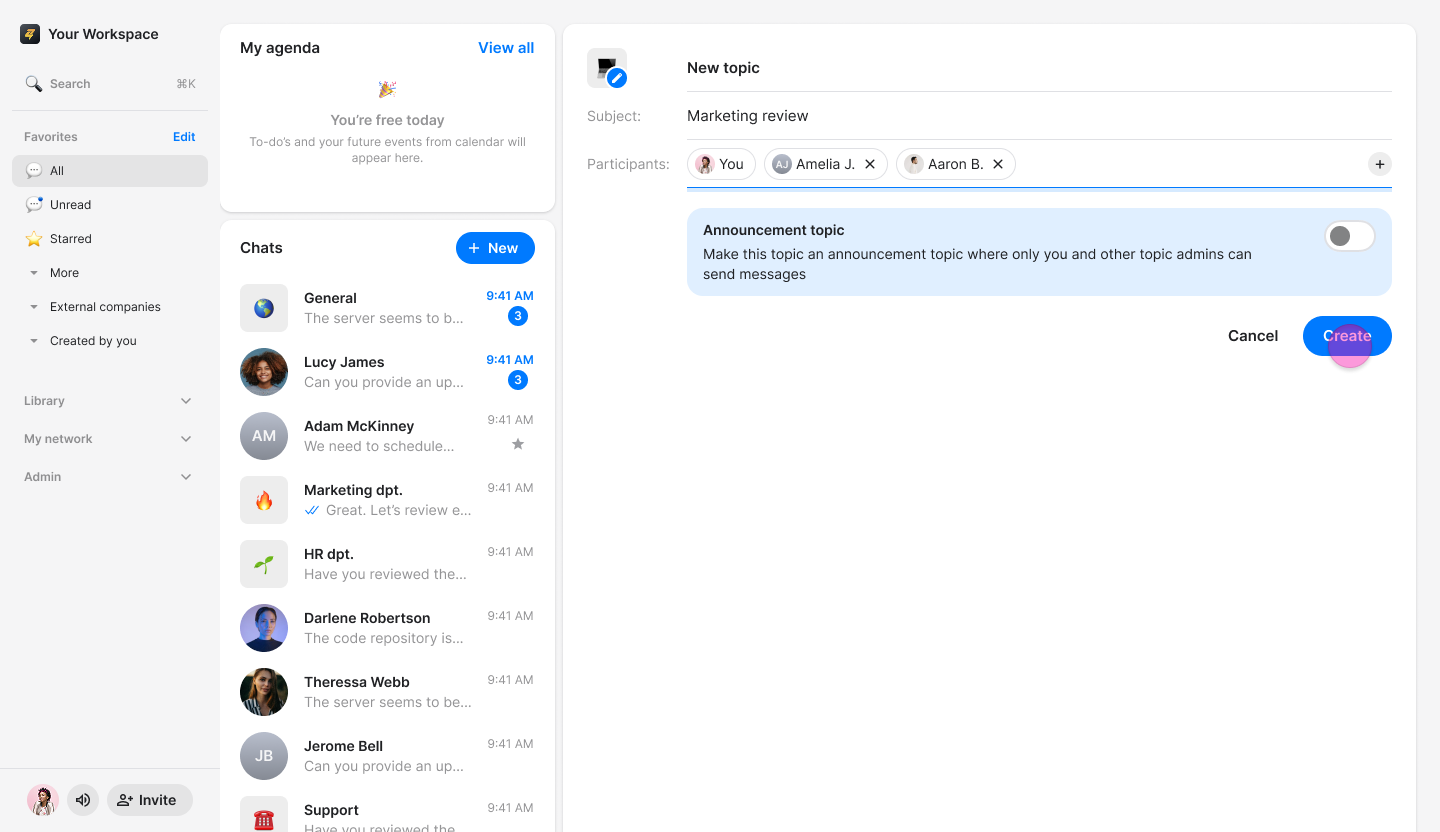
Click "Create" and you will be directed to the new topic.
Note:
The selected message will appear as the first message in the new topic with "Forwarded" written above them.
You can select multiple messages at once to start a new topic.
You can set the new topic as an announcement topic (more about announcement topics here).