
Schedule a Message
Schedule messages to be sent at a specific time, allowing you to plan ahead for reminders, announcements, or messages sent outside of non-working hours.
On Mobile (iOS & Android)
Open the chat where you want to send a scheduled message.
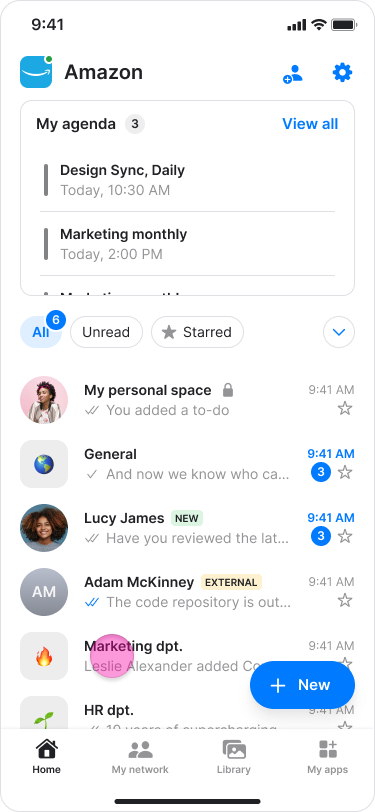
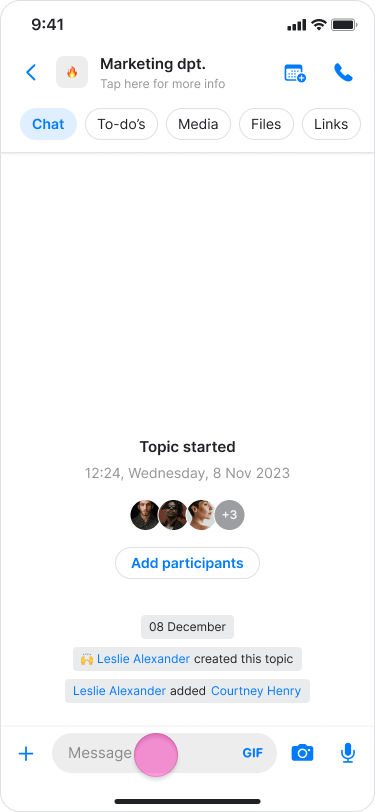
Tap in the message field to start composing your message.
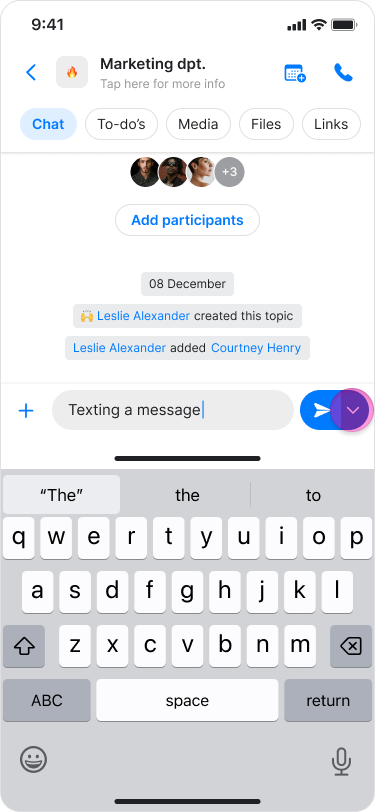
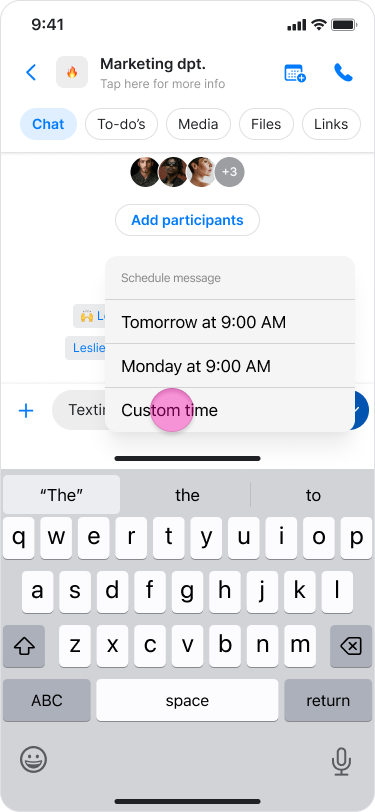
Long press on the send button (blue arrow).
Select when you want your message to be delivered:
“Tomorrow at 9:00 AM” (quick option)
“Custom time” (to select a specific date and time)
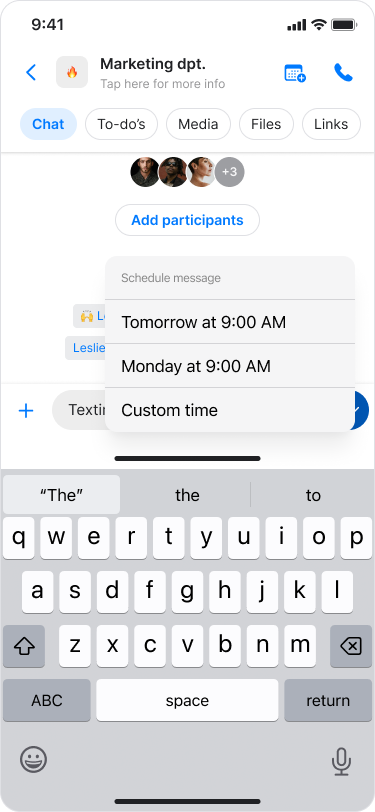
Selecting a custom time
Tap "Custom time" from the scheduling options.
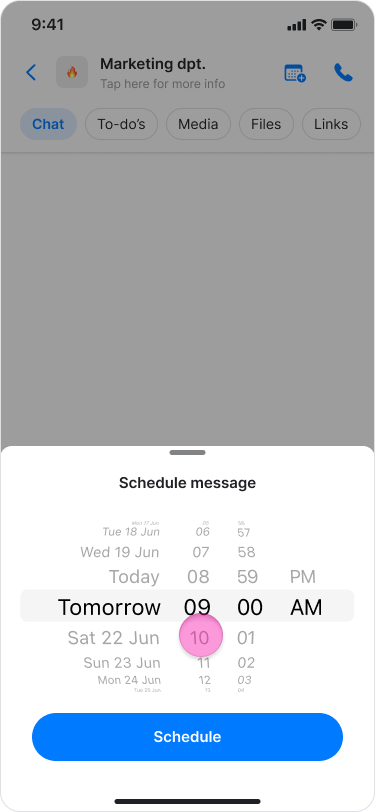
Use the date and time picker to select your preferred date.
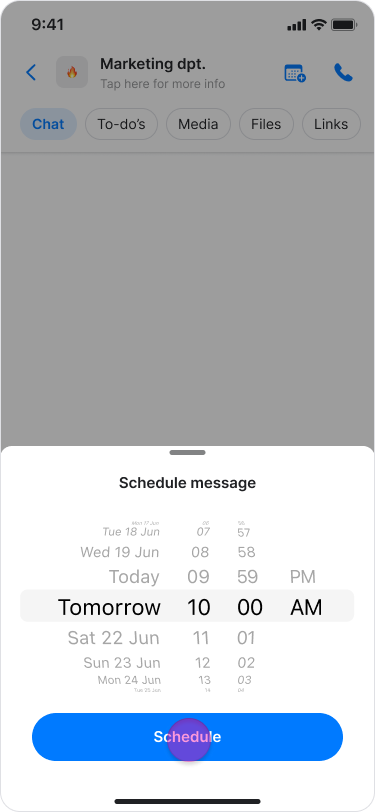
Tap "Schedule" to confirm your selection.
Note:
Scheduled messages will appear less bright than regular messages and without the sent, received, and read checkmarks. Above the message it will say at what time the message will be sent.
You can continue sending regular messages in the chat while waiting for scheduled messages to be delivered.
Regular messages will appear in the chat timeline as normal.
You can modify the message content at any time.
On Desktop (Windows, macOS, & Web App)
Open the chat where you want to send a scheduled message.
Click in the message field to start composing your message.
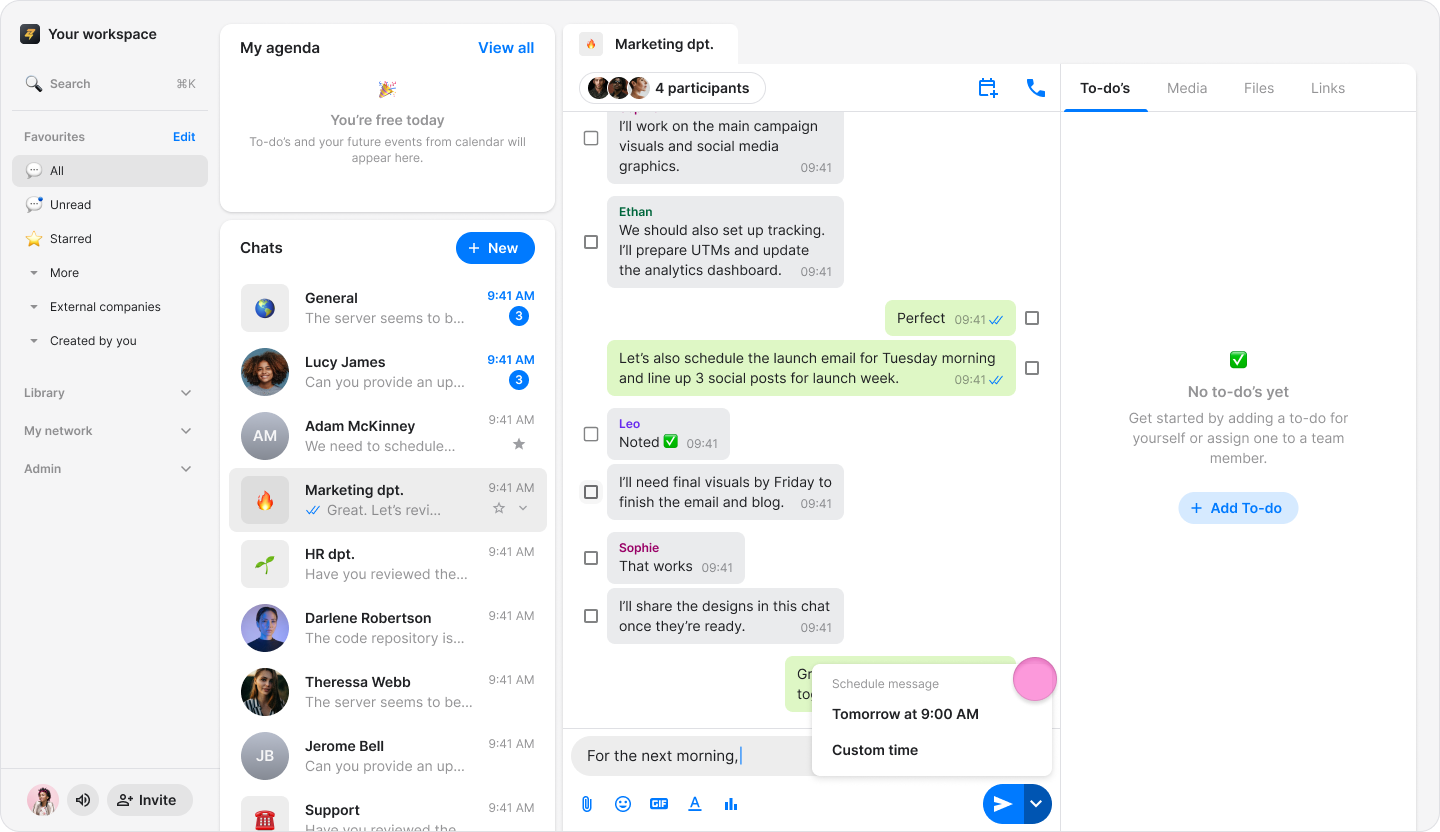
Click on the down arrow next to the send button.
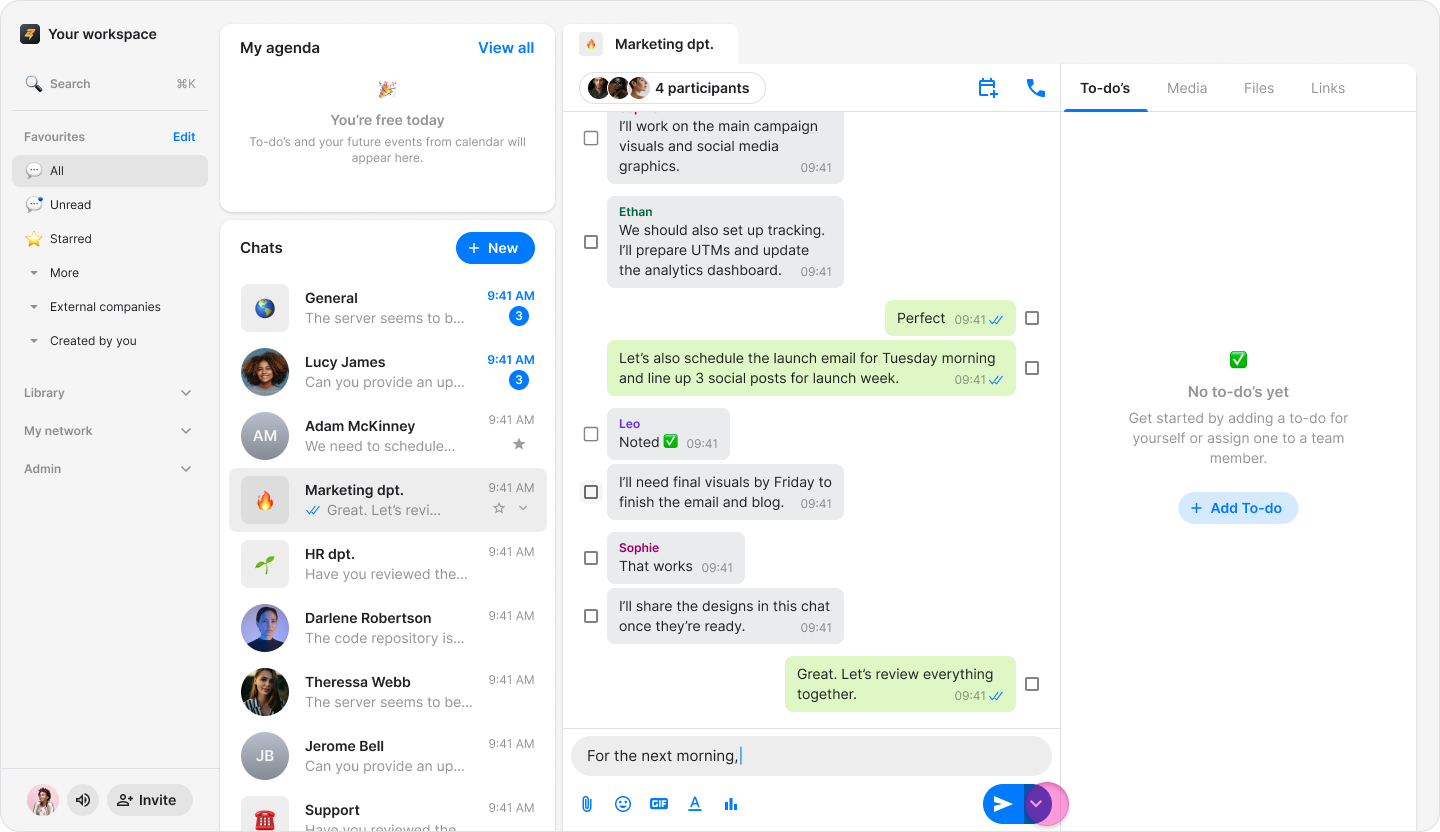
Select when you want your message to be delivered:
Tomorrow at 9:00 AM (quick option)
Custom time (to select a specific date and time)
Note:
Scheduled messages will appear less bright than regular messages and without the sent, received, and read checkmarks. Above the message it will say at what time the message will be sent.
You can continue sending regular messages in the chat while waiting for scheduled messages to be delivered.
Regular messages will appear in the chat timeline as normal.
You can modify the message content at any time.