
React to Messages
Quickly respond to messages in chats, topics, and announcement by adding an emoji reaction.
On Mobile (iOS & Android)
Find the message you want to react to in your chat.
Long press on the message until the menu appears.

At the top of the menu, you'll see a row of common emoji reactions.
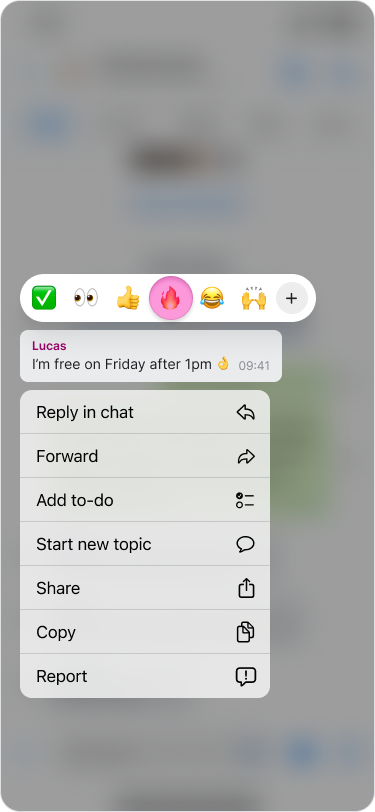
Tap on any of these emojis to add your reaction to the message or press the “+” icon to choose a different one.
Note:
You can add multiple reactions and react to your own messages.
Your reaction will appear at the bottom of the message.
You can view all reactions to a message by tapping the emoji reactions below the message.
To remove your reaction, tap the reaction emoji and then tap on your name.
On Desktop (Windows, macOS, & Web App)
Find the message you want to react to in your chat.
Click on the “emoji icon” next to the message.

You'll see a row of common emoji reactions.

Click on any of these emojis to add your reaction to the message or click the “+” icon to choose a different one.
Note:
You can add multiple reactions and react to your own messages.
Your reaction will appear at the bottom of the message.
You can view all reactions to a message by tapping the emoji reactions below the message.
To remove your reaction, tap the reaction emoji and then tap on your name.