
Search Your Workspace With AI
Turn your workspace into a searchable knowledge base to get faster answers from your chats, files, and shared information.
Access: All Users
What Workspace AI Search Can Find
Search across your entire workspace instead of just one chat. You can use AI Search to:
Find information without remembering which chat it was shared in.
Search across messages, voice message transcriptions, and shared files.
Locate information inside PDF, Word, and Excel documents.
Find text that appears in images, screenshots, and scanned documents.
Search for photos and videos based on what they contain.
Look up to-dos, polls, contacts, and other shared content across your workspace.
Ask questions about conversations, projects, or topics discussed by your team.
Find information shared by a specific person or during a particular time period.
On Mobile (iOS & Android)
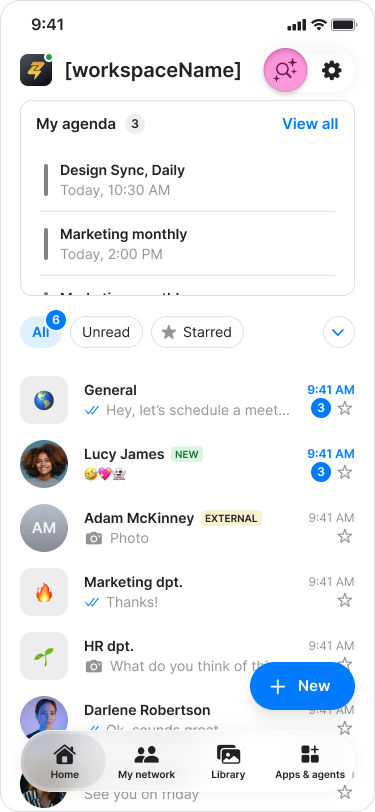
Tap on the search icon at the top right corner of your home tab.
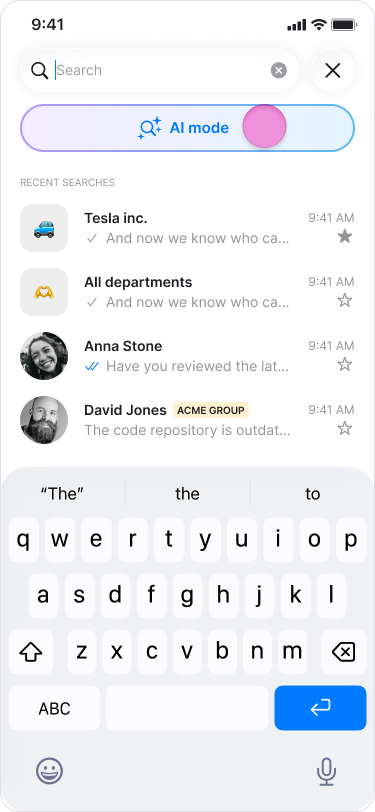
Tap "AI mode".
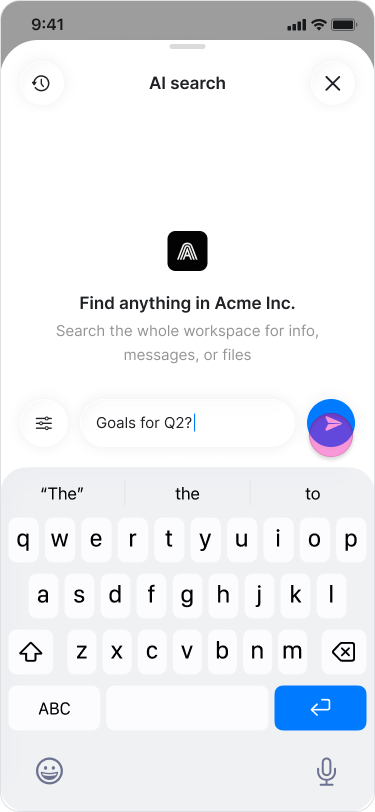
Enter your question using natural language.
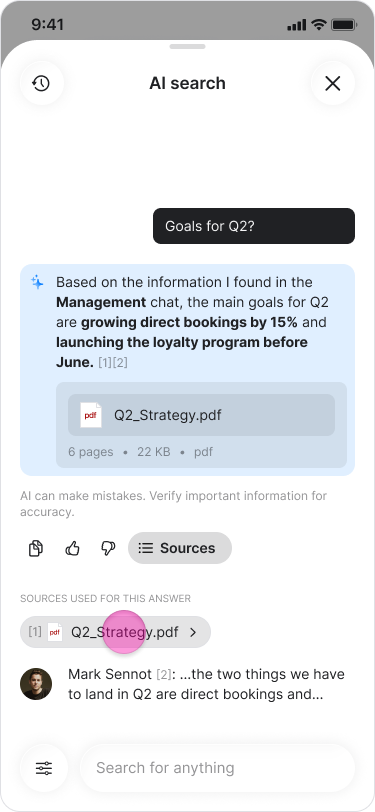
Tap the "Send" icon to view the AI-generated answer.
Tap a source to open the original chat or file.
Note:
Tap the "Preferences" button at the bottom to refine your search by applying filters such as a date range or messages from a specific person.
To view your previous AI searches, tap the menu icon in the top-left corner.
On Desktop (Windows, macOS, & Web App)
Click on the search icon at the top right corner of your home tab.
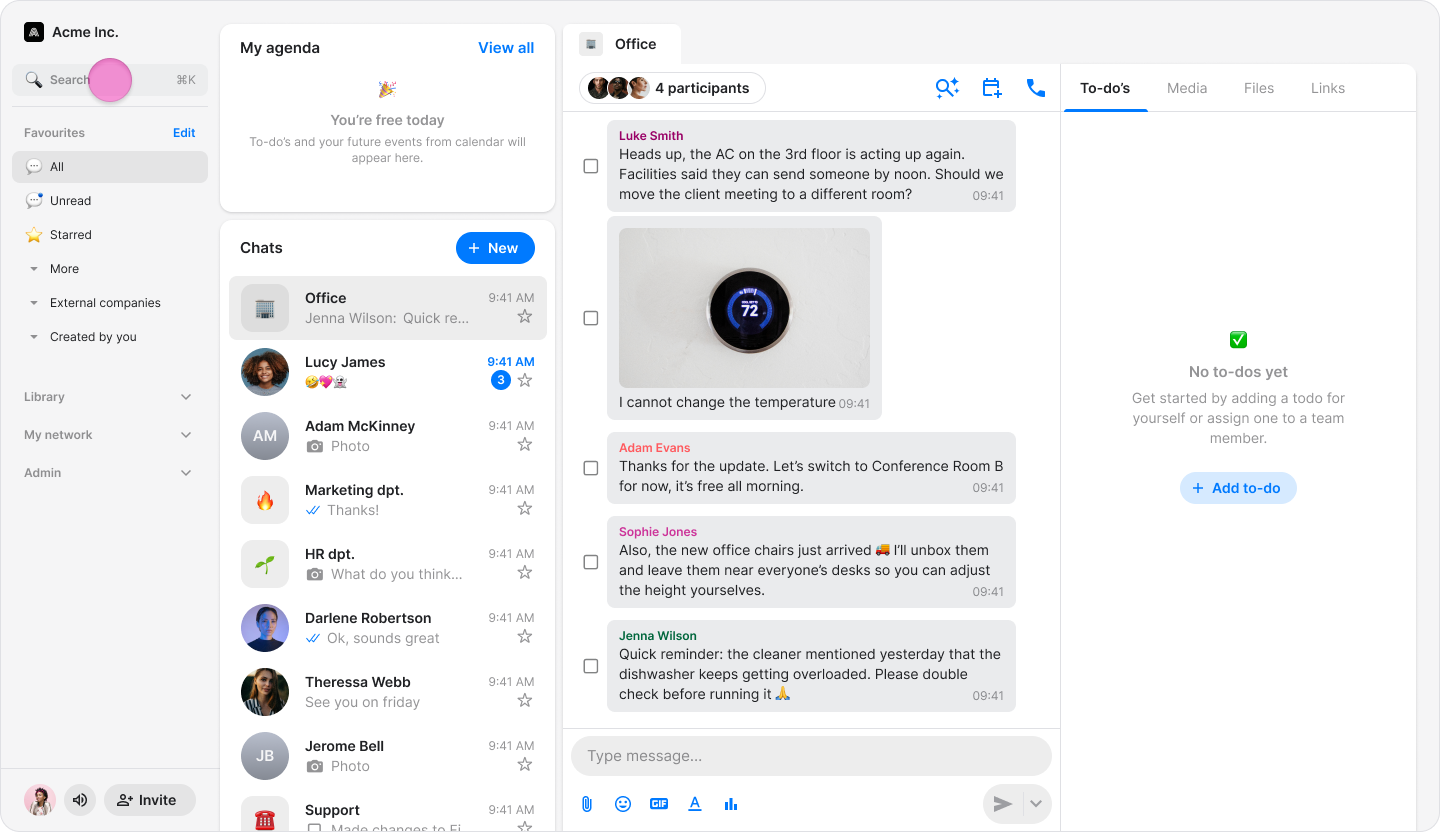
Click "AI mode".
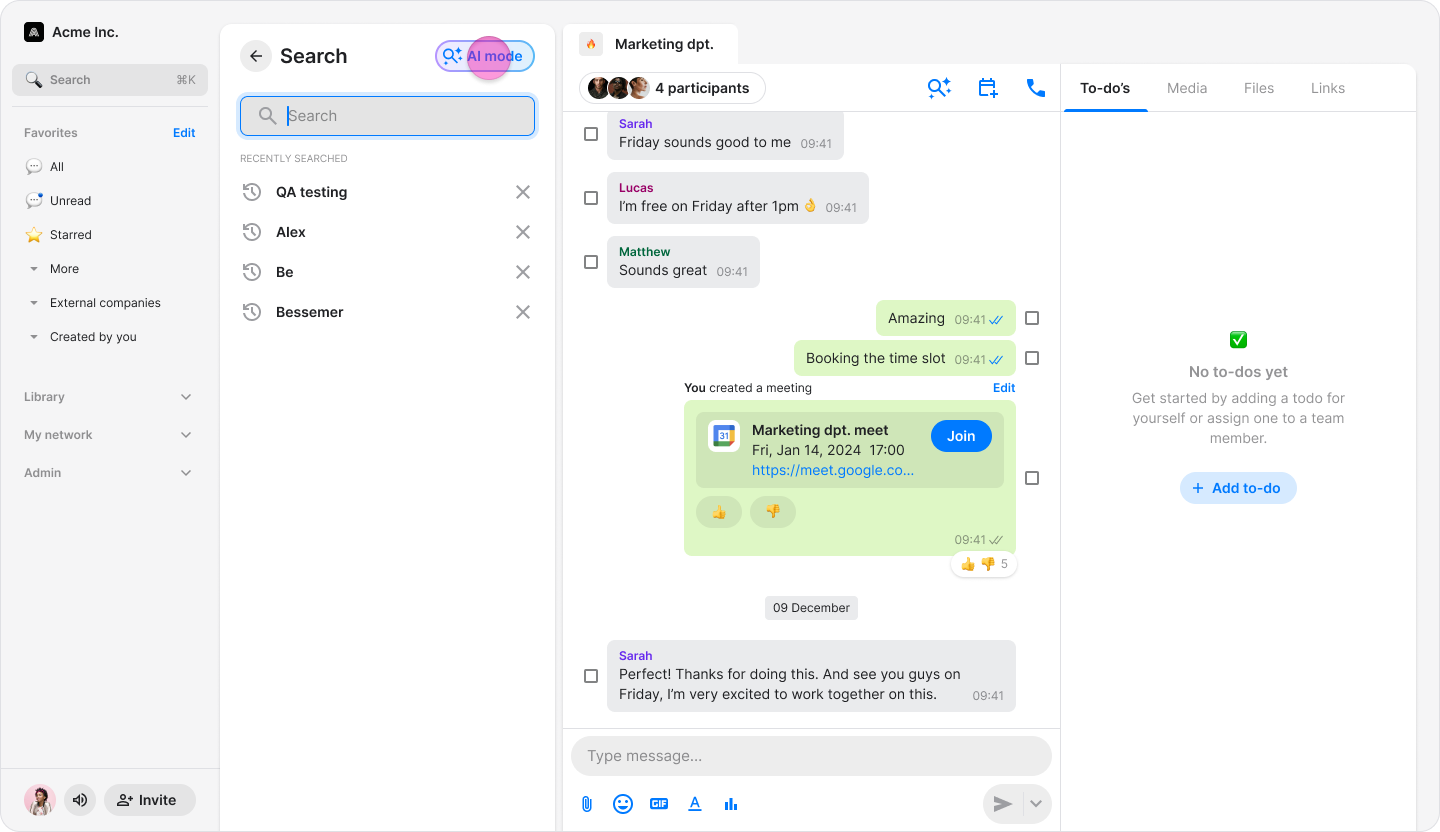
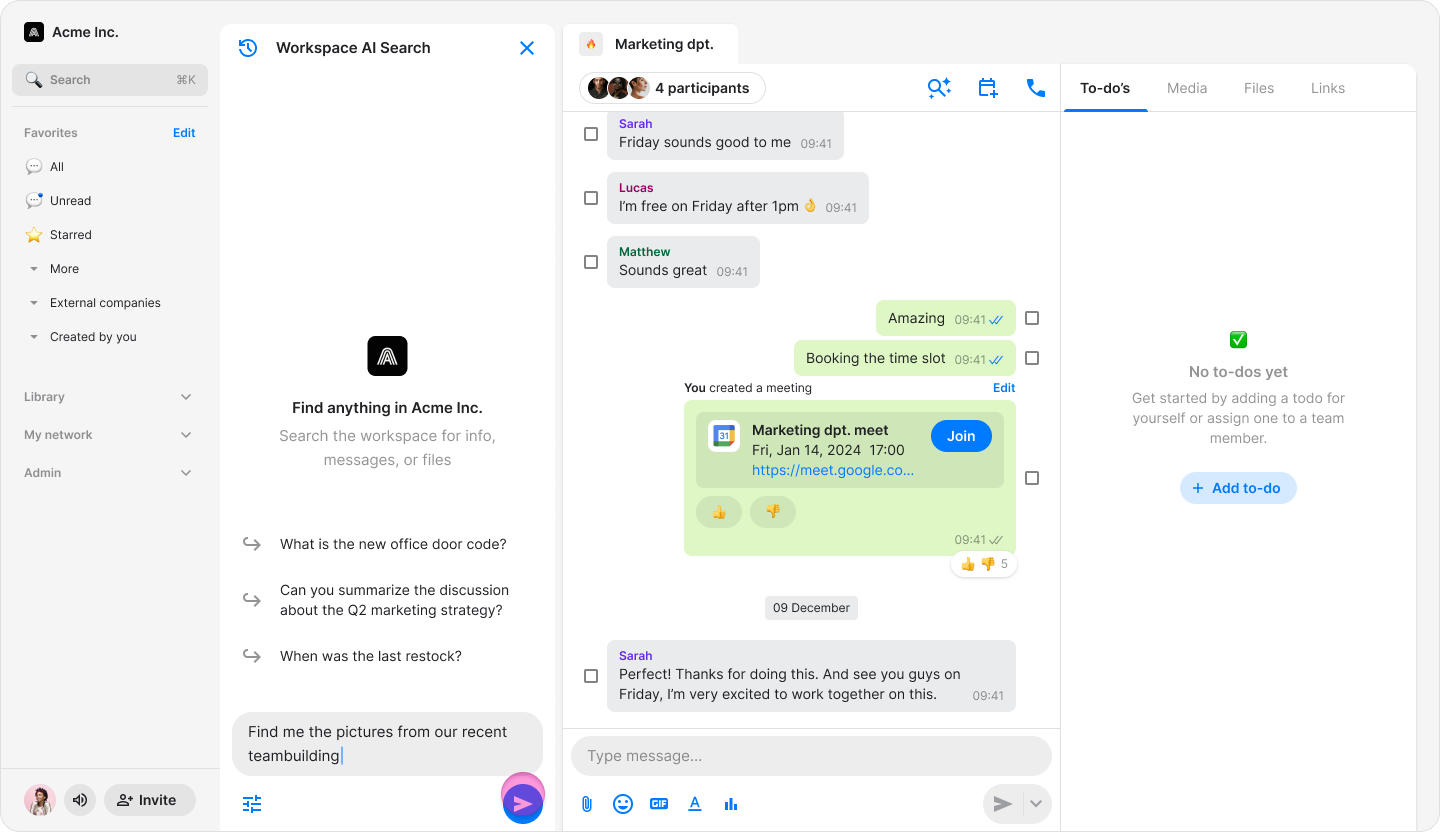
Enter your question using natural language.
Click "Search" to view the AI-generated answer.
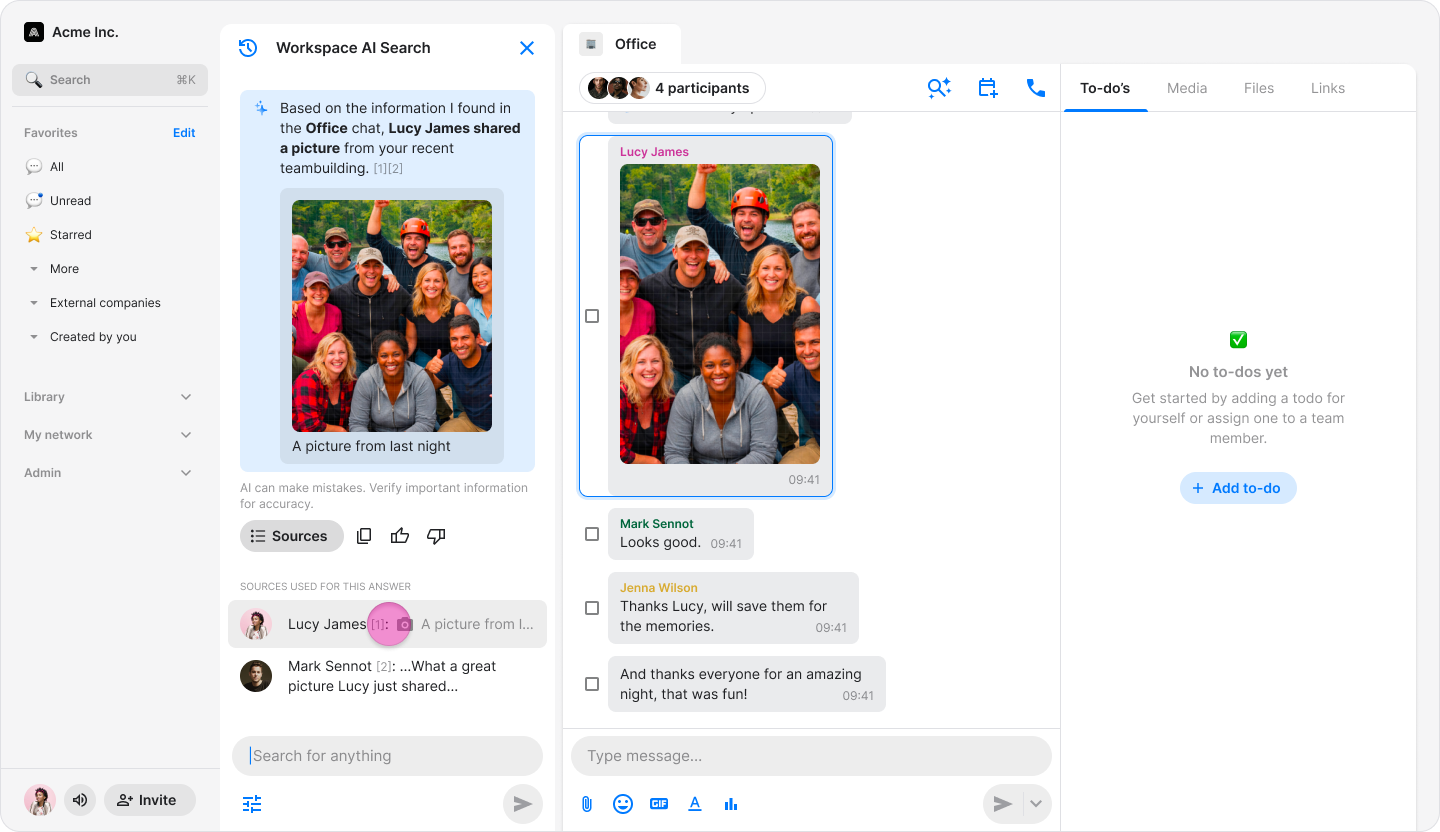
Click a source to open the original chat or file.
Note:
Click the "Preferences" button to refine your search by applying filters such as a date range or messages from a specific person.
To view your previous AI searches, click the menu icon in the top-left corner.