
Search Your Chat With AI
Use AI Search to instantly find information, summarize conversations, and locate files within a single chat.
Access: All Users
What Workspace AI Search Can Find
You can use AI Search to:
Find a message, even if you don't remember the exact wording.
Locate information from voice messages without listening to them again.
Find shared files and information inside PDF, Word, and Excel documents.
Search for text that appears in images, such as invoice numbers, receipts, or screenshots.
Find photos and videos based on what's shown in them.
Look up to-dos, polls, contact details, or GIFs that were shared.
Ask about the chat's activity, such as who was most active or when something was discussed.
Find conversations about a specific topic, person, or time period.
On Mobile (iOS & Android)
Open the chat you want to search.
Tap the "Search" icon.

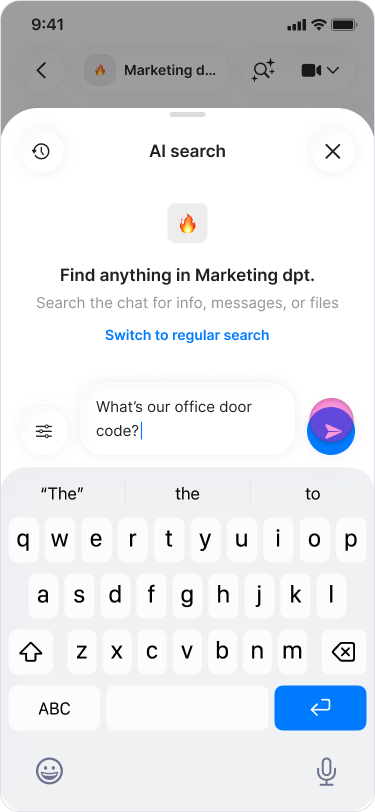
Enter your question.
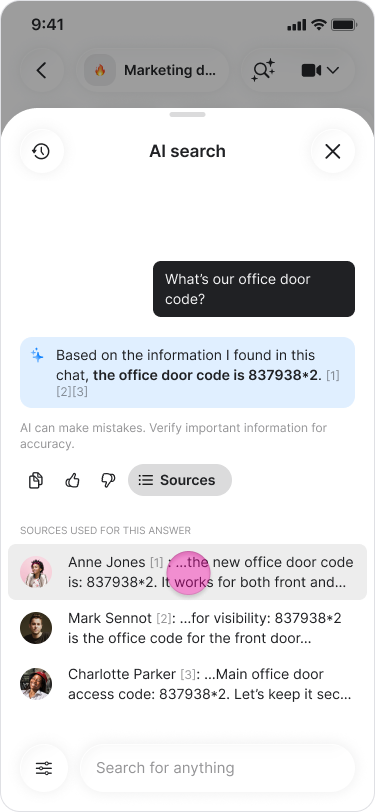
Tap the "Send" icon to view the AI-generated answer.
Tap a source to open the original message or file.
Note:
You can switch to standard keyword search at any time from the AI Search screen.
To view your previous AI searches, tap the menu icon in the top-left corner.
Tap the "Preferences" button to refine your search by applying filters such as a date range or messages from a specific person.
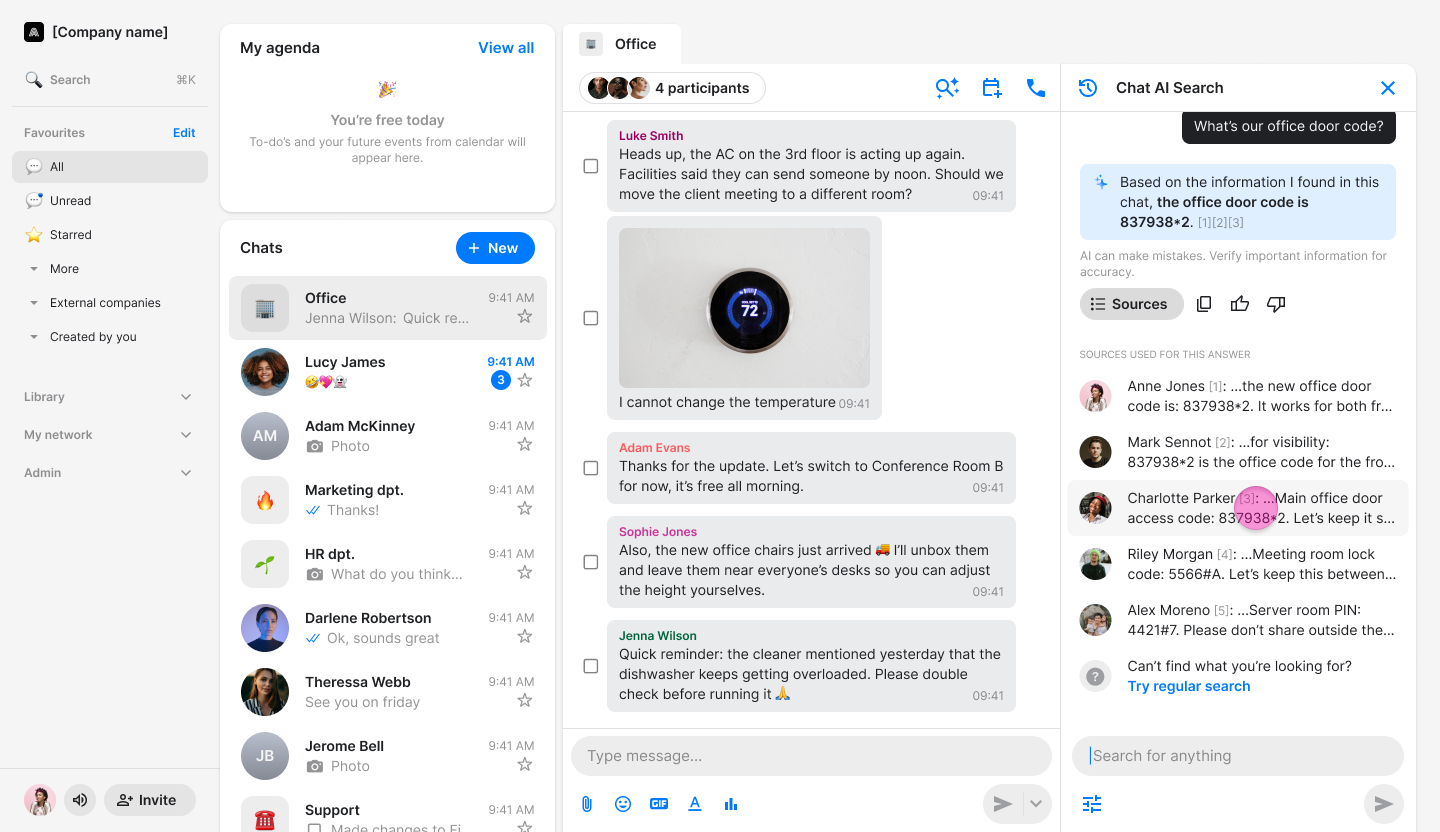
On Desktop (Windows, macOS, & Web App)
Open the chat you want to search.
Click the "Search" icon.
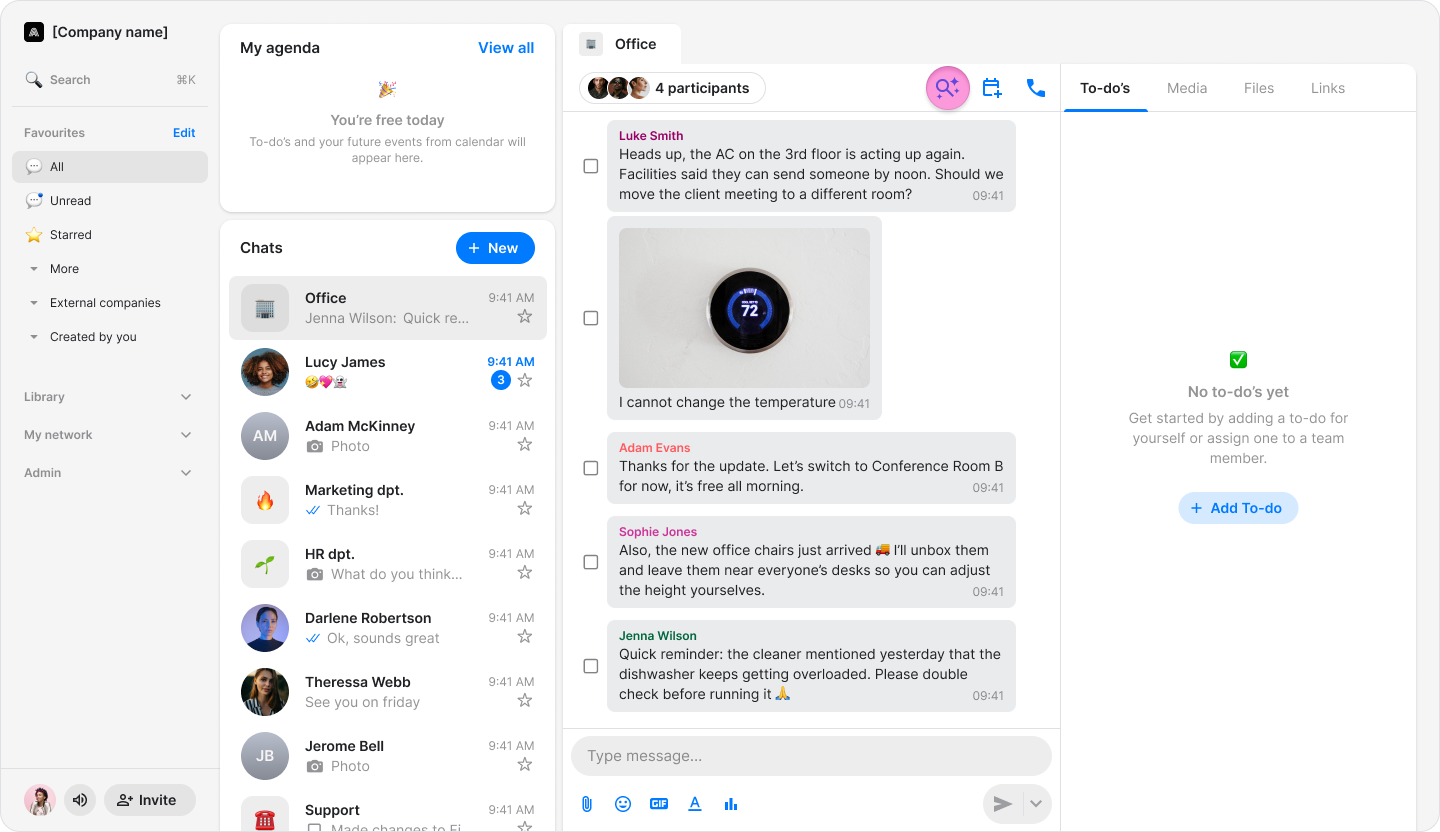
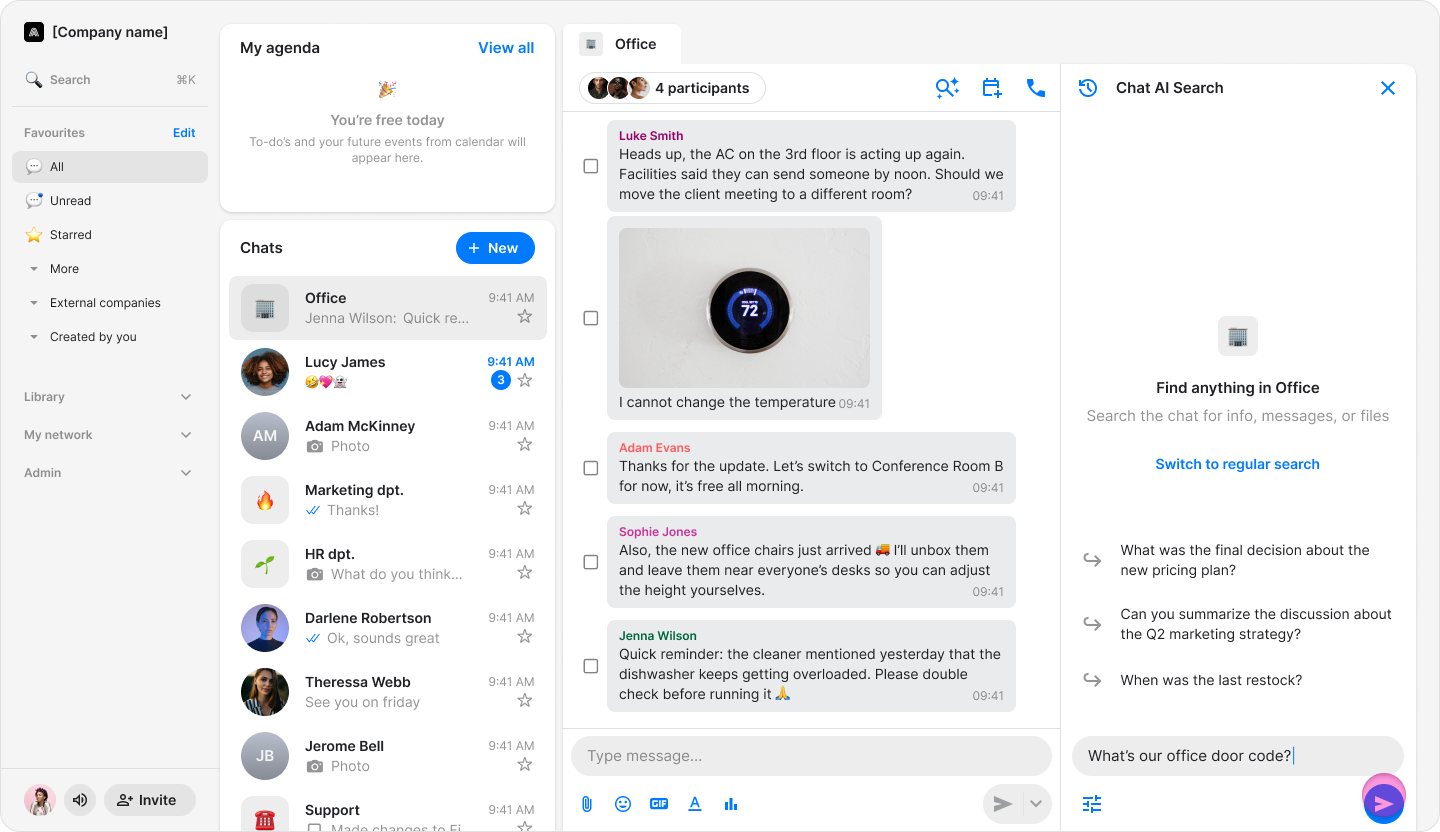
Enter your question.
Click the "Send" icon to view the AI-generated answer.
Tap a source to open the original message or file.
Note:
You can switch to standard keyword search at any time from the AI Search screen.
To view your previous AI searches, click the menu icon in the top-left corner.
Click the "Preferences" button to refine your search by applying filters such as a date range or messages from a specific person.