
Share Documents
Share files and documents directly within your chats to keep your team informed and connected.
On Mobile (iOS)
Open a chat.
Tap the "+" button to the left of the message field.

Tap "Document" from the menu.
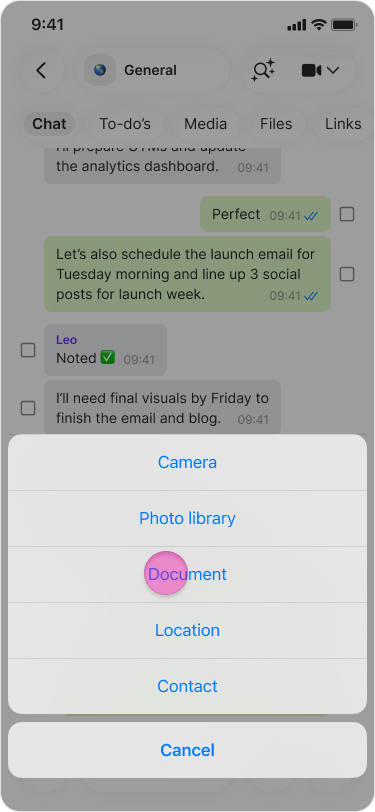
Select the document you want to share.
Tap "Open" to send.
On Mobile (Android)
Open a chat.
Tap the "Paper clip" icon in the message field.

Tap “Document”.
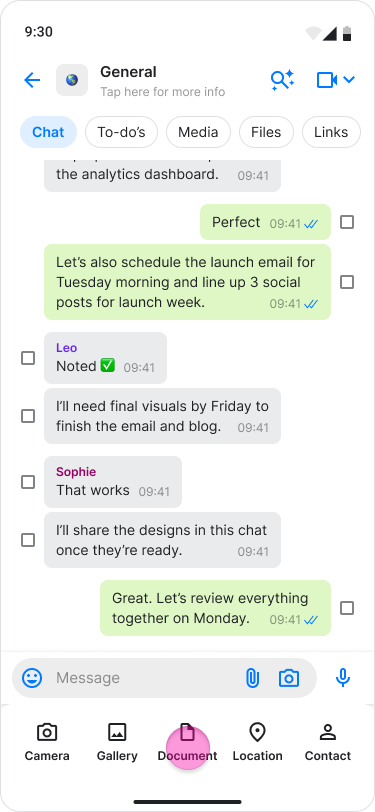
Select the document you want to share.
Tap the document to send it.
Note:
You can select and upload multiple documents at once.
Direct Sharing: You can share documents directly from your email or local folders into the chat.
On Desktop (Windows, macOS, & Web App)
Click the "Paperclip" icon to the left of the text box.
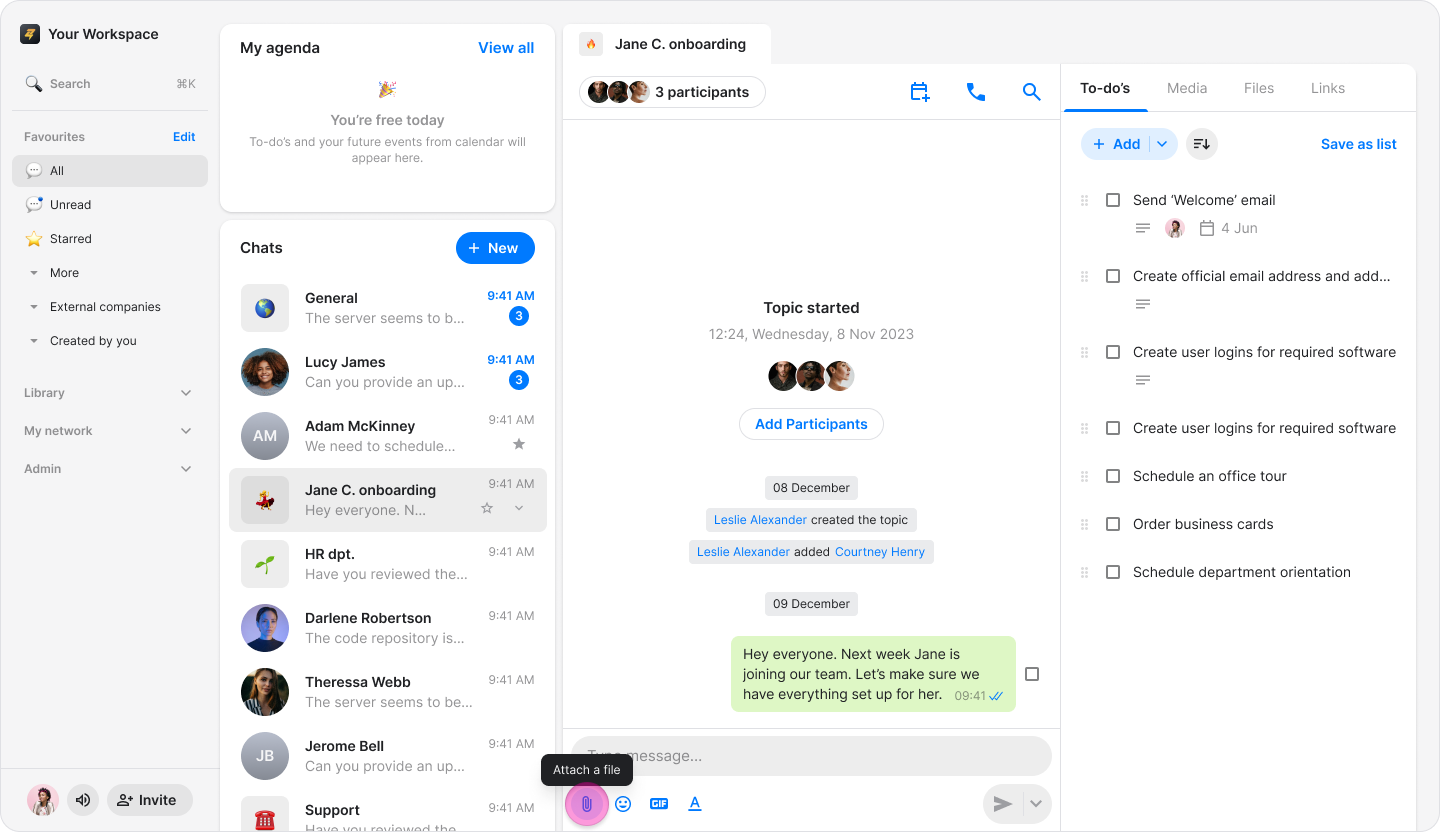
Select the document from your computer’s files.
Click "Open" or "Done" to send the file.
Note:
You can select multiple documents from the same folder at once.
You can drag and drop documents directly into the chat.
⭐ Pro Feature: Admins can manage permissions to determine which users are allowed to save photos and videos to their devices.