
Format Your Messages
Customize your messages with styles like bold, italics, and lists to highlight important information and make your communication more effective.
On Mobile (iOS & Android)
Open any chat.
Tap the text message field.
Start writing your message.
Tap the "Aa" icon (on iOS), or the “Tt” icon (on Android) that appears in the text message field to see all the options:
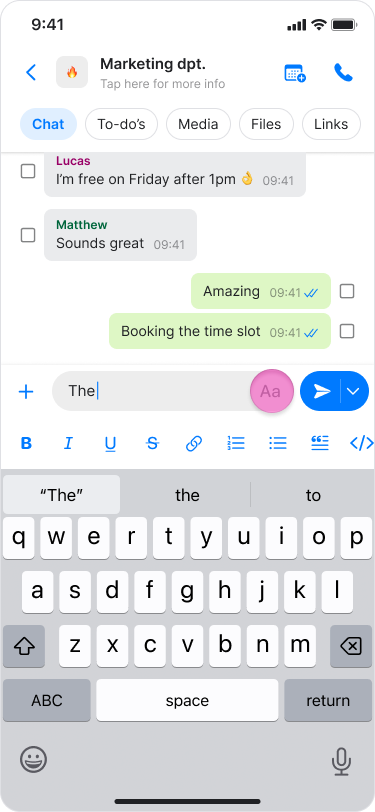
To bold text, tap the "B" icon.
To italicize text, tap the "I" icon.
To underline text, tap the "U" icon.
To apply a strikethrough, tap the "S" icon.
To attach a link, tap the "link" icon.
To create a numbered or bulleted list, select the corresponding list icons.
To format a quote, tap the quote icon.
To enter code text or a code block, tap the "code" icons.
Quick Options
For Bold text: place an asterisk (*) before and after the words you want to highlight.
For strikethrough text: place a tilde (~) before and after your text.
Note:
You can apply these formatting styles to captions when sending photos.
You can select specific words within the text to adjust the formatting.
Starting a sentence with a number will automatically convert the text into a numbered list.
You can add a hyperlink to specific words rather than the entire sentence.
On Desktop (macOS)
Open any chat.
Click the text message field.
Start typing your message.
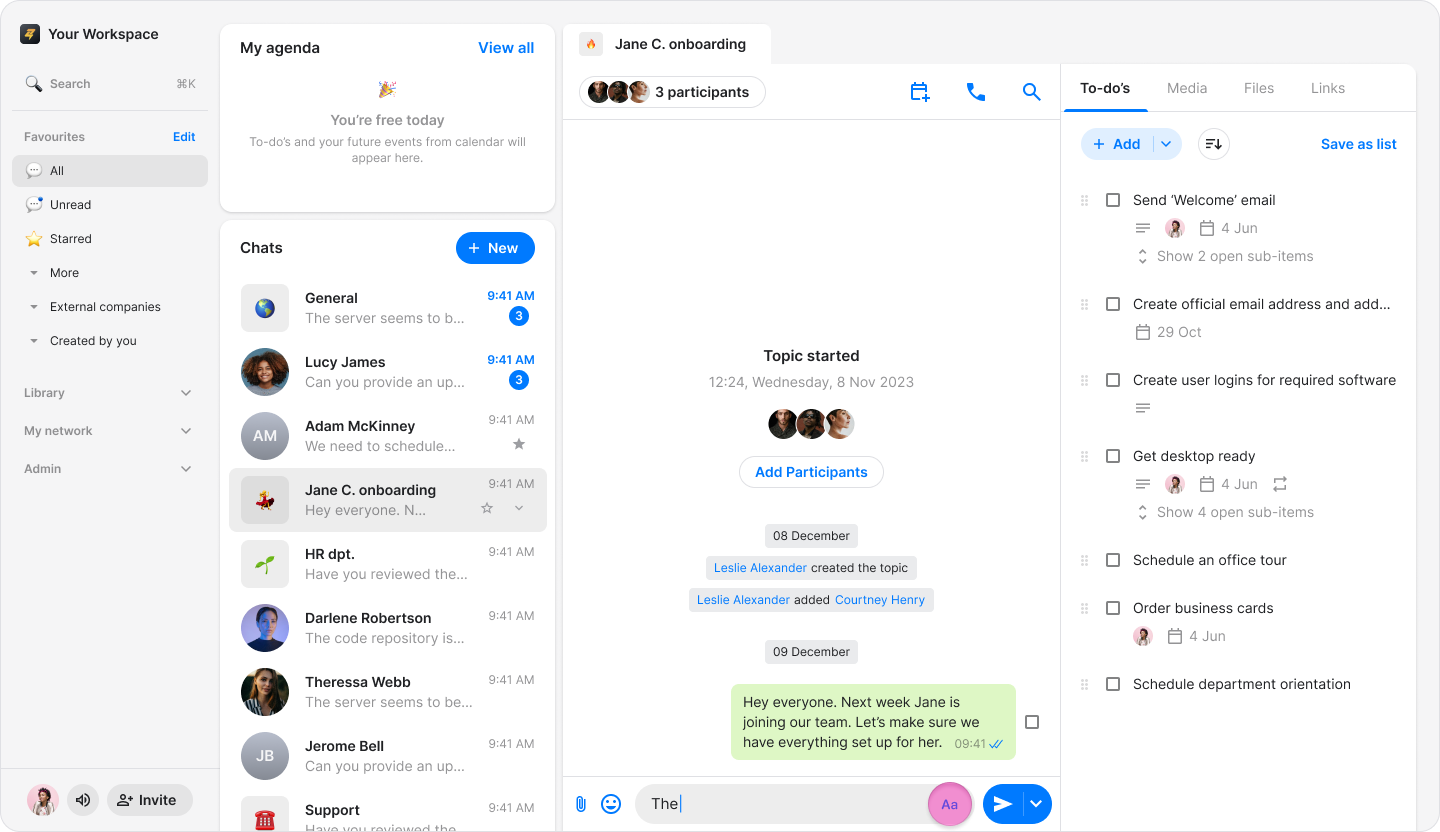
Click the "Aa" icon that appears in the text message field to see all the options:
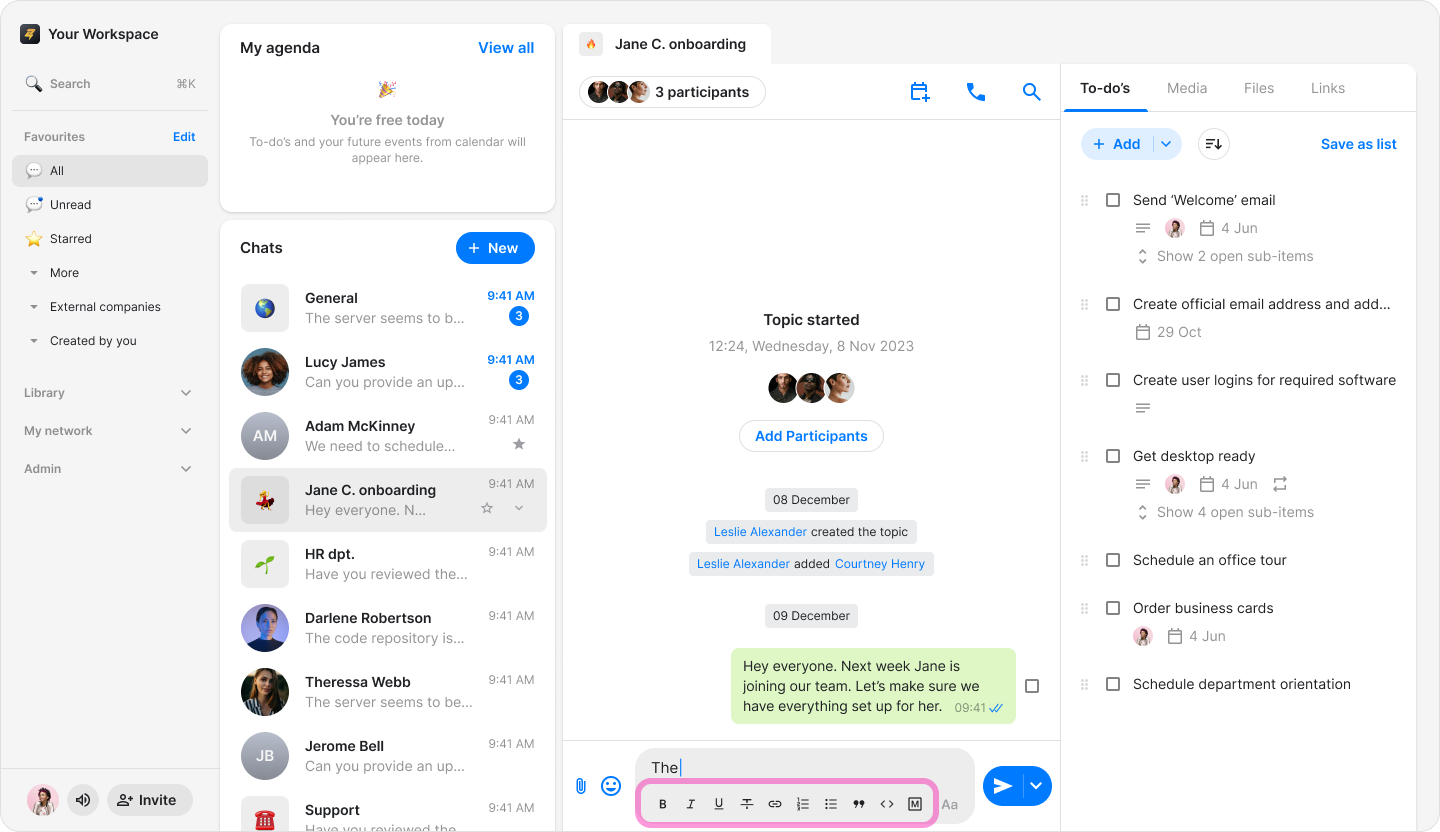
To bold text, tap the "B" icon.
To italicize text, tap the "I" icon.
To underline text, tap the "U" icon.
To apply a strikethrough, tap the "S" icon.
To attach a link, tap the "link" icon.
To create a numbered or bulleted list, select the corresponding list icons.
To format a quote, tap the quote icon.
To enter code text or a code block, tap the "code" icons.
Quick Options
For Bold text: place an asterisk (*) before and after the words you want to highlight.
For strikethrough text: place a tilde (~) before and after your text.
Note:
You can apply these formatting styles to captions when sending photos.
You can select specific words within the text to adjust the formatting.
Starting a sentence with a number will automatically convert the text into a numbered list.
You can add a hyperlink to specific words rather than the entire sentence.