
Disappearing Messages
Enhance privacy and reduce chat clutter by setting messages to automatically delete after a selected time period.
On Mobile (iOS & Android)
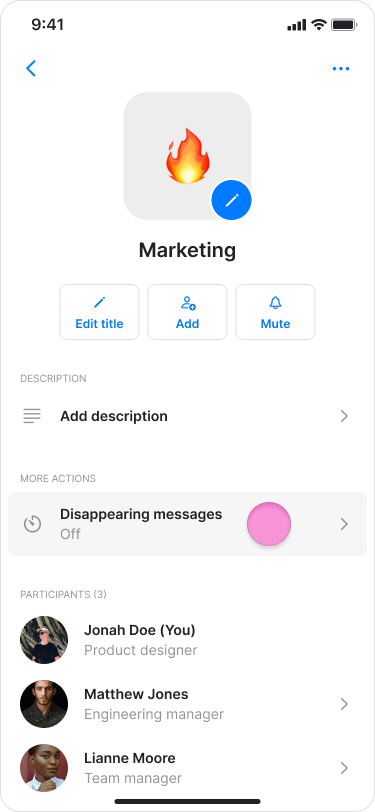
Open the chat or topic where you want to enable disappearing messages.
Tap the topic or chat name at the top.

Tap "Disappearing messages".
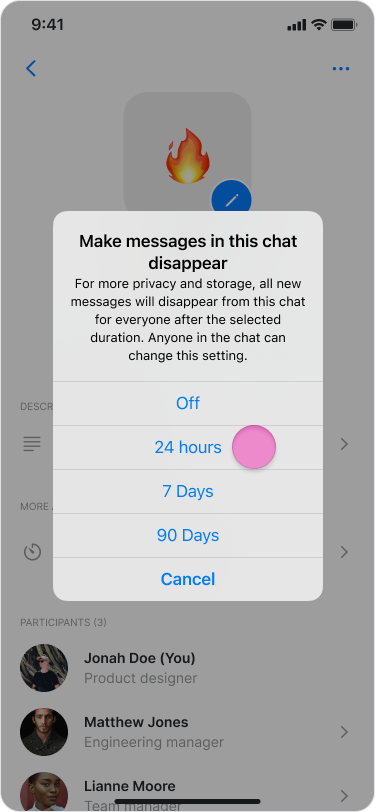
Select a duration for how long messages remain visible:
Off (messages won't disappear)
24 Hours
7 days
90 days
Tap "Confirm" (Android only).
Note:
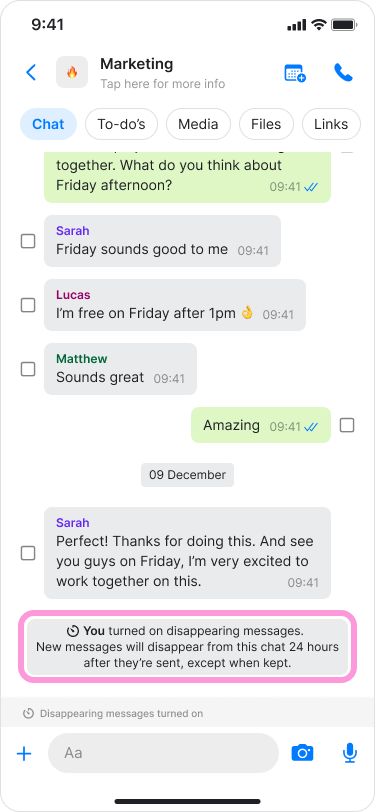
An automatic message will be sent in the chat showing who enabled the feature and the selected duration.
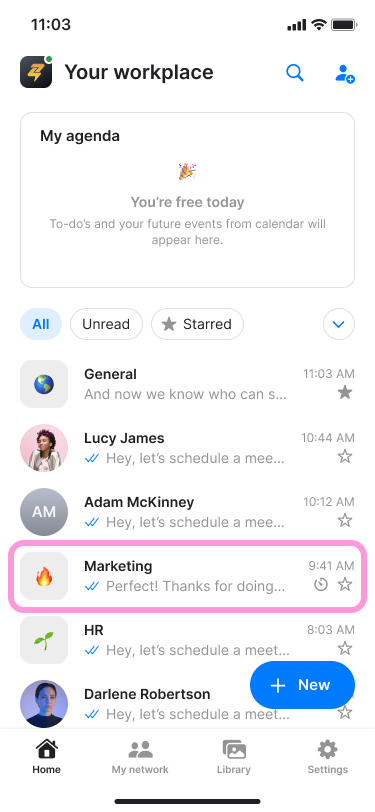
Chats with this feature active will display a clock icon on the home screen.
You can change or turn “Off” the disappearing message at any time by following the same steps.
On Desktop (Windows, macOS, & Web App)
Open the chat or topic where you want to enable disappearing messages.
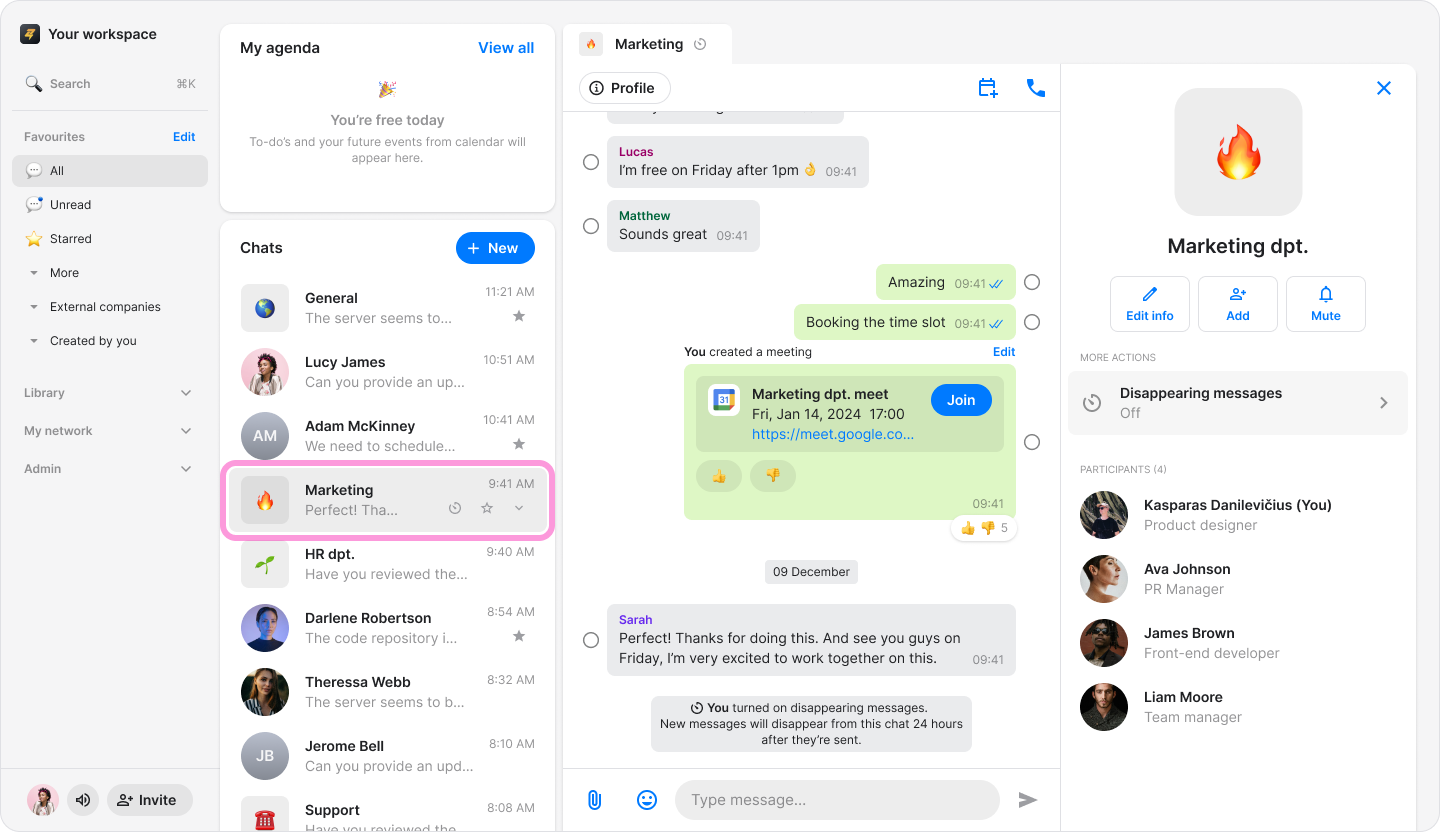
Click “Profile” at the top.
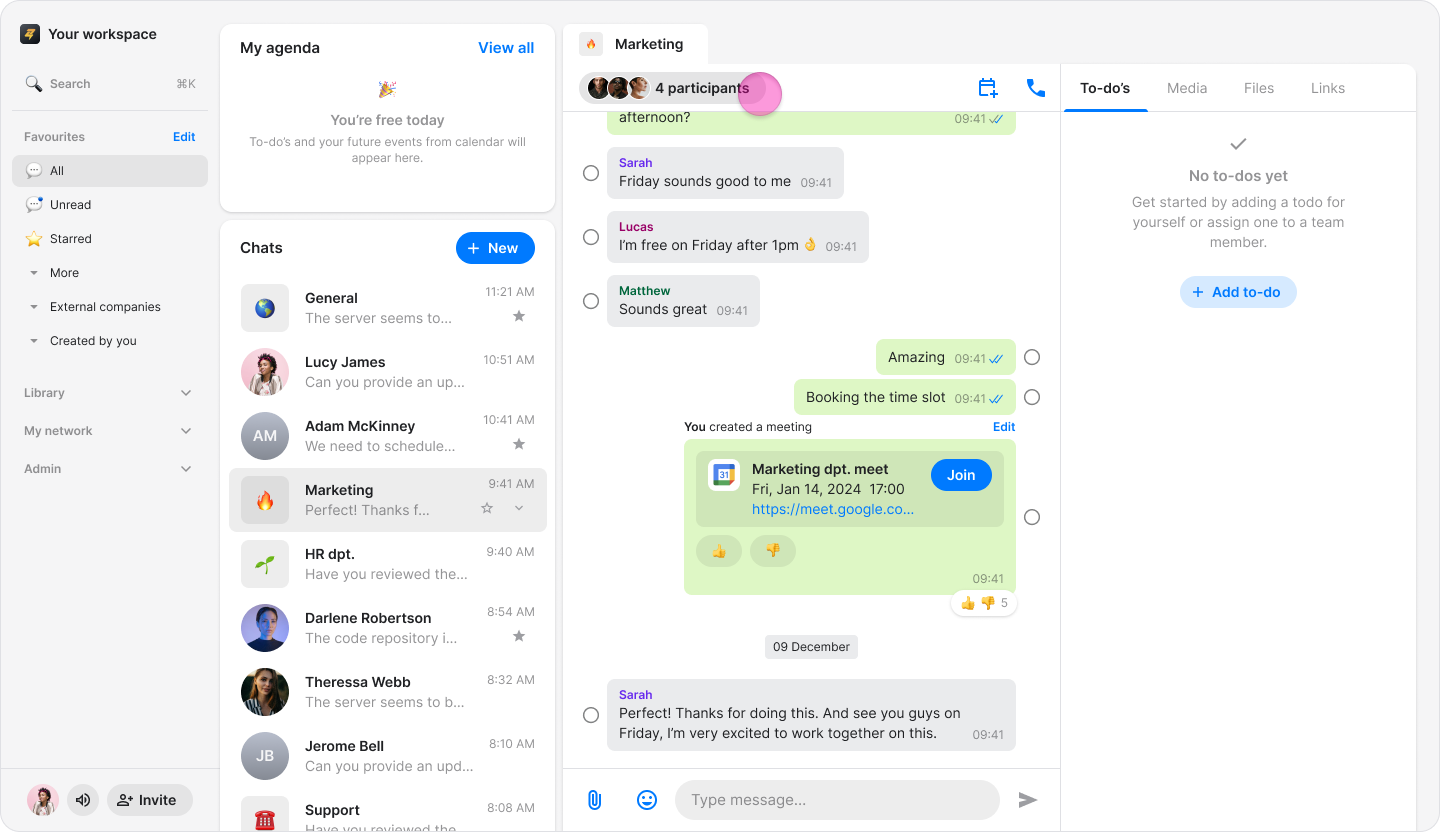
Click "Disappearing messages" in the tab on the right.
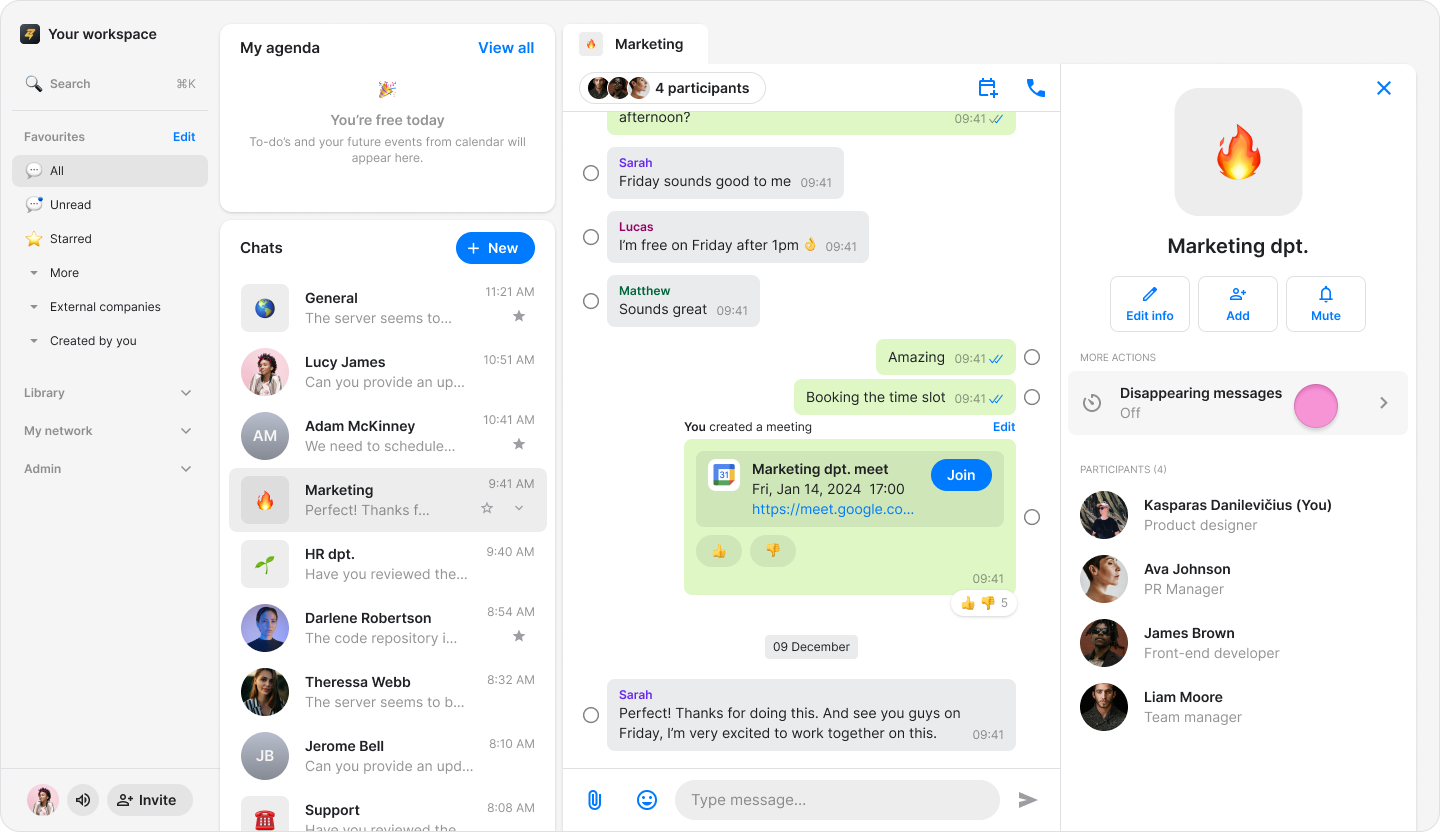
Select a duration for how long messages remain visible:
Off (messages won't disappear)
24 Hours
7 days
90 days
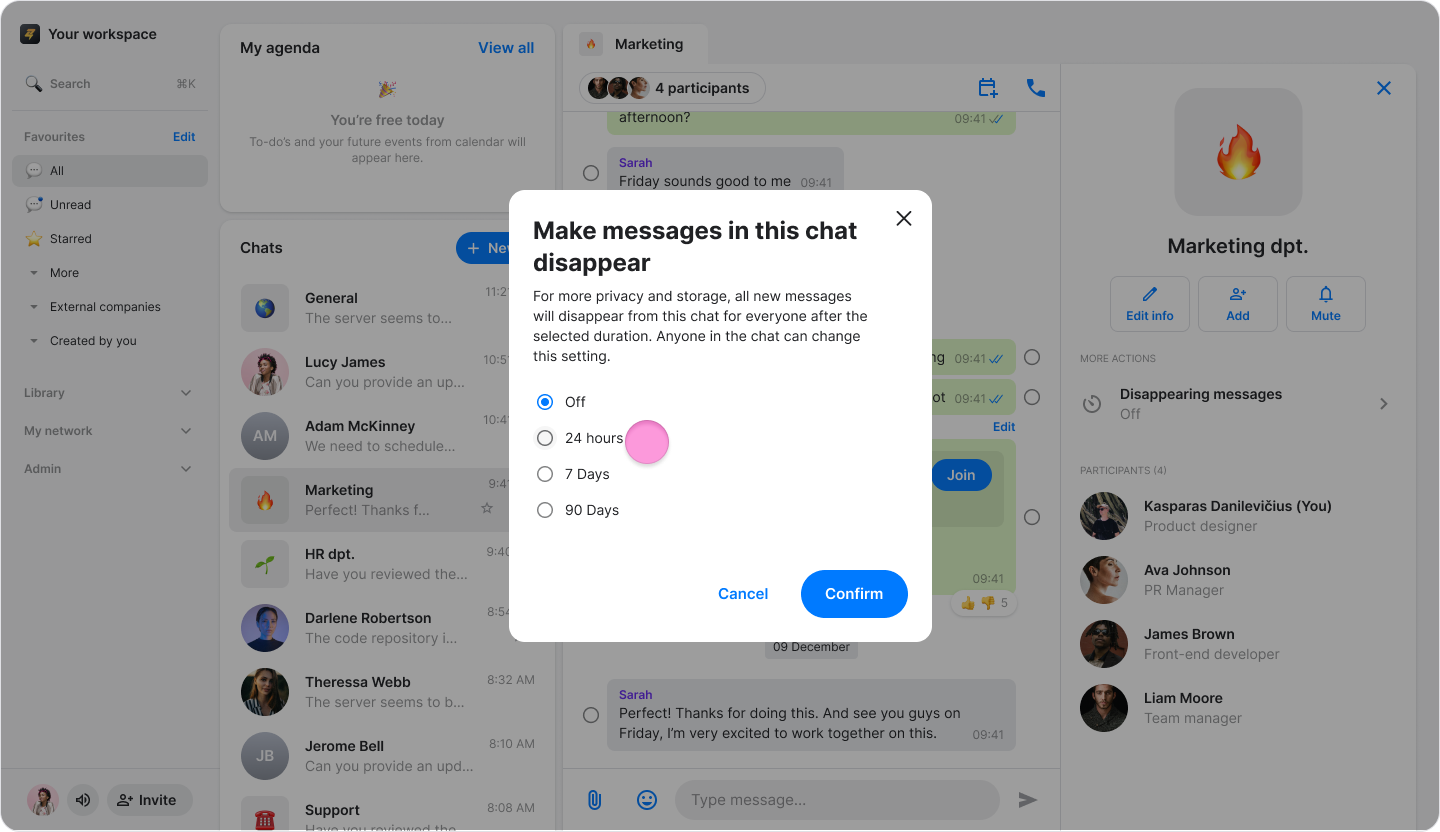
Click “Confirm” (Windows & Web App only)
Note:
An automatic message will be sent in the chat showing who enabled the feature and the selected duration.
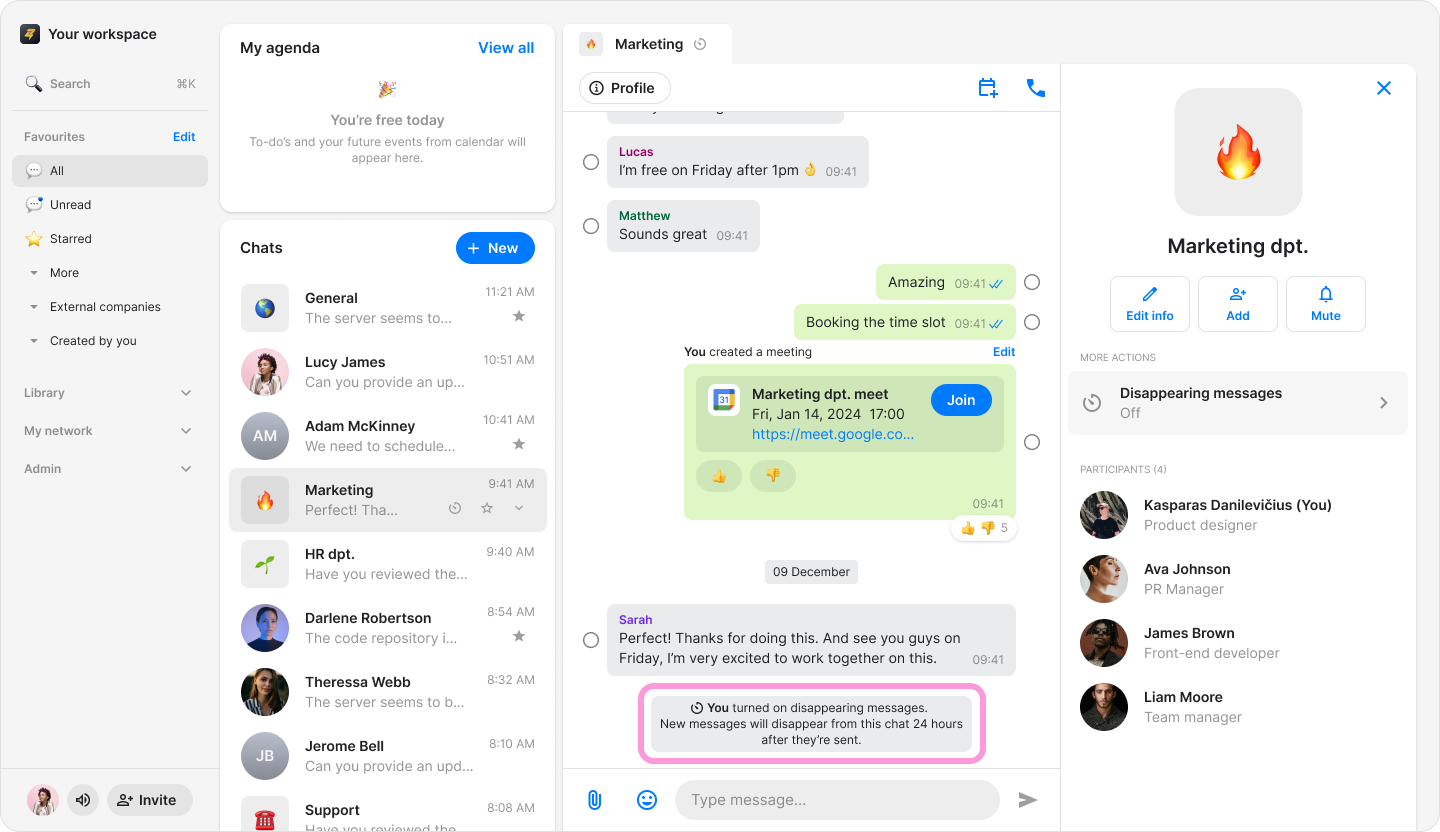
Chats with this feature active will display a clock icon on the home screen.
You can change or turn “Off” the disappearing message at any time by following the same steps.