
Request to Join your Company's Workspace
If you can't automatically join your company's workspace during onboarding, you can request to join it.
A workspace admin must approve your request before you can access the workspace.
See Approving Join Request for more information.
On Mobile (iOS & Android)
With Company Code:
Download the Zenzap app.
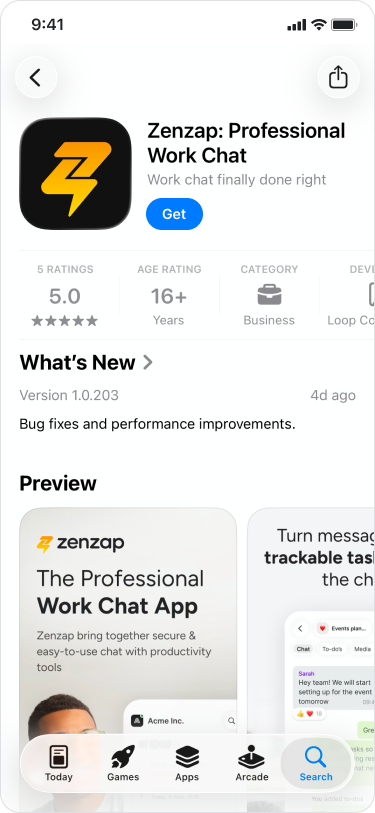
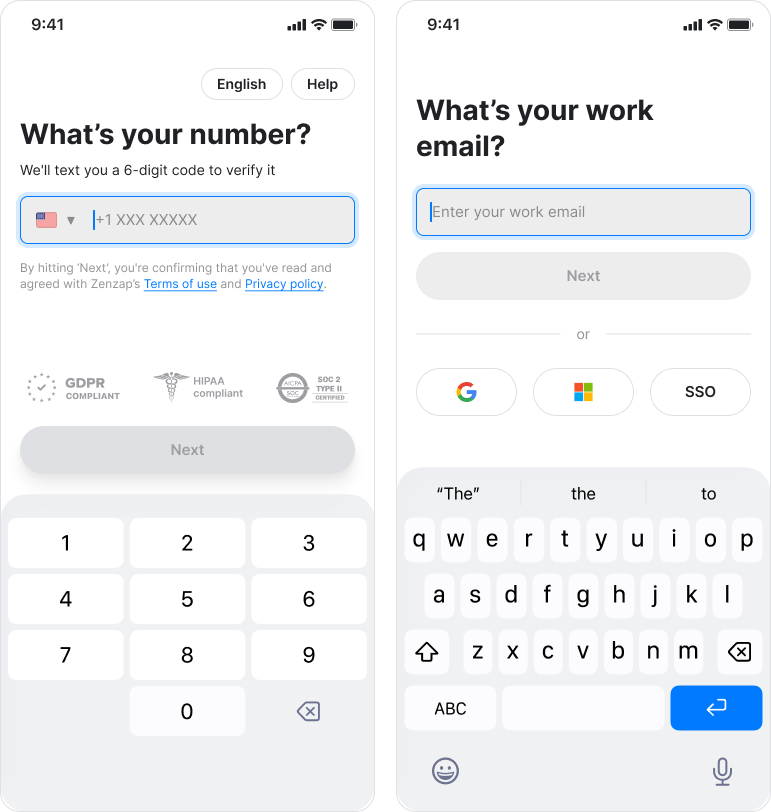
Complete the onboarding prompts, including adding your phone number and email.
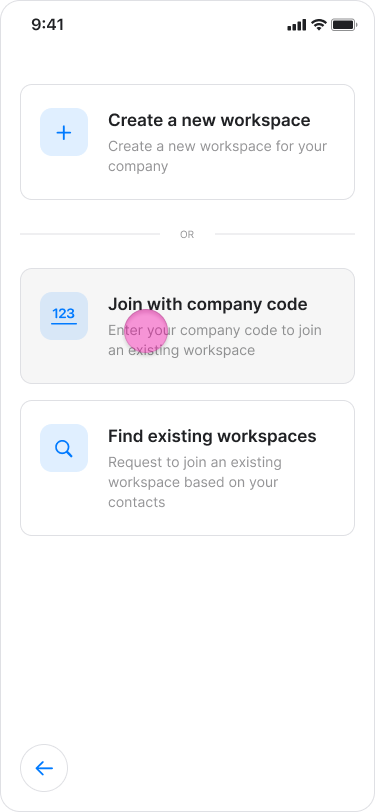
Tap “Join with company code”.
Enter the company code you received.
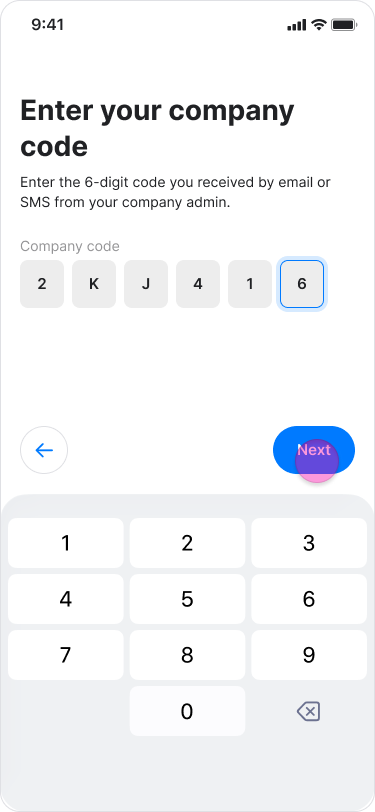
Tap “Next”.
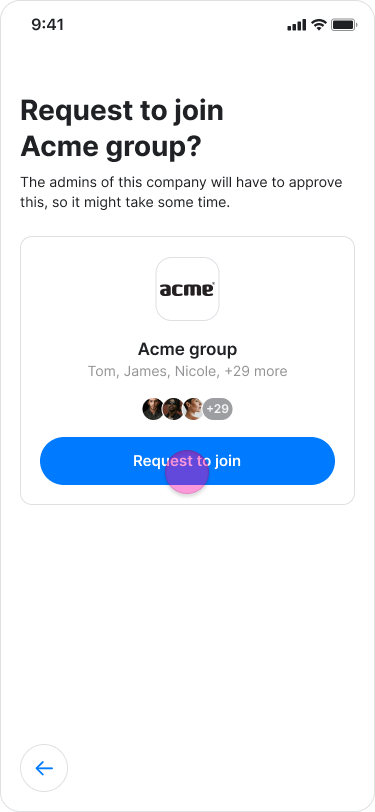
Tap “Request to join” on the workspace you want to join.
With Workspace Suggestions:
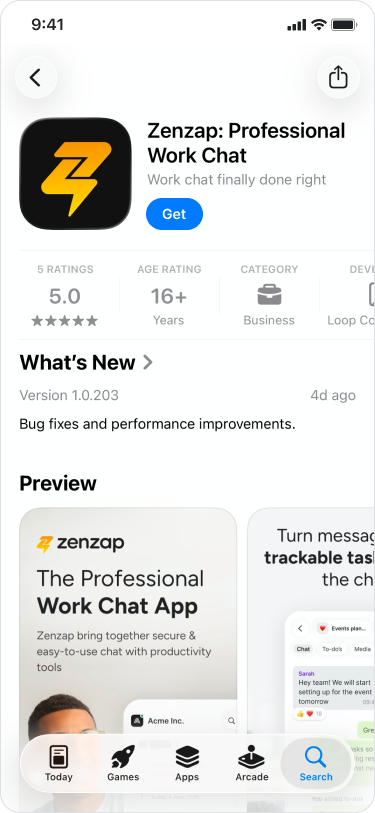
Download the Zenzap app.
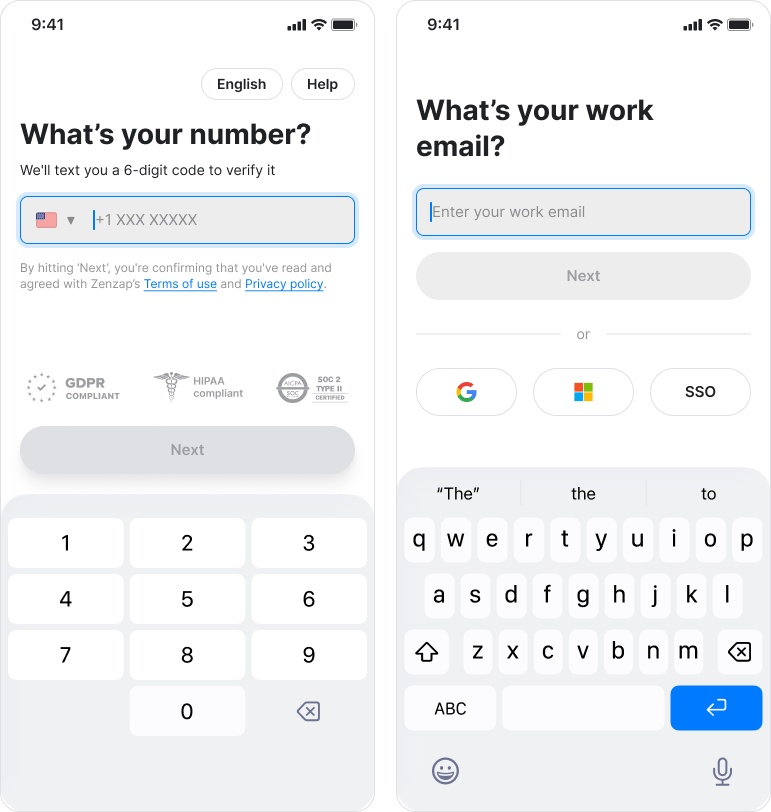
Complete the onboarding prompts, including adding your phone number and email.
Tap “Find existing workspace”.
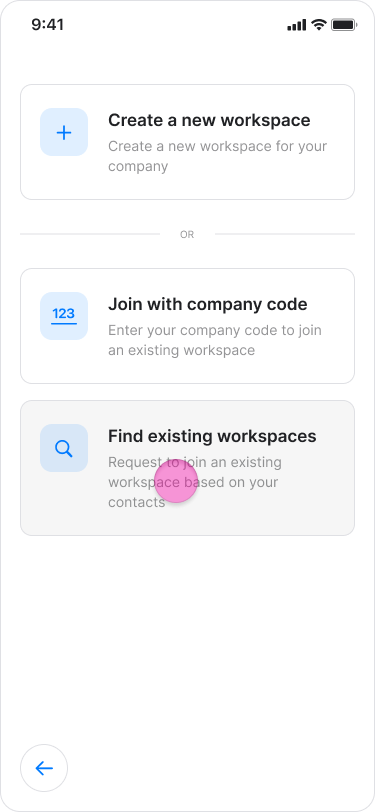
Select your team’s workspace from the suggestions.
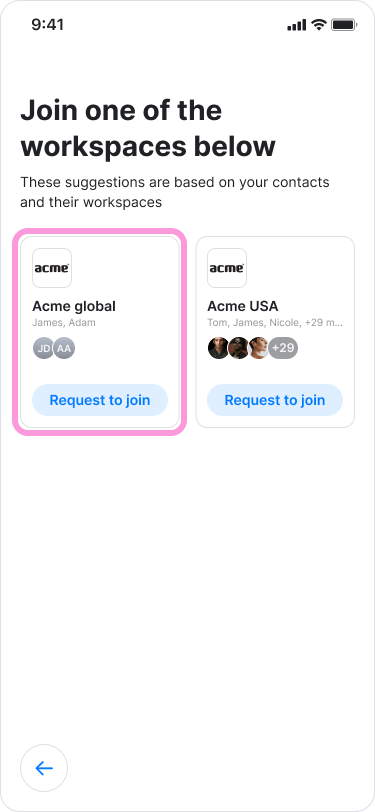
Tap “Request to join” on the workspace you want to join.
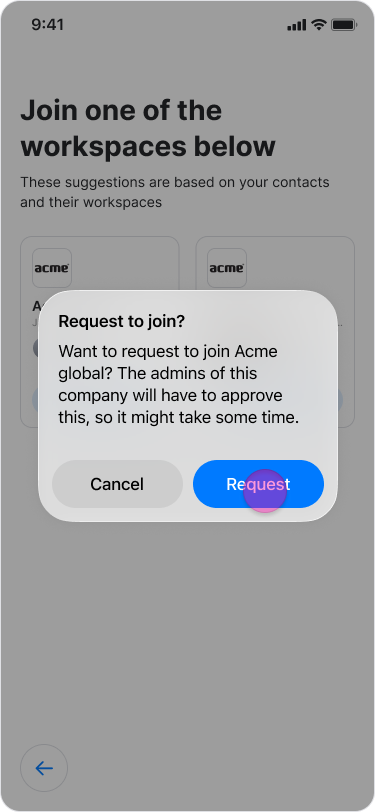
Note: A workspace admin must approve your request before you can join the workspace. After your request is approved, return to Zenzap and complete the onboarding process to start chatting with your team.
On Desktop (Windows, macOS, & Web App)
With Company Code:
Download the Zenzap desktop app or open the Web App.
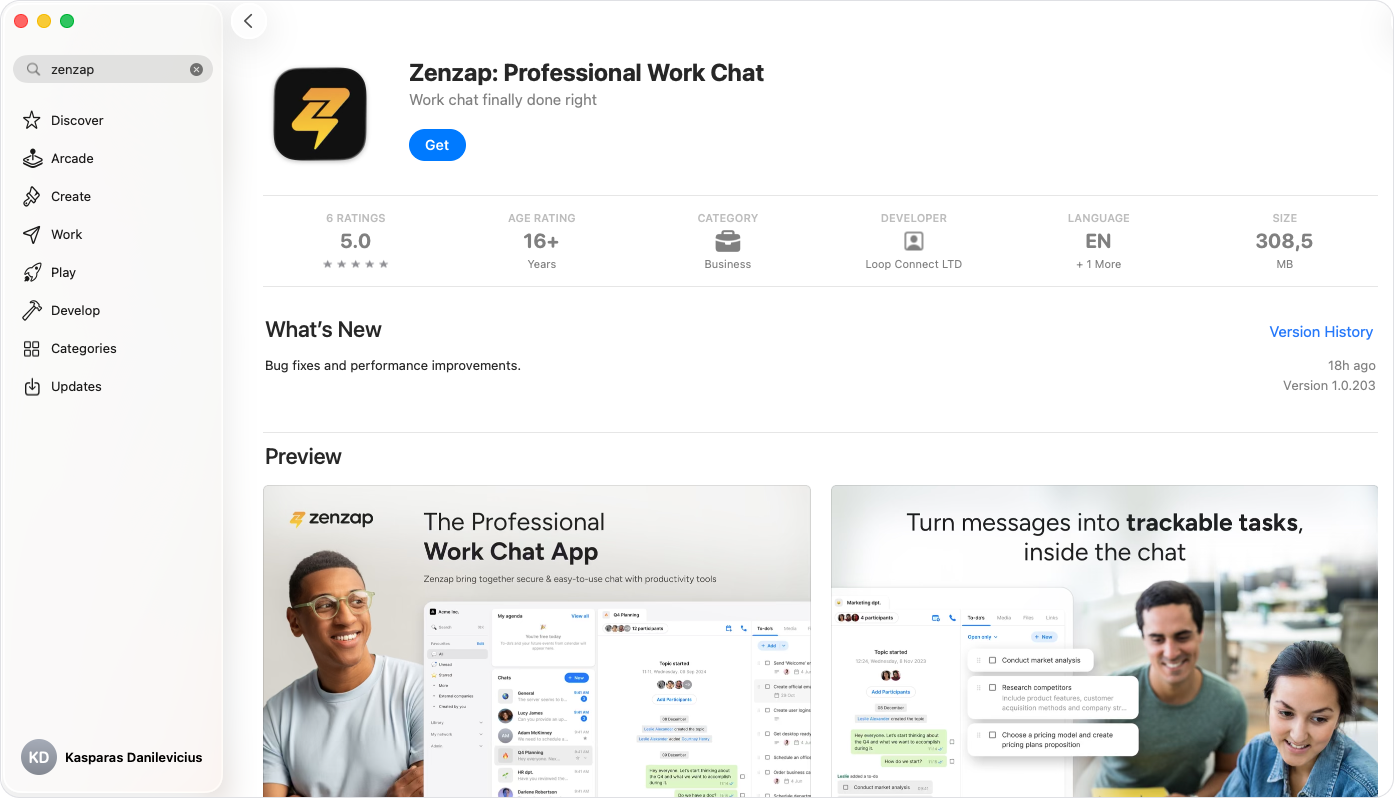
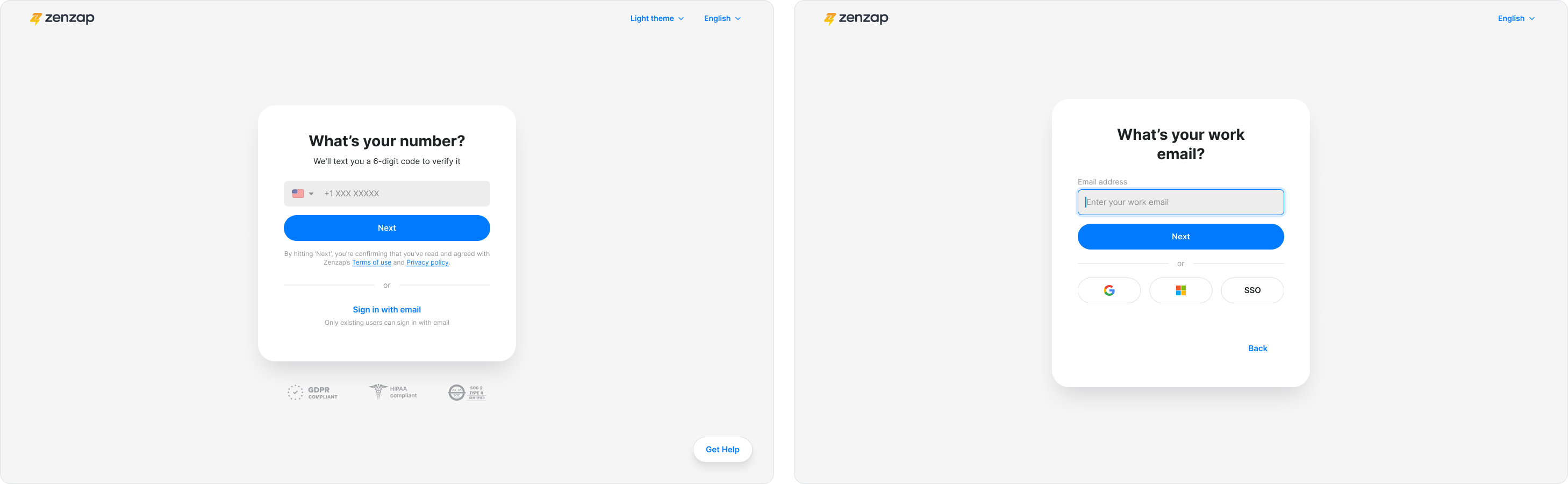
Complete the onboarding prompts, including adding your phone number and email.
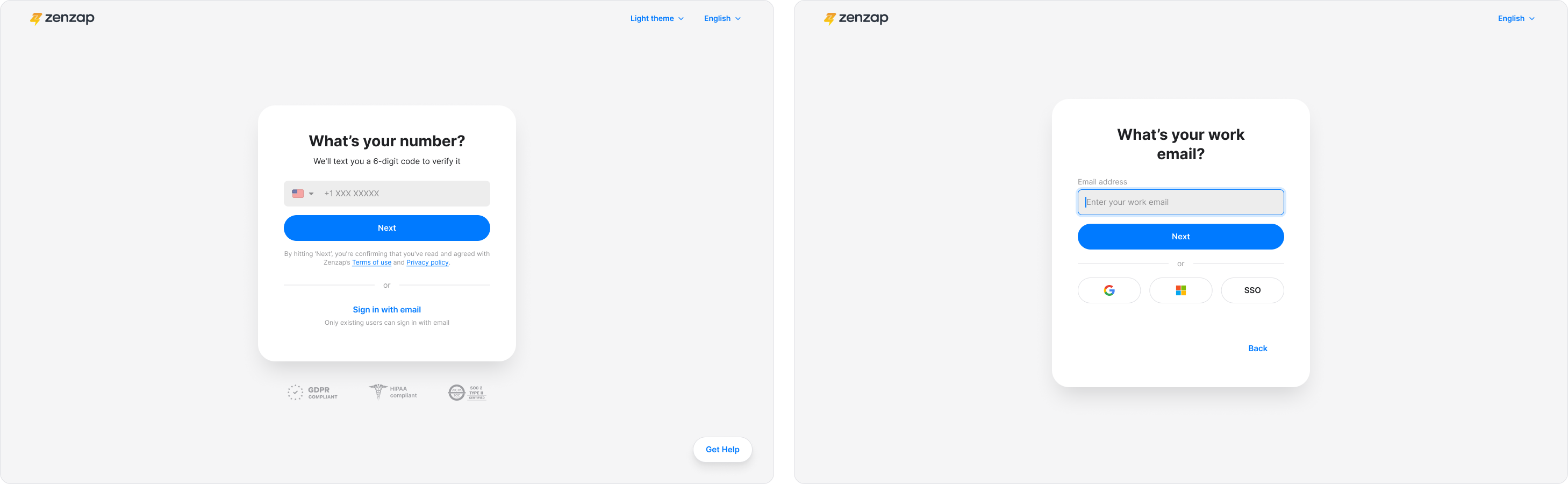
Click “Join with company code”.
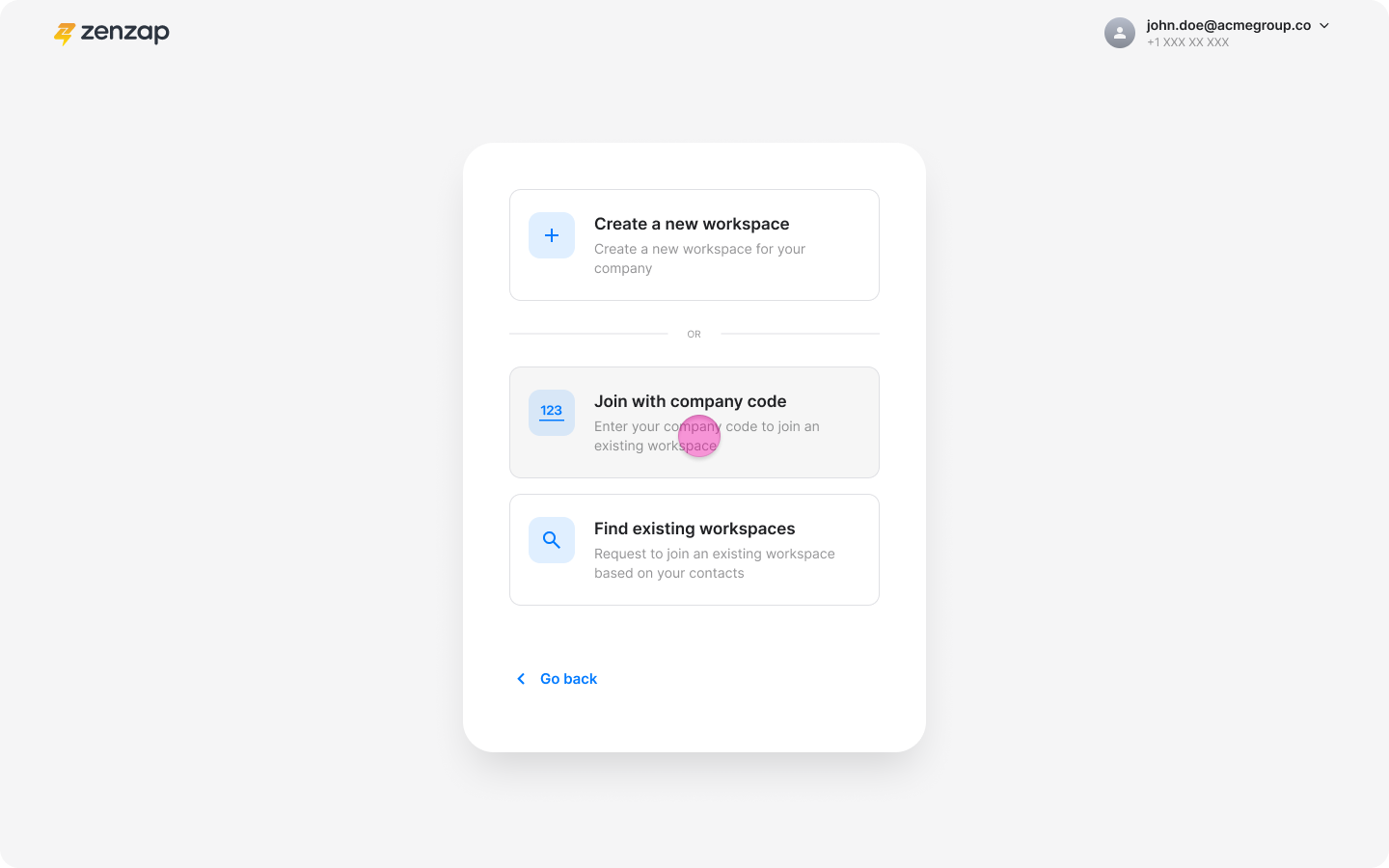
Enter the company code you received.
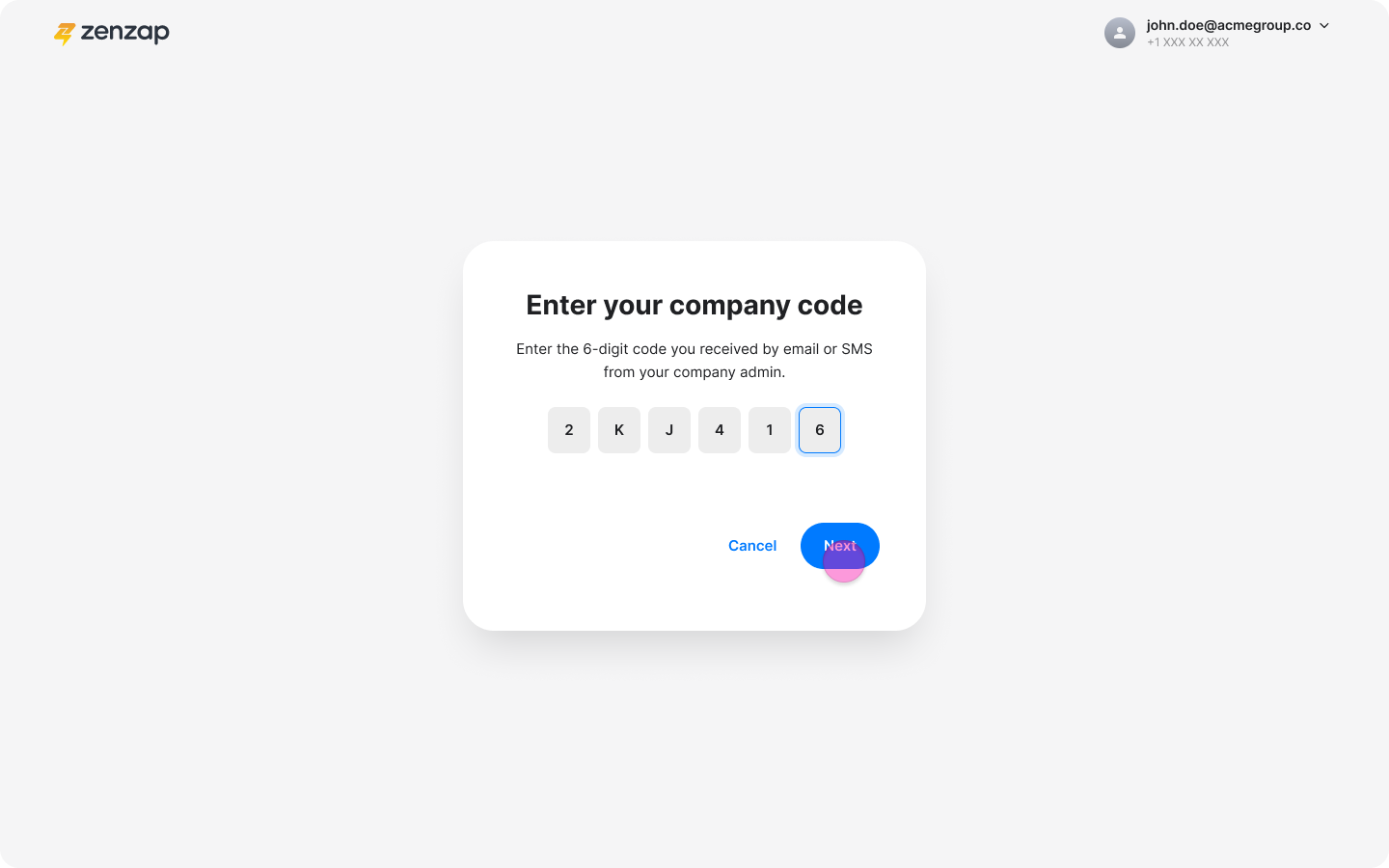
Click “Next”.
Click “Request to join” on the workspace you want to join.
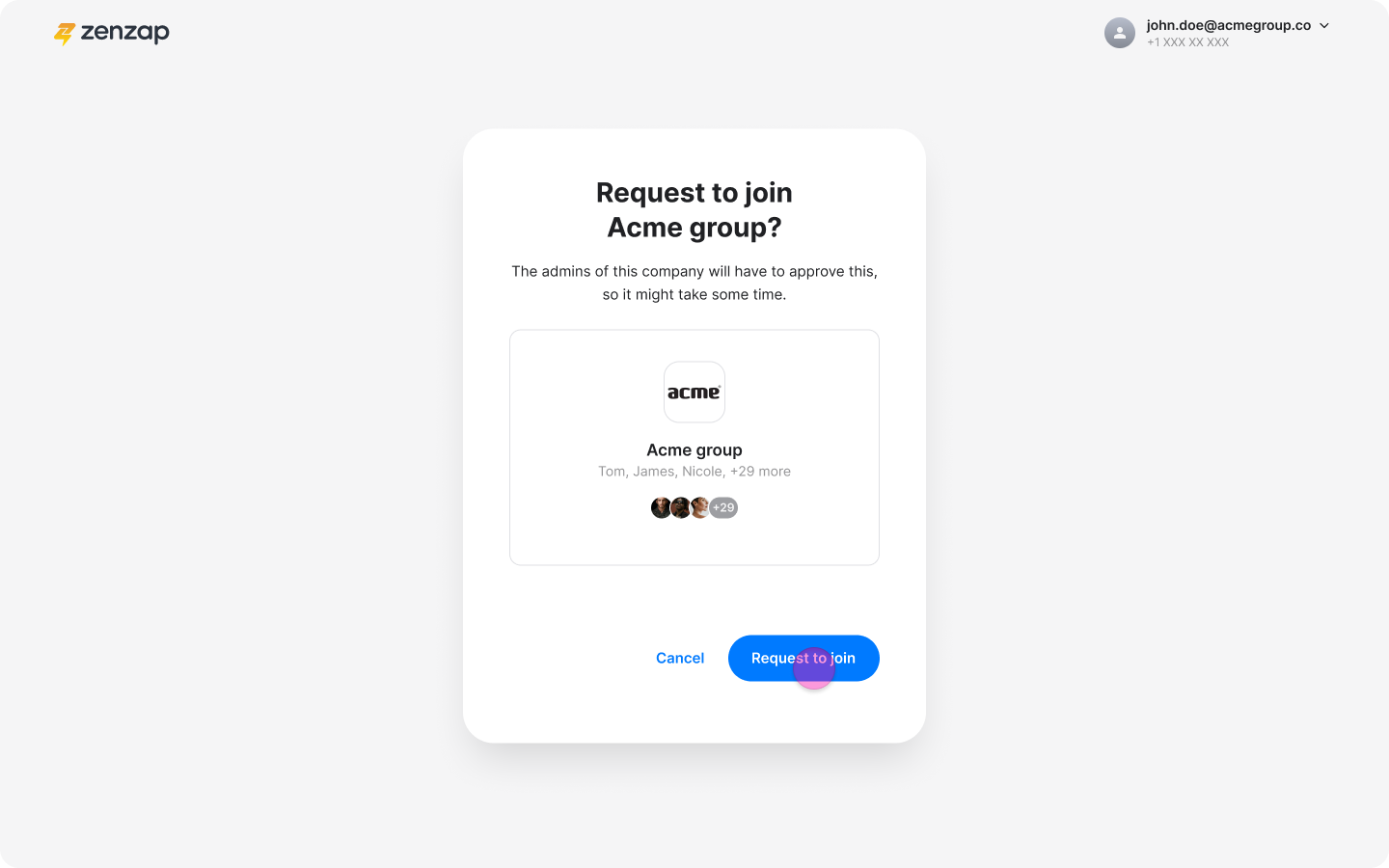
With Workspace Suggestions:
Download the Zenzap desktop app or open the Web App.
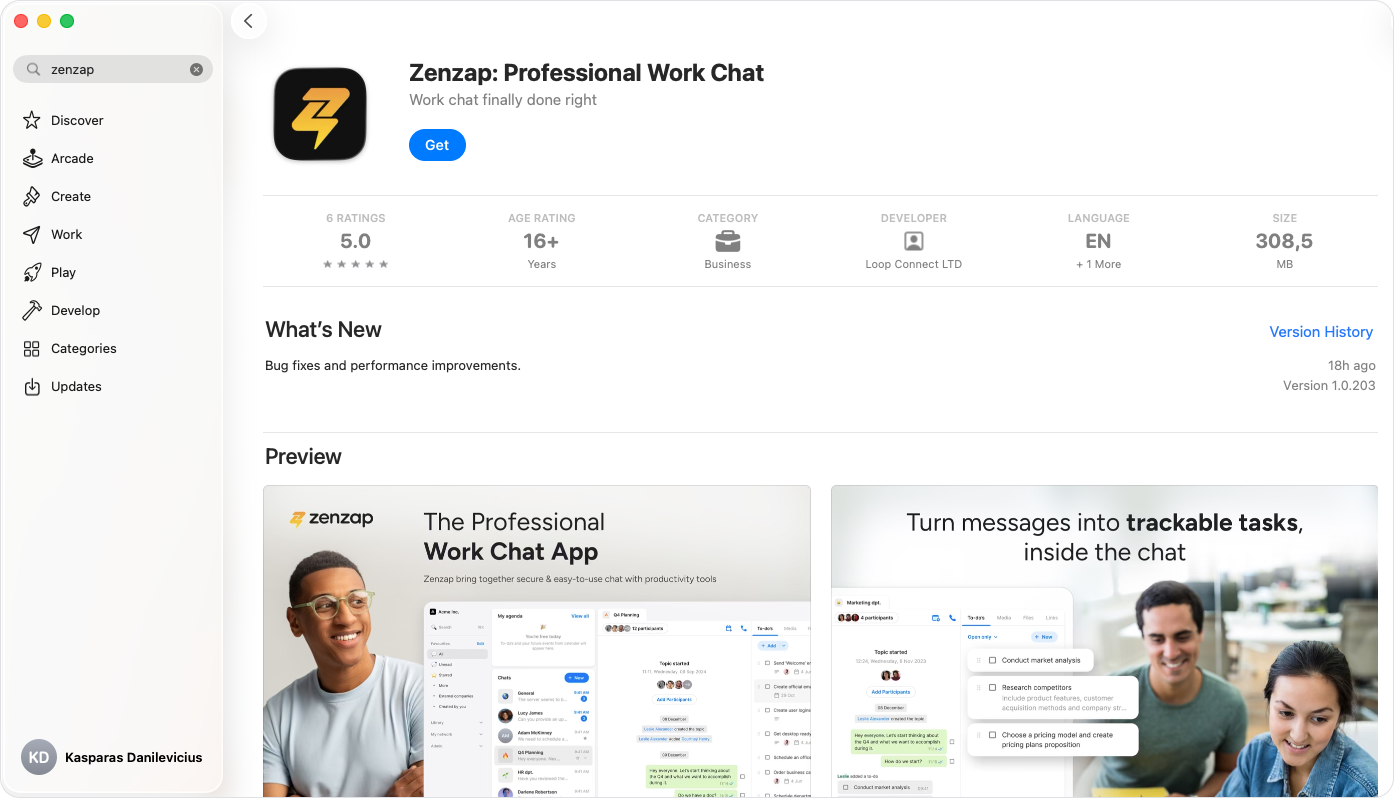
Complete the onboarding prompts, including adding your phone number and email.
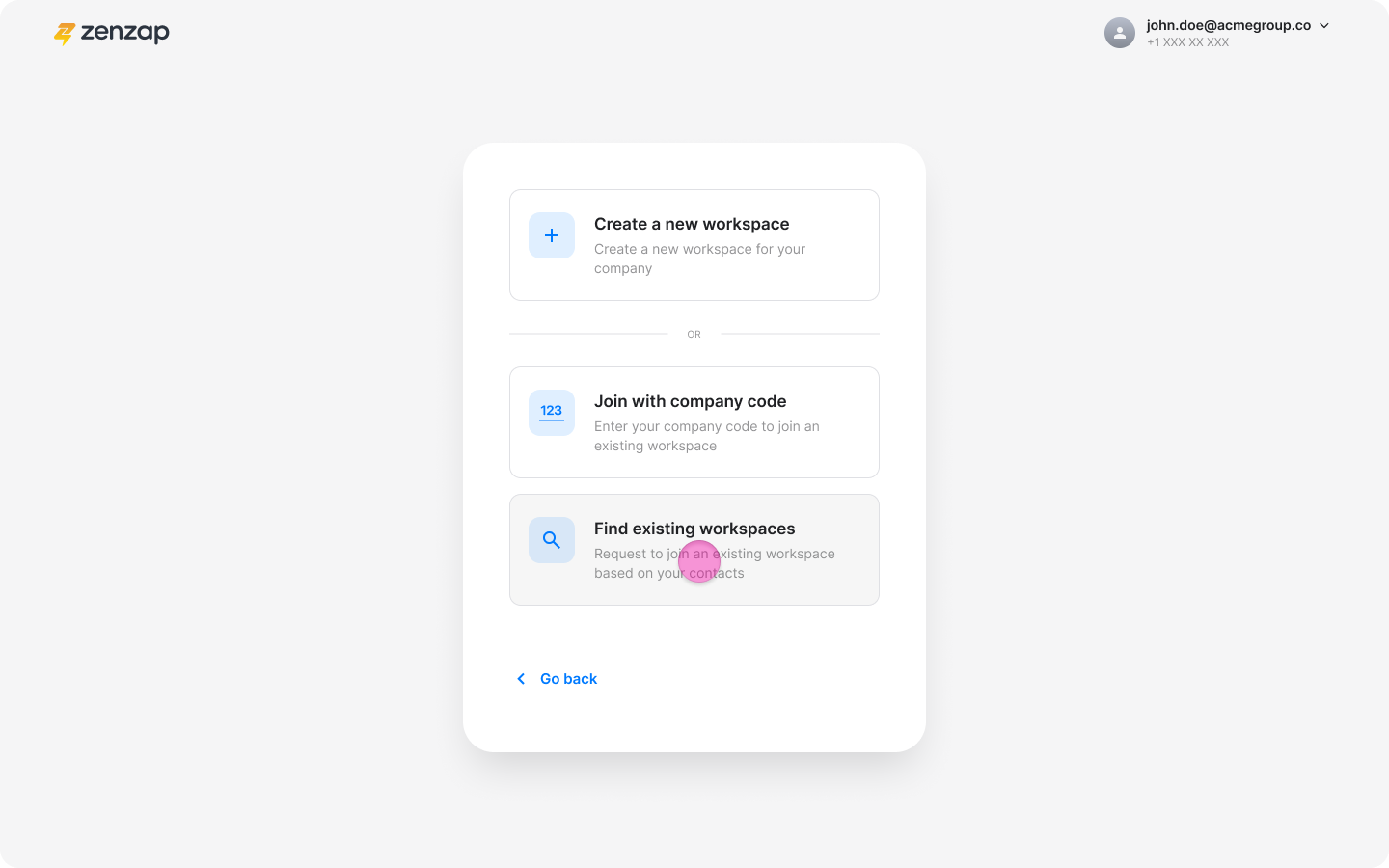
Click "Find existing workspace".
Select your team's workspace from the suggestions.
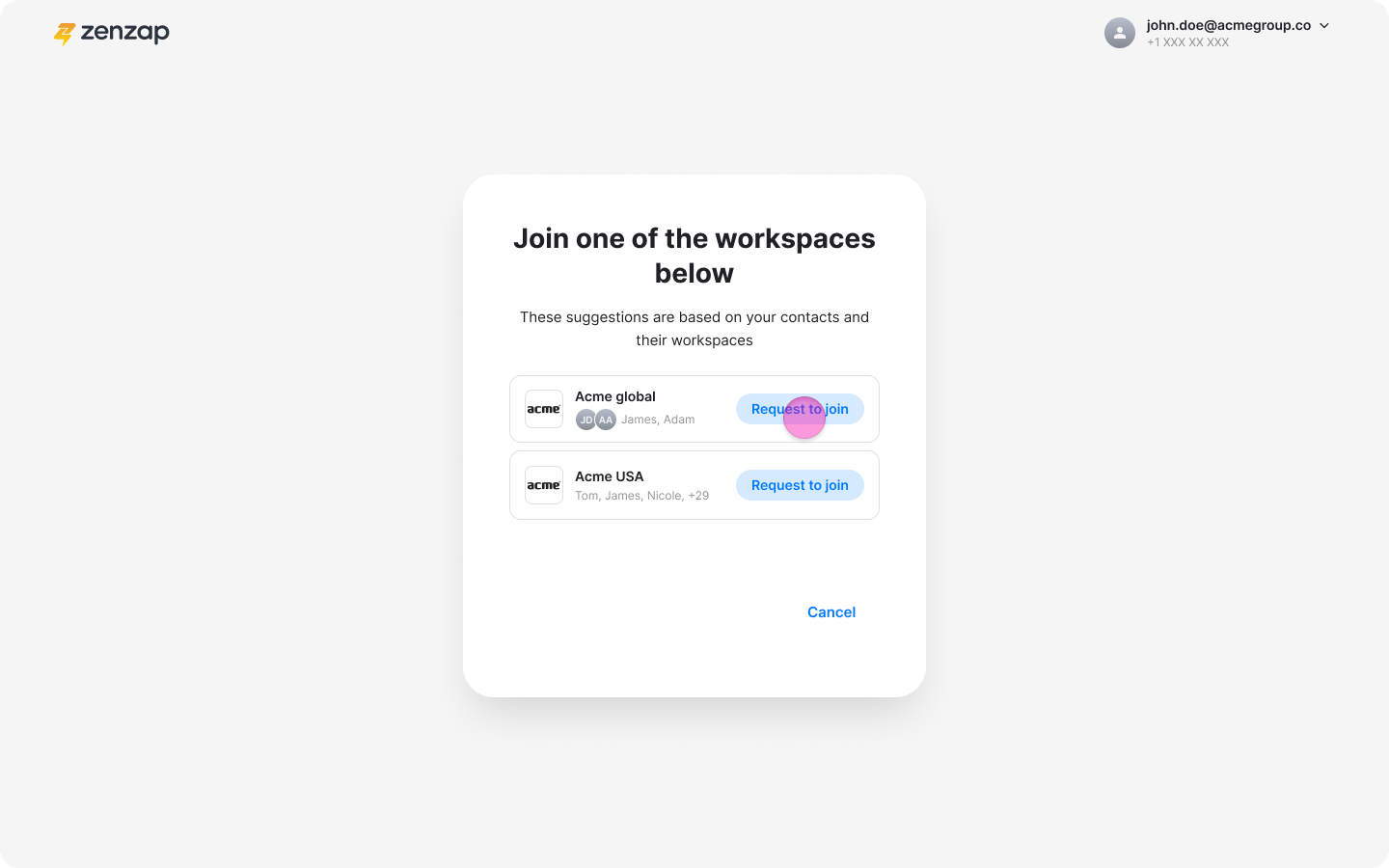
Click "Request to join".
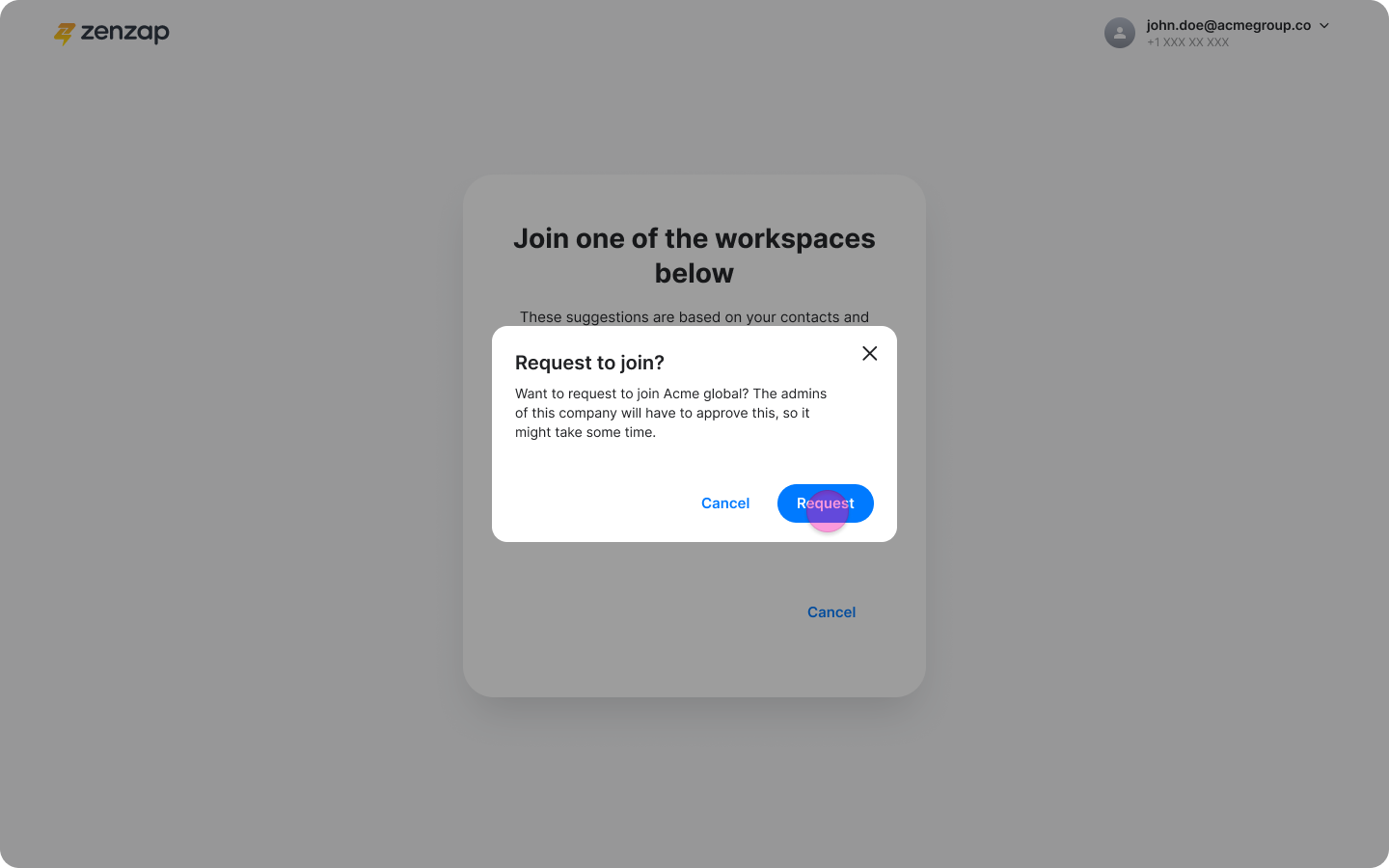
Note: A workspace admin must approve your request before you can join the workspace. After your request is approved, return to Zenzap and complete the onboarding process to start chatting with your team.