
Invite with Company Code
An admin can activate a company code to share with new team members. When new members enter this code during onboarding, workspace admins will receive a request which they must approve before the team member can join (see: Approving Join Request).
Access: Depends on your Admin’s settings.
On Mobile (iOS & Android)
Use the Zenzap mobile app to send manual invitations via email or SMS directly to team members.
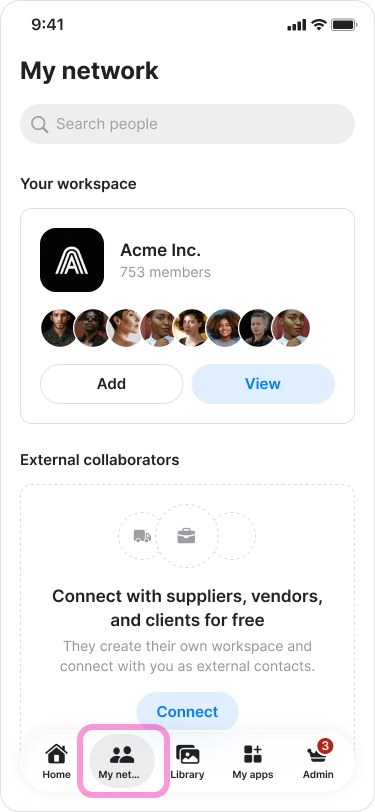
Go to the "My network" tab on the bottom menu.
.
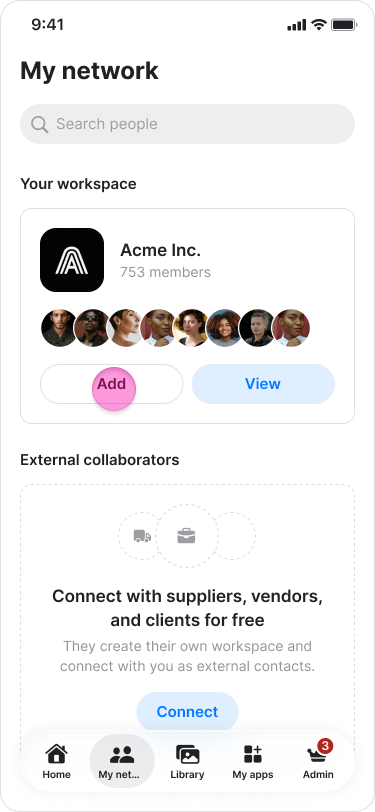
Under your "Workspace’s name" tap "Add".
.
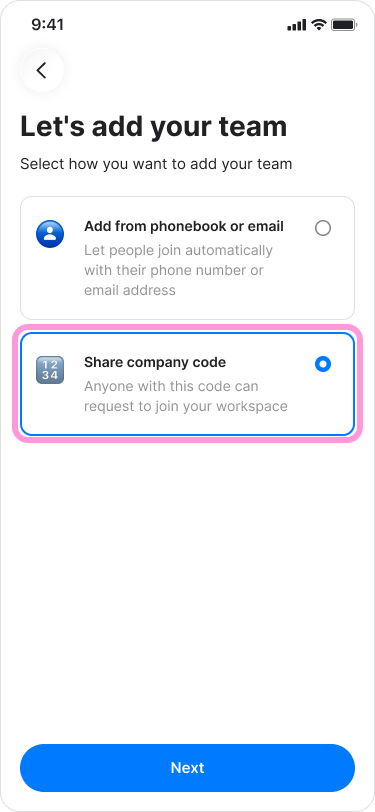
Choose “Share Company code”.
.
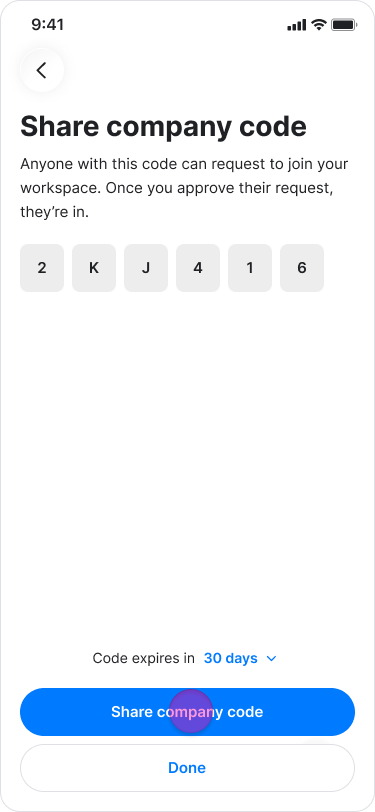
Tap “View company code”.
.
Share it with your team.
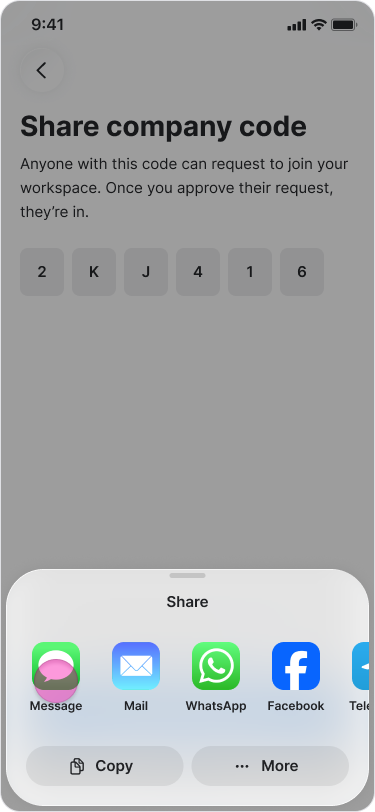
.
Tap “Done” at the top right corner.
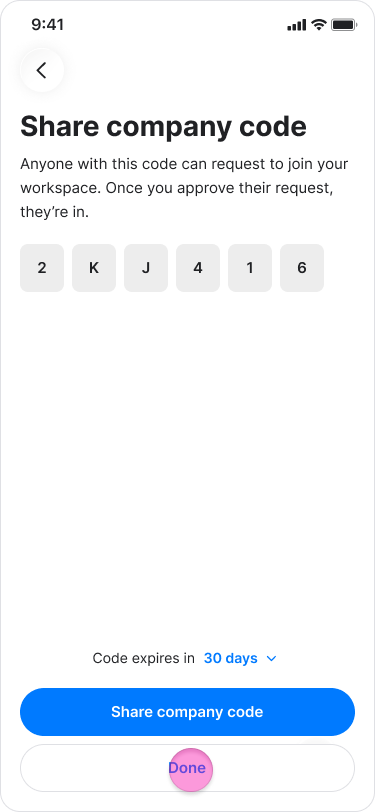
.
Note:
You can decide if—and for how long—the code remains active before it expires.
Before sending the code, you must enable this option in your Admin settings.
On Desktop (Windows, macOS, & Web App)
Select the "All contacts" tab in the menu at the left side (on Windows & Web app).
Select the “My company” tab in the menu at the left side (on macOS).
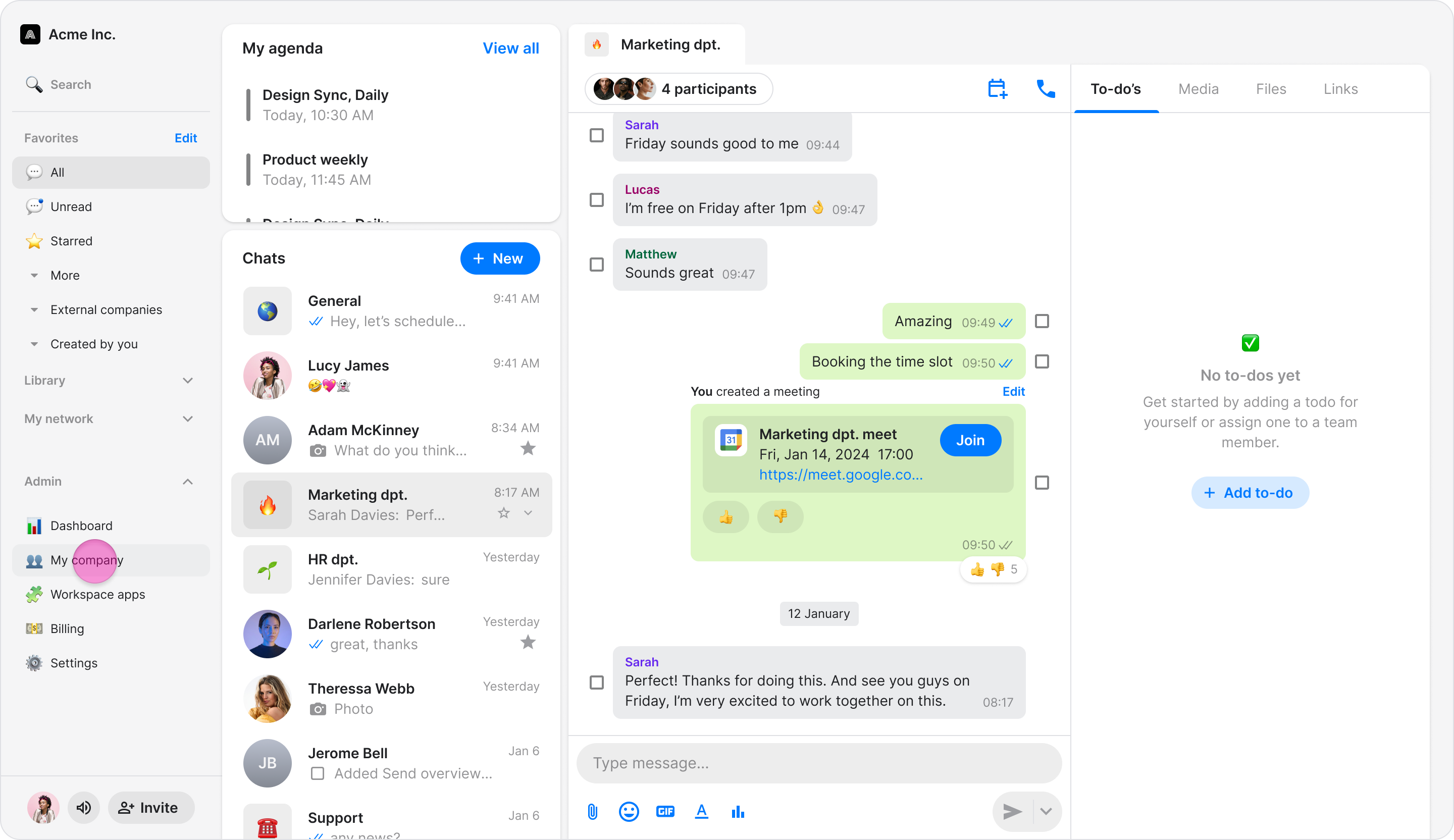
macOS screen
Click “+ Add member”.
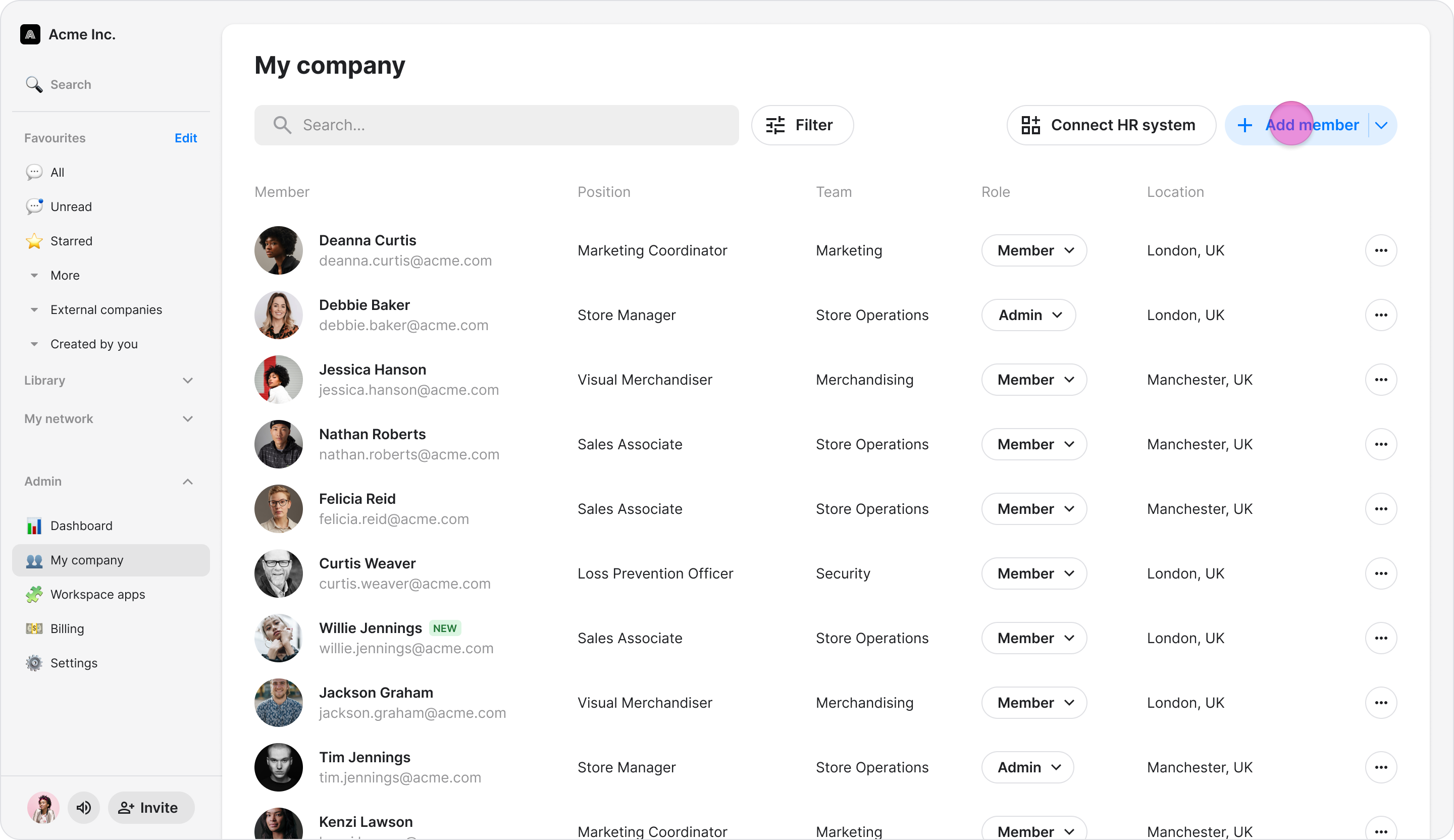
Choose “Share company code”.
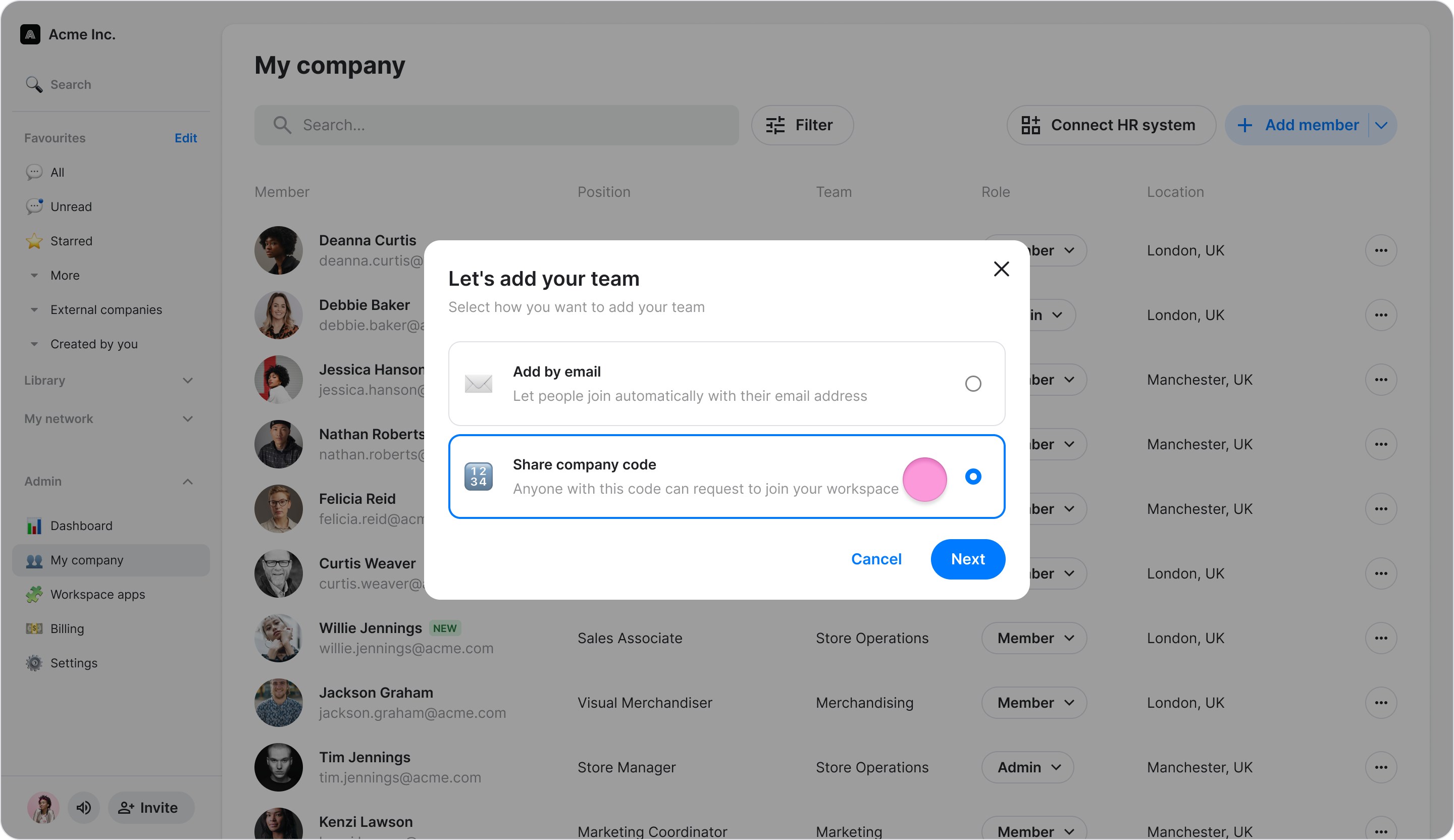
Click “Next”.
Click “Next” again (on Windows & Web app) or “View company code” (on macOS).
Share it with your team.
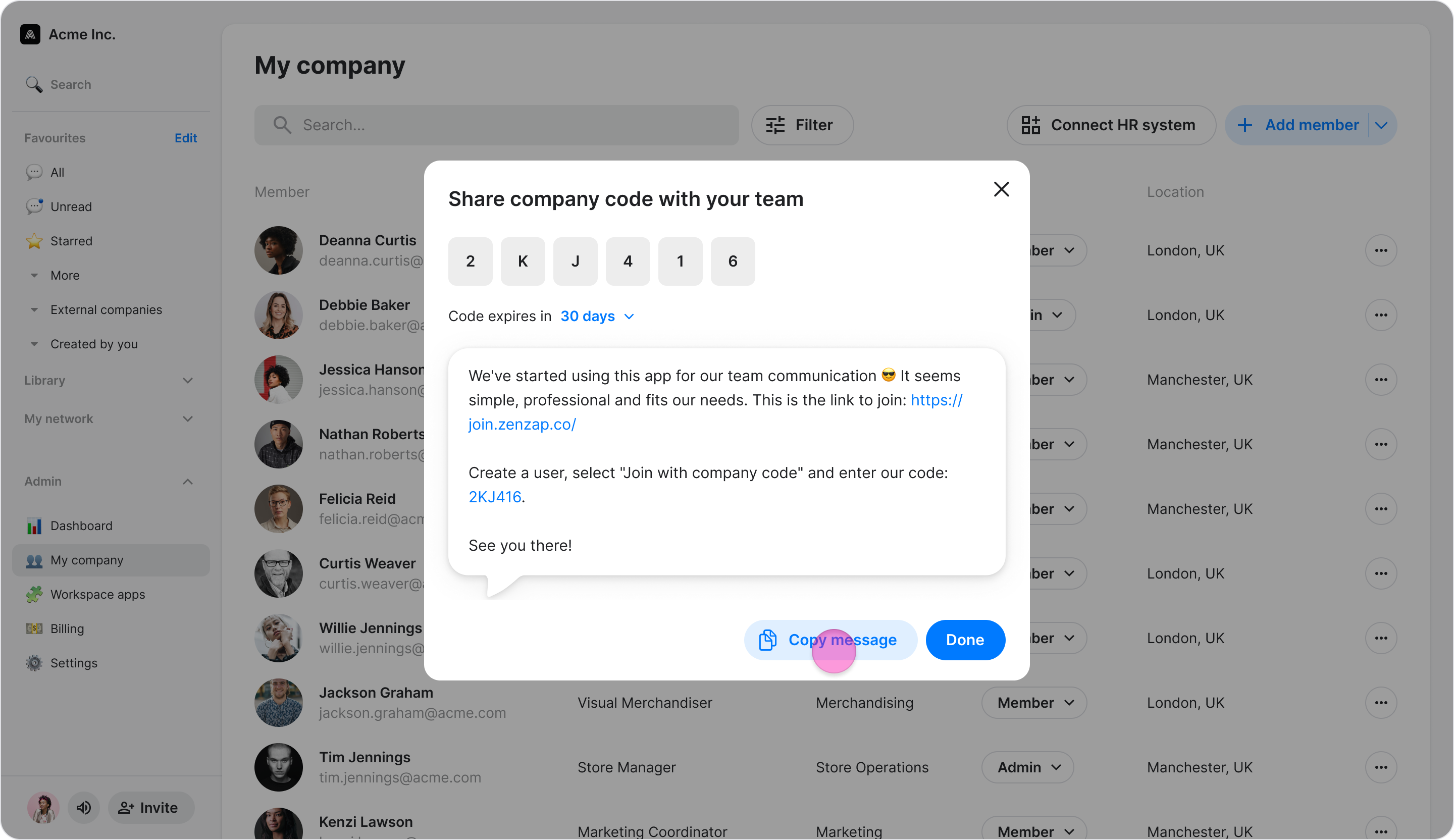
Click “Done”.
Note:
You can decide if—and for how long—the code remains active before it expires.
Before sending the code, you must enable this option in your Admin settings.