
Connect Zapier to Zenzap
Connect your Zapier account to Zenzap to receive real-time notifications and manage automations directly within your chats.
On Desktop (Windows, macOS & Web App)
You can connect Zenzap and Zapier using one of two methods.
1. Connecting Zenzap from Zapier
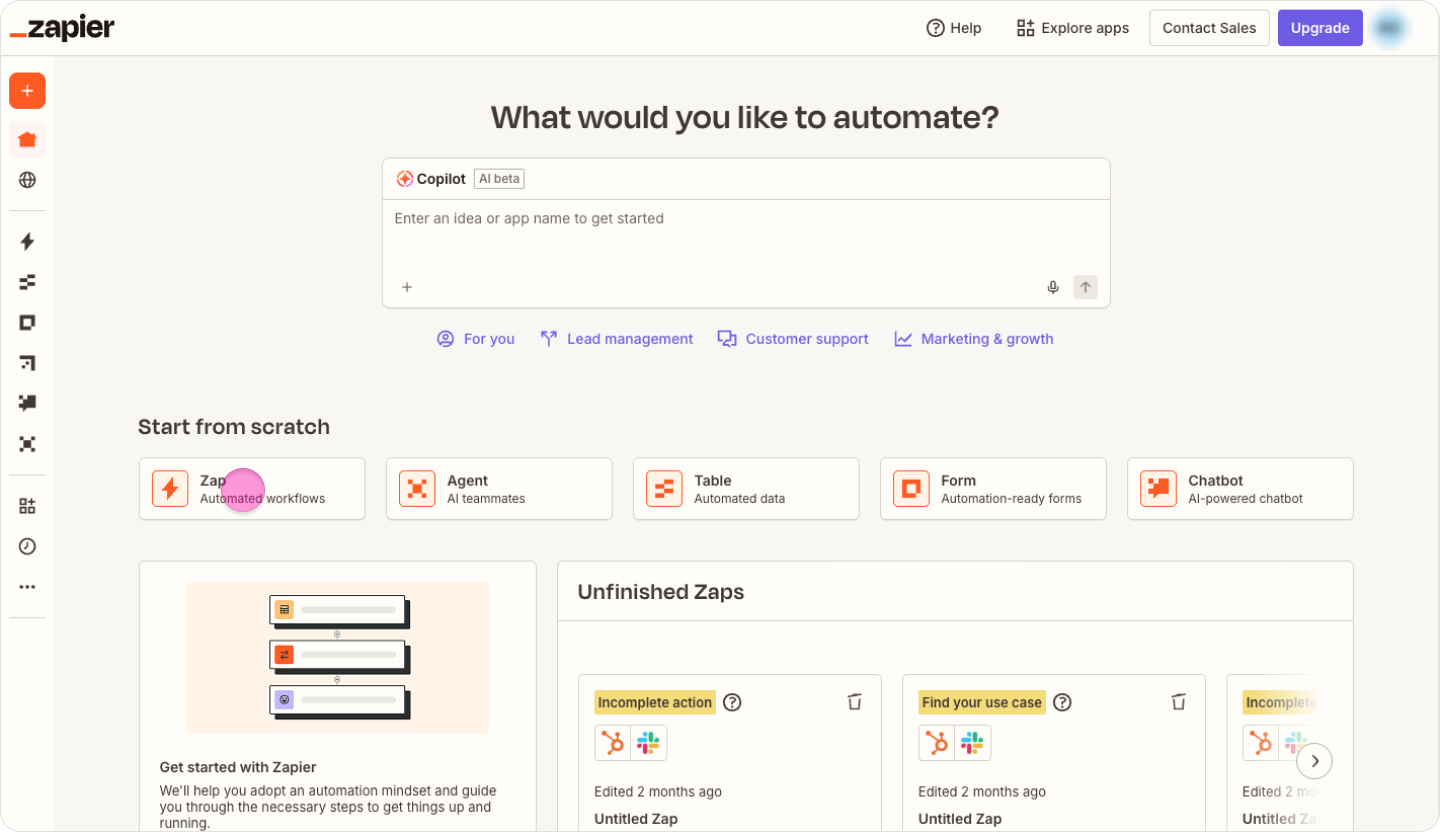
Go to Zapier and click "Create" to start a new "Zap".
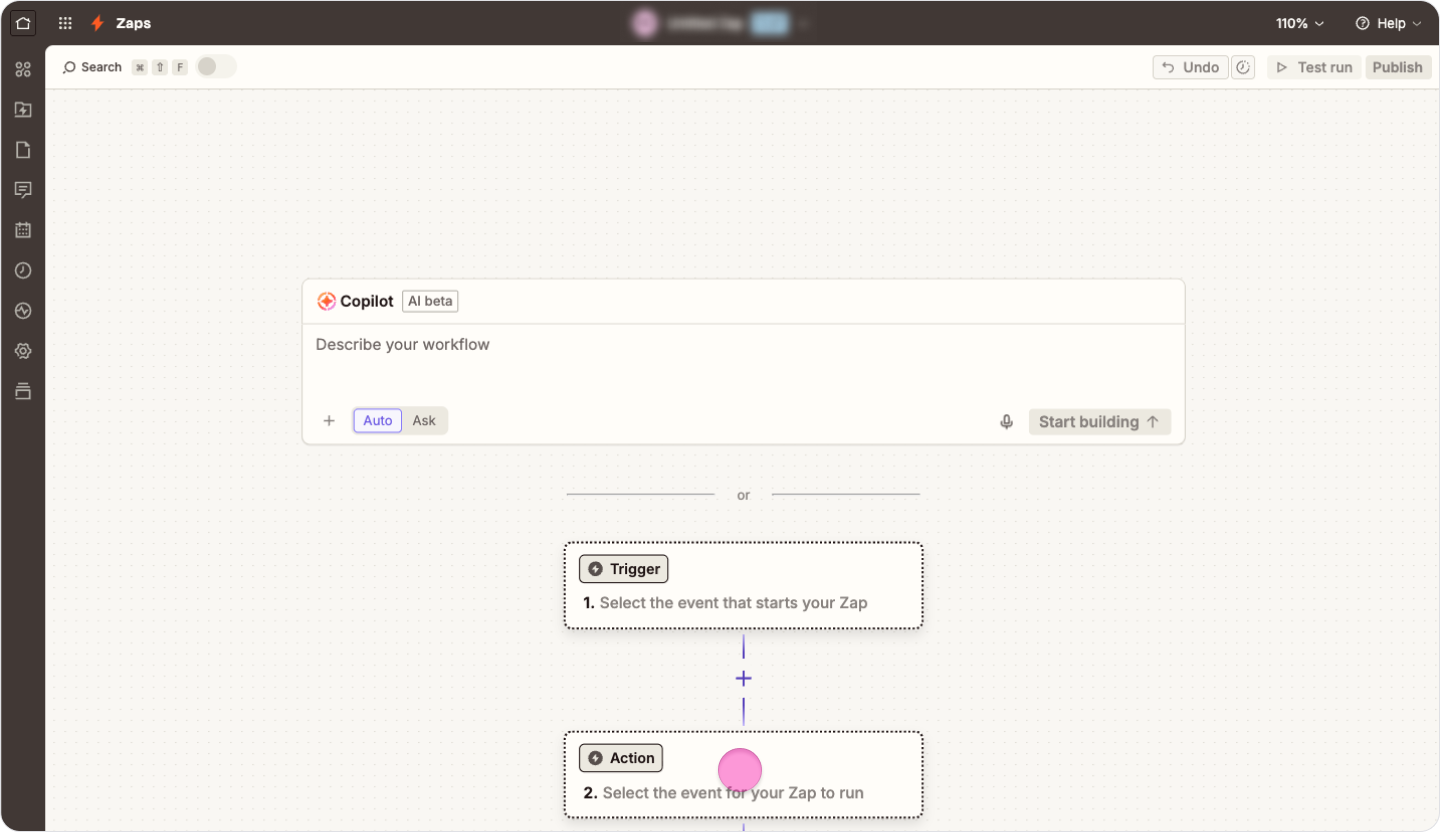
Click on an empty "Action" step.
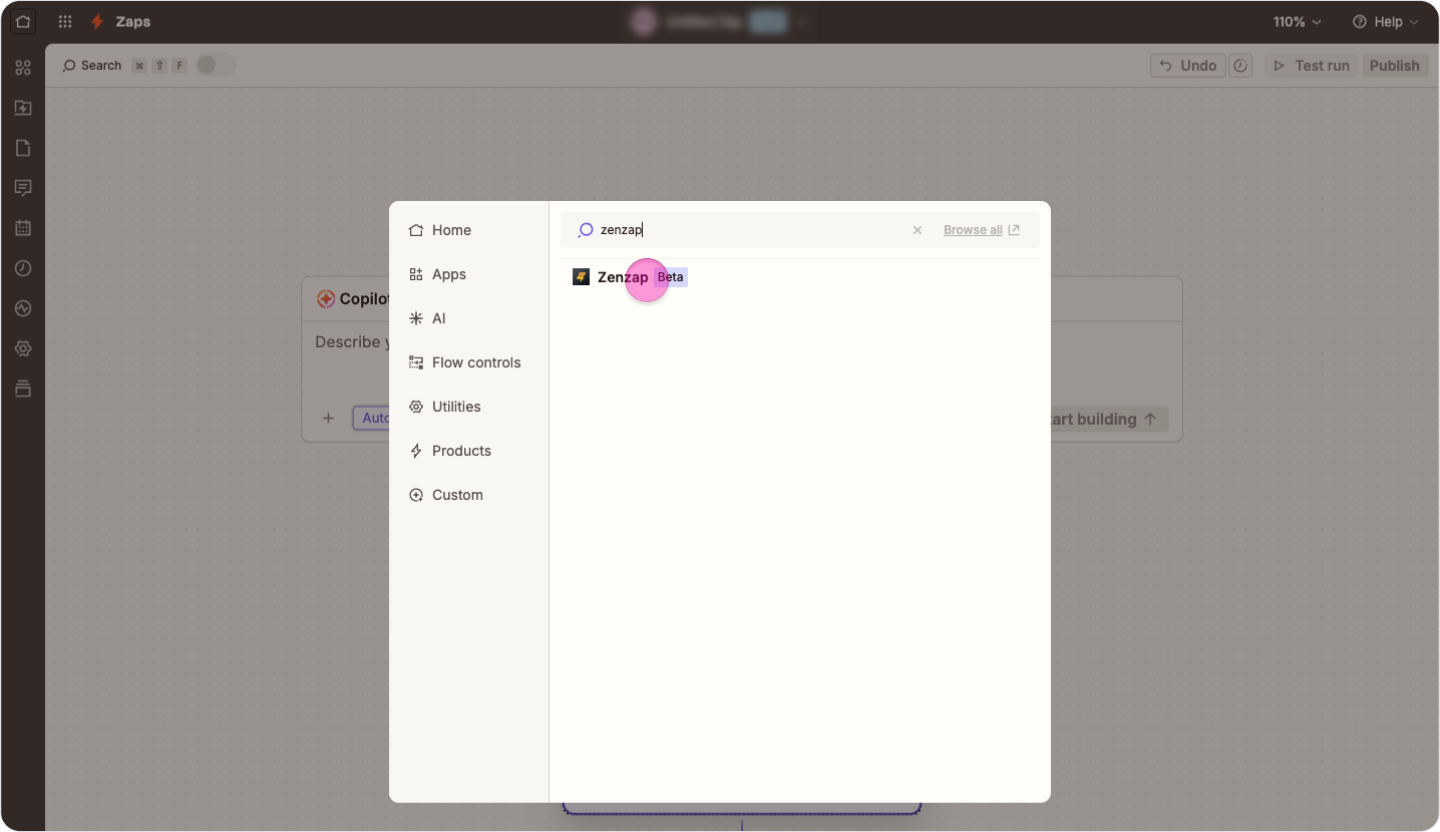
Search "Zenzap", and click on the "Zenzap" integration.
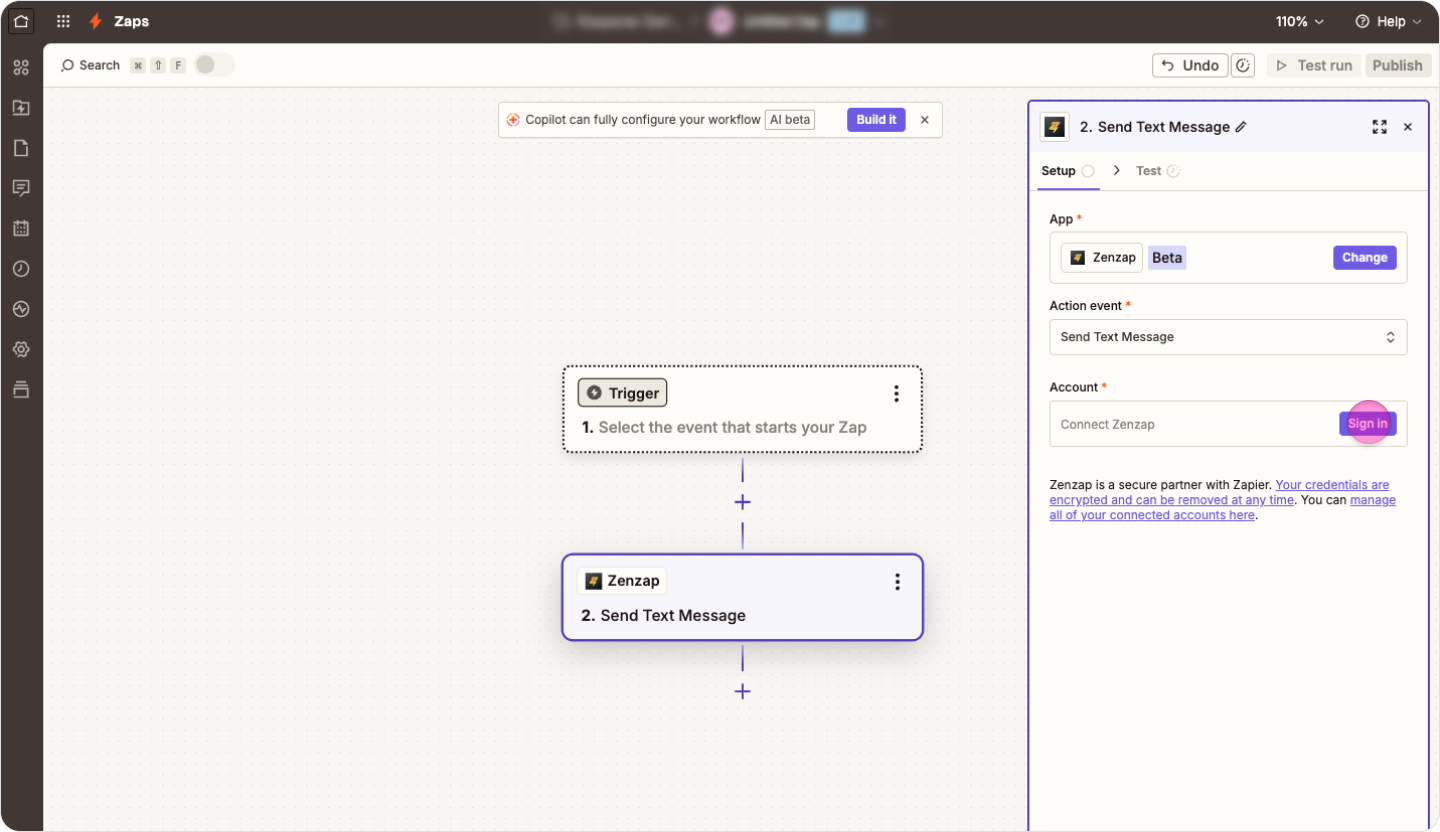
Click "Sign in" under the "Account" section in the integration actions screen.
Log in to your Zenzap account in the popup window if you are not already signed in.
Click "Allow Access" to link the accounts.
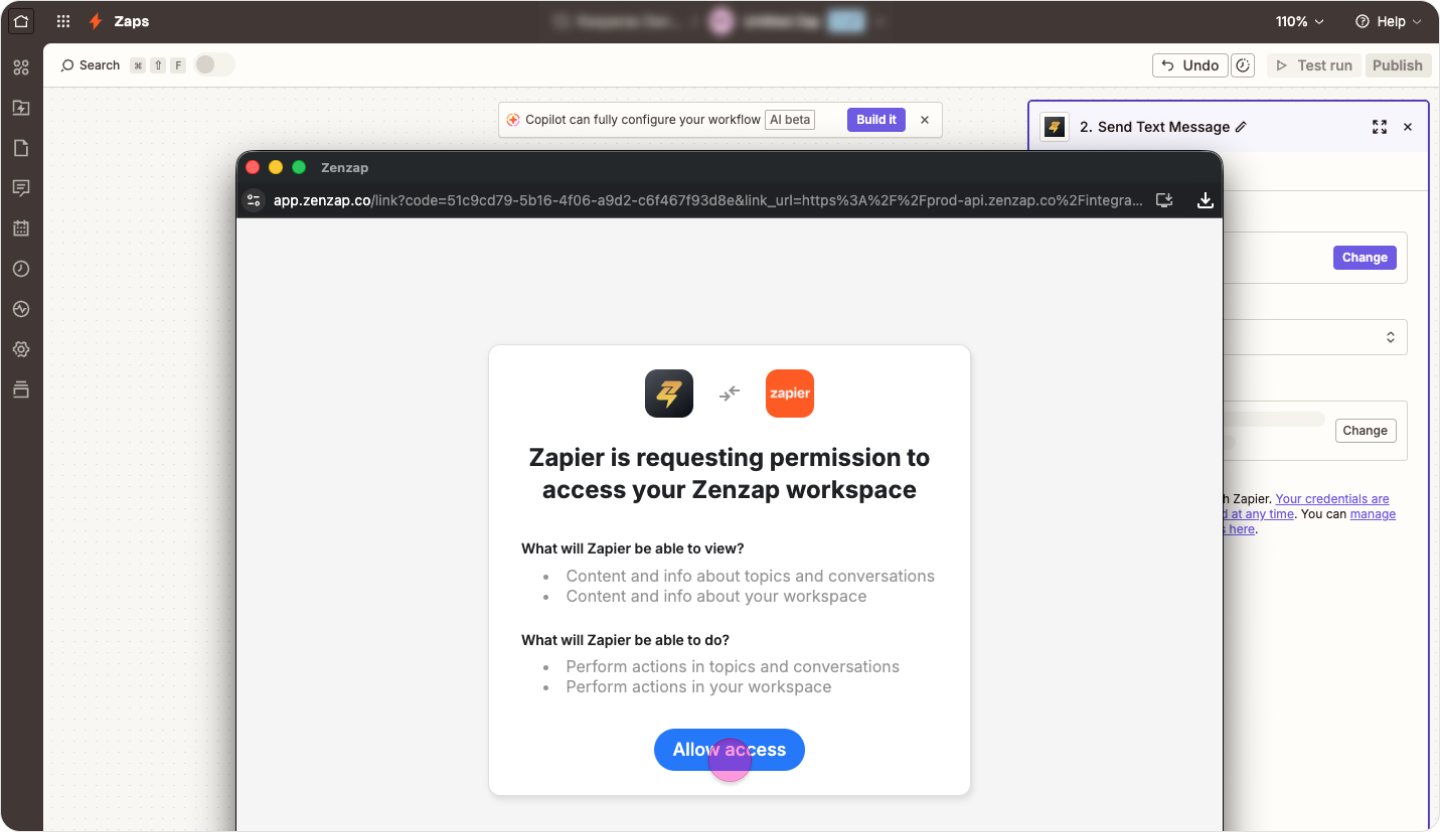
2. Connecting Zapier from Zenzap:
Click "My Apps" in the sidebar menu.

Click "Connect" in the "Zapier" section.
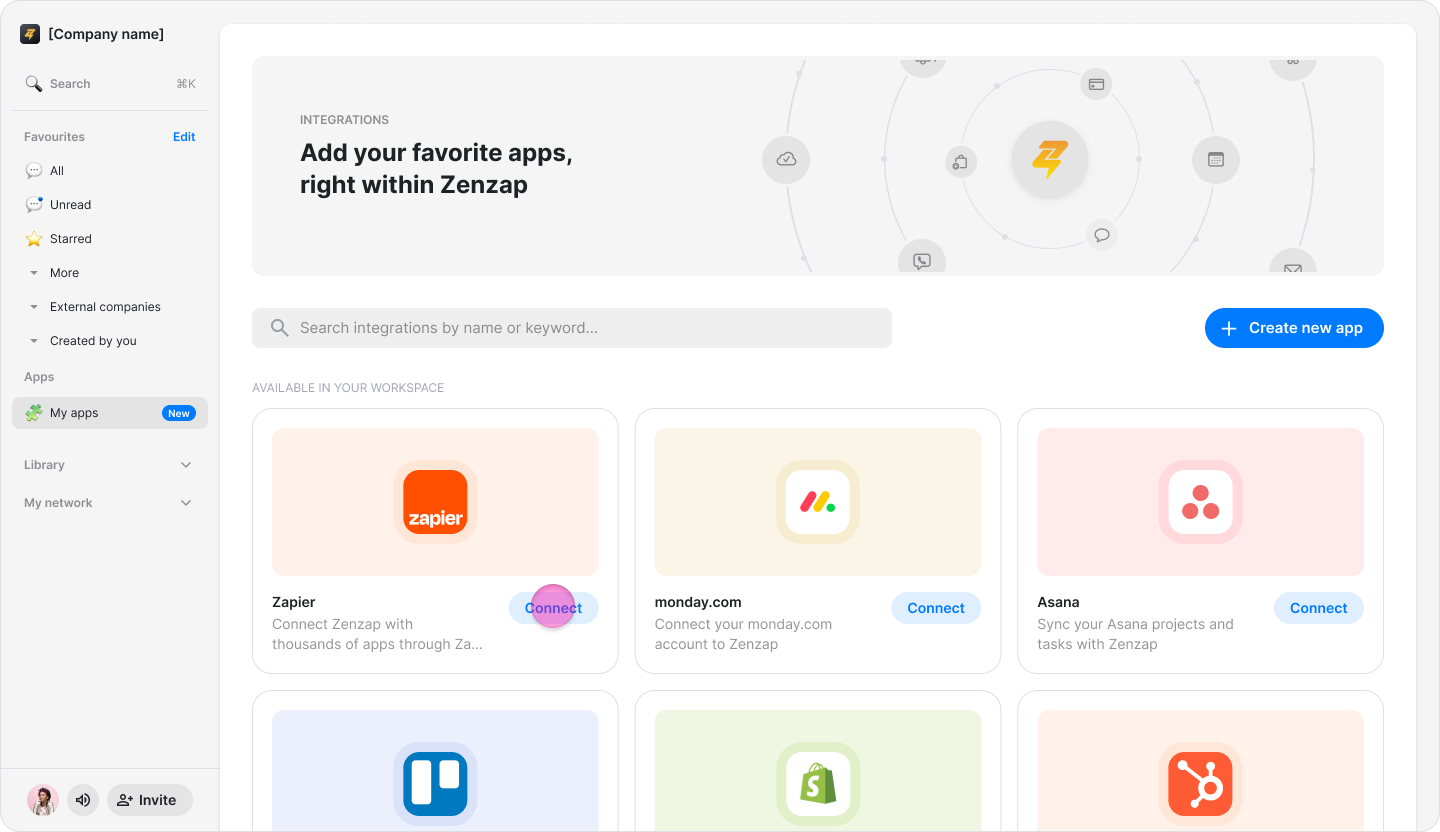
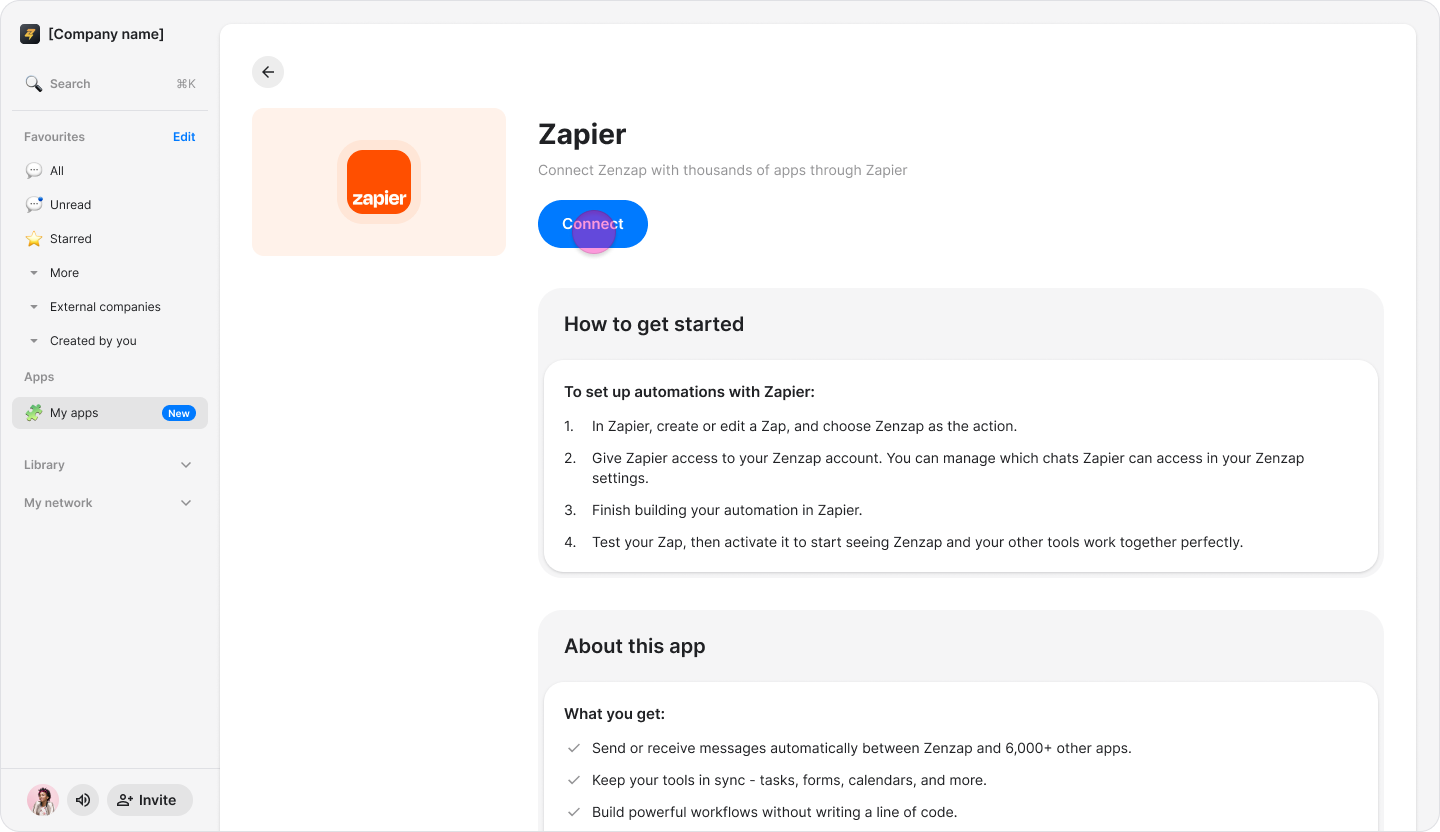
Click "Connect" again on the "Zapier" details screen.
Log in to your Zapier account if prompted in the popup window.
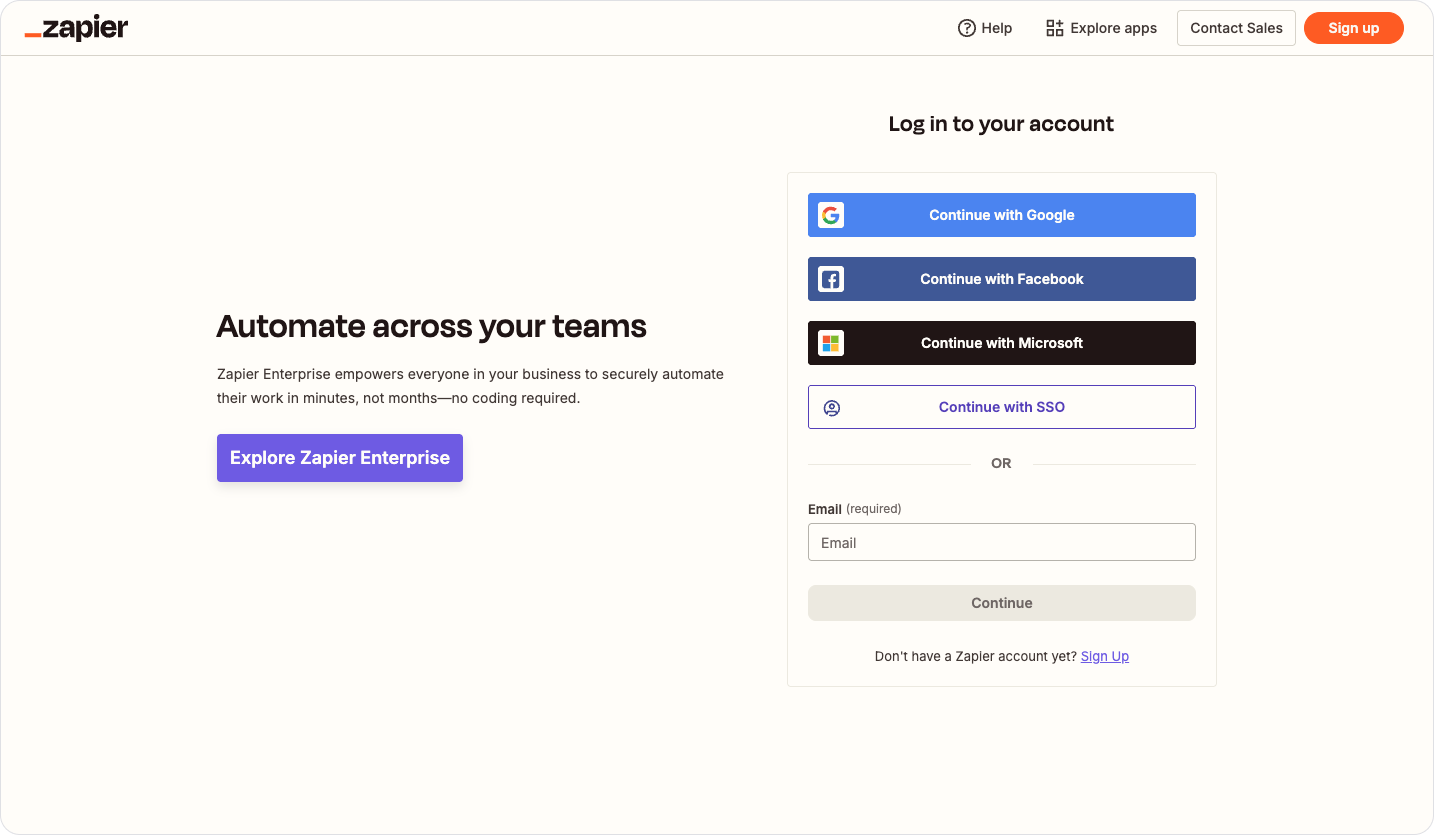
Click "Connect" to link Zenzap with Zapier.
Granting Topic Permissions
Go to "My Apps" and select "Zapier".
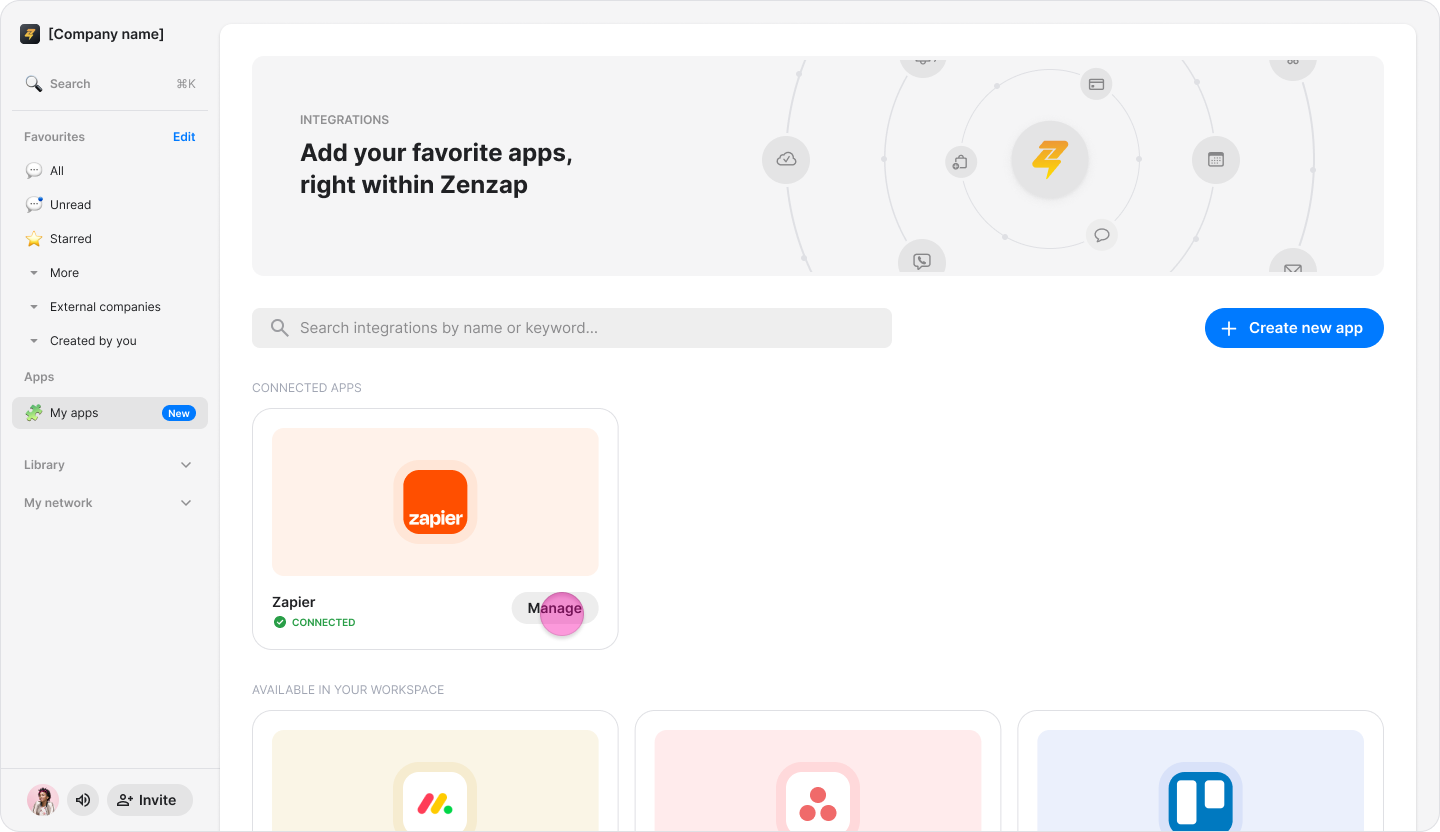
Click "Edit Chats".
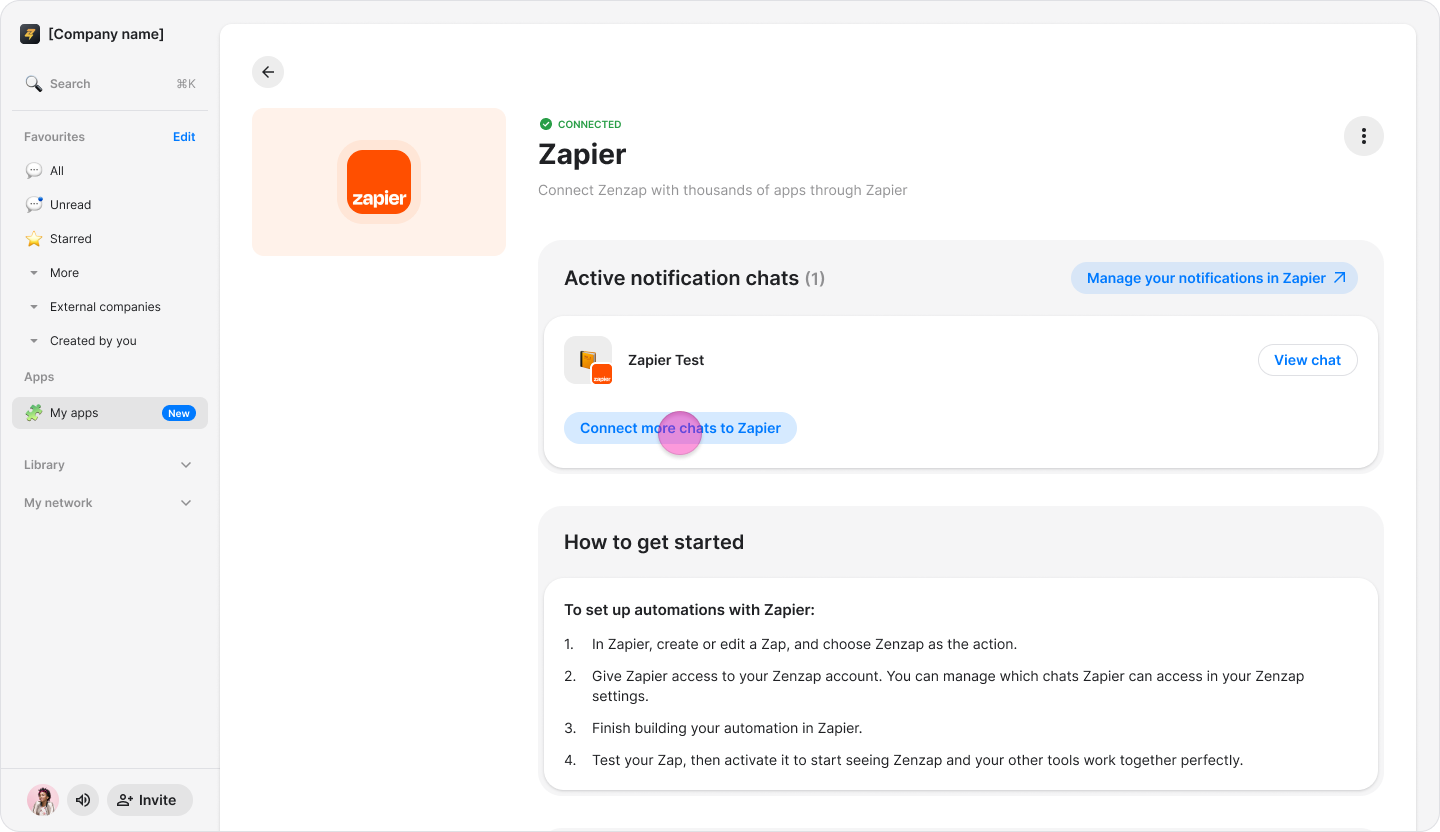
Select the topics you want Zapier to be able to send messages to.
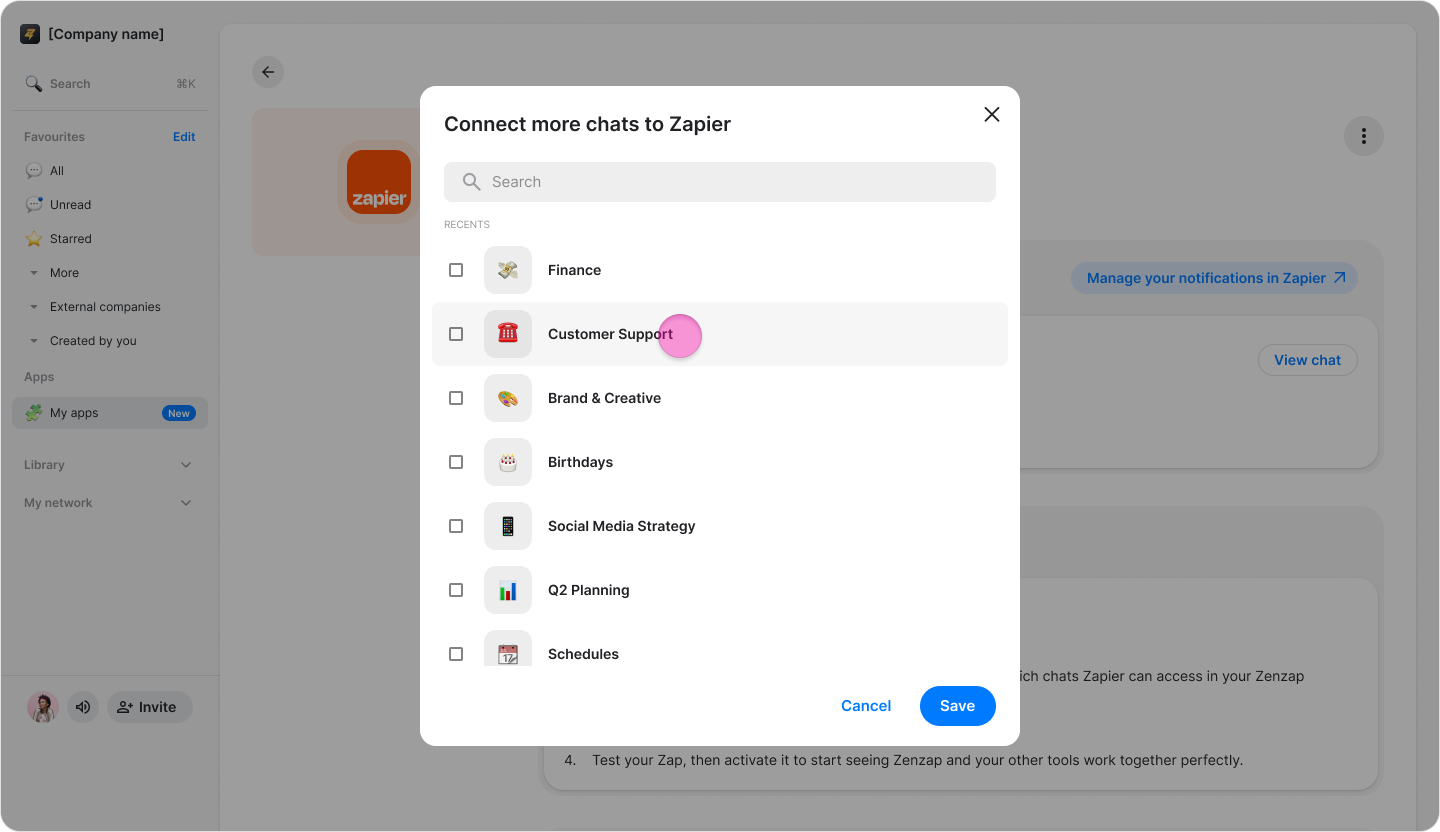
Note: By default, Zapier only has access to the "Zapier Events" topic created during the installation process.
Action: Send Text Message
Add an empty "Action" step in the Zap editor.

Search for and choose "Zenzap".
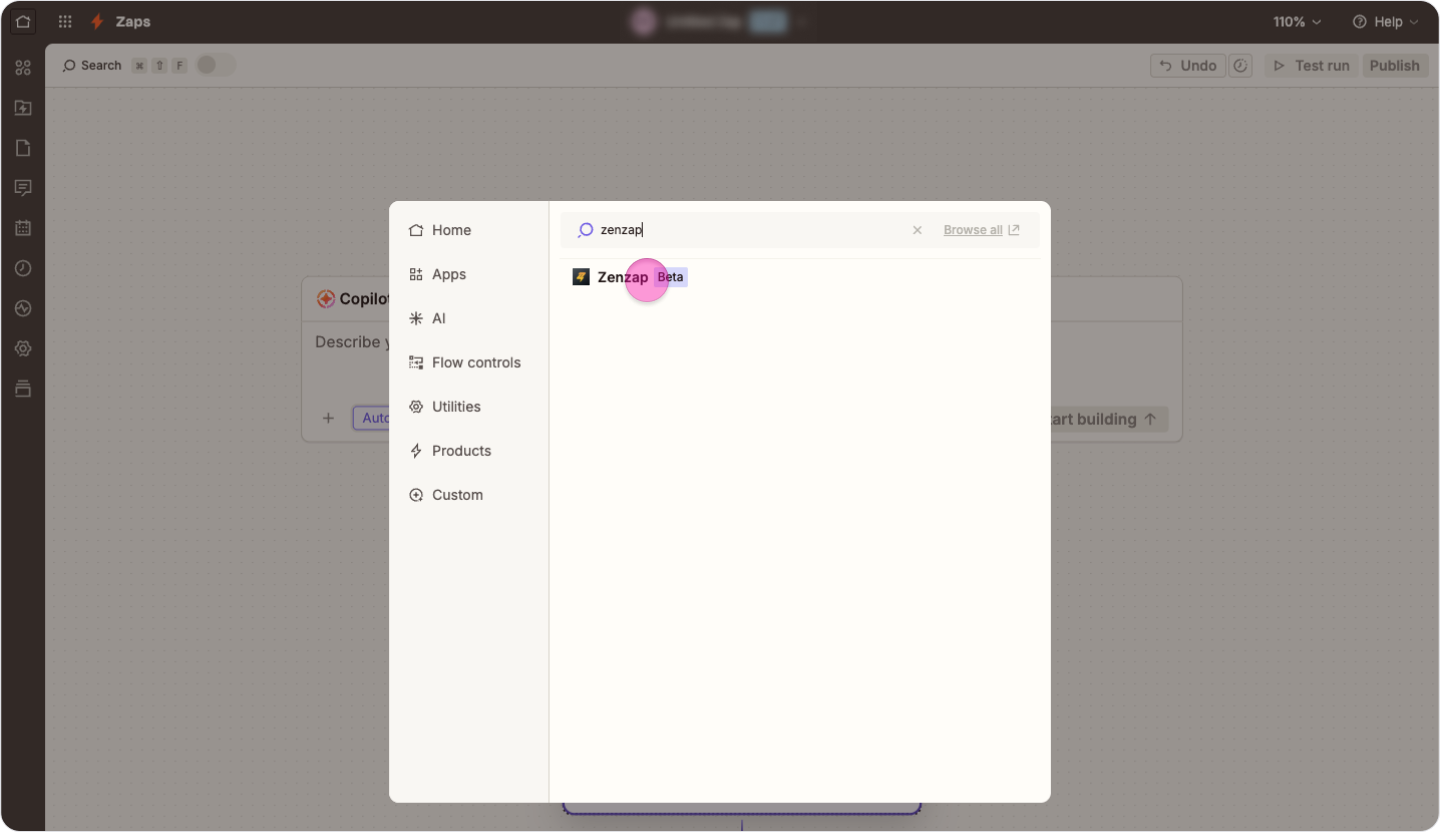
Choose "Send Text Message" in the "Action event" box and click "Continue".
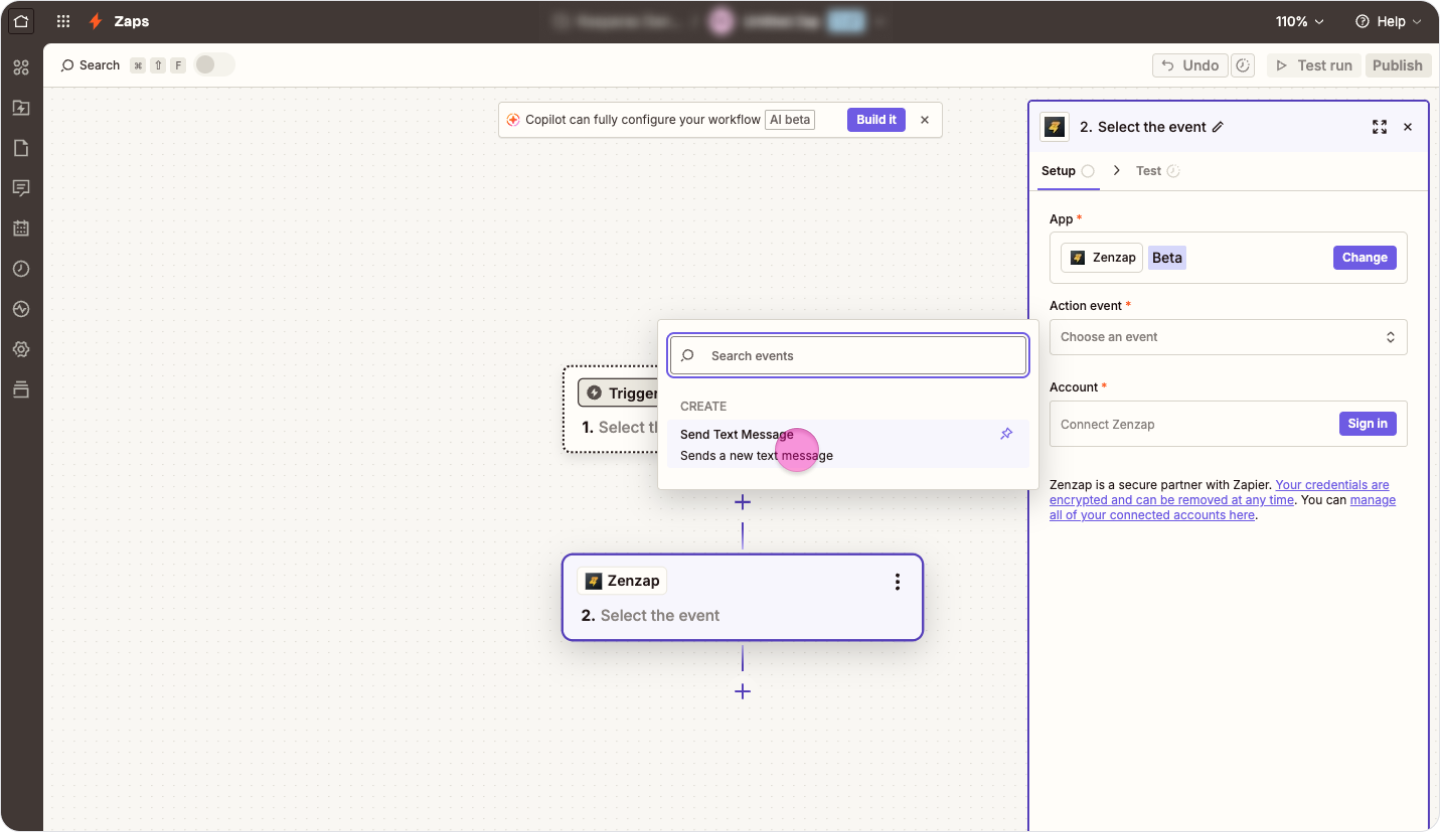
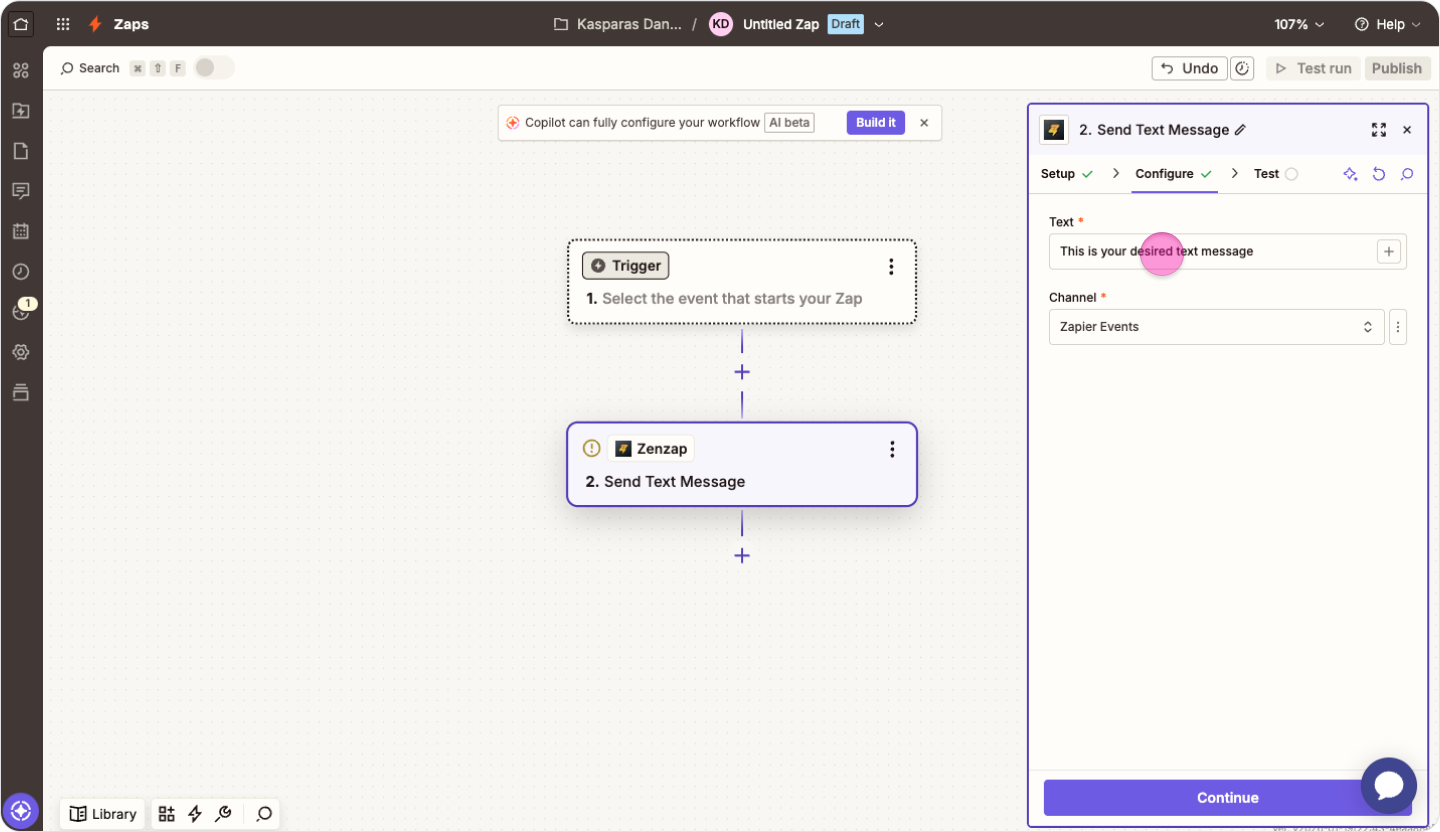
Fill in the "message" text box with the content you want to send.
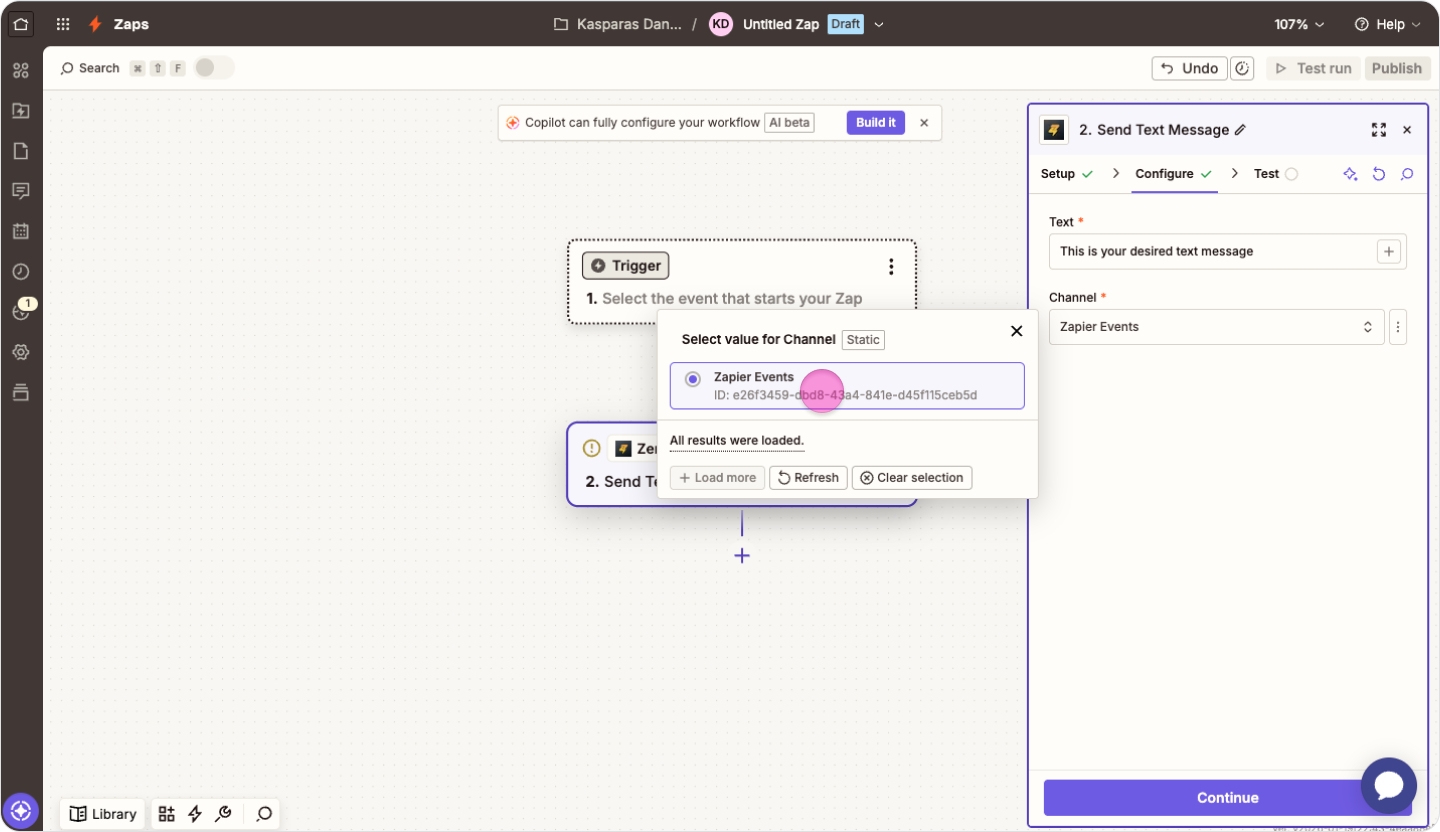
Choose the topic you want to message in the "Channel" box.
Note:
To send dynamic content based on previous Zap steps, use the "/" Zapier feature to incorporate those results into your message.
If you do not see the topic you want to message in the list, see the “Granting Topic Permissions” section.
Disconnecting Zapier
Click “My Apps” and select “Zapier”.
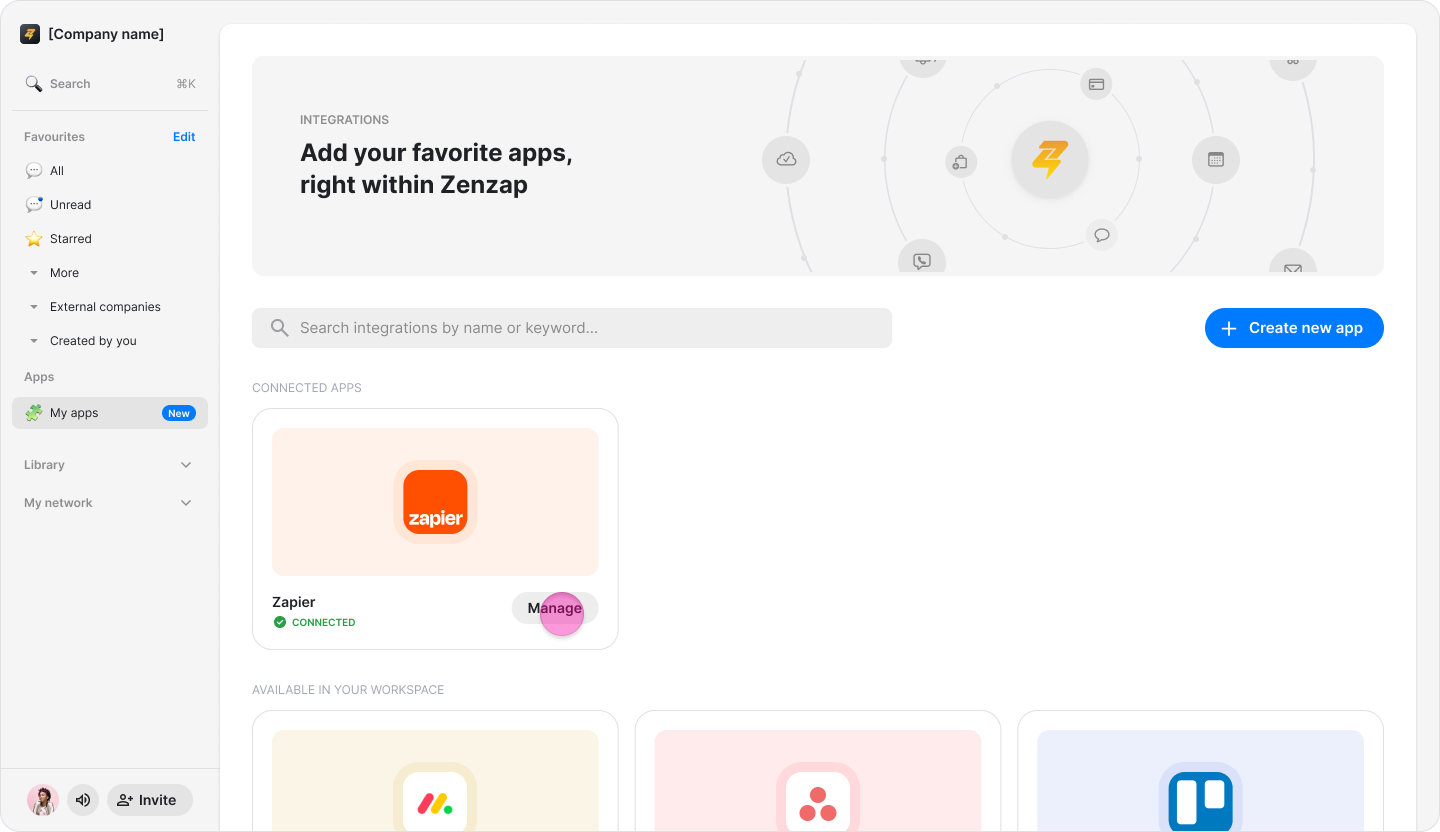
Click the three dots in the top-right corner.
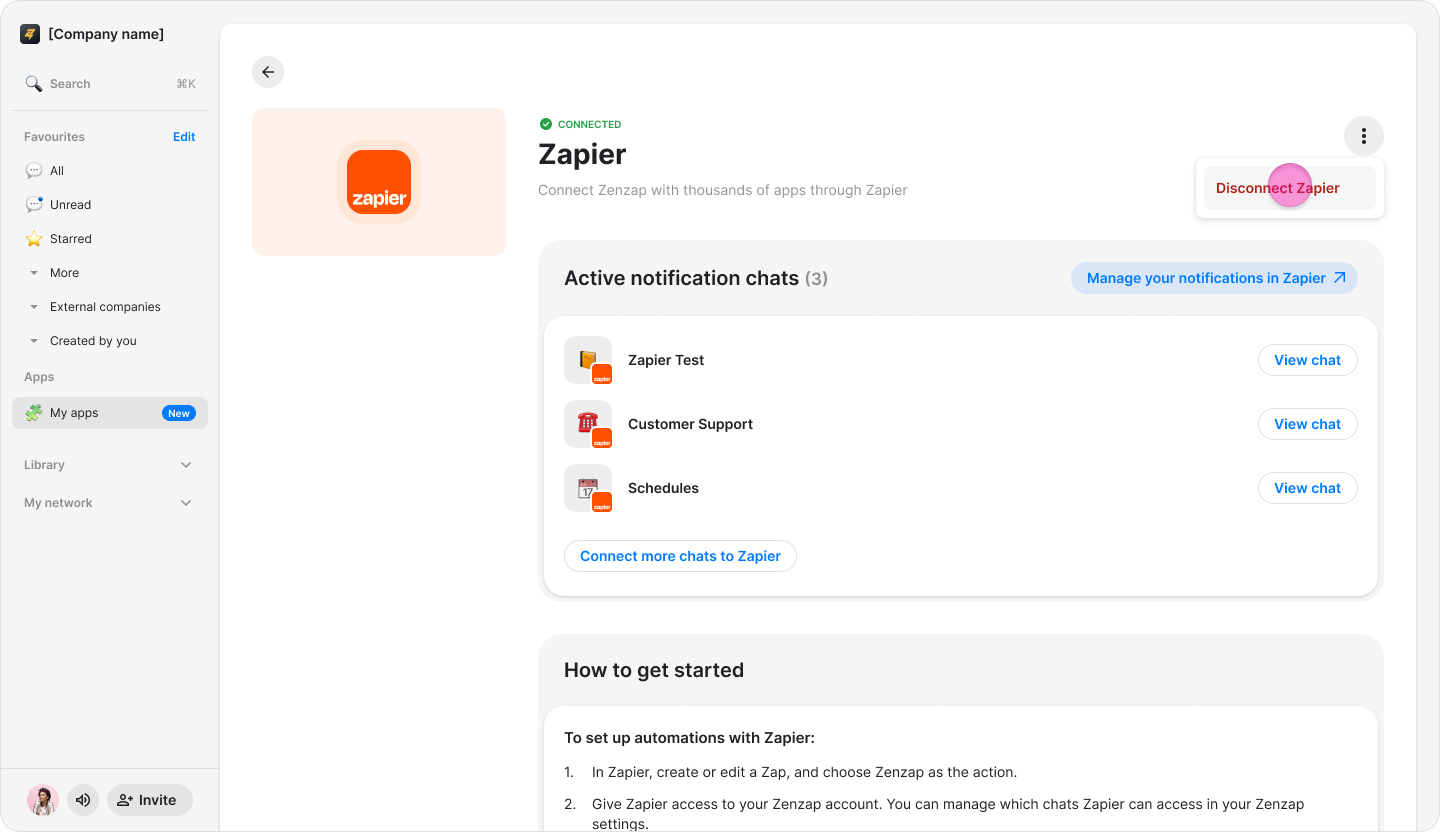
Click "Disconnect Zapier".
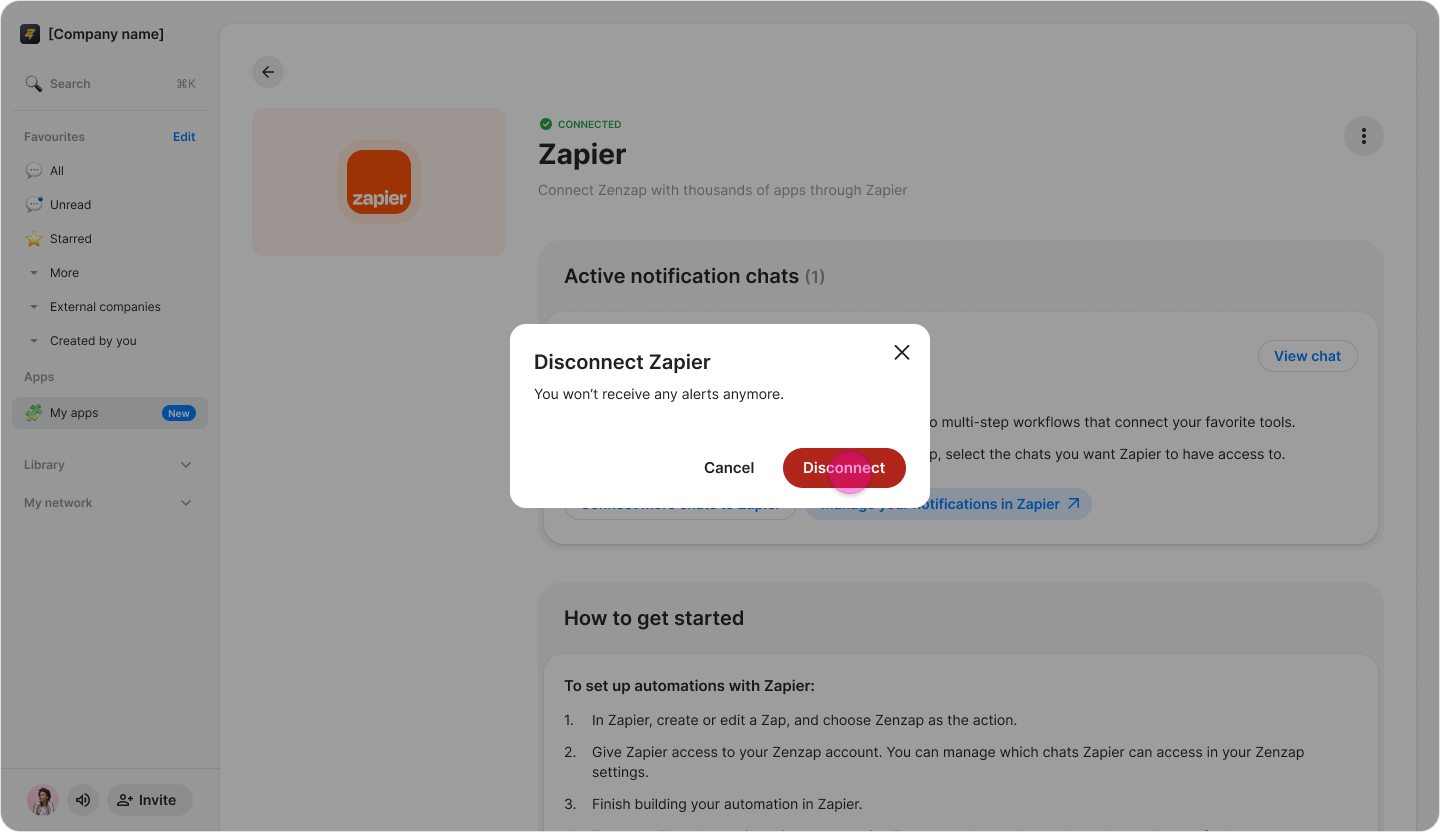
Note: Disconnecting the app stops all Zapier-based notifications and removes Zapier’s permissions to view your workspace. Existing messages will not be removed.
On Mobile (iOS & Android)
To connect Zapier from your mobile device, you must initiate the connection from within the Zenzap app.
Connecting Zapier from Zenzap:
Tap the "Admin" tab.
Choose "My Apps".
Tap "Connect" in the "Zapier" section.
Tap "Connect" again on the "Zapier" details screen.
Log in to your Zapier account in the popup window.
Tap "Connect" to link the accounts.
Granting Topic Permissions
Tap the "Admin" tab.
Tap "My Apps" and select "Zapier".
Tap "Edit Chats".
Select the topics you want Zapier to be able to send messages to.
Note: By default, Zapier only has access to the "Zapier Events" topic created during the installation process.
Disconnecting Zapier
Tap the "Admin" tab.
Tap "My Apps" and select "Zapier".
Tap the three dots in the top-right corner.
Tap "Disconnect Zapier".
Note: Disconnecting the app stops all Zapier-based notifications and removes permissions. Existing messages will not be removed.