
Add Custom Instructions to Your Agent
Use custom instructions to personalize your AI agent’s role, responsibilities, and response style across all chats.
For example, you can tell your agent to:
Define its role: "You are our help center expert. You work with the Support and Success team."
Set its response style: "Keep answers short and use bullet points for steps."
Choose a language: "Always reply in English, even if the question is in another language."
Tips for Writing Effective Instructions
Be specific: Write clear rules that are easy for your agent to follow.
Define its role: Start by describing what the agent does, then add rules for tone and formatting.
Test your instructions: Ask your agent a typical question to check how it responds.
Use instructions for ongoing rules: For one-time requests, simply ask your agent in the chat.
Important Things to Know
Privacy: Only the agent's owner can view and edit its custom instructions.
Editing instructions: Your agent can't change its own custom instructions. If you ask it to make changes, it will guide you to the "Custom Instructions" section in its profile.
Instructions vs. memory: While memory is specific to individual chats, custom instructions apply across all chats your agent participates in.
On Mobile (iOS & Android)
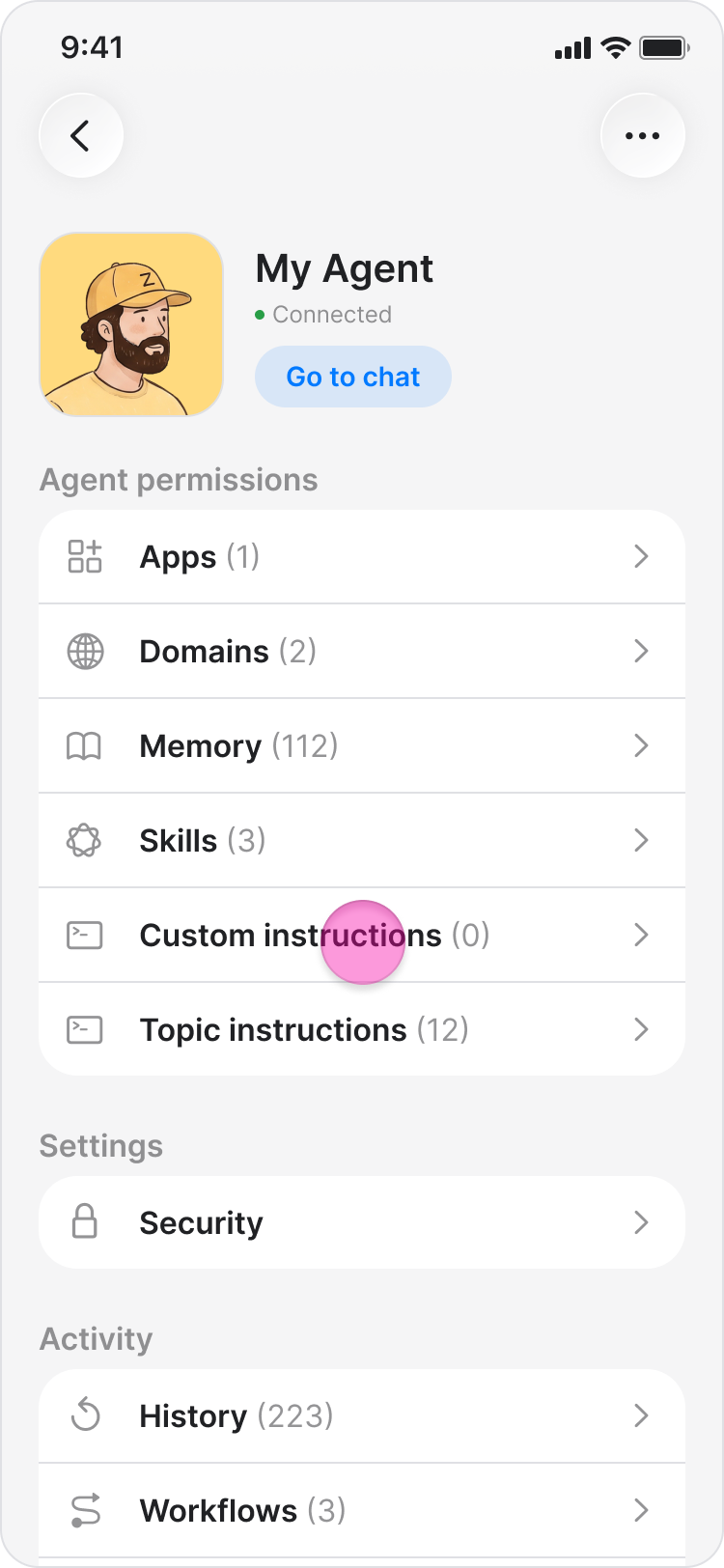
Open your agent's profile.
Tap "Custom Instructions".
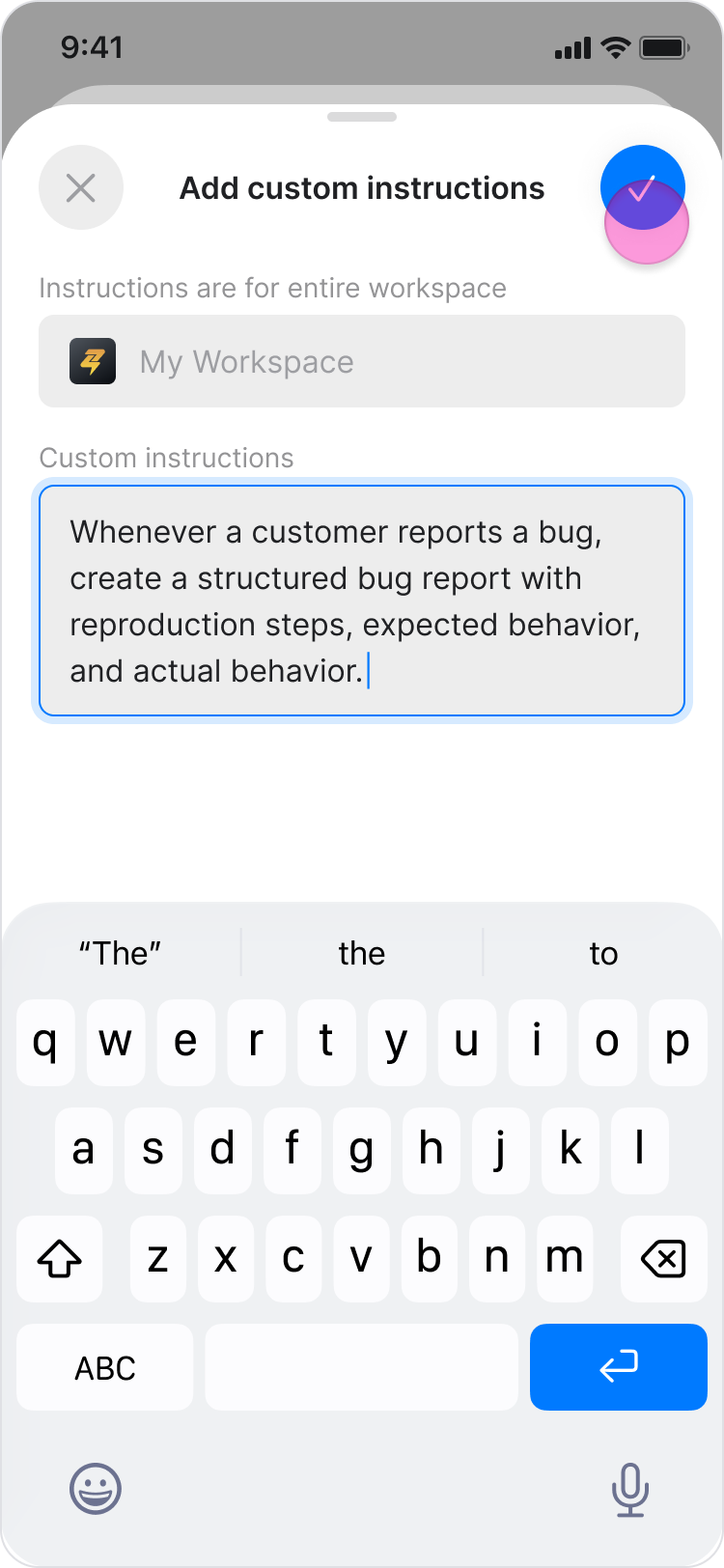
Enter your instructions.
Tap the checkmark icon to save.
Note:
To edit your instructions, follow the same steps, update the text, and save.
To delete your instructions, erase all the text and tap the checkmark icon to save.
Changes take effect immediately. Your agent follows the updated instructions in its next reply and the next run of any existing workflow. You don't need to recreate or update your workflows.
On Desktop (Windows, macOS, & Web App)
Add Custom Instructions
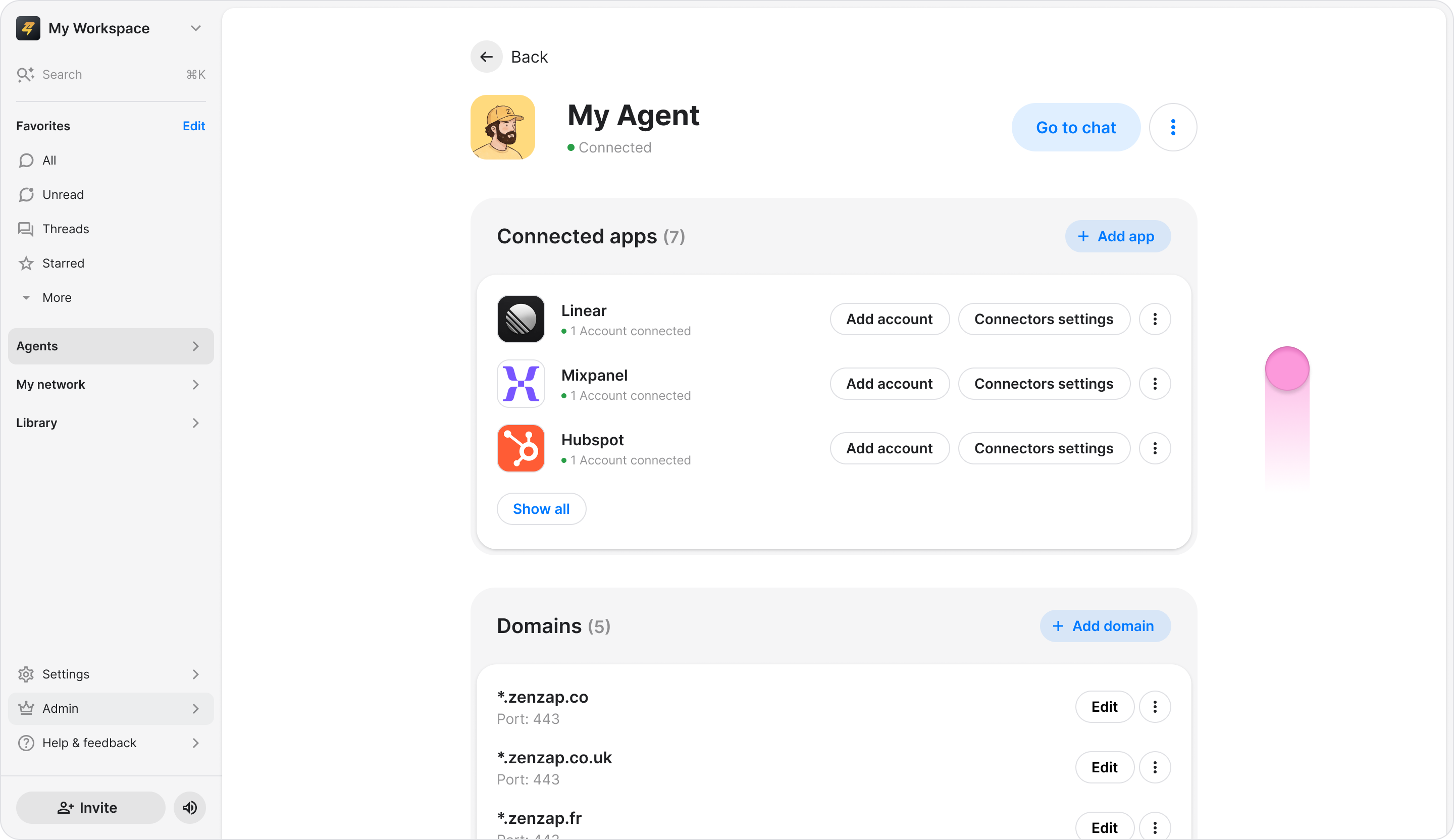
Open your agent's profile.
Scroll down to "General custom instructions" section.
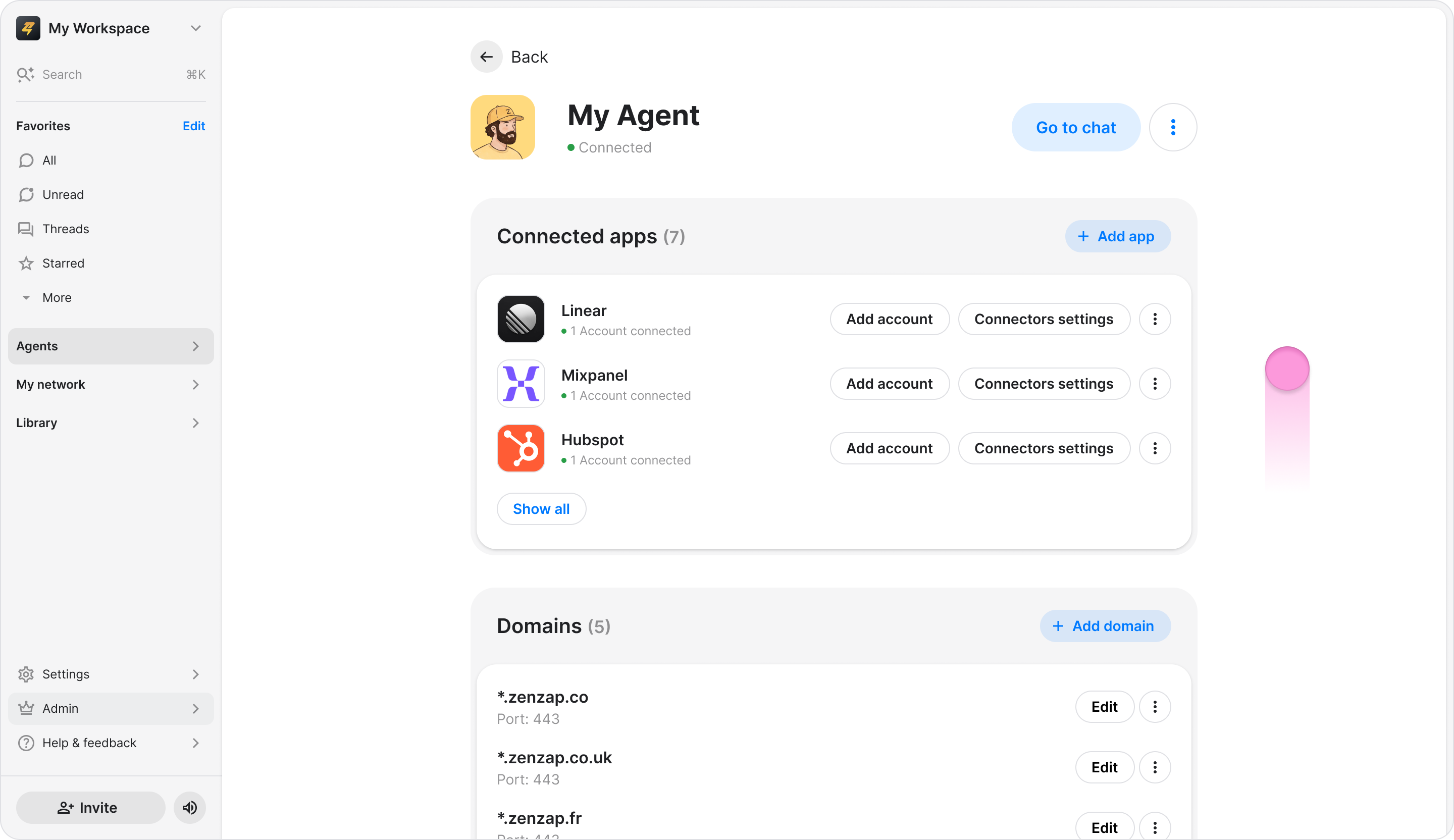
Click "+ Add instruction" (Web and Windows) or "Edit custom instructions" (Mac).
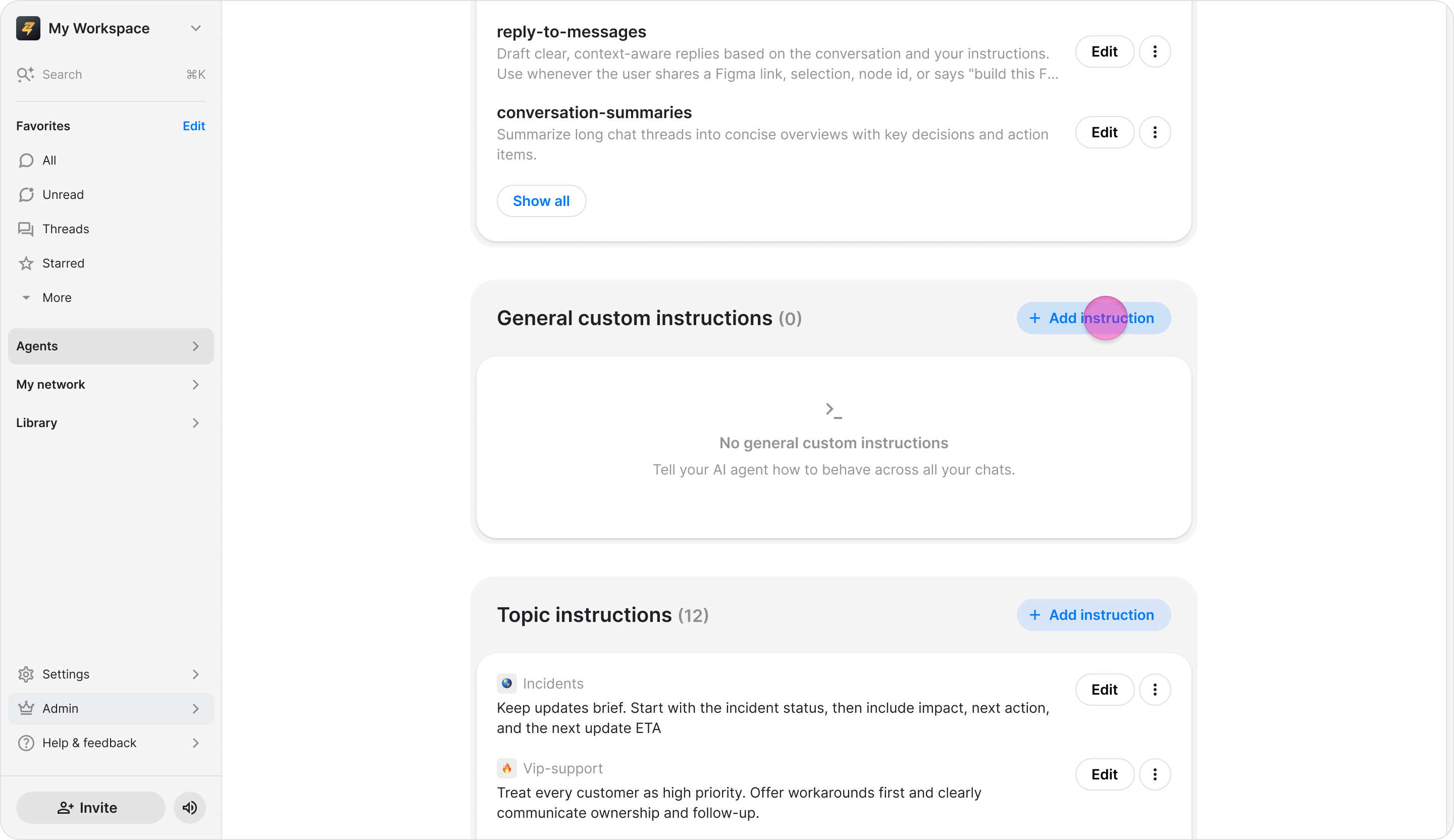
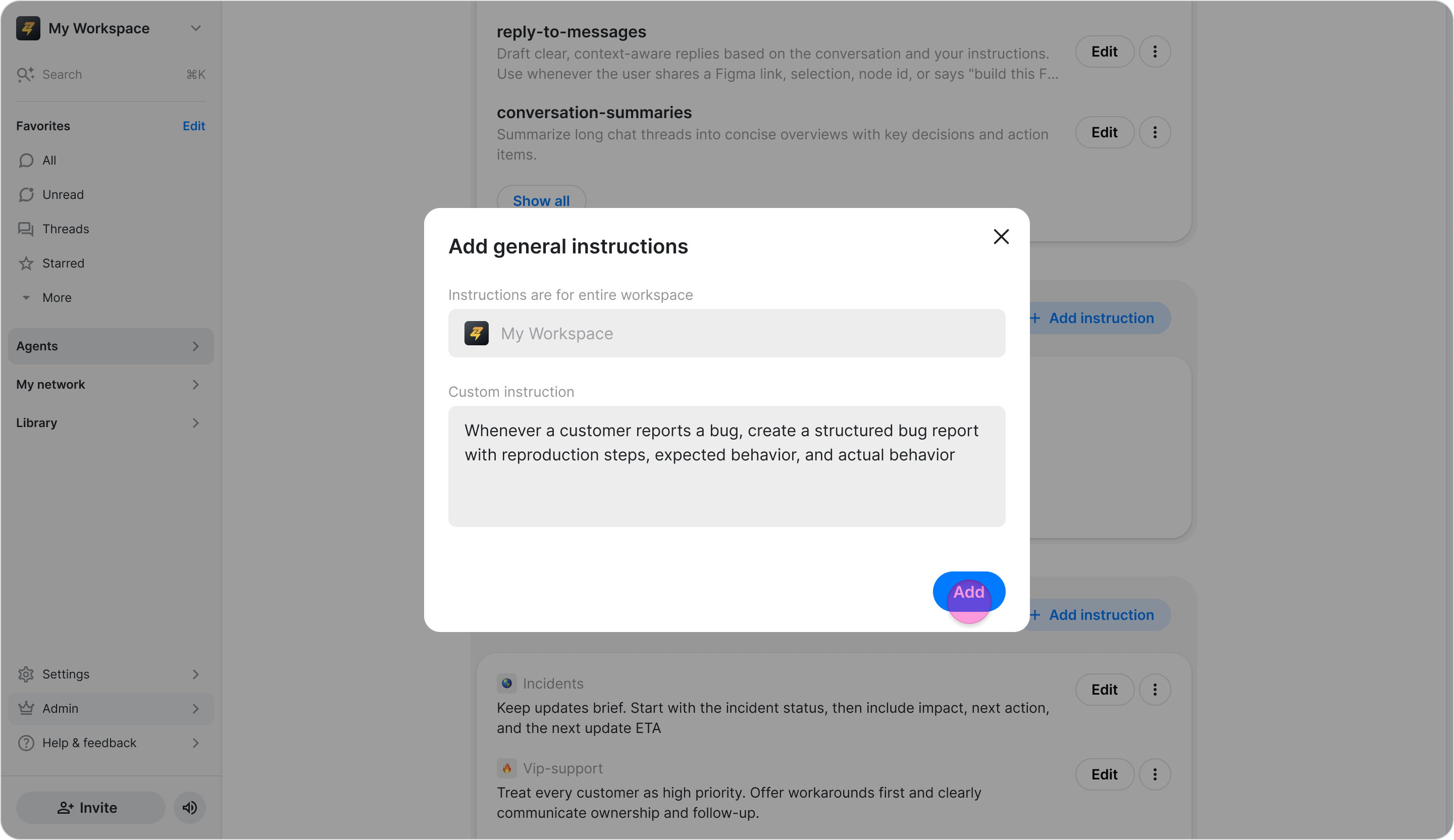
Enter or paste your instructions.
Click "Add".
Edit Custom Instructions
Open your agent's profile.
Scroll down to "General custom instructions" section.
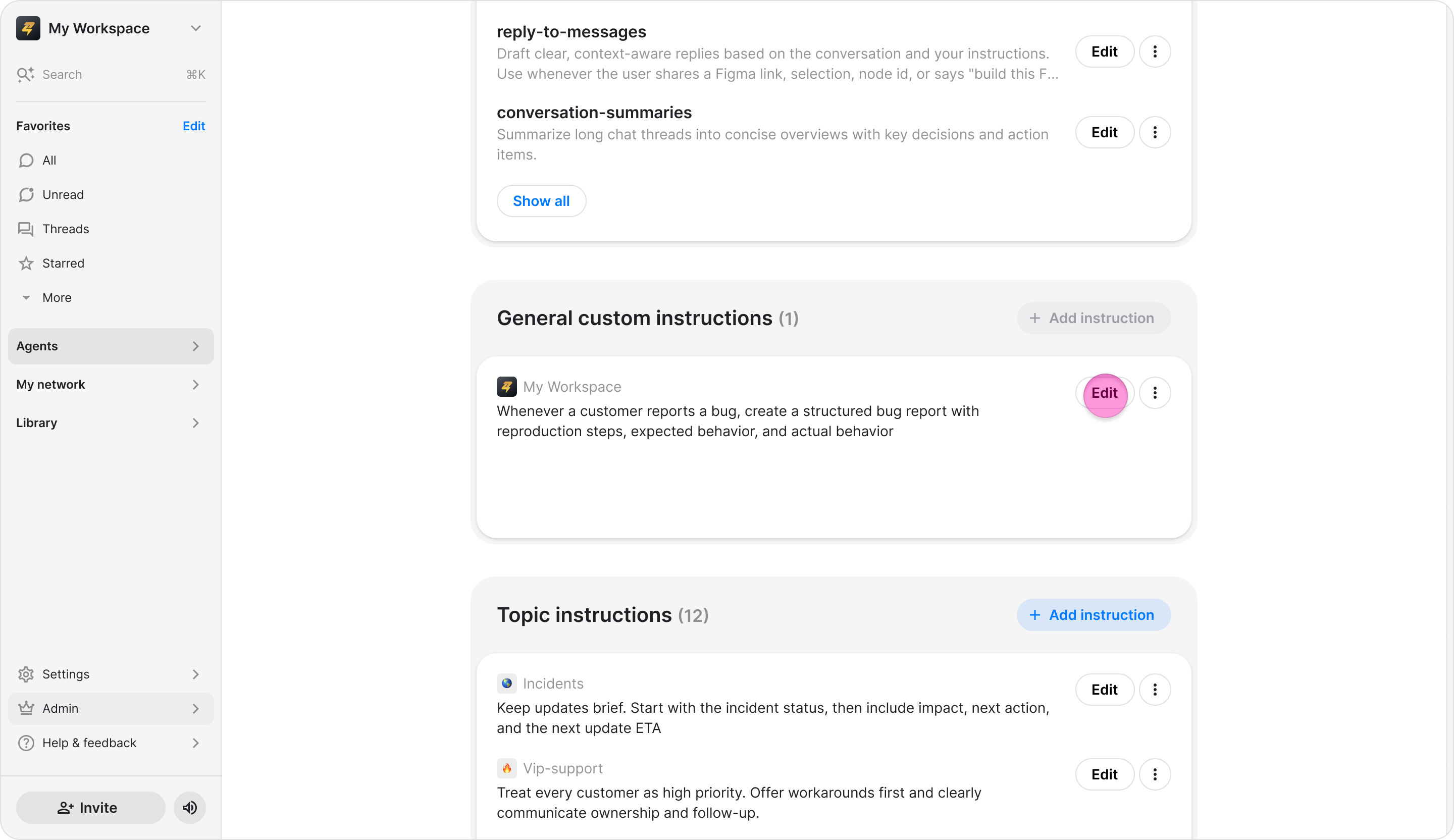
Click "Edit".
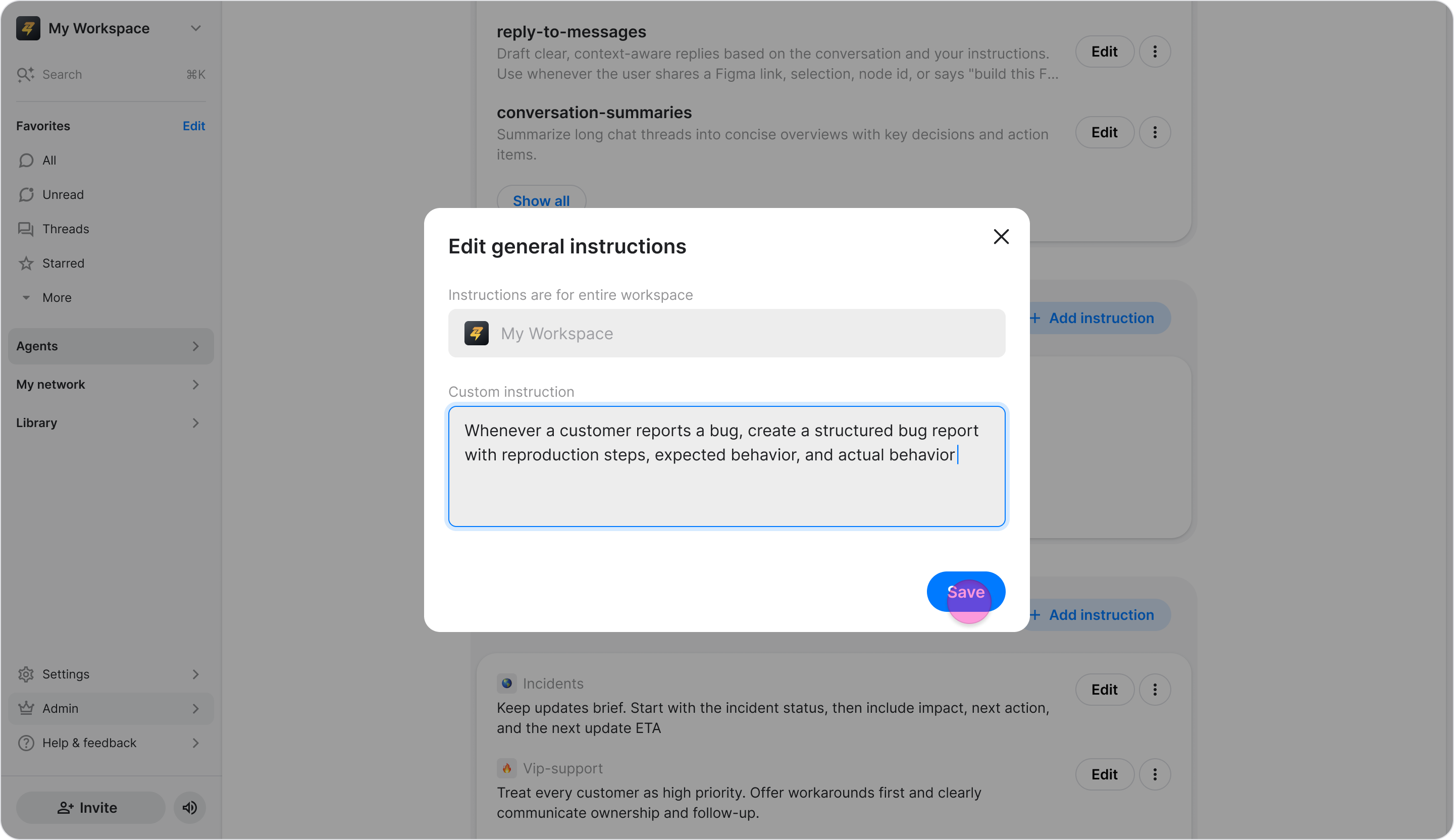
Update your instructions.
Click "Save" (Web and Windows) or the checkmark icon (Mac).
Delete Custom Instructions
Open your agent's profile.
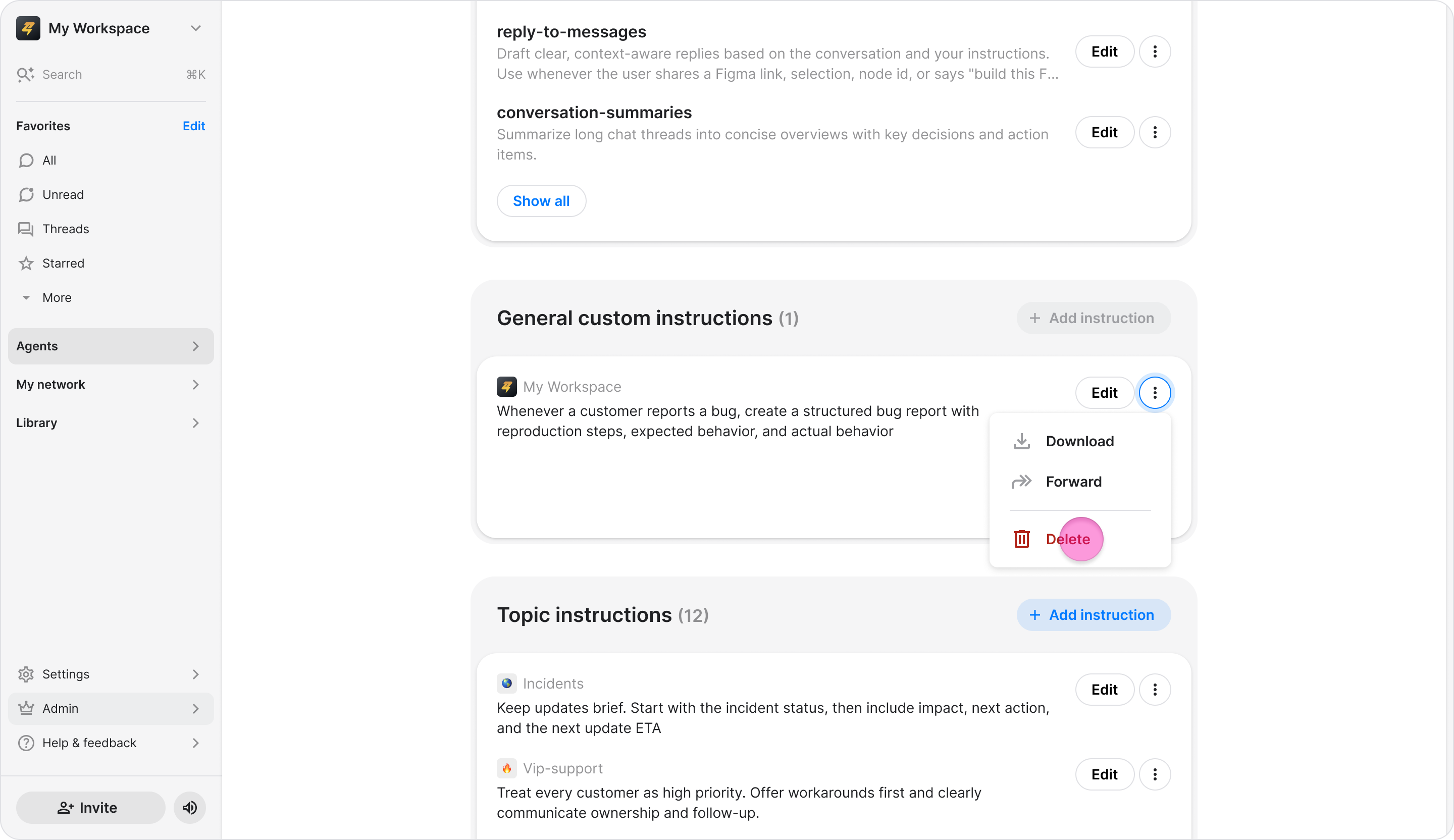
Scroll down to "General custom instructions" section. (on Mac, "Custom instructions").
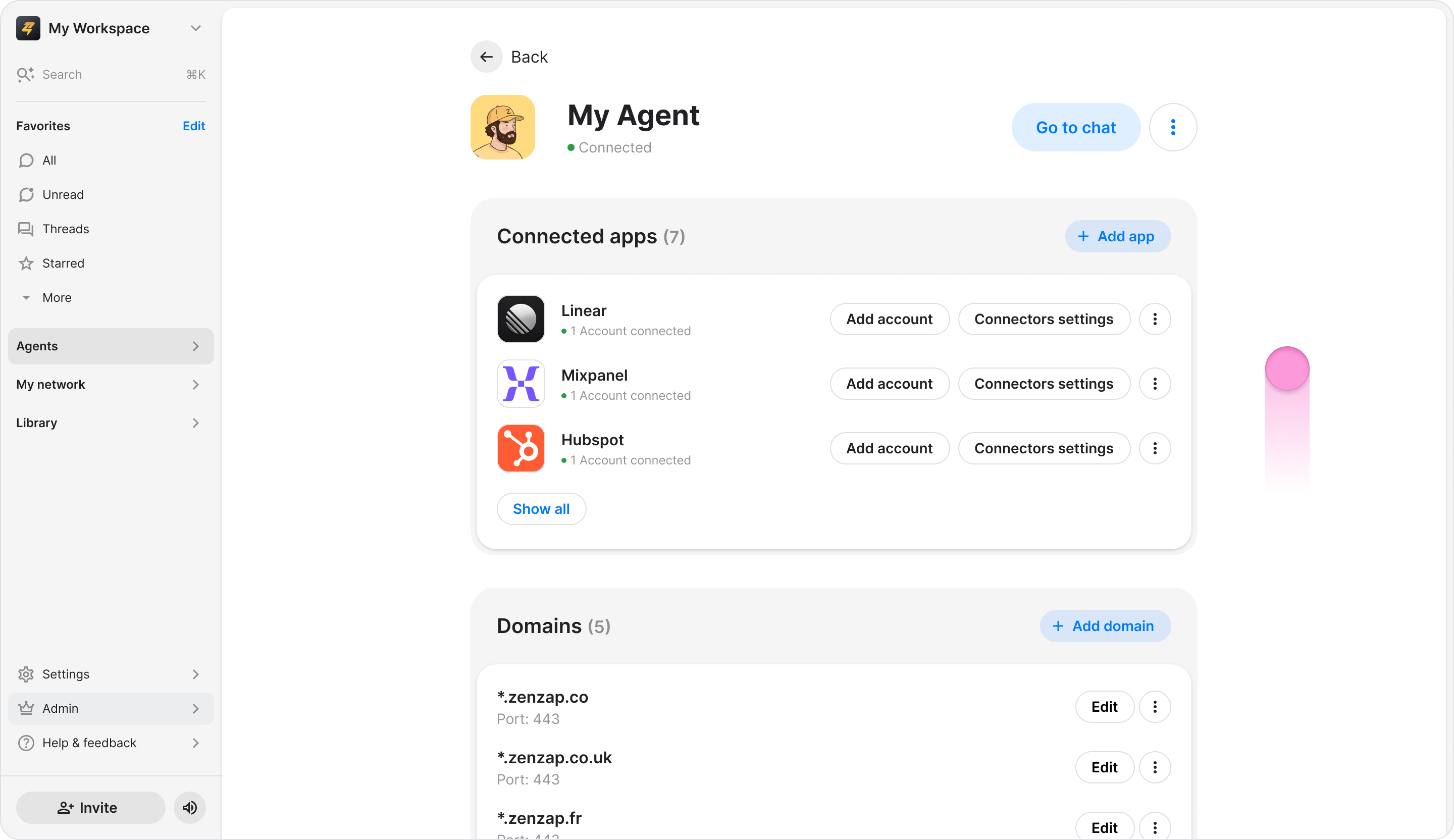
Click the three-dot icon next to the instruction.
Click "Delete".
Click "Delete" again to confirm.
Note: Changes take effect immediately. Your agent follows the updated instructions in its next reply and the next run of any existing workflow. You don't need to recreate or update your workflows.