Disconnect an AI Agent
Disconnect an AI agent from your workspace, preventing it from responding to messages, completing tasks, or running workflows.
Access: Admins only
When an admin disconnects an agent:
The agent stops responding in all chats and can no longer complete tasks or run workflows.
The agent appears as "Inactive" in the member's chat list.
Chat history is preserved, so the member can still view past conversations.
Connected apps, workflows, and memory are no longer accessible.
The disconnection is permanent. To use an AI agent again, the member must set up a new one.
Note: Before disconnecting an agent, make sure the member no longer needs it. Once disconnected, the agent cannot be reconnected, and its connected apps, workflows, and memory will no longer be available.
On Mobile (iOS & Android)
Open the "Admin" tab.
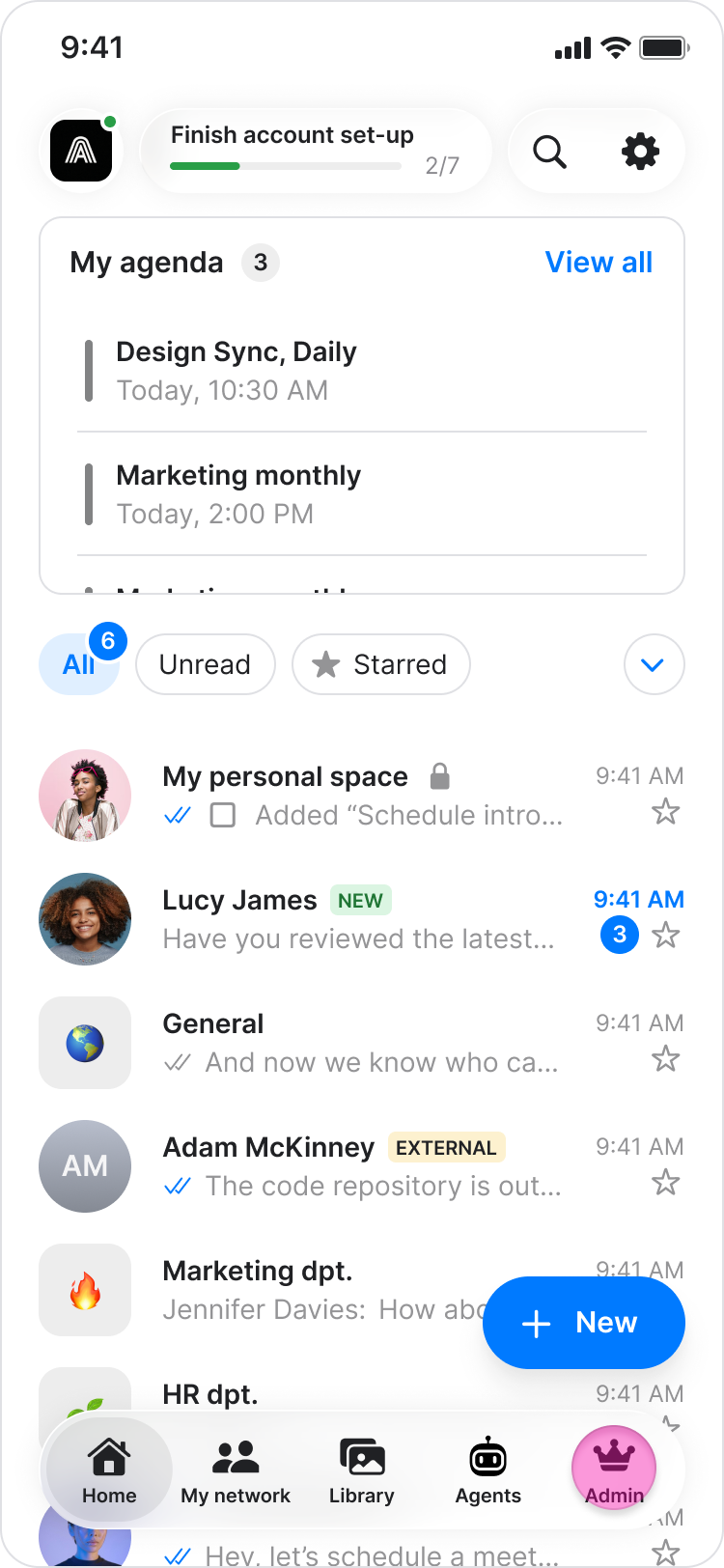
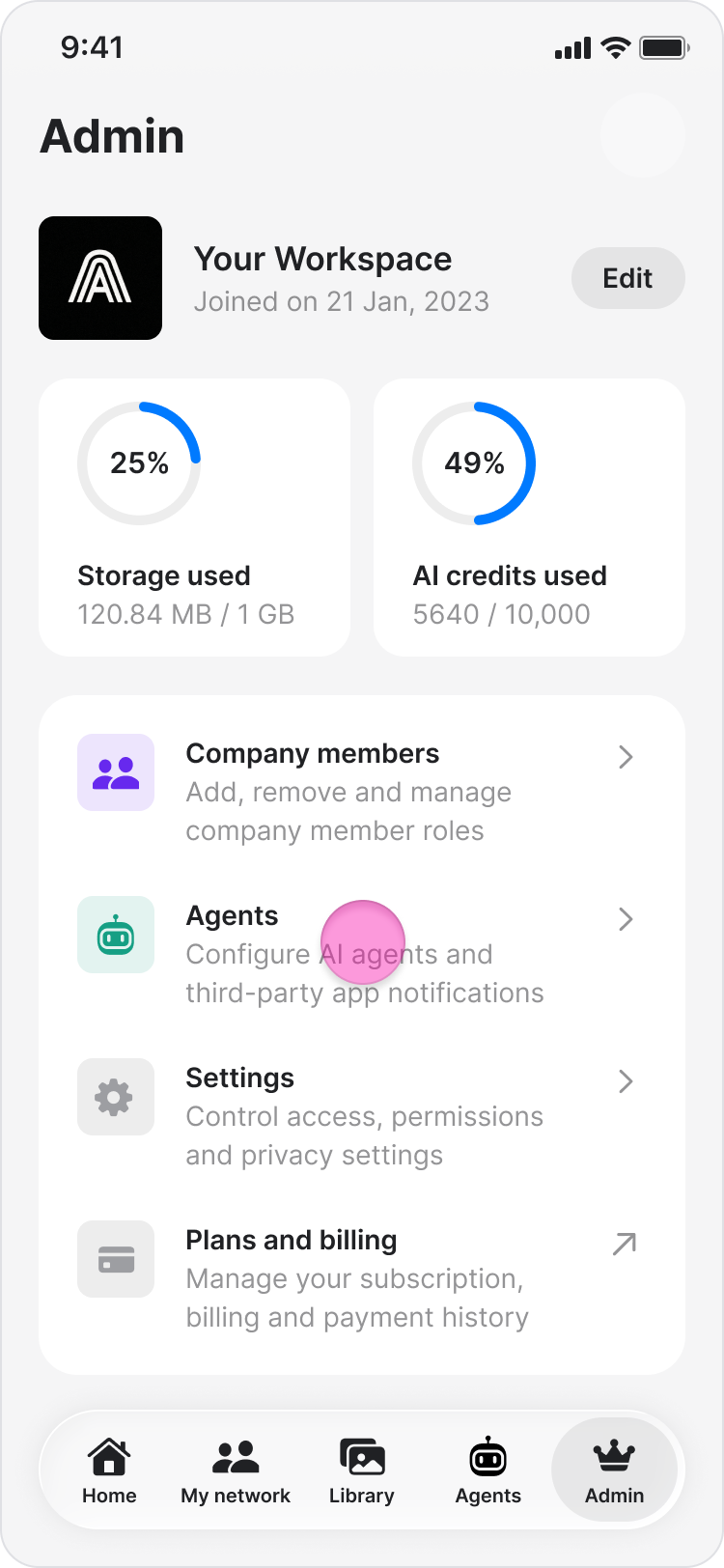
Tap "Agents" to view all workspace agents.
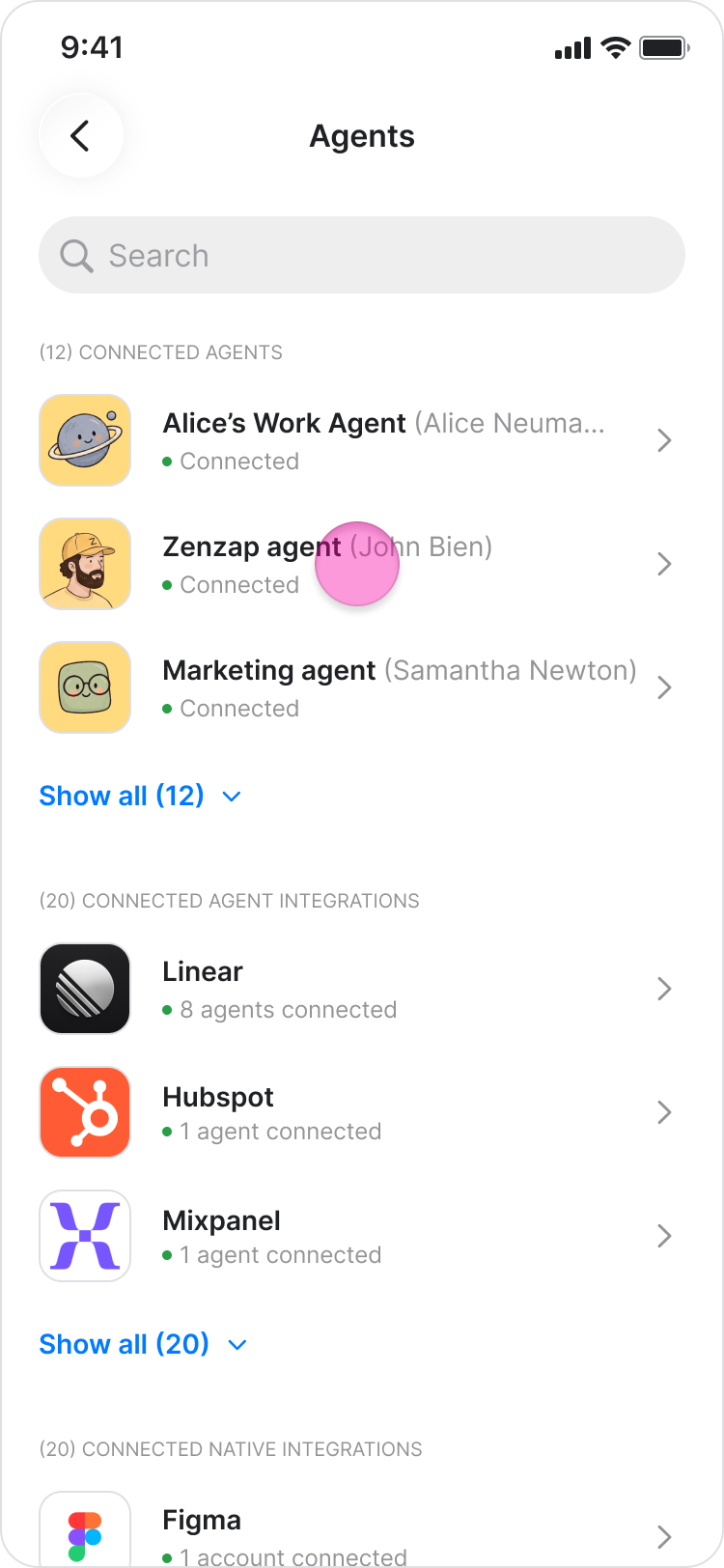
Tap on the agent you want to disconnect.
Tap the three-dot menu in the top-right corner.
Tap "Disconnect".
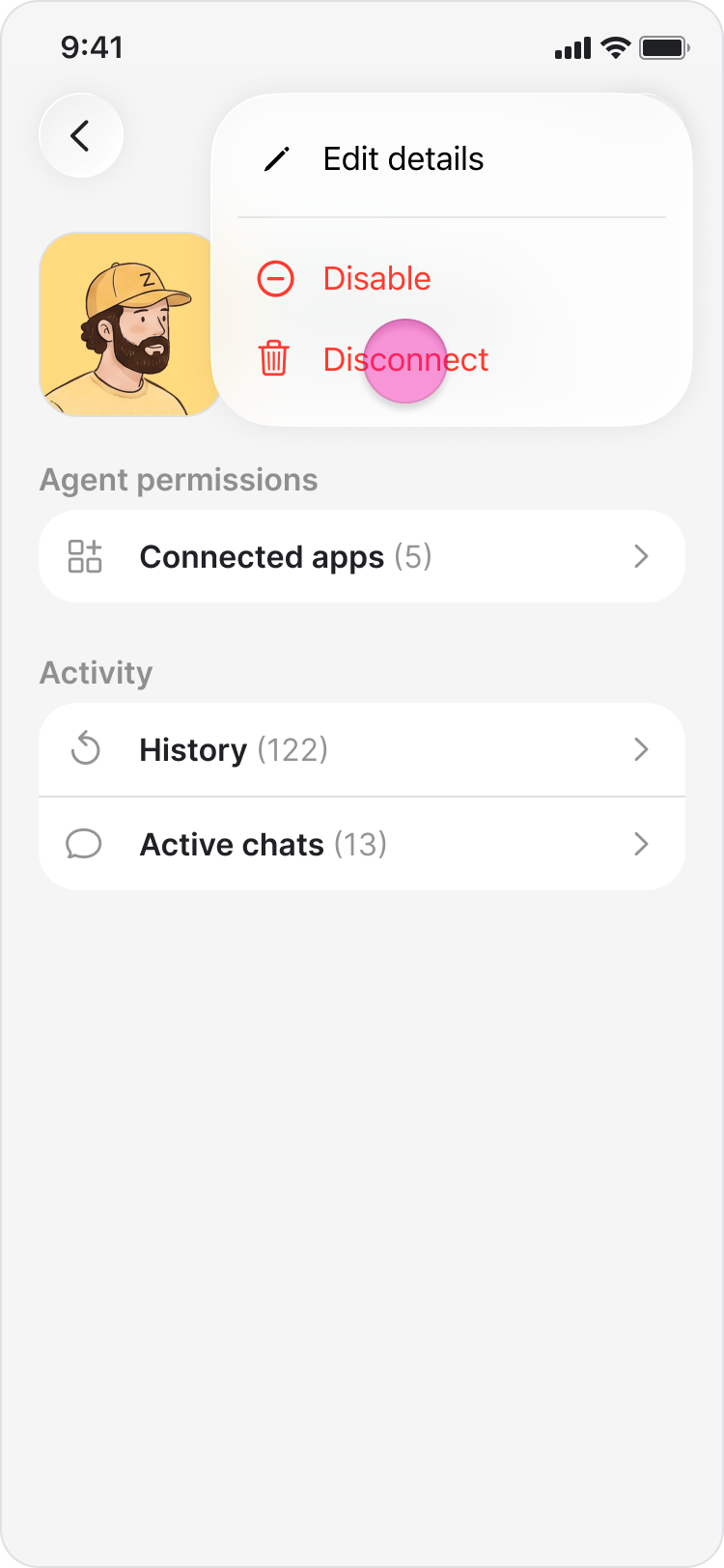
Tap "Disconnect" again to confirm.
Note:
Tap "Show all" to see the full list of agents. The "Workspace Agents" page shows each agent’s name, owner, and status.
The agent's status changes to "Inactive". The member sees the following banner in the chat: "[Agent name] has left Zenzap. Therefore, further chat is disabled, but you can view the history."
Regular users can view their own agent, but only workspace admins can disconnect agents.
On Desktop (Windows & Web App)
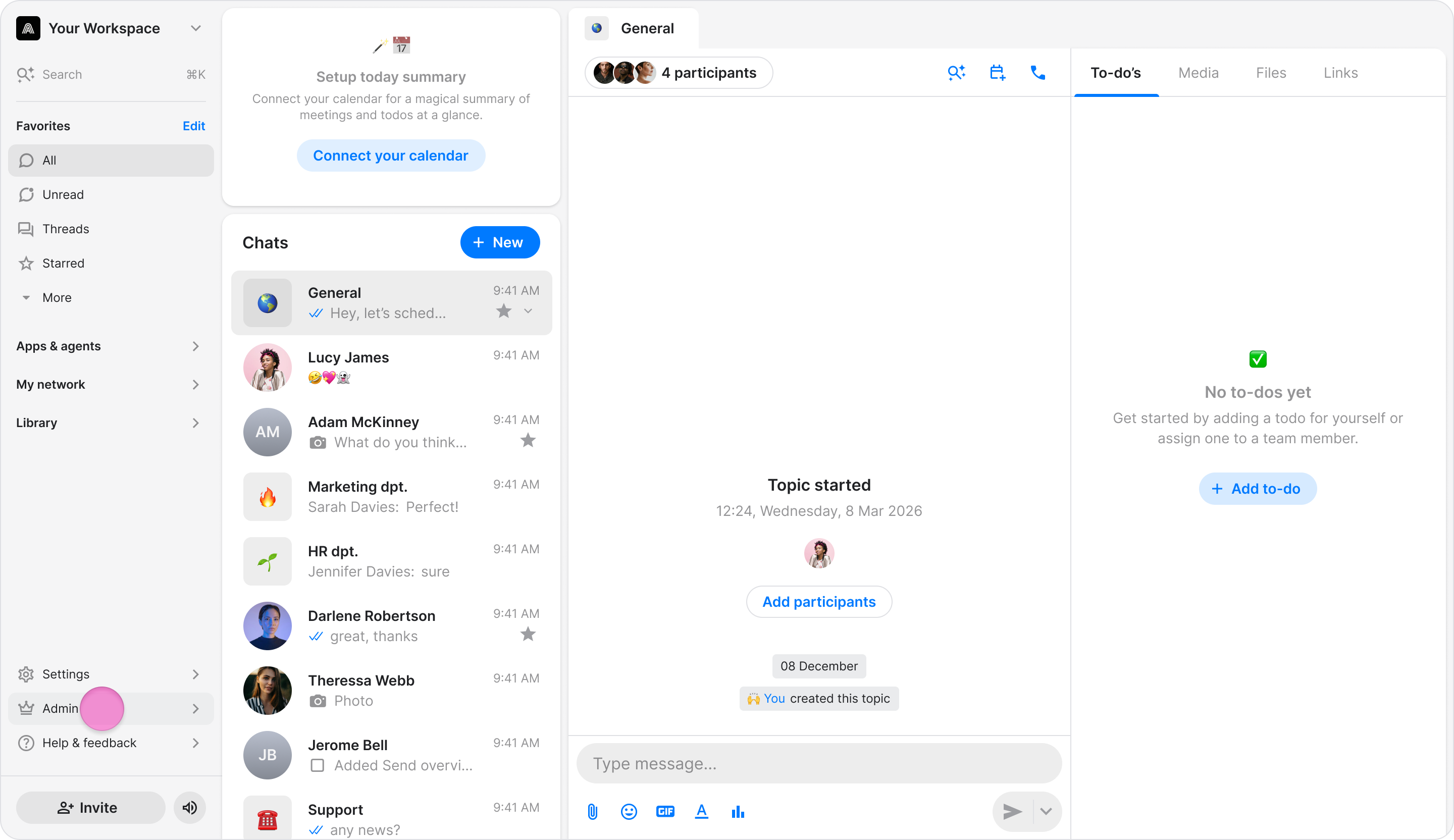
In the sidebar menu, under the "Admin" tab, select "Agents".
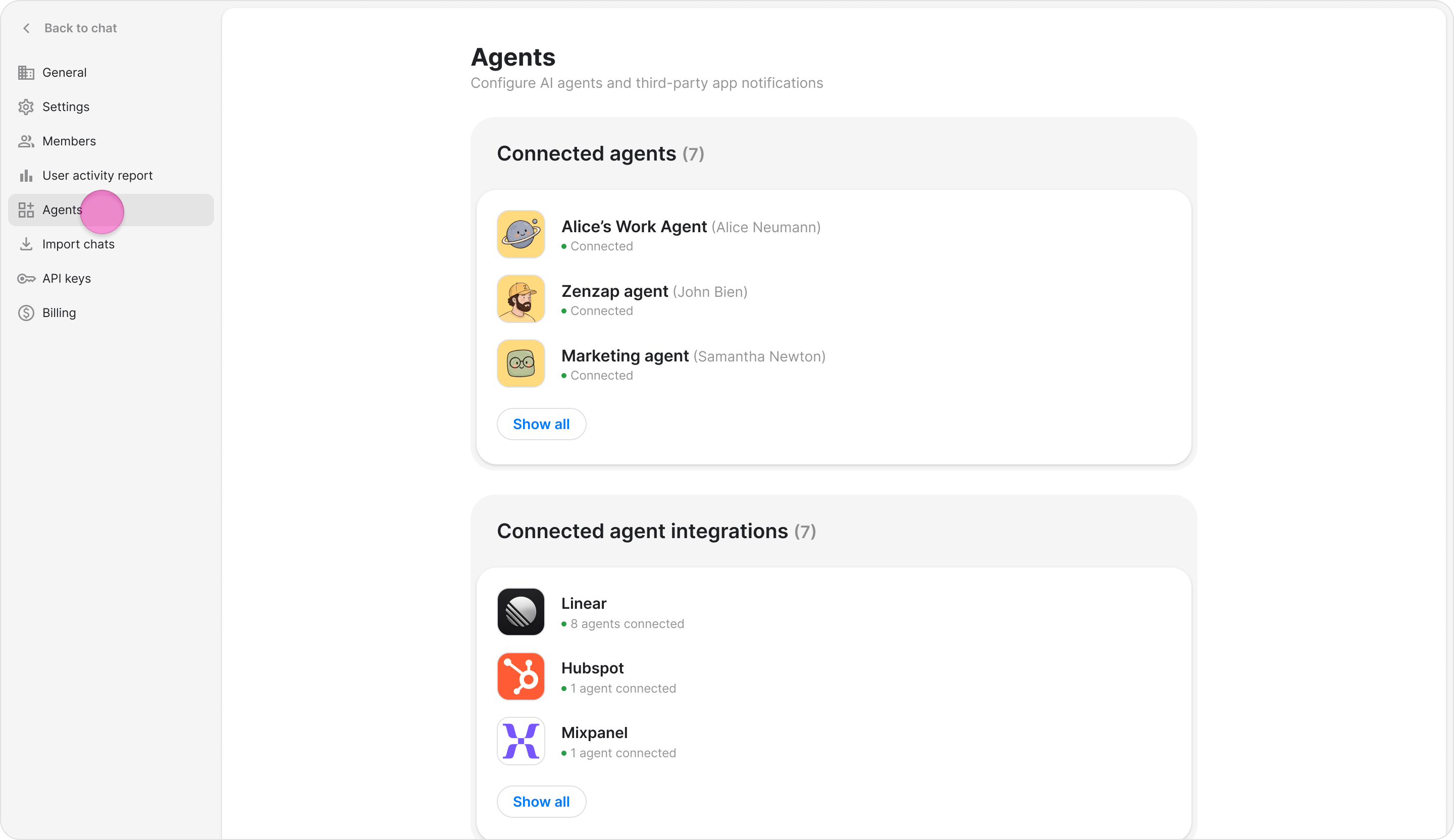
Find the agent you want to disconnect. Use the search bar to filter by name if needed.
Click "Manage" on the agent's card.
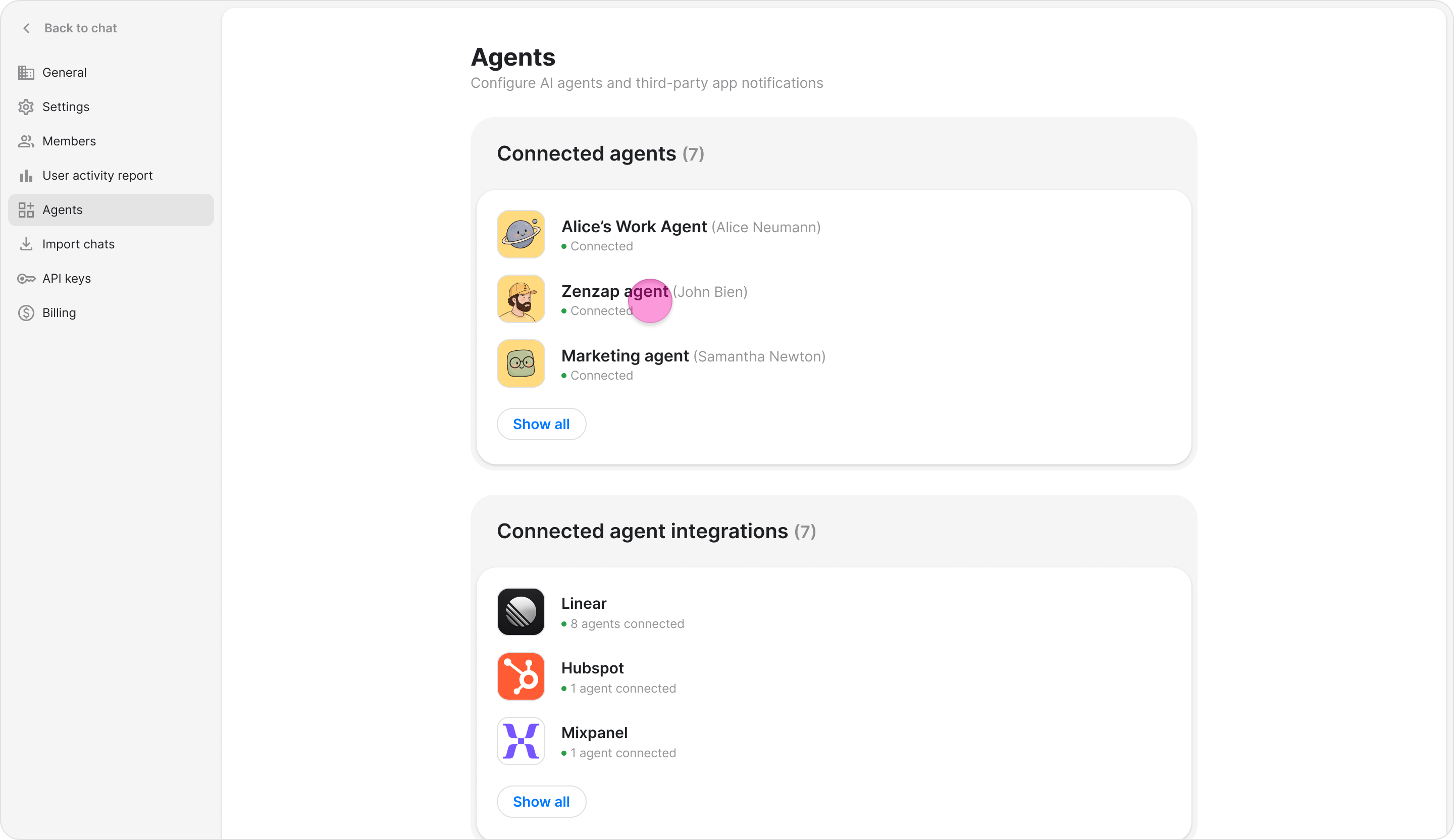
Click the three-dot menu.
Select "Disconnect".
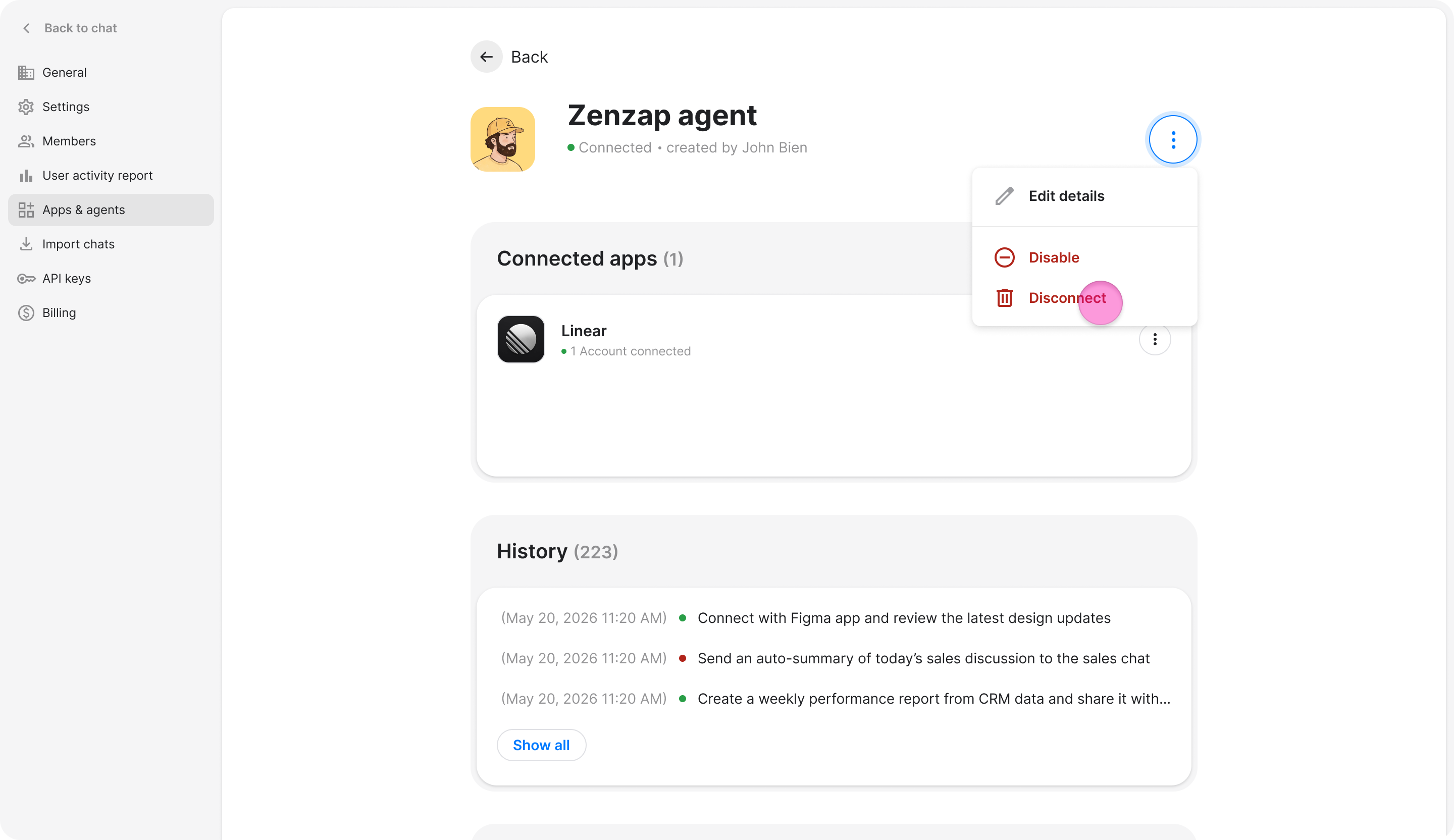
In the confirmation dialog, click "Disconnect" to confirm or "Cancel" to go back.
Note:
The "Workspace Agents" page lists all agents in the workspace, including each agent's name, owner, and status.
The agent's status changes to "Inactive". The member sees the following banner in the chat: "[Agent name] has left Zenzap. Therefore, further chat is disabled, but you can view the history."
Regular users can view their own agent, but only workspace admins can disconnect agents.