
Manage Your Agent’s Memory
Review, add, edit, or delete your agent's memories to control which information it can use in your chats.
On Mobile (iOS & Android)
Your agent can remember relevant information from your conversations automatically, or you can add memories manually.
You can use memories to help your agent remember things like:
Your time zone or working hours
Your role or team
Recurring tasks and preferences
Formatting or style guidelines
Key contacts and their responsibilities
To save a memory, tell your agent in conversation. For example: "Remember that my time zone is Eastern Time."
Your agent may also save or update memories automatically when it needs that information to complete an action. For example, it may store details from earlier messages to provide a daily update as part of a workflow.
View Your Agent's Memories
Go to "Agents".
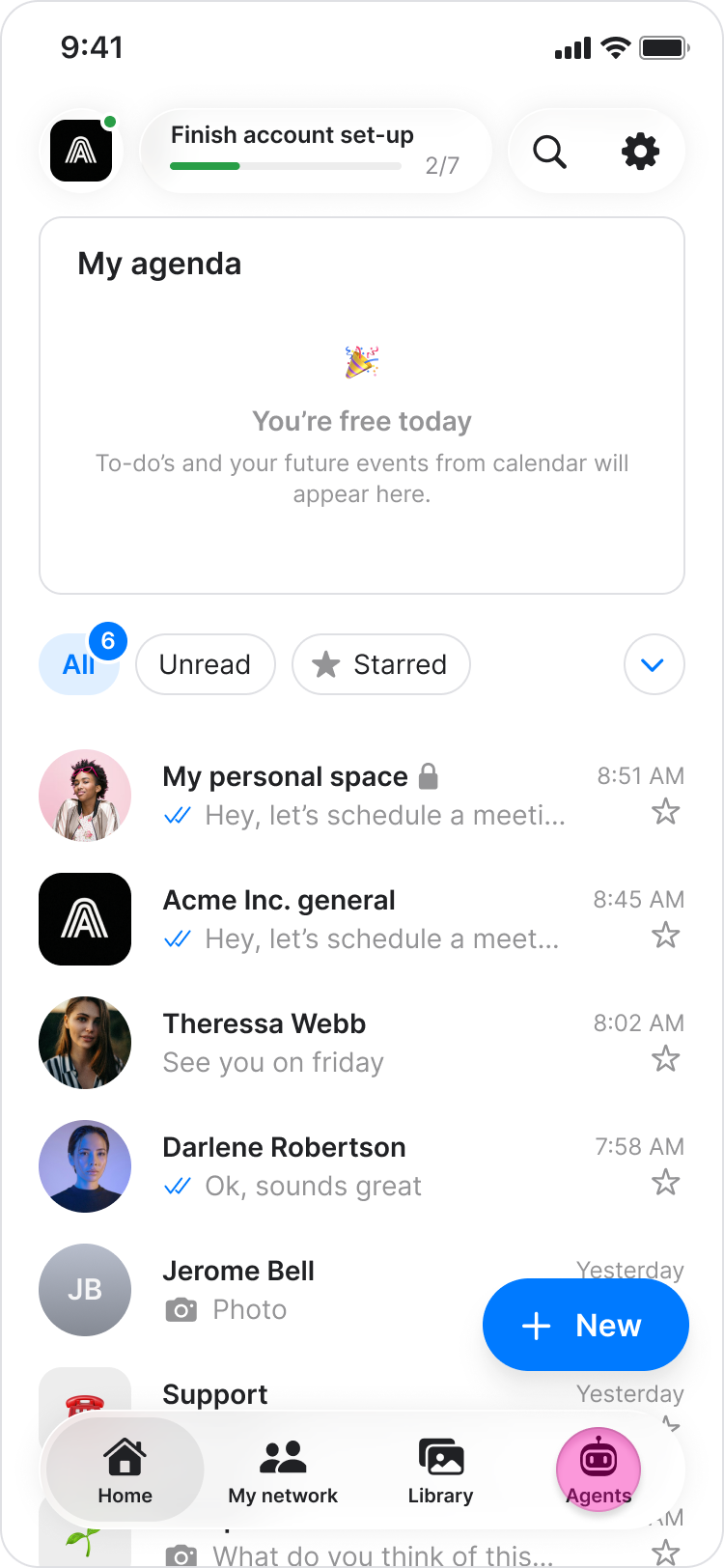
Select the relevant agent.

Tap "Memory".
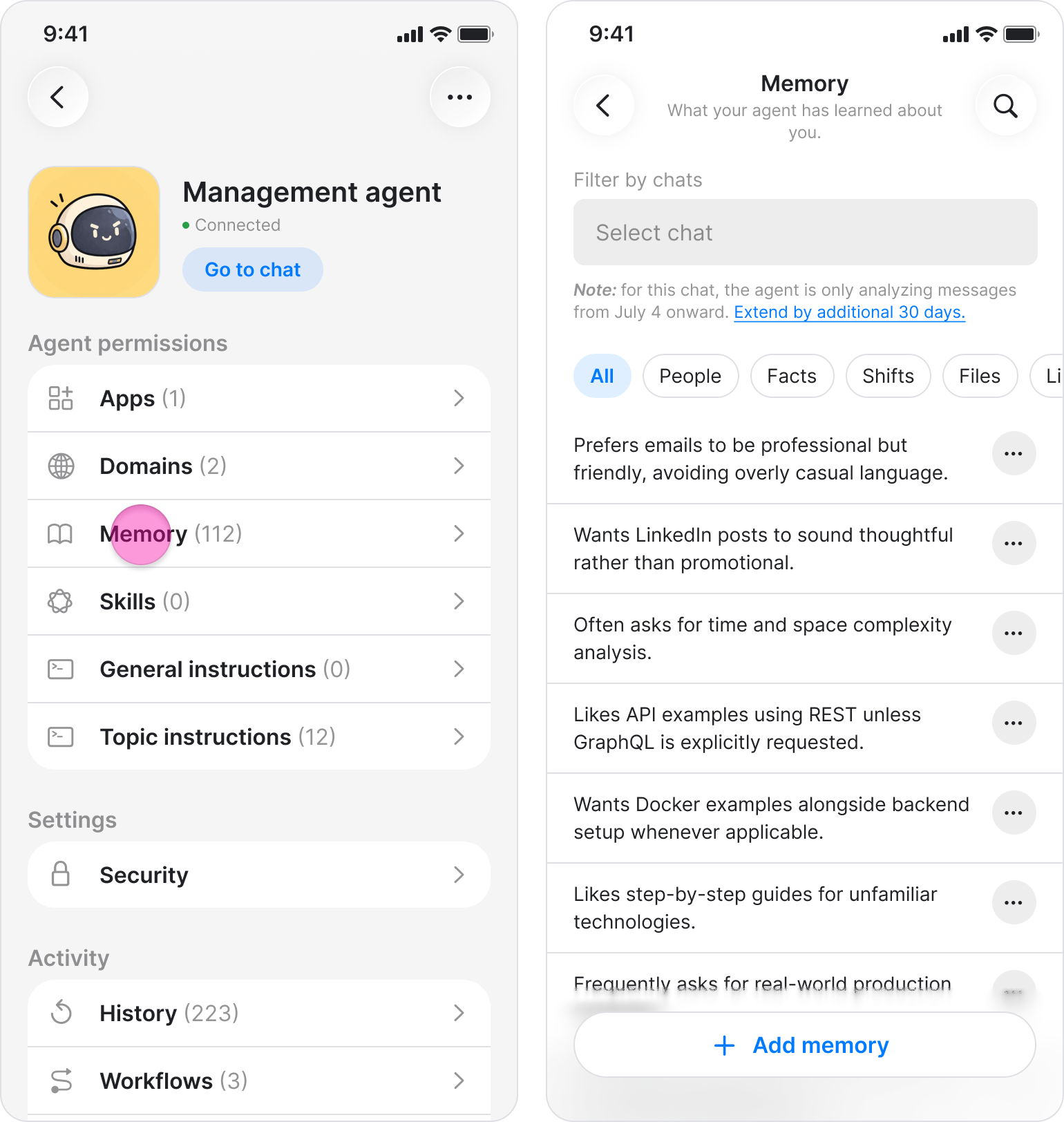
Note:
Memories are associated with the chat where they were created or added, so the memories available in a specific chat may differ from the agent's full list.
If your agent has not saved any memories yet, the Memory screen displays "No saved memories yet."
If you delete a chat, its associated memories are also deleted.
Filter Memories by Chat
Go to "Agents".
Select the relevant agent.
Tap "Memory".
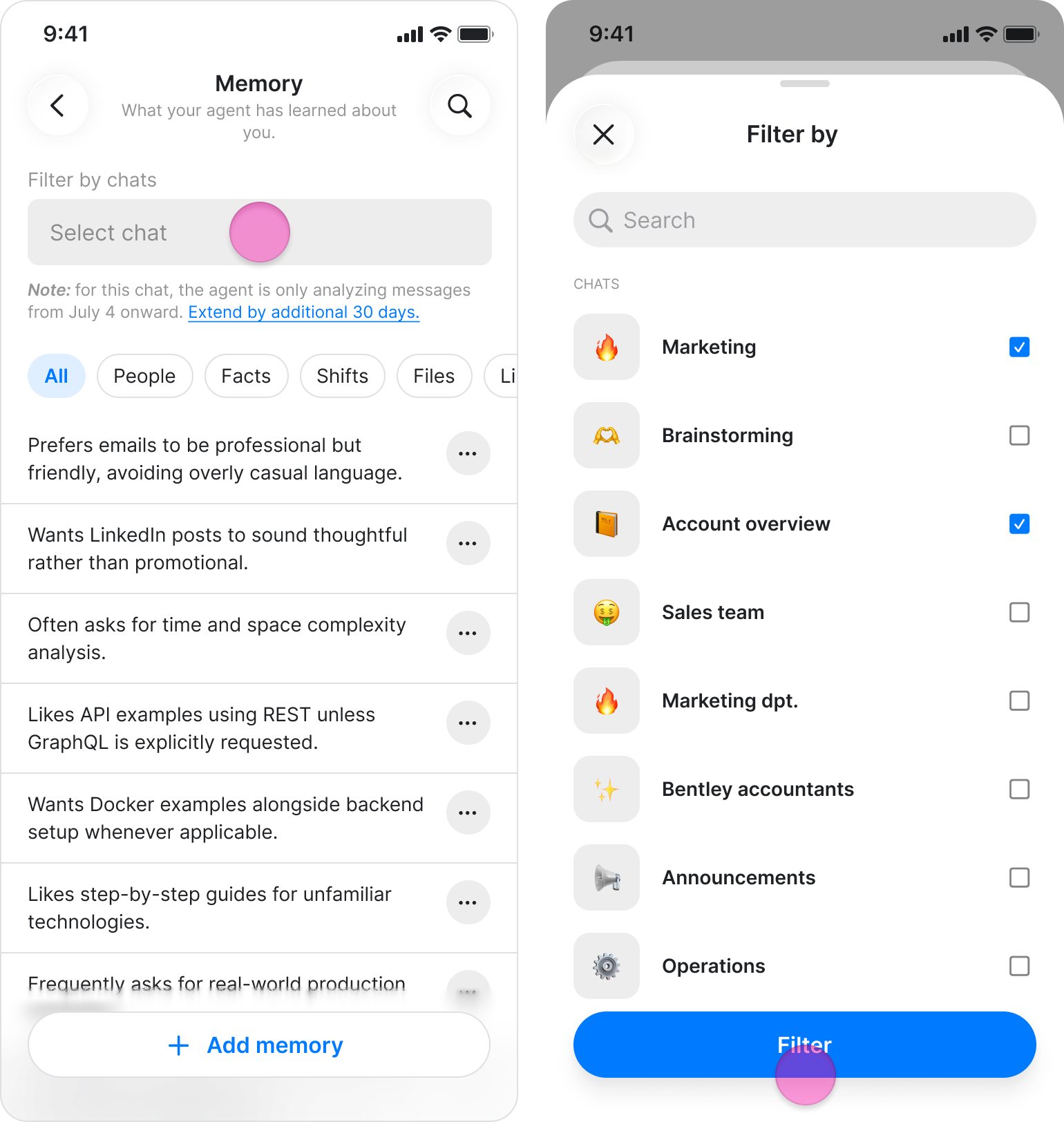
Under "Filter by chats", select one or more chats.
Add a Memory
Go to "Agents".
Select the relevant agent.
Tap "Memory”.
Tap "+ Add memory"
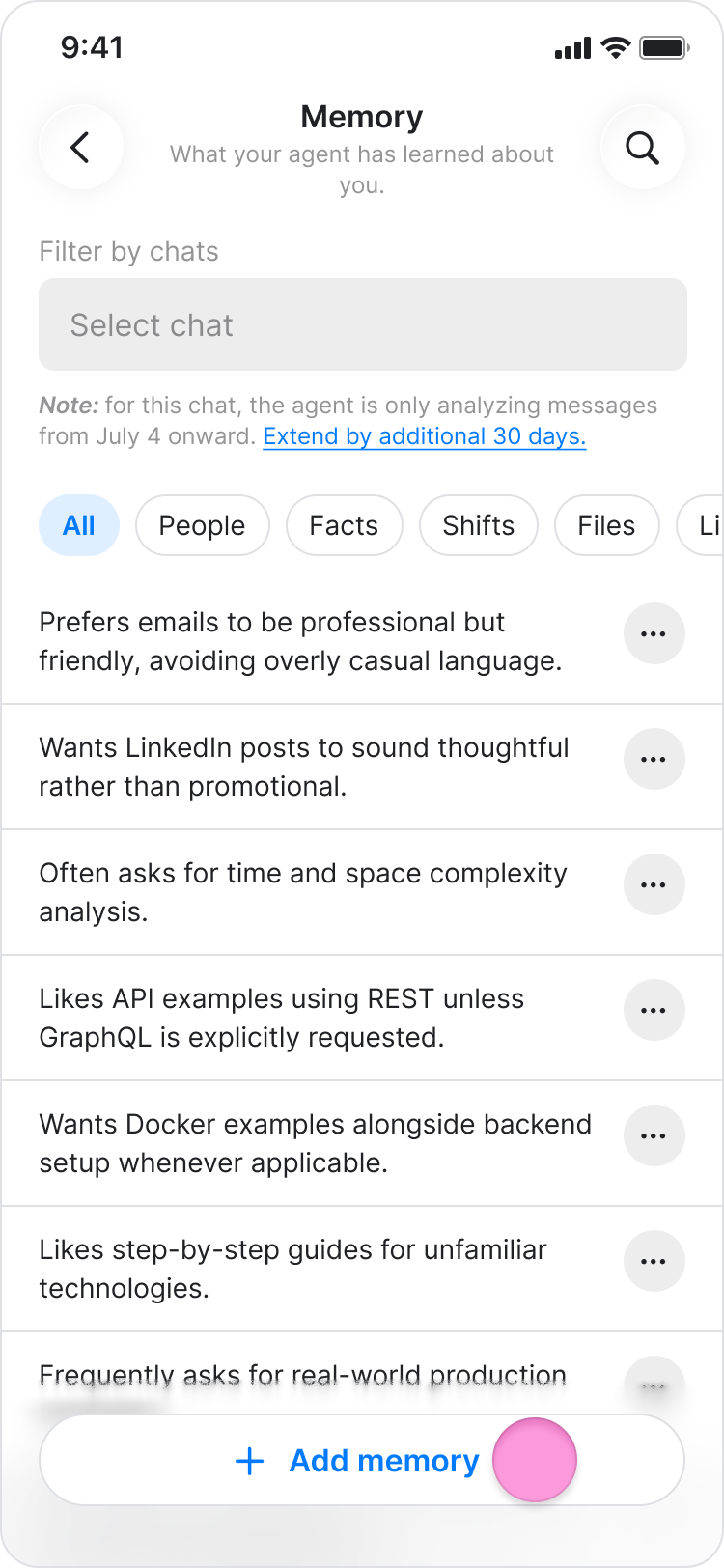
Enter the information you want the agent to remember.
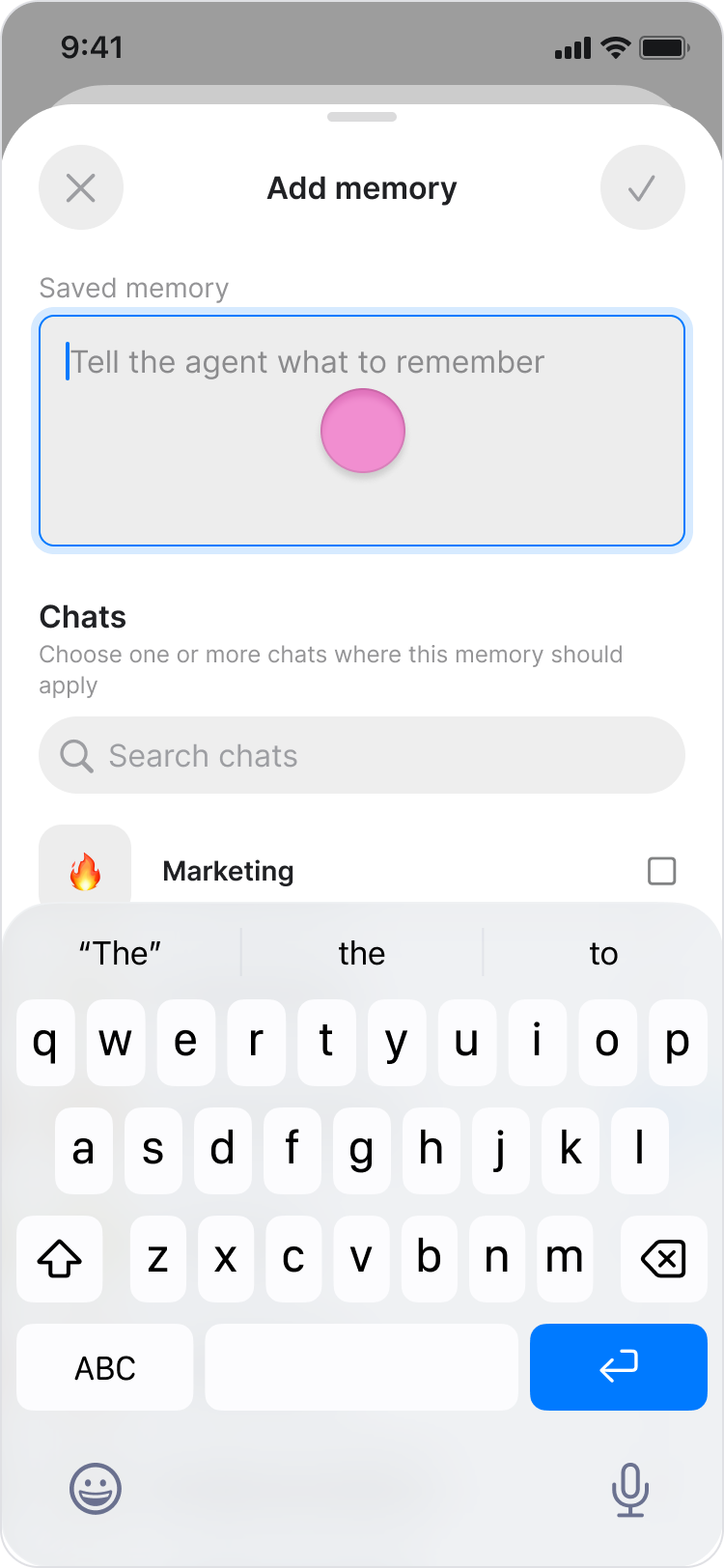
Select the chat where you want to add the memory.
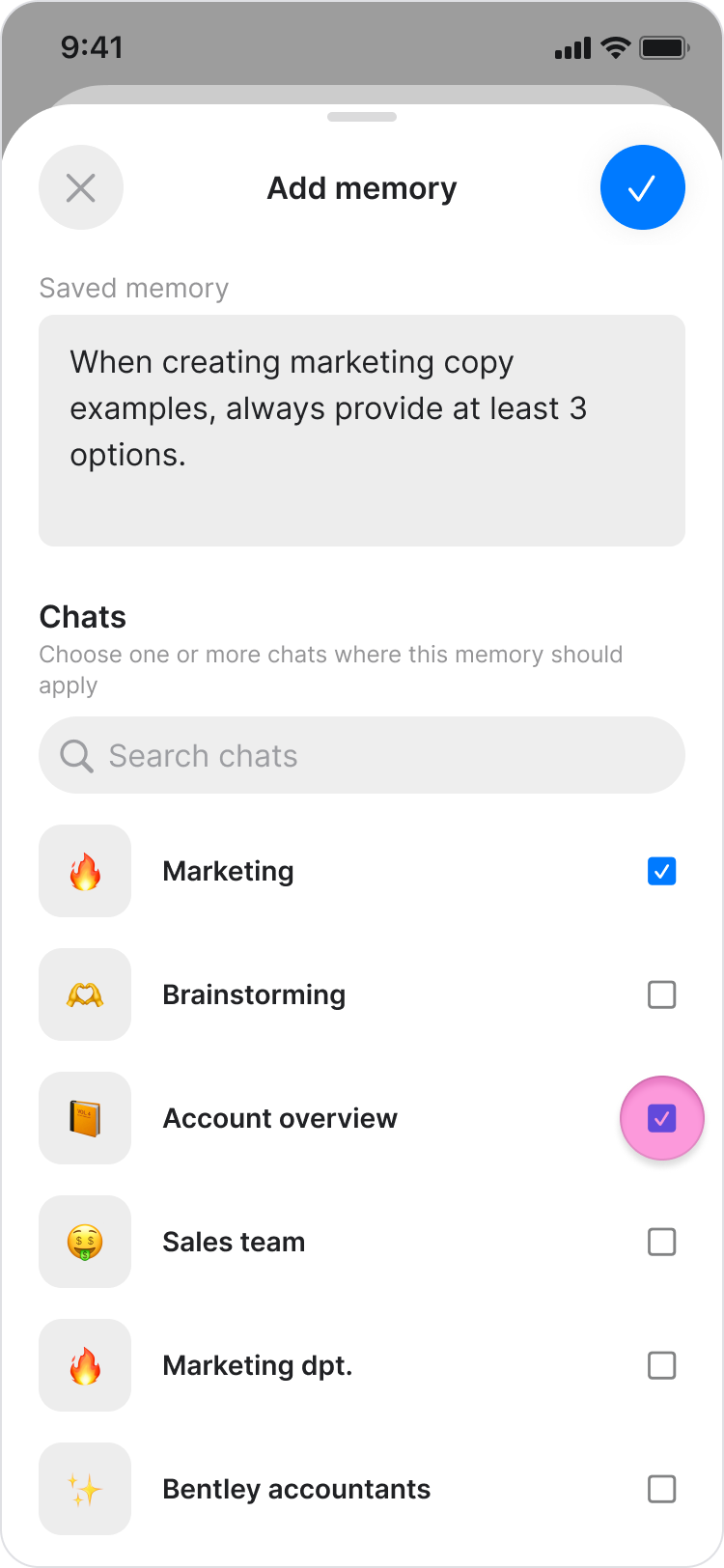
Tap the Checkmark icon at the top right corner to confirm.
Note: You can also save a memory by telling your agent directly in conversation. For example: "Remember that my time zone is Eastern Time."
Edit a Memory
Go to "Agents".
Select the relevant agent.
Tap "Memory".
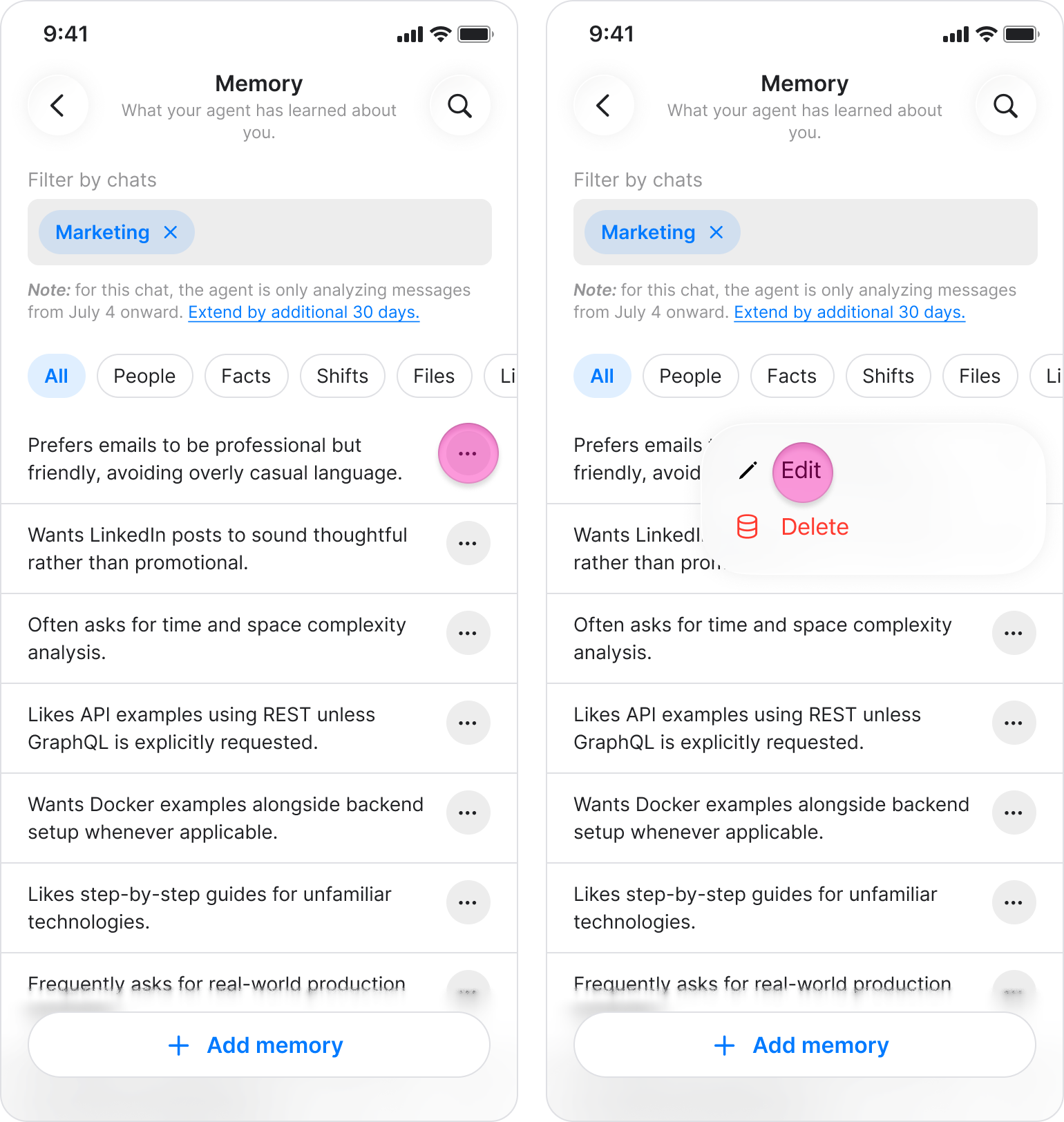
On the Memory screen, tap the three dots icon next to the memory you want to remove.
Tap "Edit"
Edit the memory text.
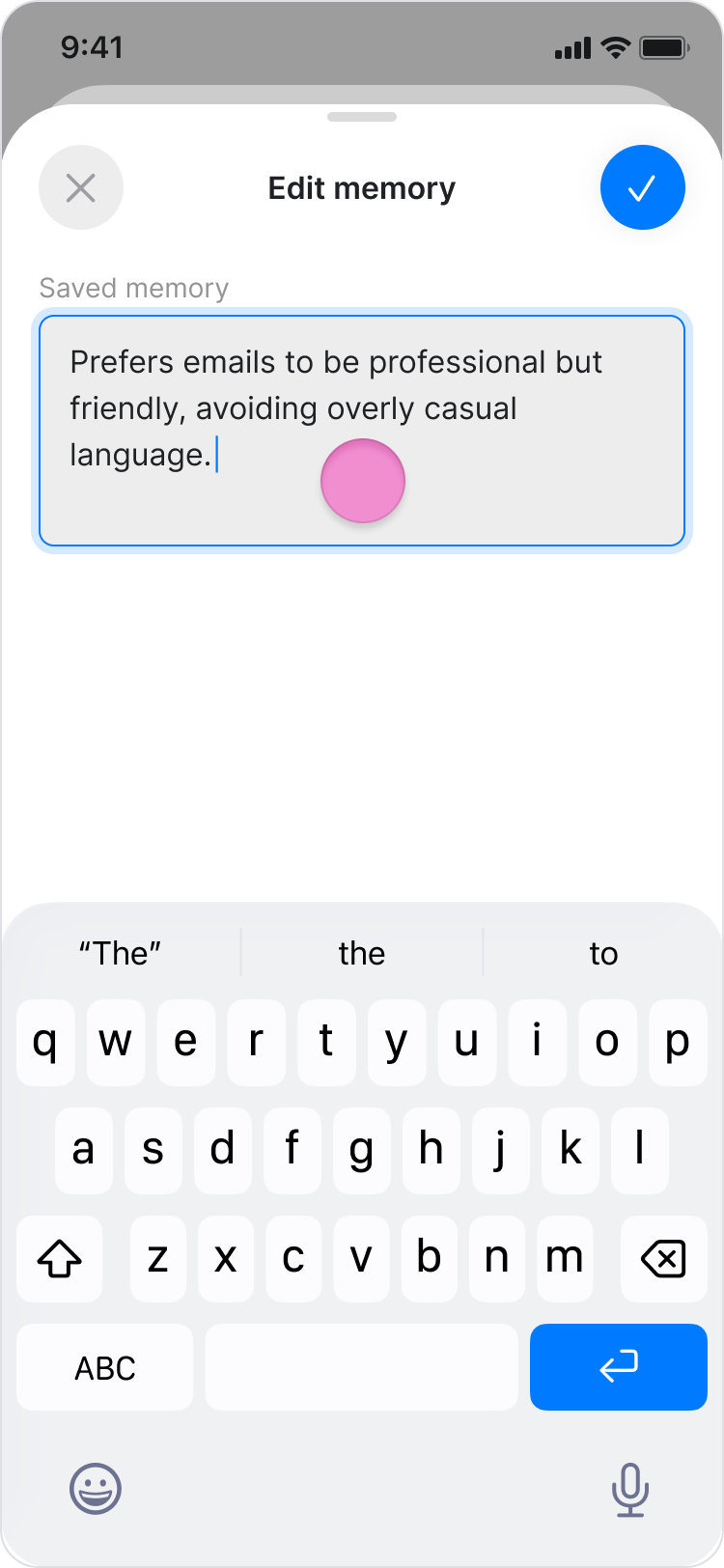
Tap the Checkmark icon at the top right corner to confirm.
Delete a Memory
Go to "Agents".
Select the relevant agent.
Tap "Memory".
On the Memory screen, tap the three dots icon next to the memory you want to remove.
Tap "Delete."
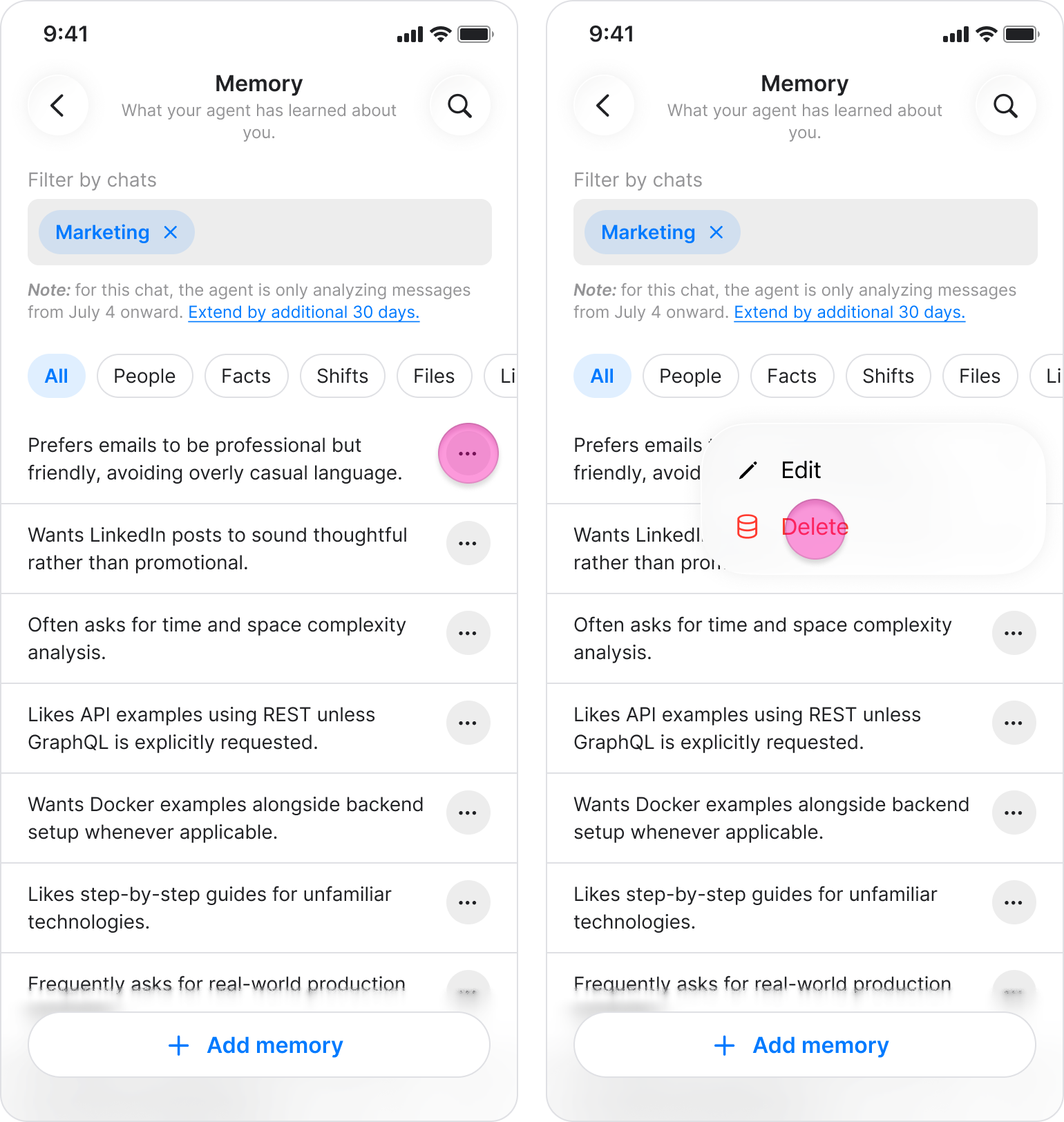
In the confirmation dialog, confirm the deletion.
Note: Deleting a memory is permanent, your agent will not re-learn it from past conversations. The information can only be saved again if it comes up in a future chat.
On Desktop (Windows, macOS, & Web App)
Your agent can remember relevant information from your conversations automatically, or you can add memories manually.
You can use memories to help your agent remember things like:
Your time zone or working hours
Your role or team
Recurring tasks and preferences
Formatting or style guidelines
Key contacts and their responsibilities
To save a memory, tell your agent in conversation. For example: "Remember that my time zone is Eastern Time."
Your agent may also save or update memories automatically when it needs that information to complete an action. For example, it may store details from earlier messages to provide a daily update as part of a workflow.
View Your Agent's Memories
Go to "Agents".
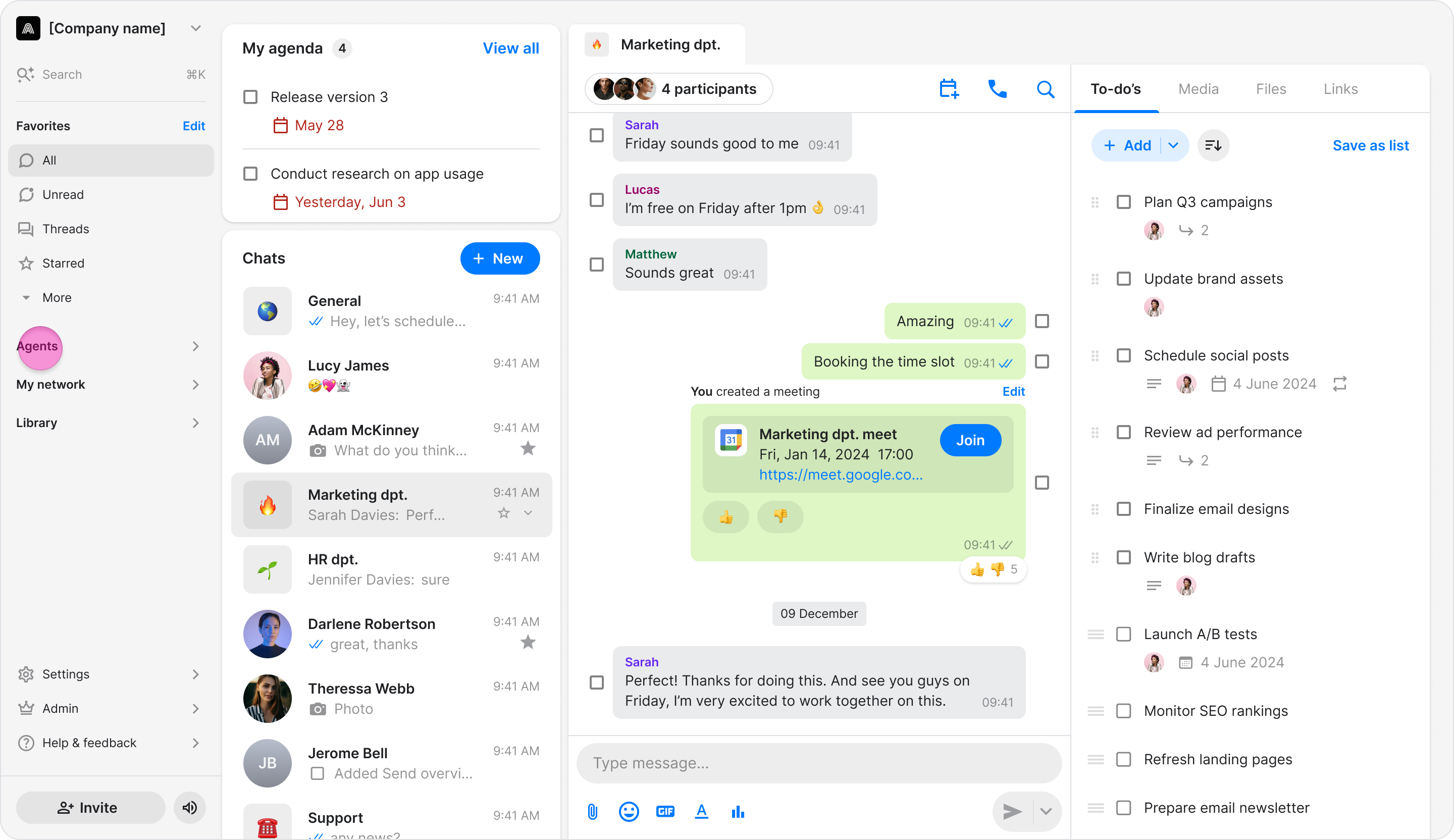
Choose the relevant agent.

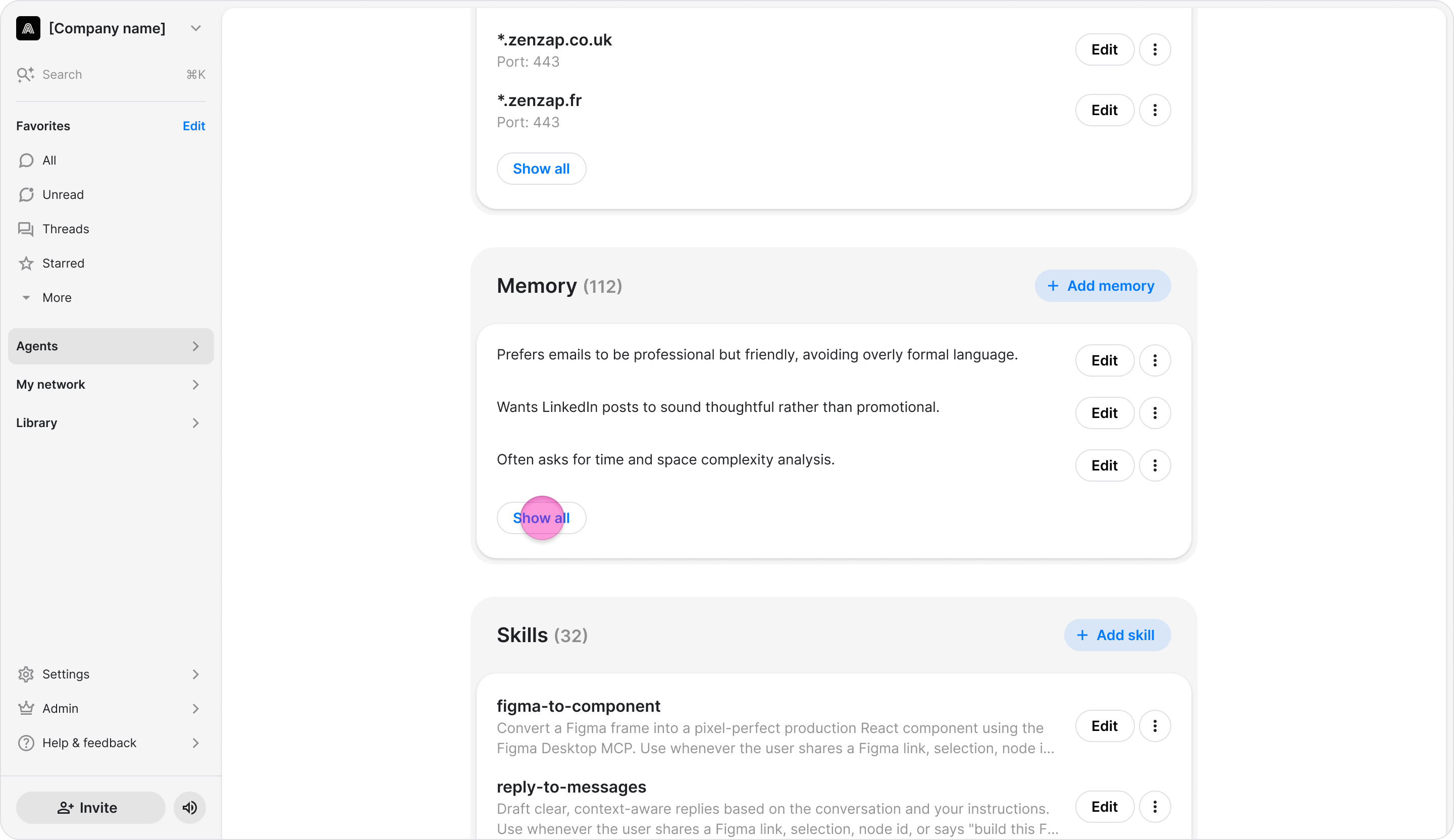
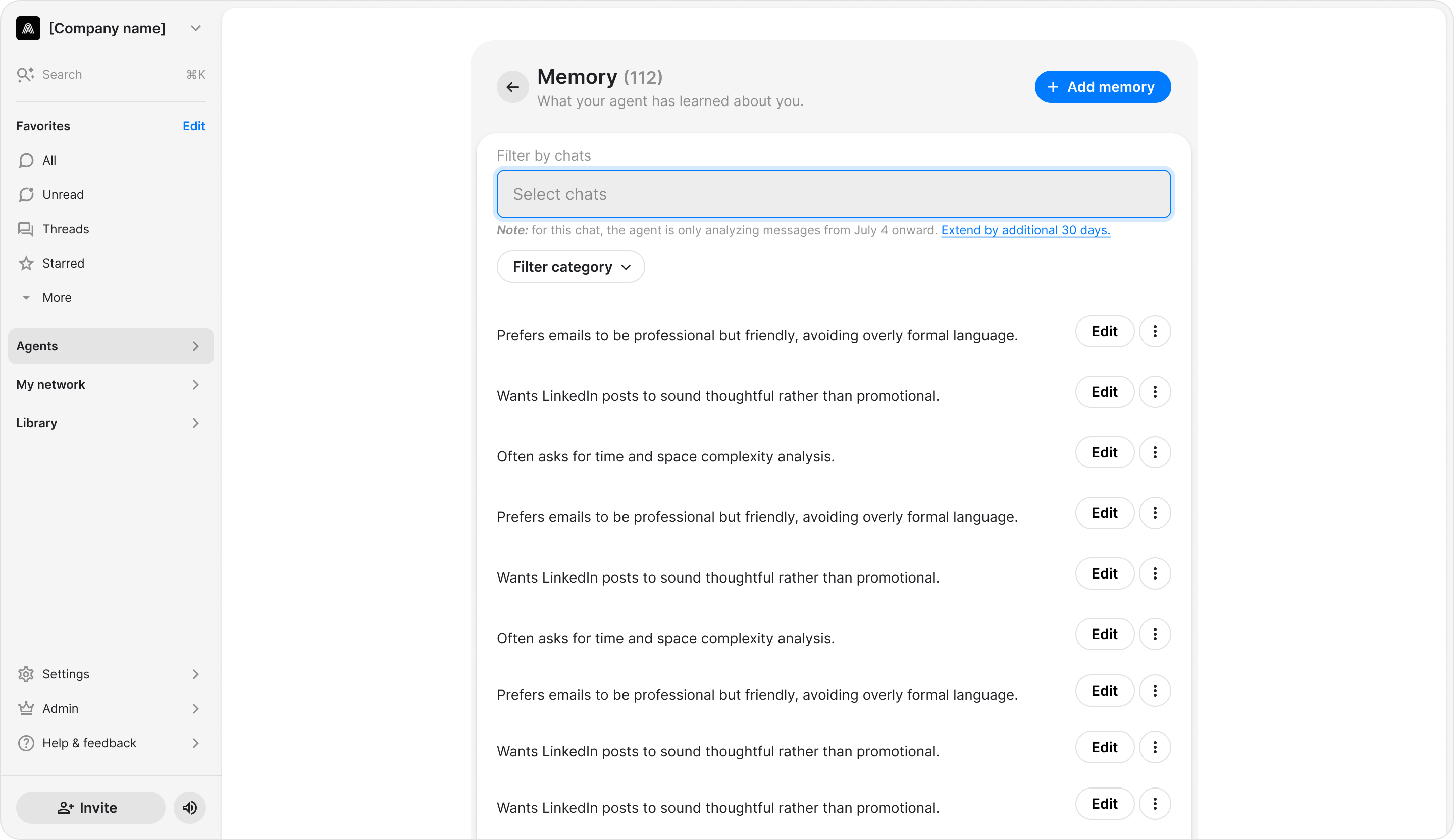
Under "Memory", choose "Show all".
Note:
Memories are associated with the chat where they were created or added, so the memories available in a specific chat may differ from the agent's full list.
If your agent has not saved any memories yet, the Memory screen displays "No saved memories yet."
If you delete a chat, its associated memories are also deleted.
Filter Memories by Chat
Go to "Agents".
Choose the relevant agent.
Under "Memory", choose "Show all".
Under "Filter by chats", select one or more chats.
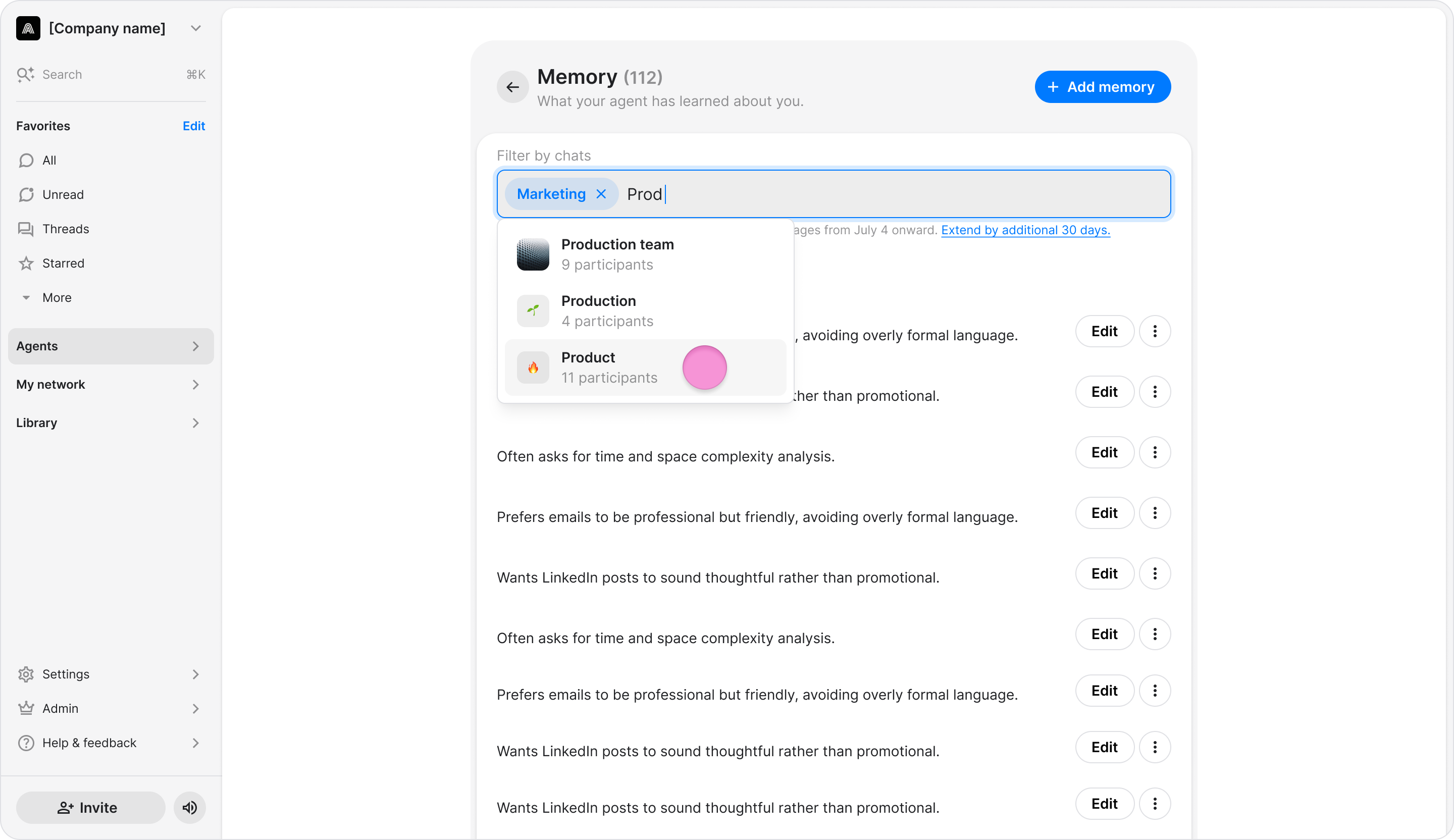
Note: To remove a chat from the filter, click the "X" icon next to it.
Add a Memory
Go to "Agents".
Choose the relevant agent.
Under "Memory", choose "Show all".
Click "+ Add memory" at the top right corner.
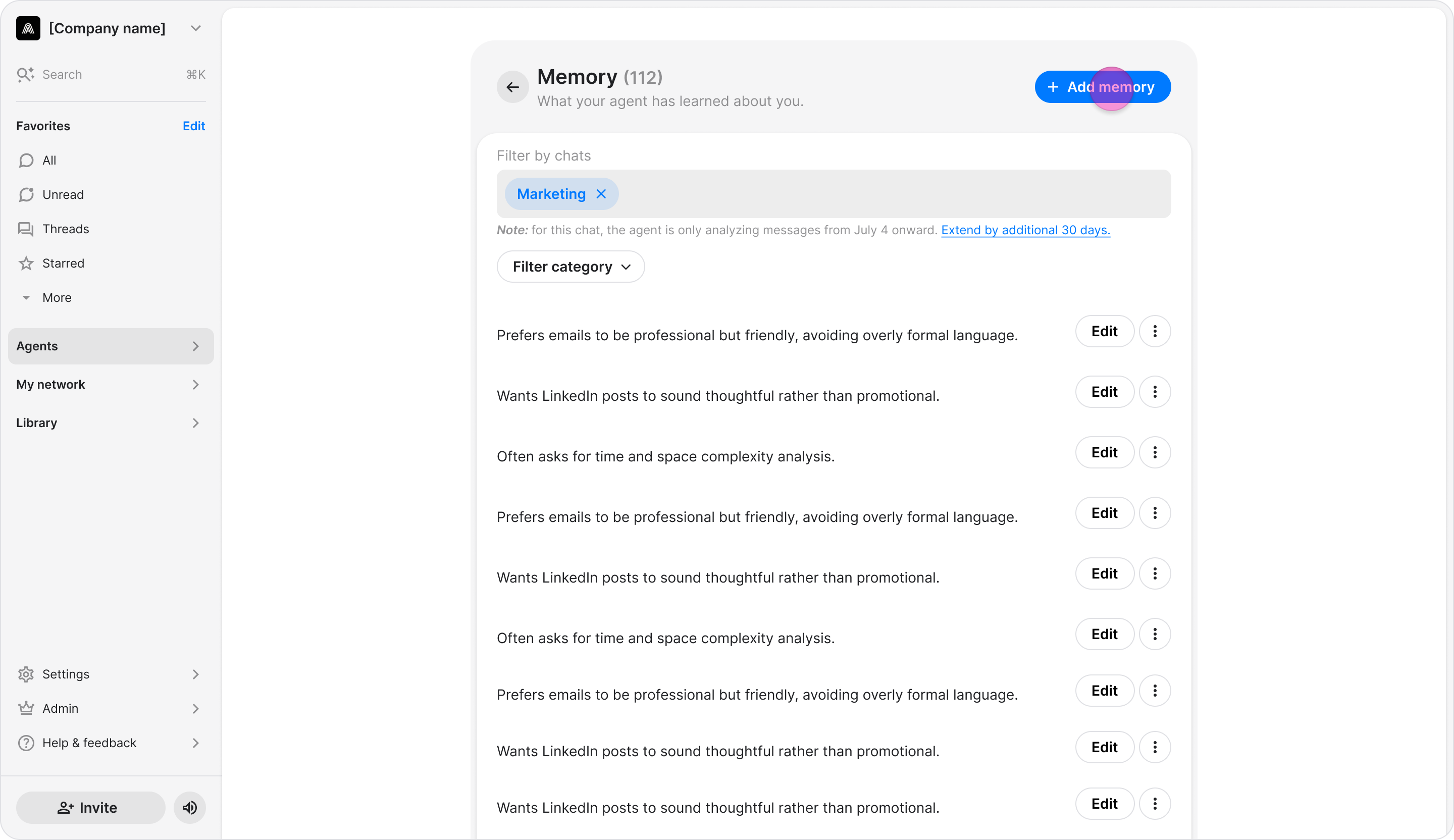
Enter the information you want the agent to remember.
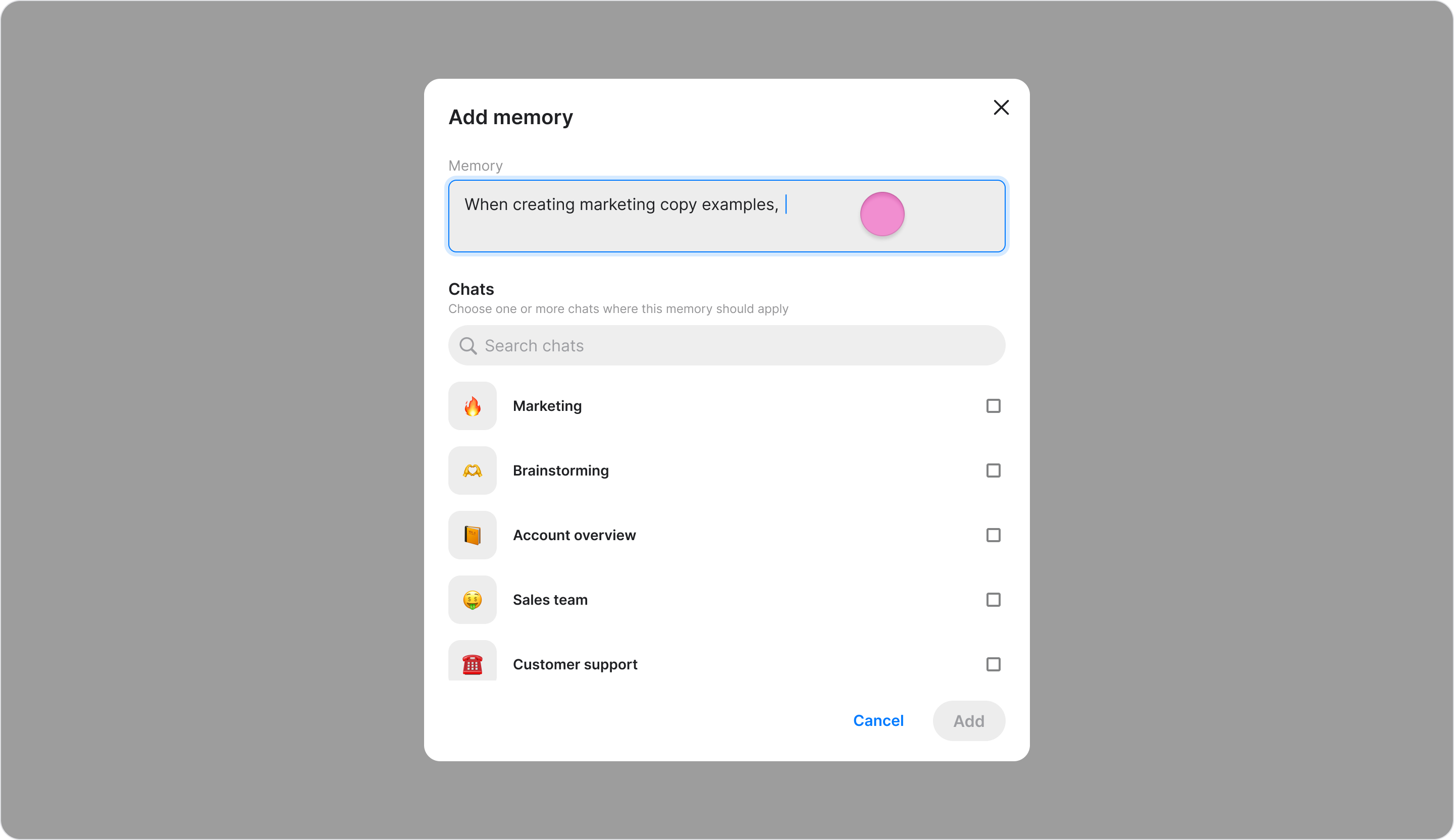
Select the chat where you want to add the memory.
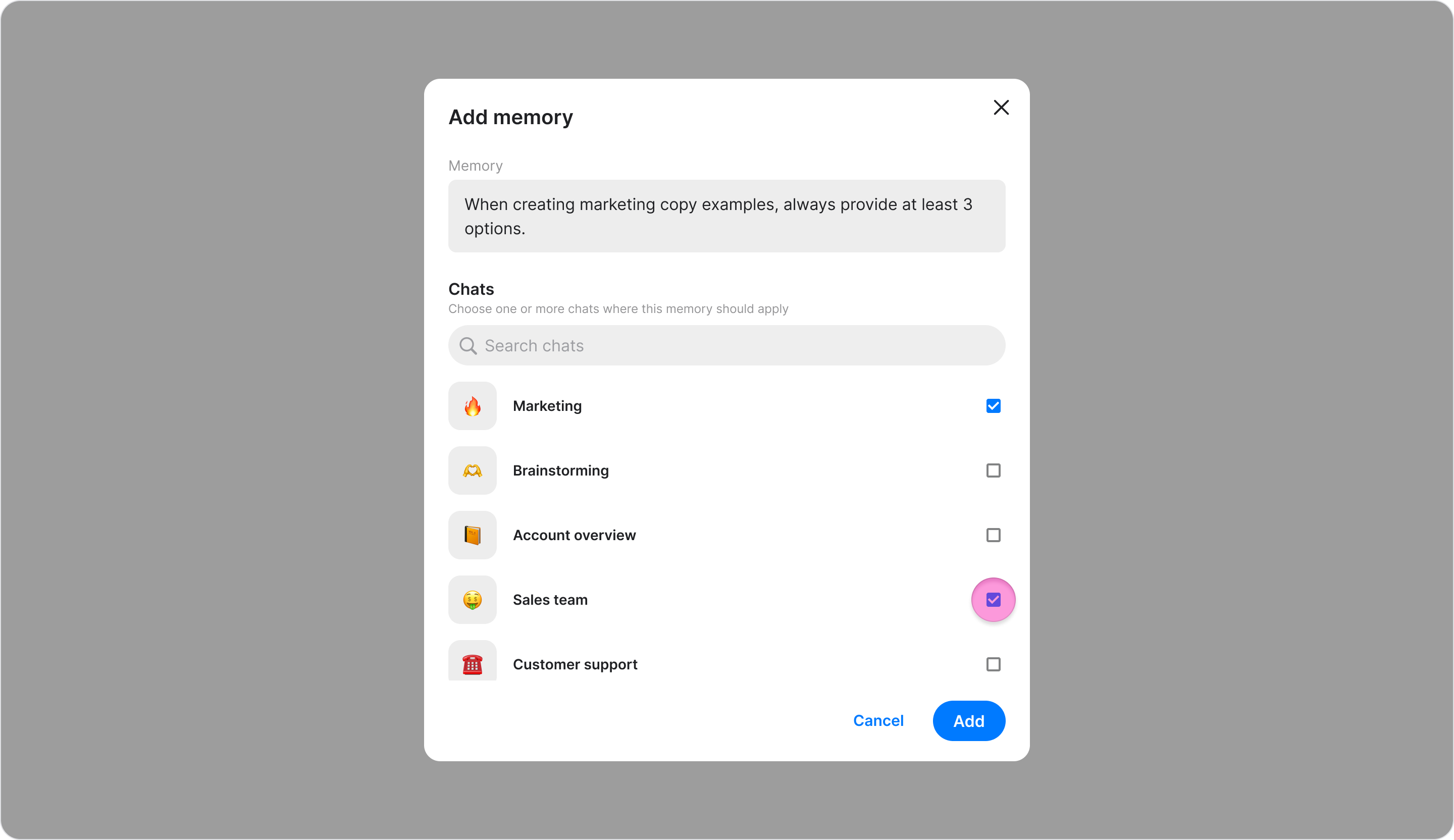
Click "Add".
Note: You can also save a memory by telling your agent directly in conversation. For example: "Remember that my time zone is Eastern Time."
Edit a Memory
Go to "Agents".
Choose the relevant agent.
Under "Memory", choose "Show all".
Click "Edit" next to the memory you want to change.
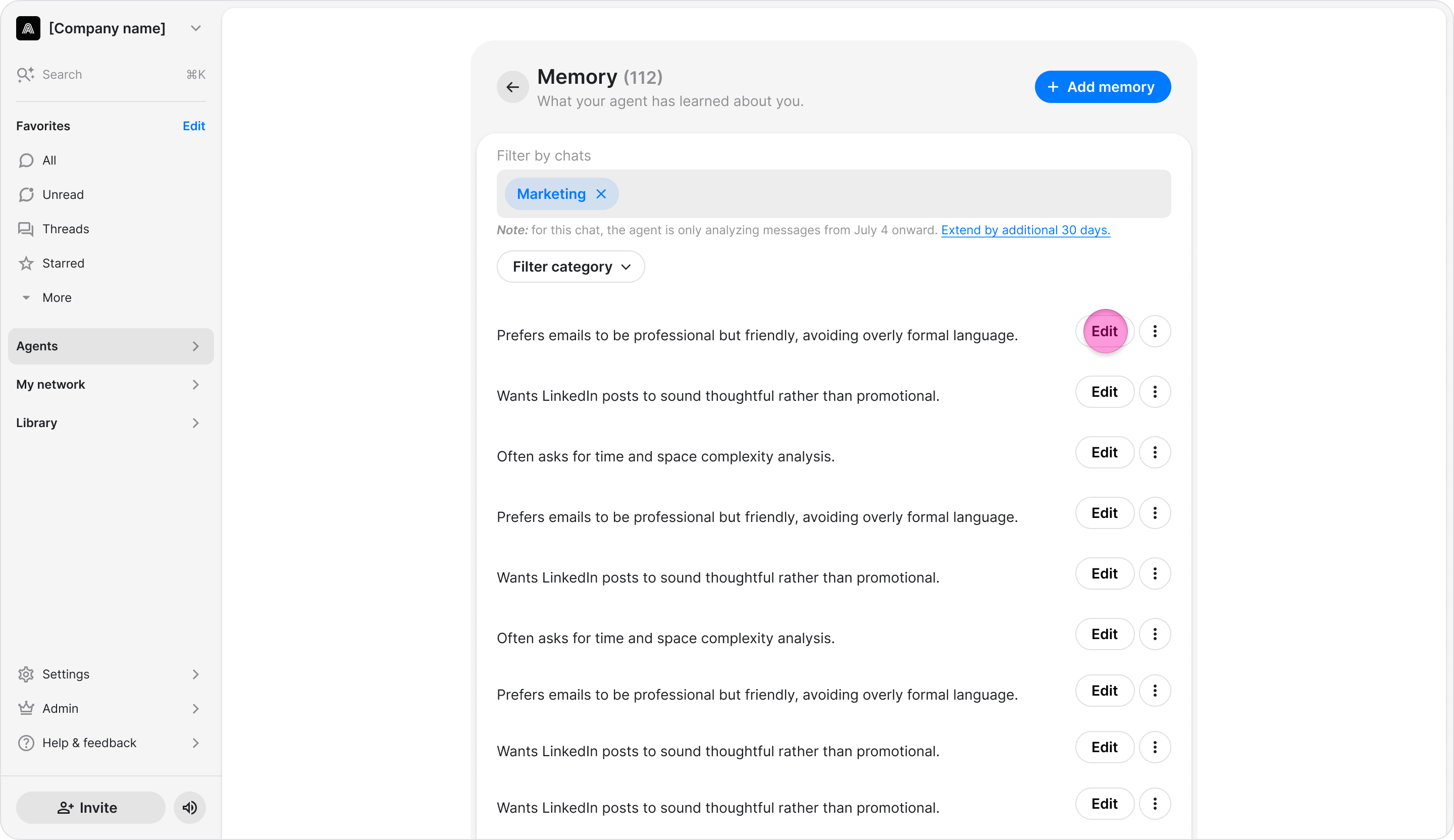
Edit the memory text.
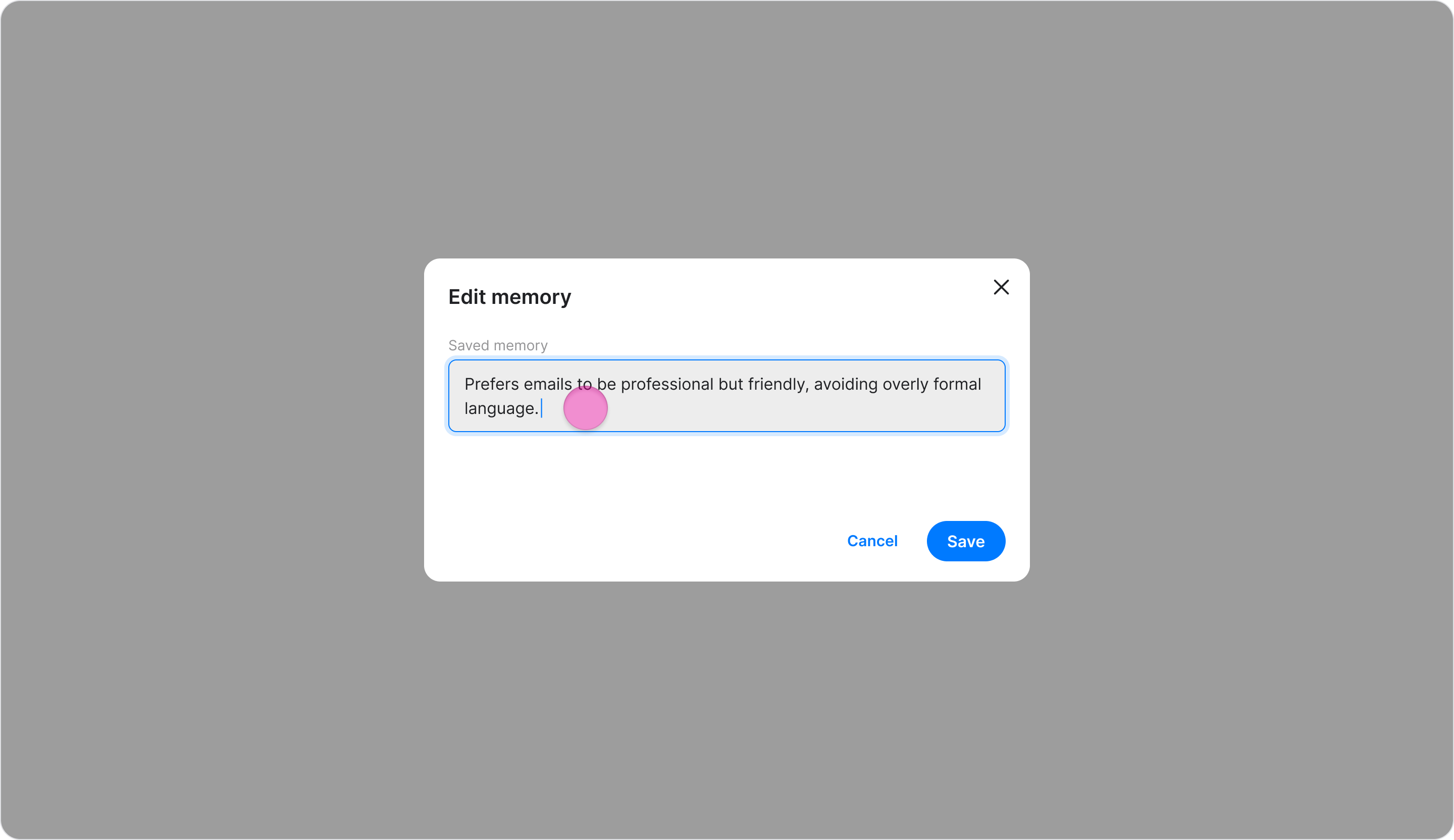
Click "Save".
Delete a Memory
Go to "Agents".
Choose the relevant agent.
Under "Memory", choose "Show all".
On the Memory screen, click the three dots icon next to the memory you want to remove.
Click "Delete."
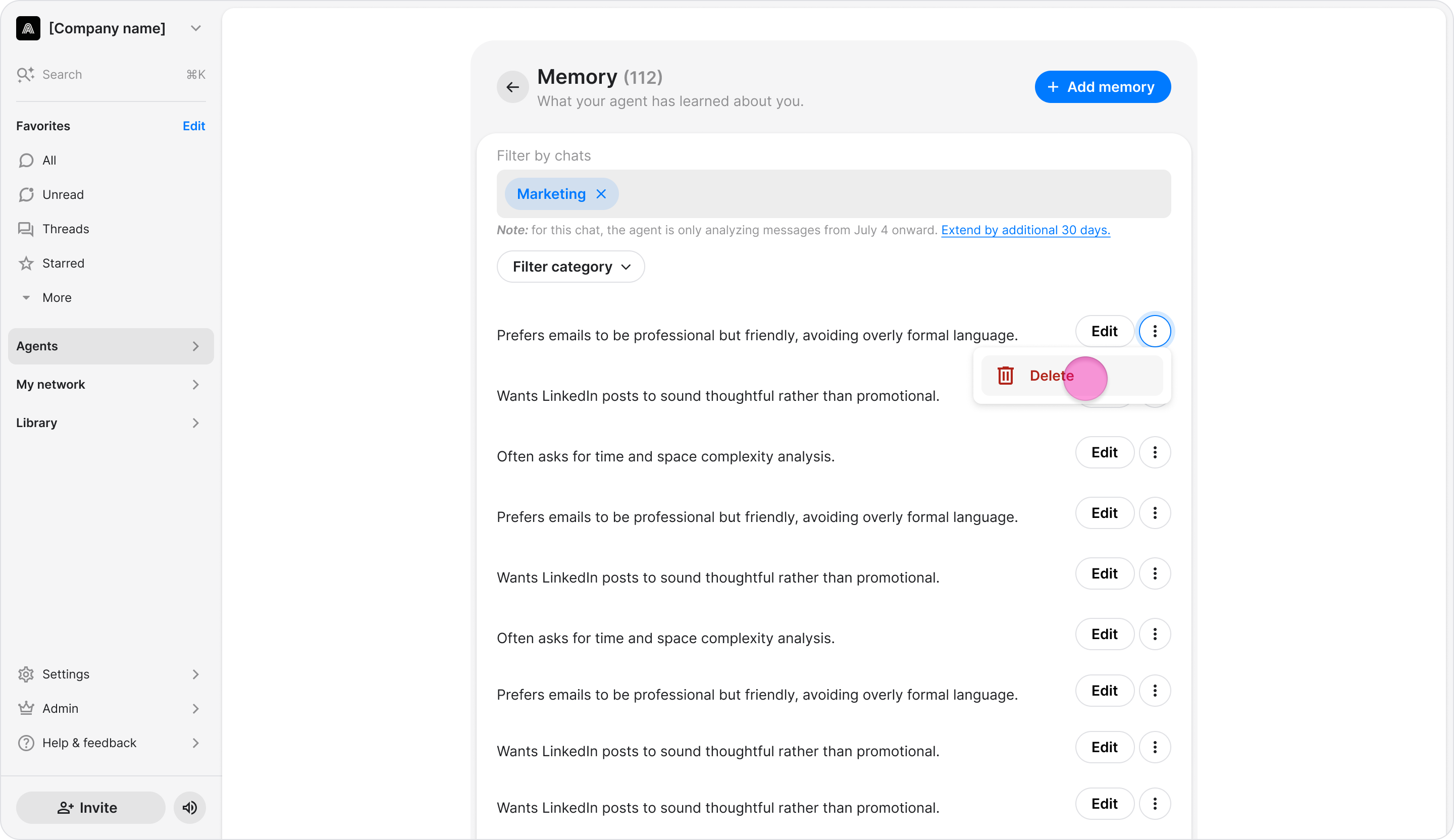
In the confirmation dialog, confirm the deletion.
Note: Deleting a memory is permanent, your agent will not re-learn it from past conversations. The information can only be saved again if it comes up in a future chat.