Build a Zenzap AI Agent
Easily build an AI agent to handle daily work, connected to your tools and teams.
On Mobile (iOS & Android)
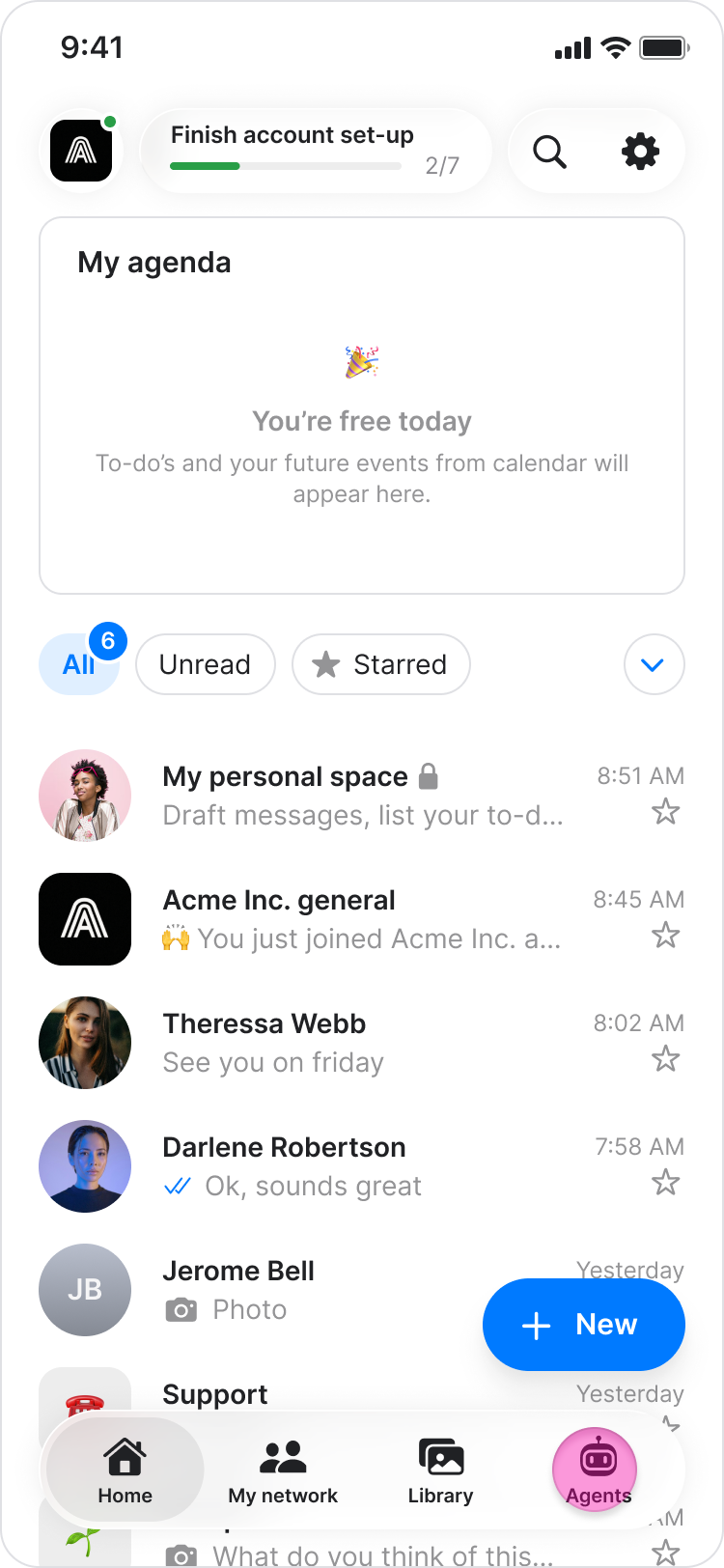
Go to "Agents."
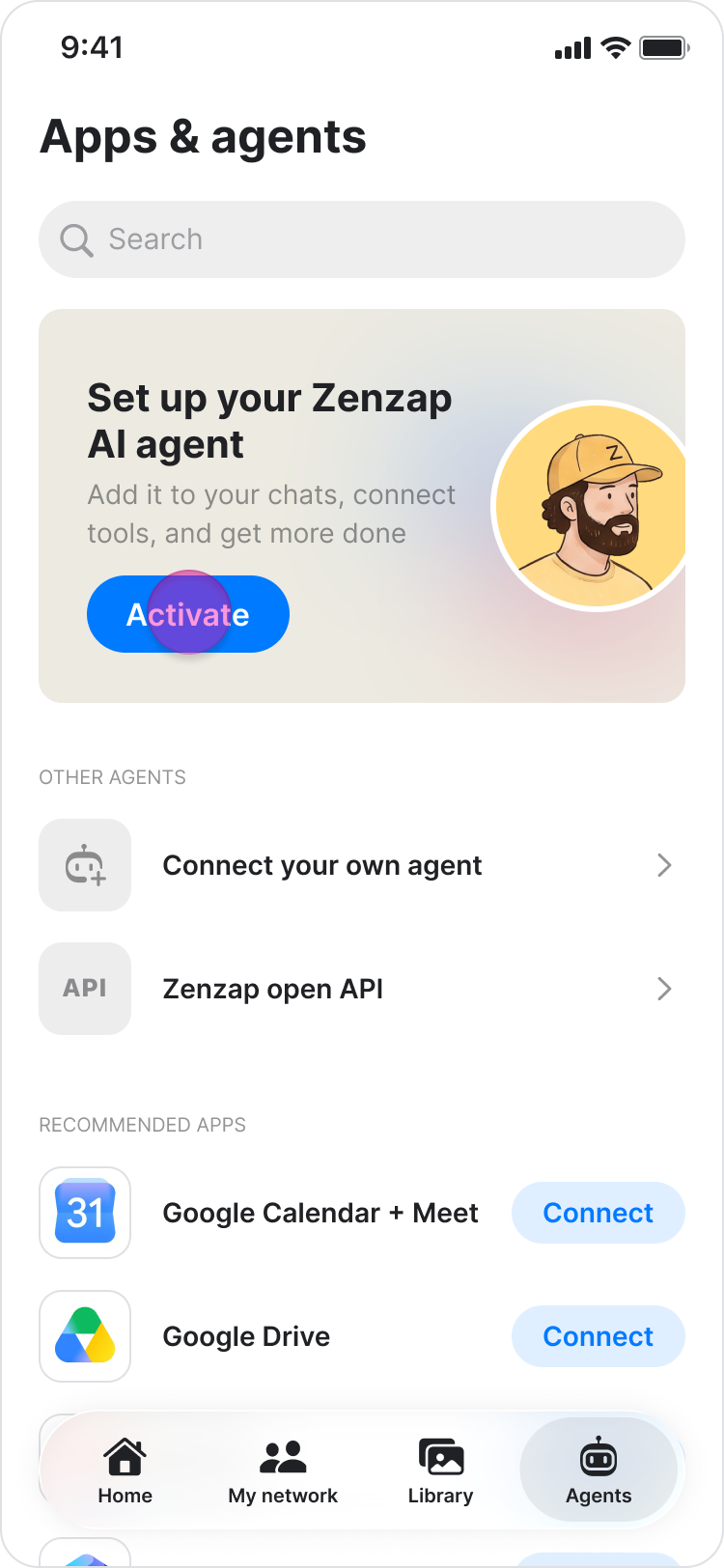
Tap "Activate" in the prompt at the top for setting your Zenzap’s agent.
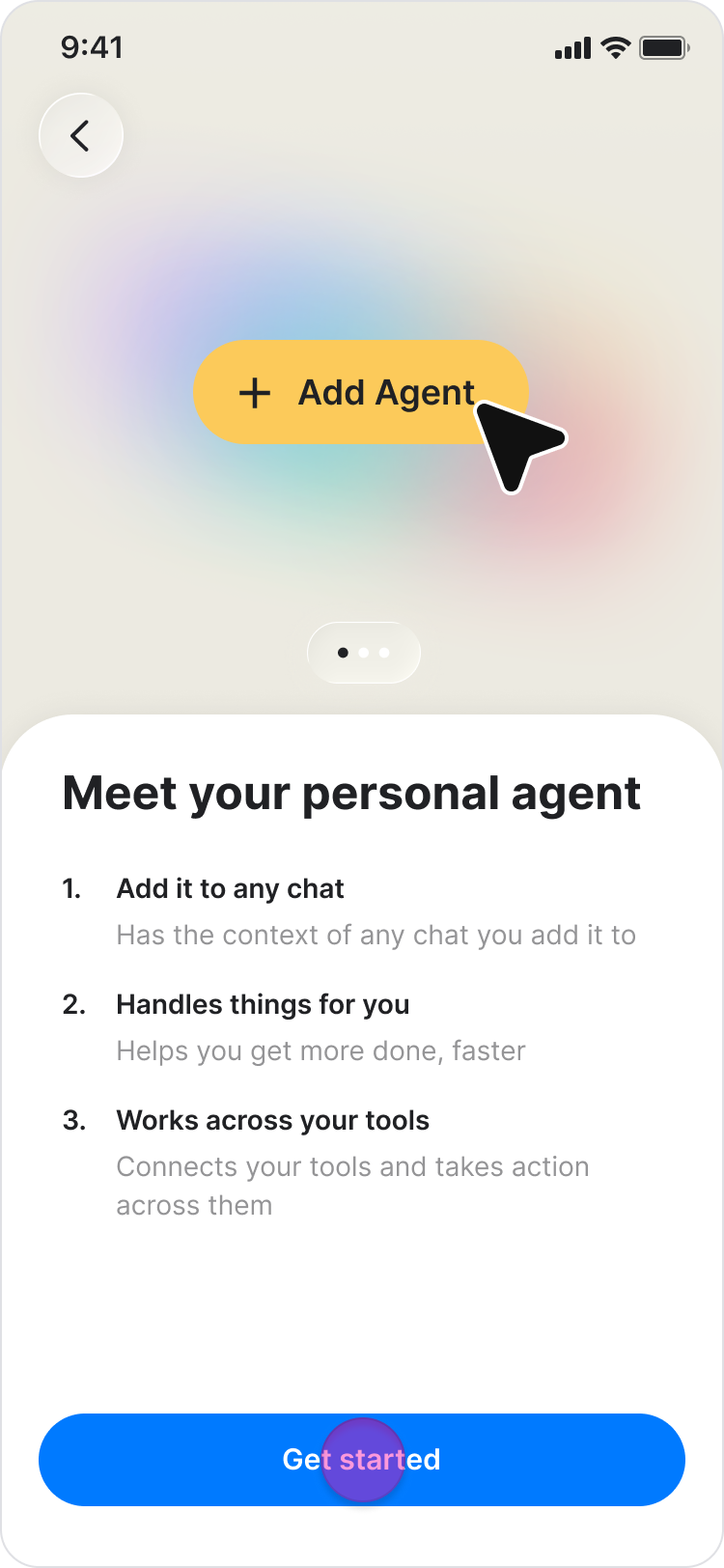
Tap "Get started" below the instructions.
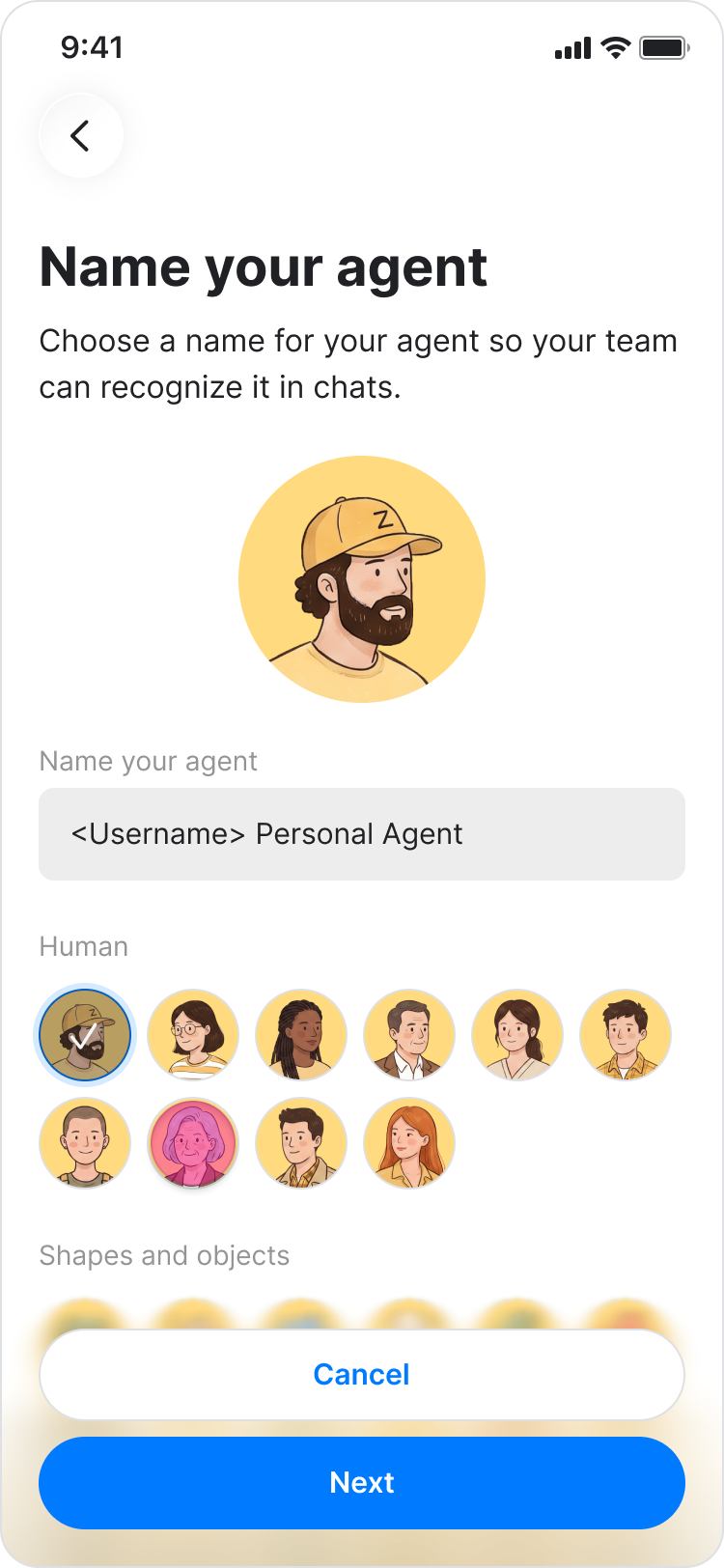
Enter a name for your agent.
Note: You can also add a photo for your agent.
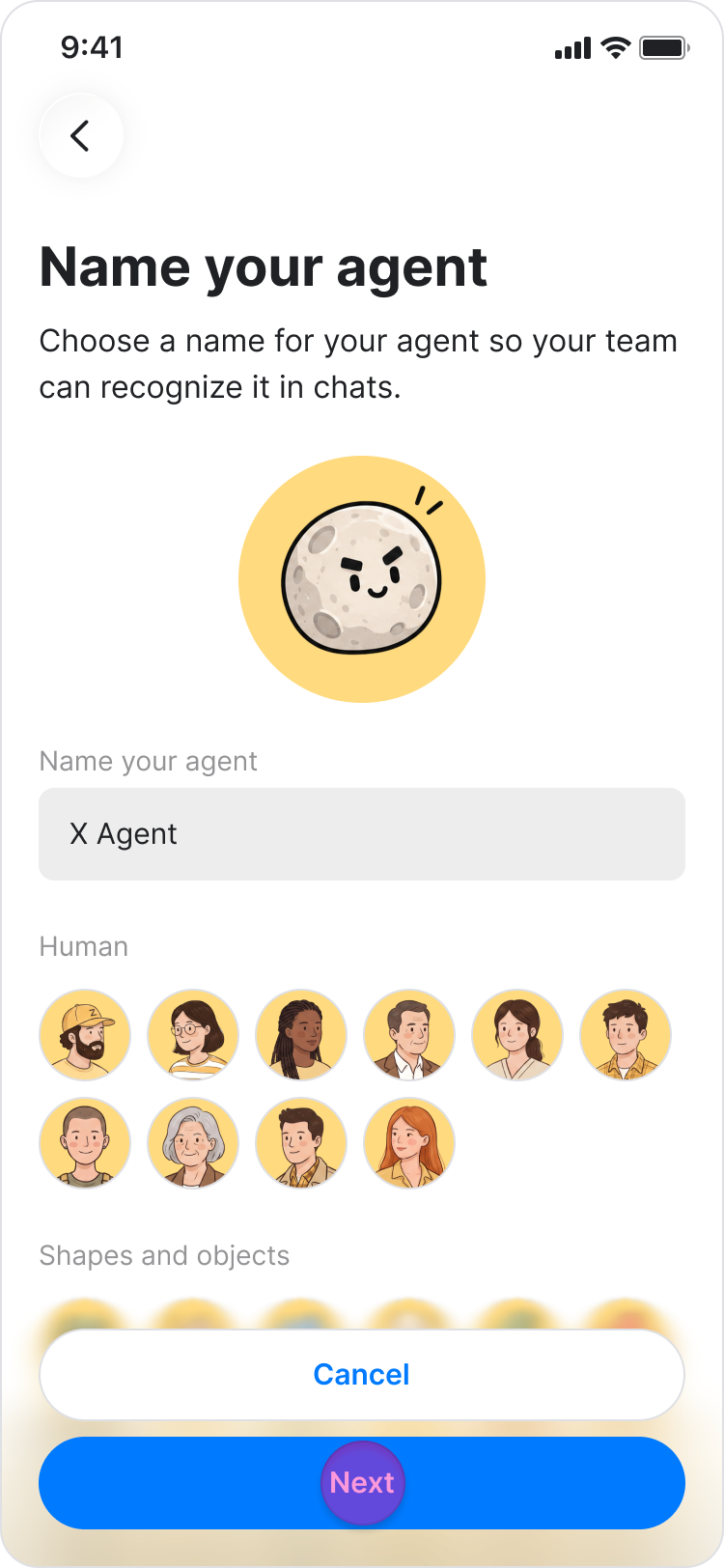
Tap "Next".
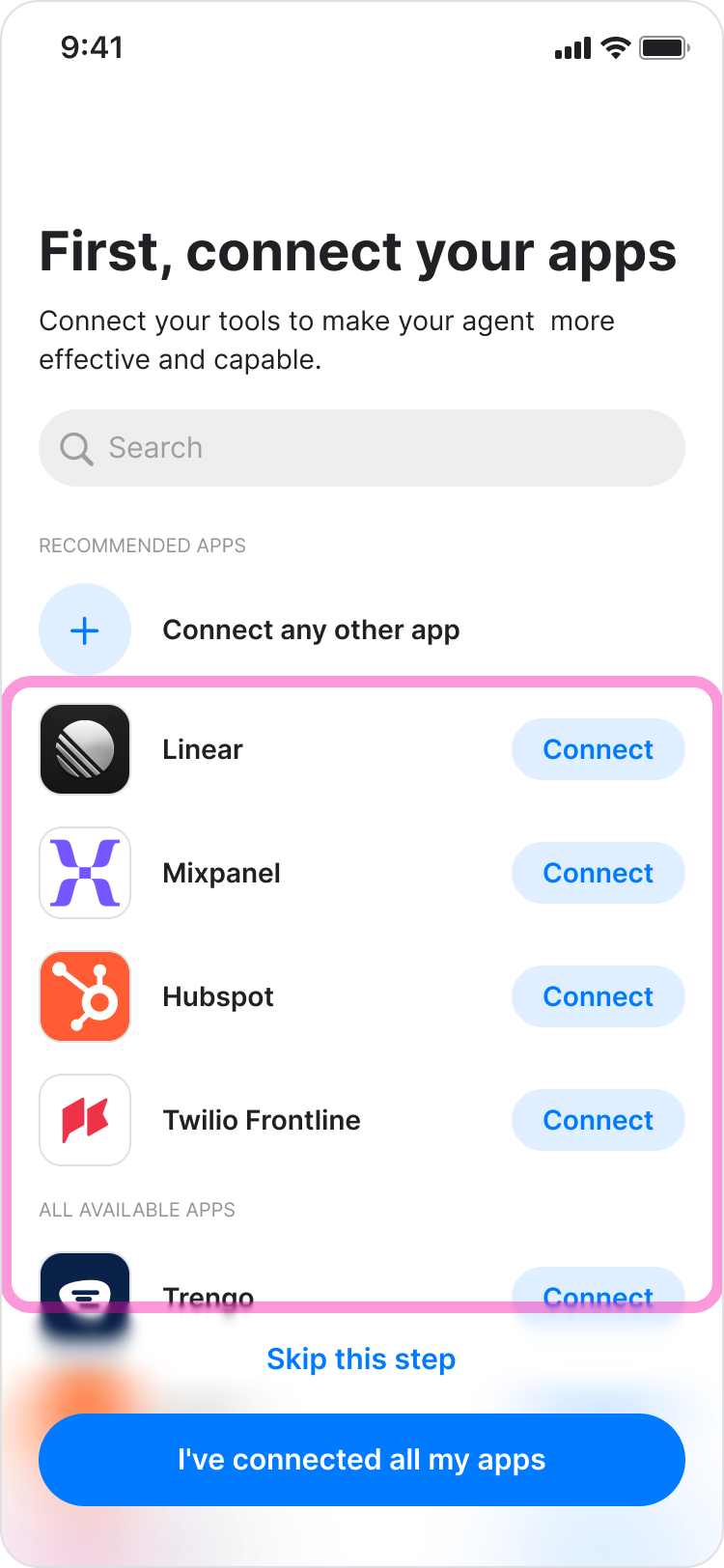
Choose the tools you want to connect or tap "Skip this step" to continue without connecting tools.
Note: You can connect them later (See: Connect to apps in this article).
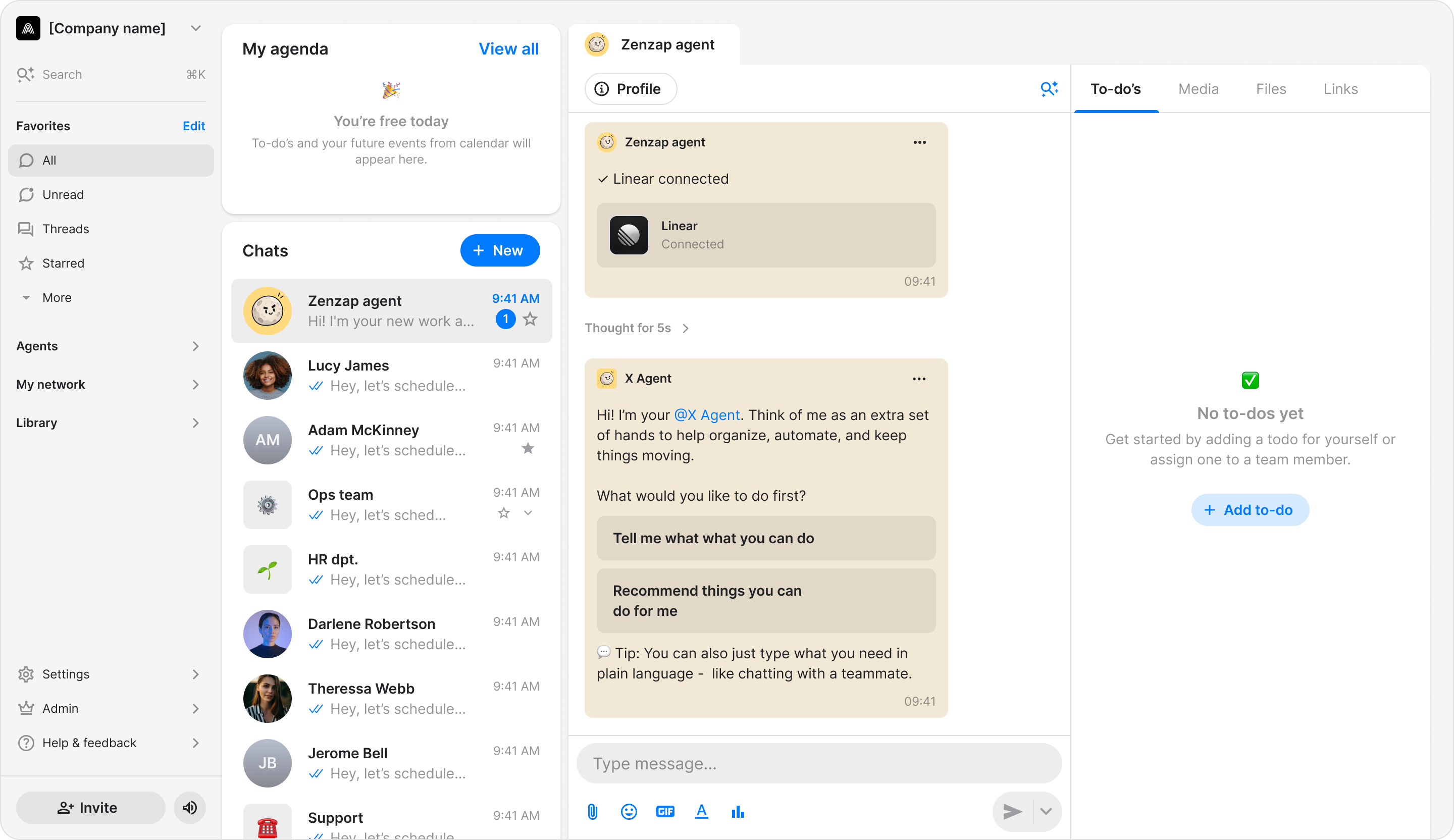
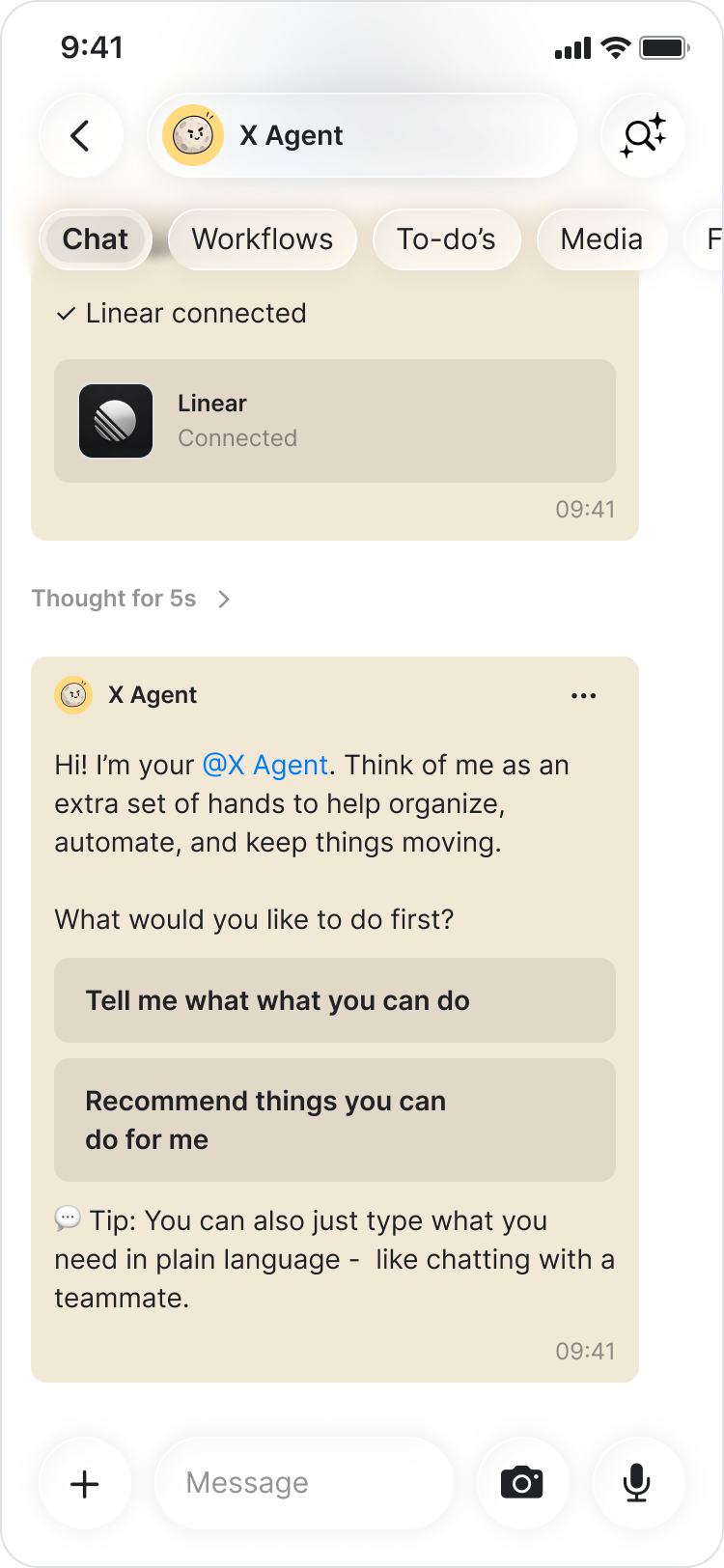
When the setup is complete, a direct message chat with your agent opens automatically with a welcome message.
Note: You can rename your agent or connect tools later from its settings under "Preferences."
On Desktop (Windows, macOS, & Web App)
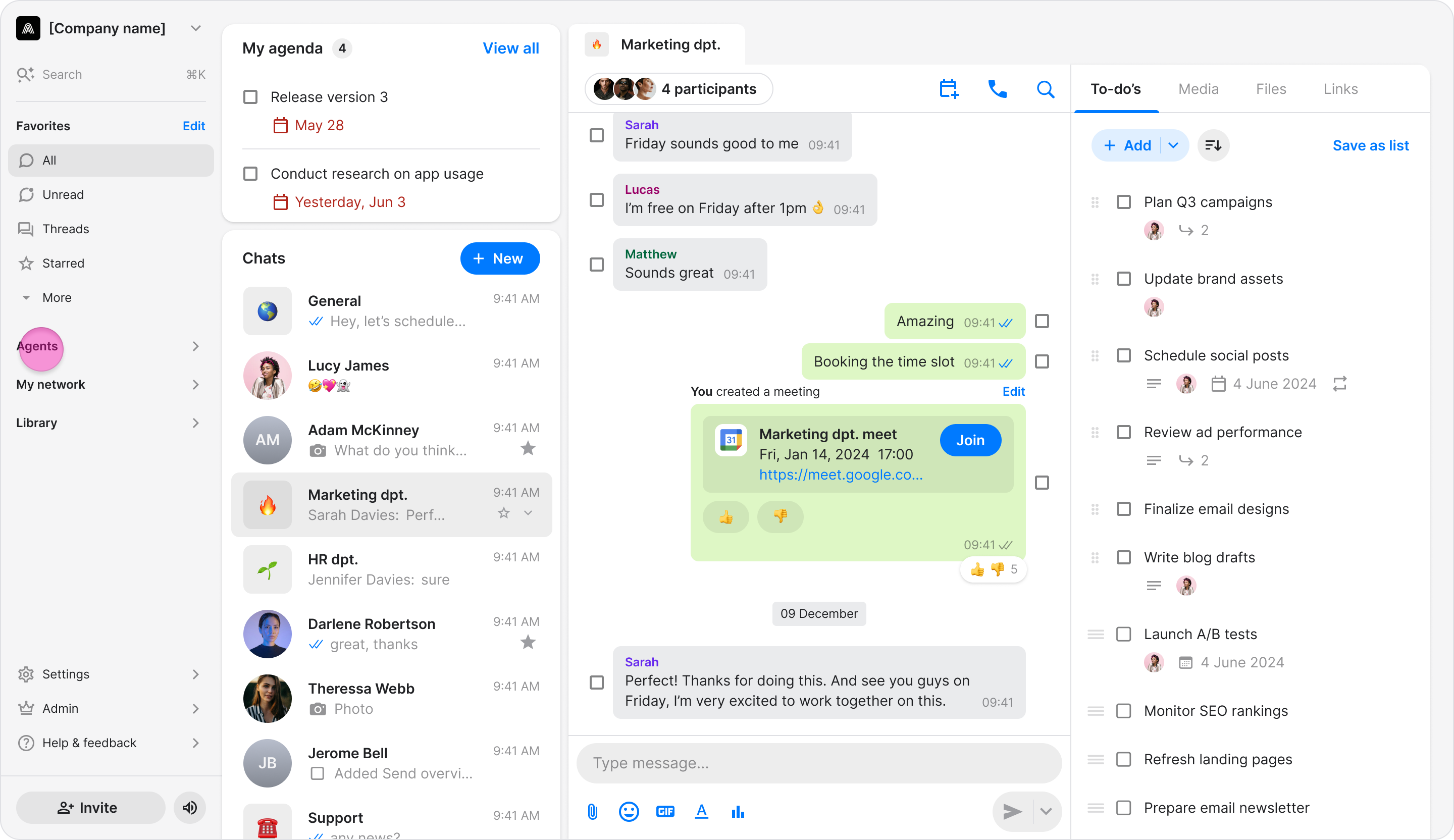
Go to "Agents."
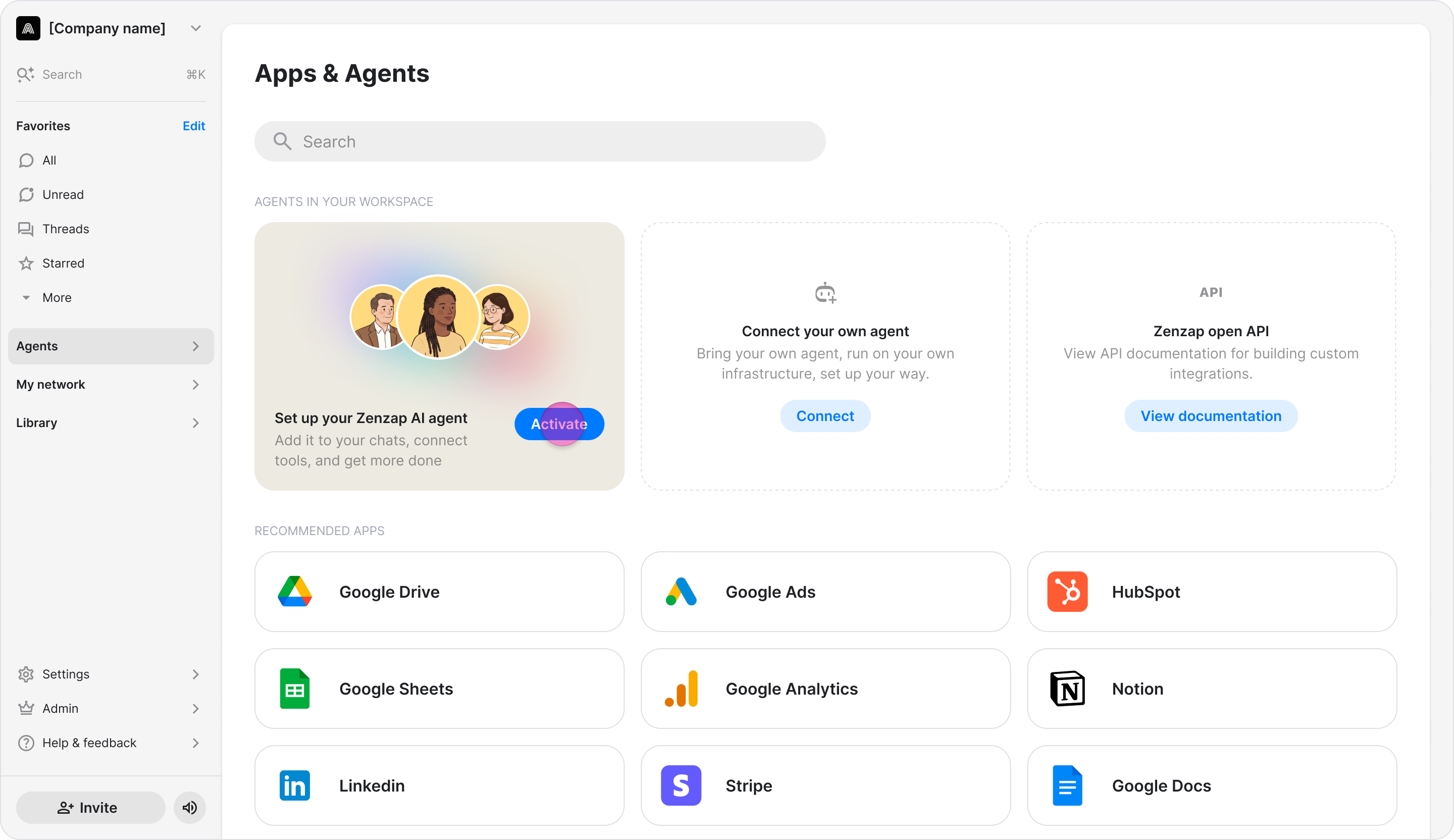
Click "Activate" in the prompt at the top for setting up your Zenzap AI agent.
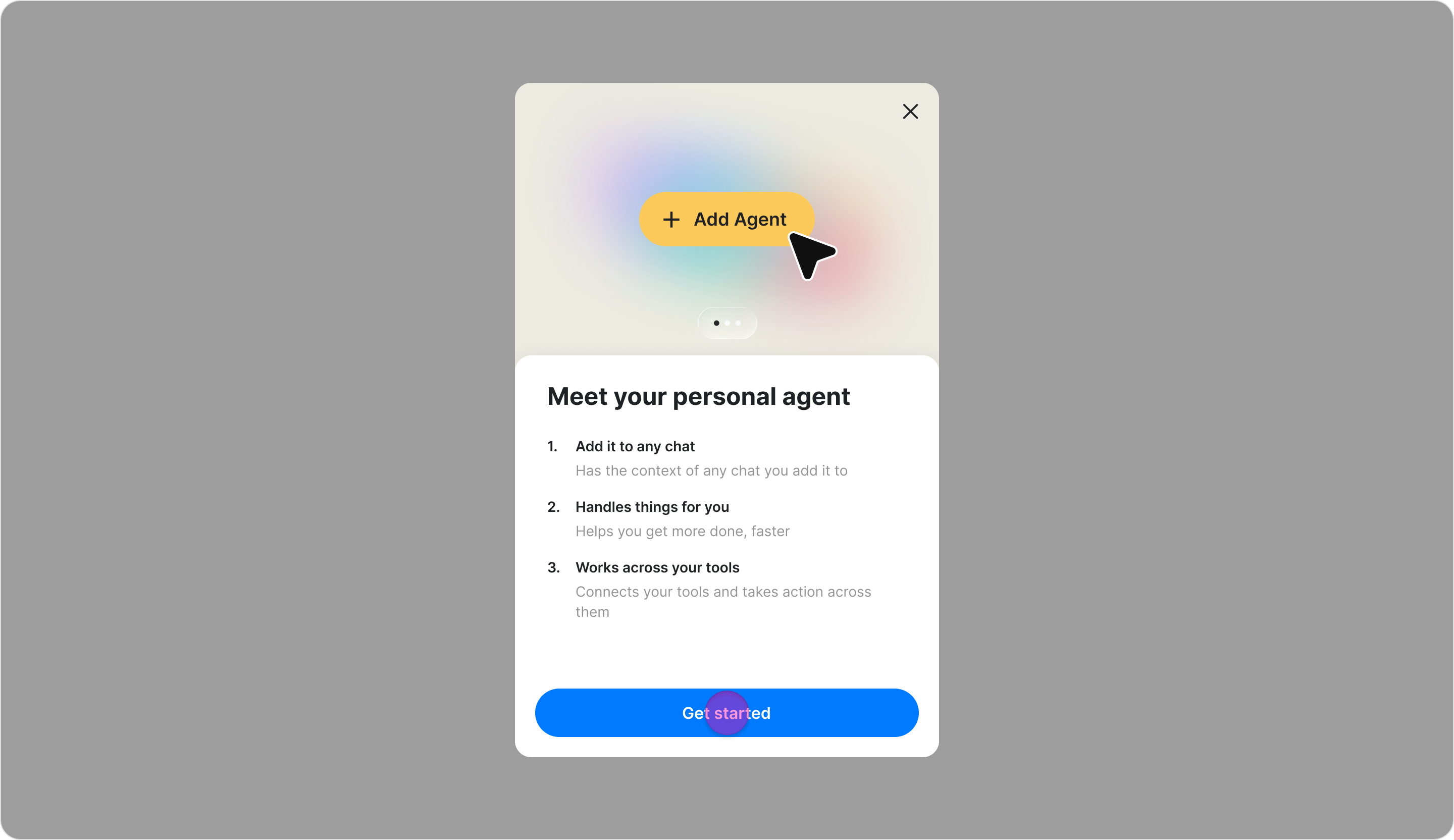
Click "Get started" below the instructions.
Enter a name for your agent.
Note: You can also add a photo for your agent.
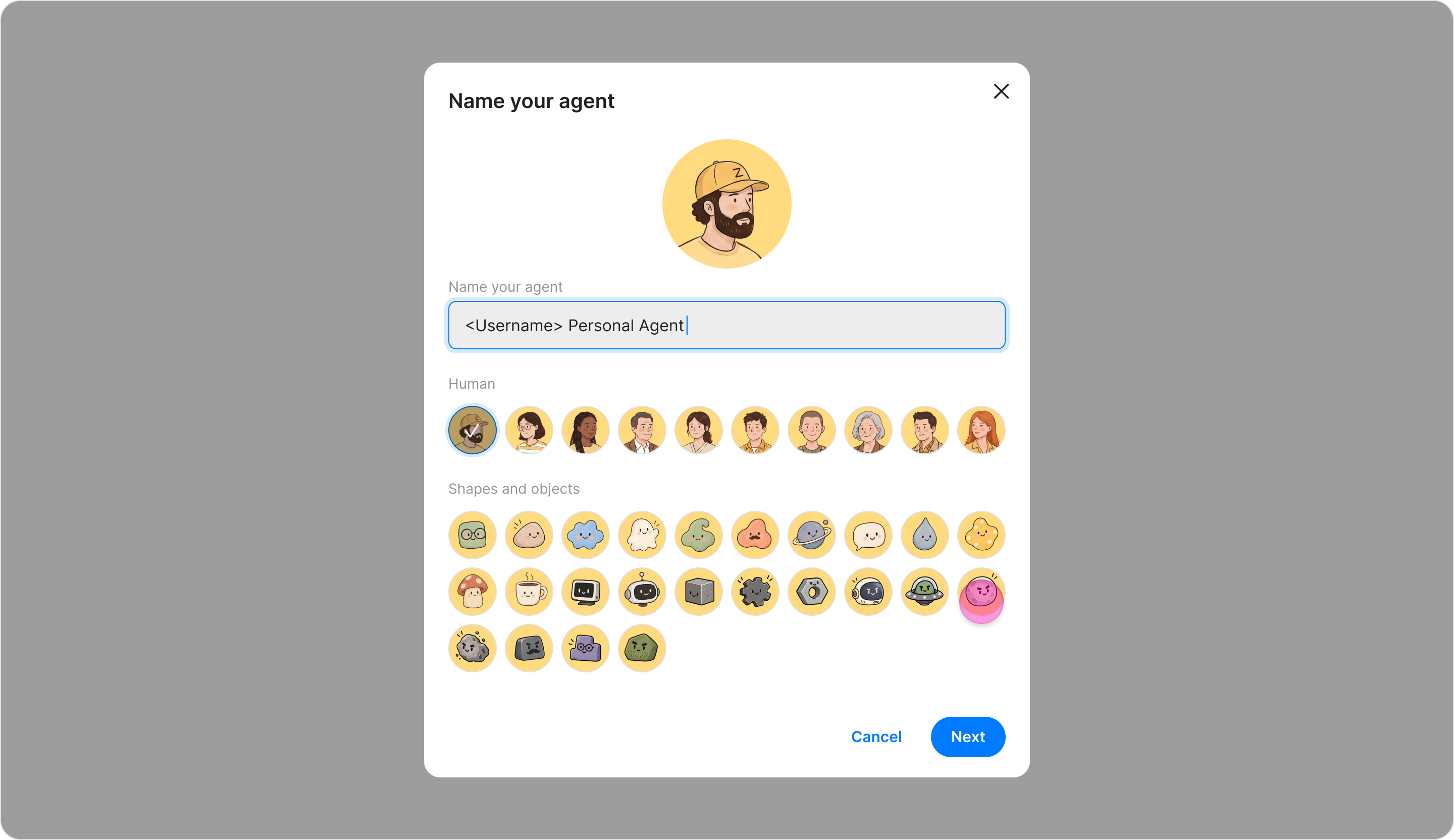
Click "Next."
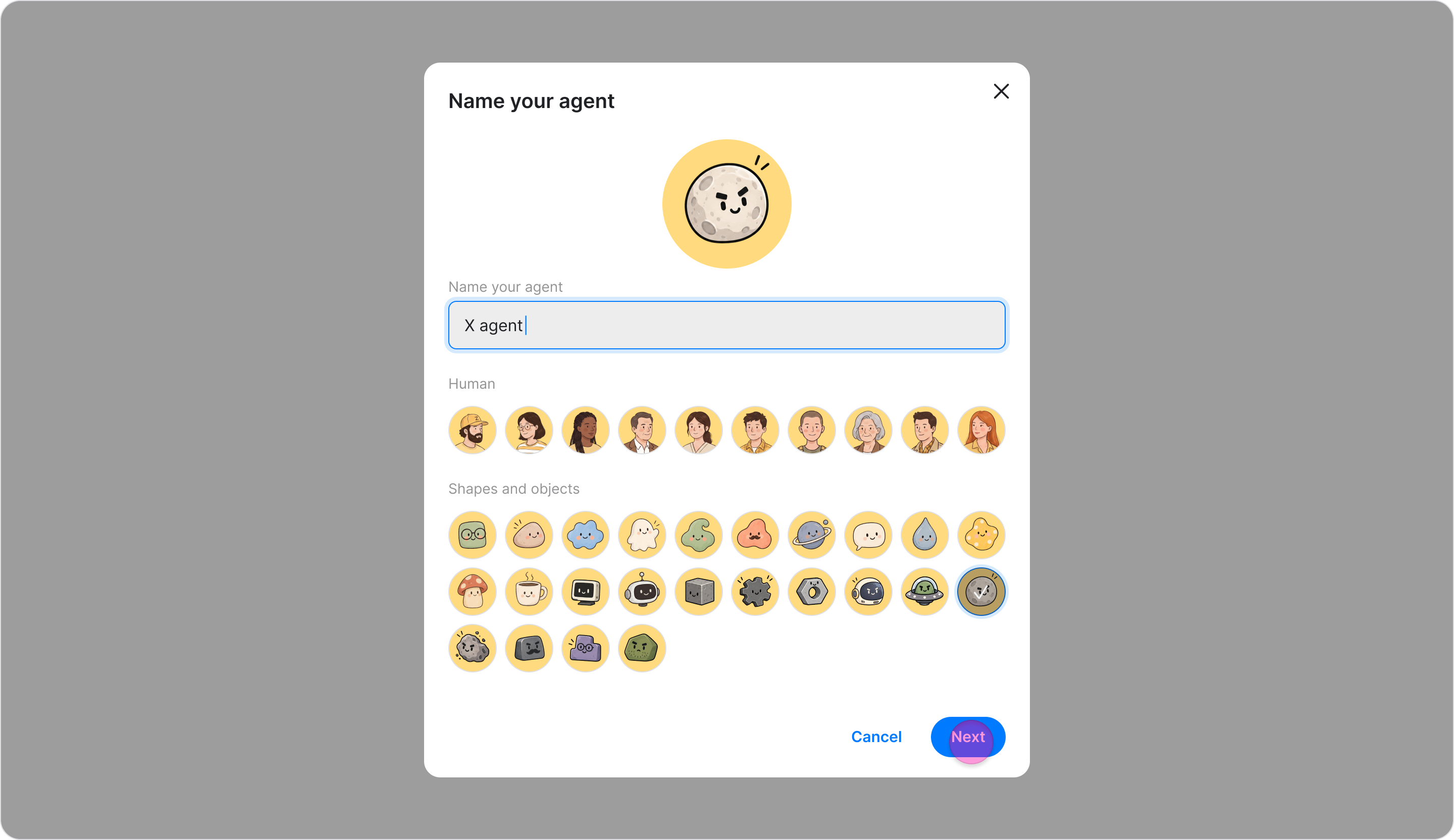
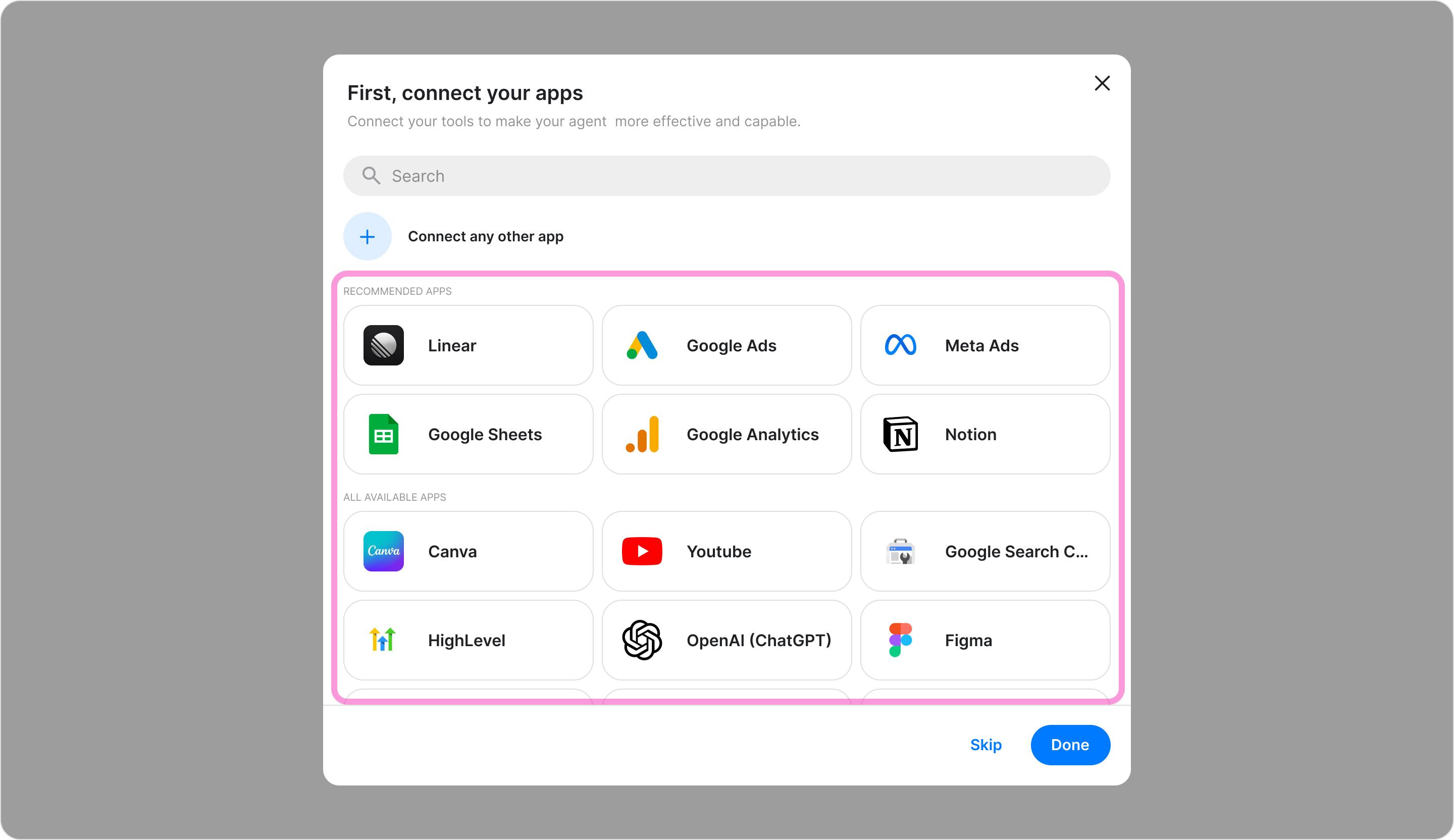
Choose the tools you want to connect or click "Skip" to continue without connecting tools.
Note: You can still connect them later (See: Connect to apps in this article).
When the setup is complete, a direct message chat with your agent opens automatically with a welcome message.
Note: You can rename your agent or connect tools later from its profile.