
Connect with an External Collaborator
Invite people outside your workspace to start a one-on-one conversation and collaborate directly in Zenzap.
On Mobile (iOS & Android)
Navigate to the "Home" tab.
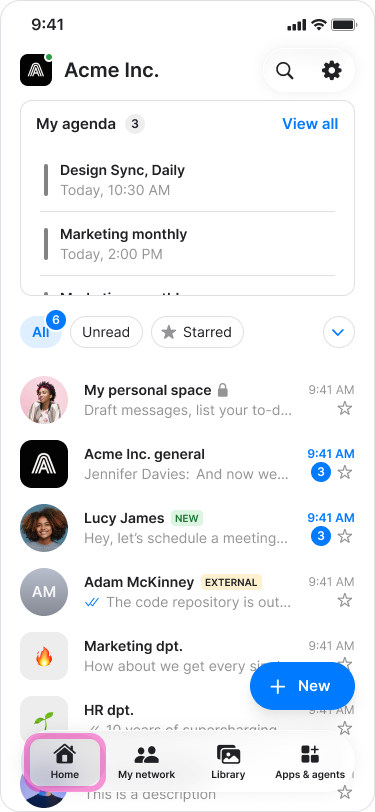
Tap "+New" in the bottom-right corner.

Select "Message someone outside your company".
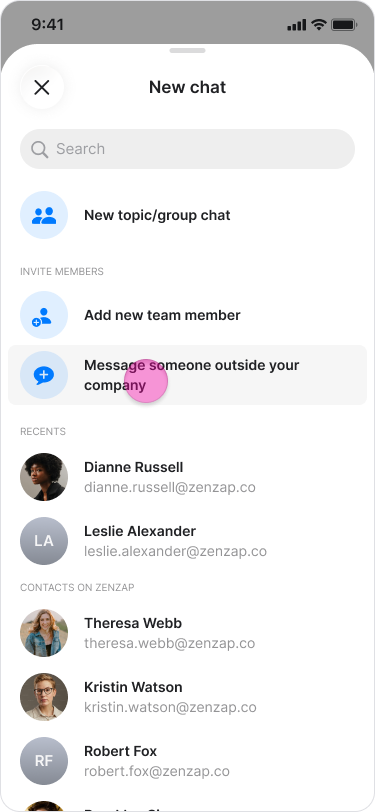
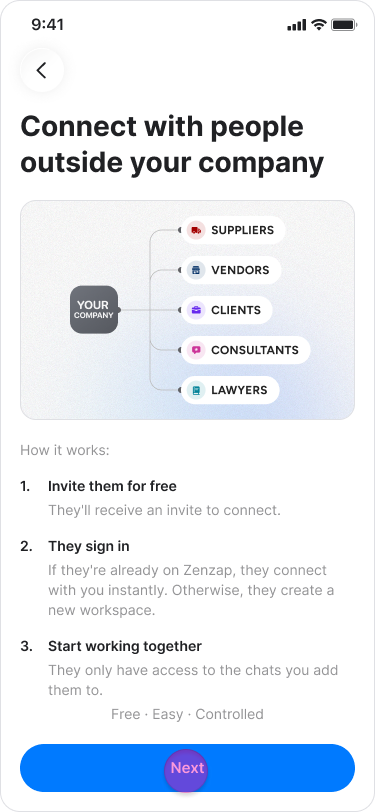
Tap "Next".
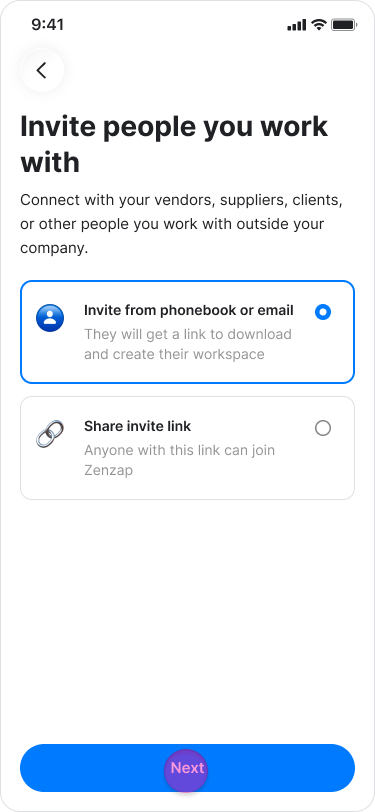
Select "Invite from phonebook or email".
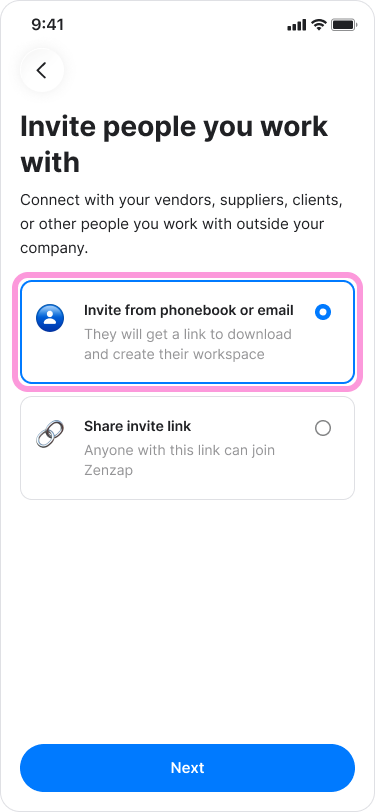
Tap "Next".
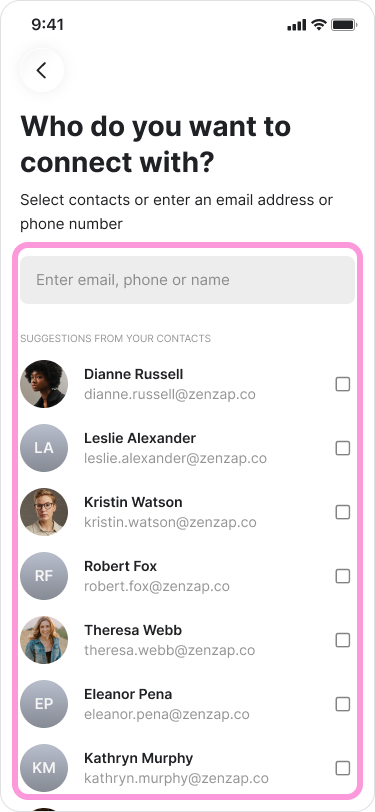
Search for a contact by name or enter their email address.
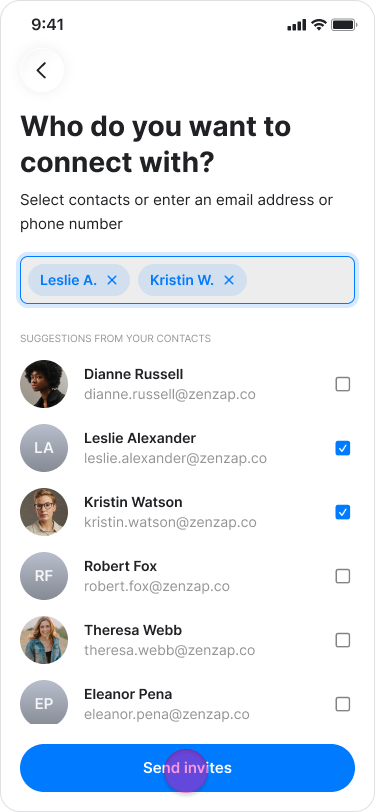
Tap "Send invites".
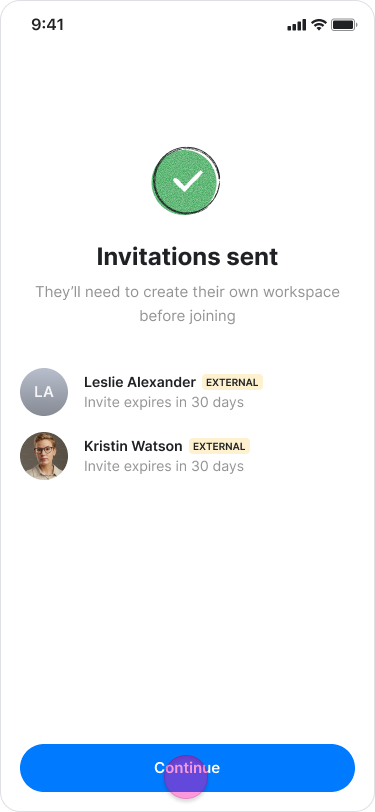
Tap "Continue".
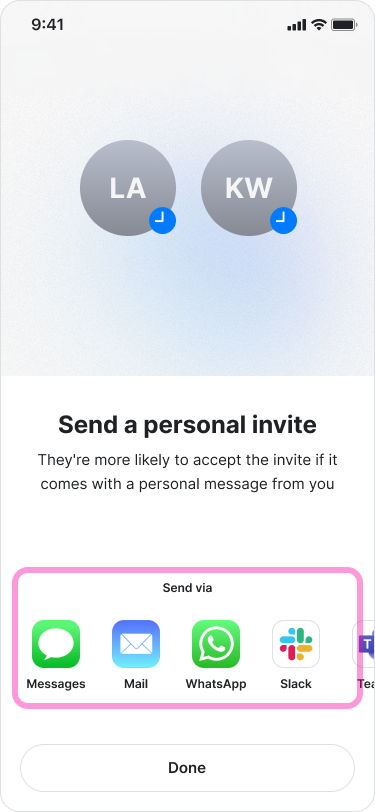
Choose how you want to send the invitation.
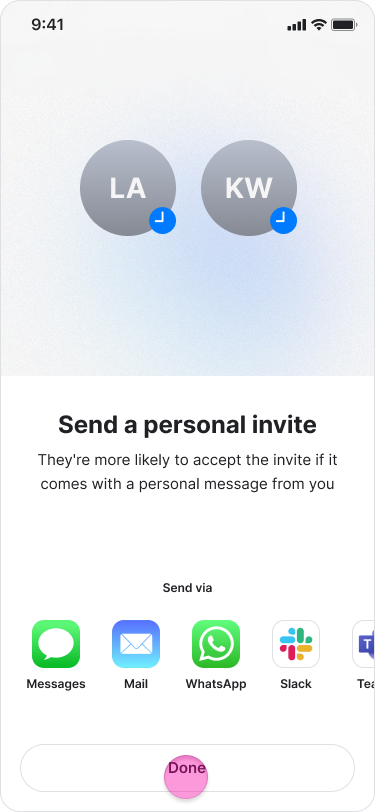
Tap "Done".
Note:
You can invite multiple people at the same time.
If you invite someone from your phonebook, they will receive the invitation by SMS. If you invite someone using an email address, they will receive the invitation by email.
If a chat is labeled "Invited", the person has not yet created their account.
The "External" label next to a group chat indicates that at least one participant is an external user.
To cancel an invitation when you go into the chat with this person, next to “Share”, select the three dots icon and tap “Cancel invitation”.
On Desktop (Windows, macOS, & Web App)
macOS
Click “Invite” at the bottom left of the screen.
Enter the email address of the person you want to chat with.
Click "Select" and choose "External user".
Click “Send”.
Choose whether to copy the invitation link.
Click "Done".
Choose how you want to send the invitation.
Close the window.
Windows & Web app
Click "Invite" in the bottom-left corner.
Select "Connect".
Click "Next".
Select "Invite by email or phone number".
Click "Next".
Enter an email address or phone number.
Click the "+" icon to add the recipient.
Click "Send invites".
Choose how you want to send the invitation.
Close the window.
Note:
You can invite multiple people at the same time.
If you invite someone using a phone number, they will receive the invitation by SMS. If you invite someone using an email address, they will receive the invitation by email.
If a chat is labeled "Invited", the person has not yet created their account.
The "External" label next to a group chat indicates that at least one participant is an external user.
To cancel an invitation when you go into the chat with this person, next to “Share”, select the three dots icon and tap “Cancel invitation”.