
Manage Team Roles
Manage member permissions in your workspace by assigning or changing roles.
Access: Workspace Admins
On Mobile (iOS & Android)
Tap the "Admin" tab in the bottom menu.
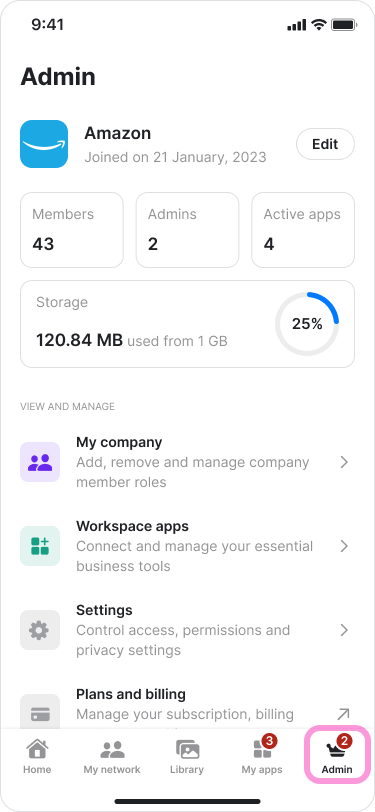
Tap "My company".
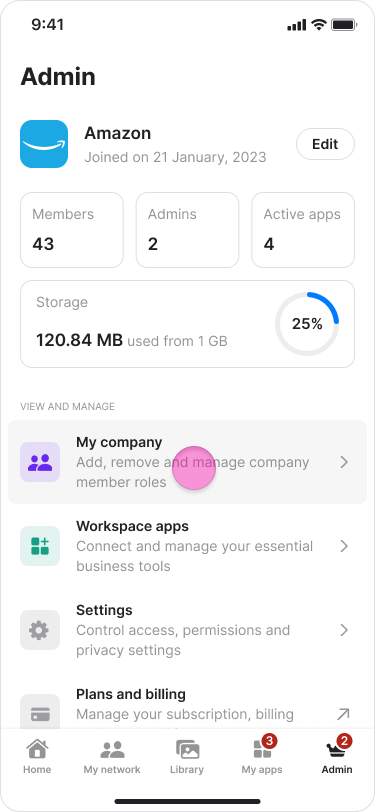
Select the team member whose role you want to change.
You can use the search bar to find them faster.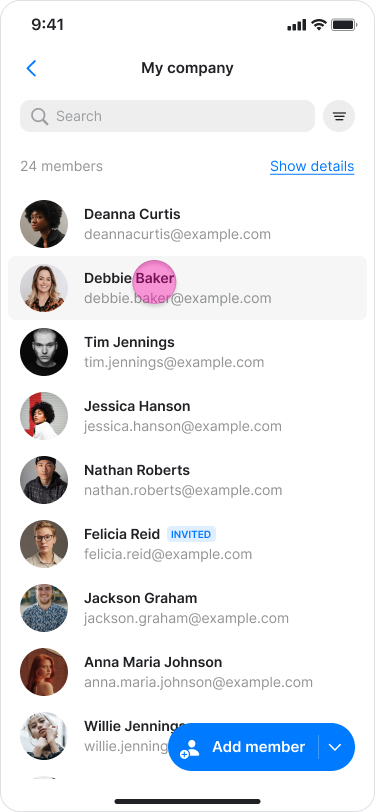
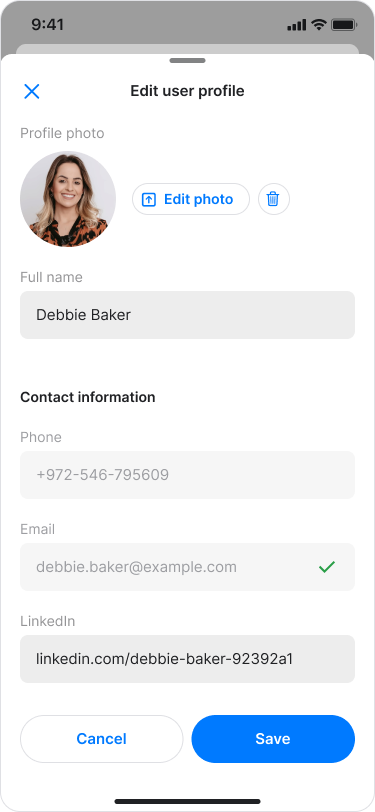
Tap "Edit profile".
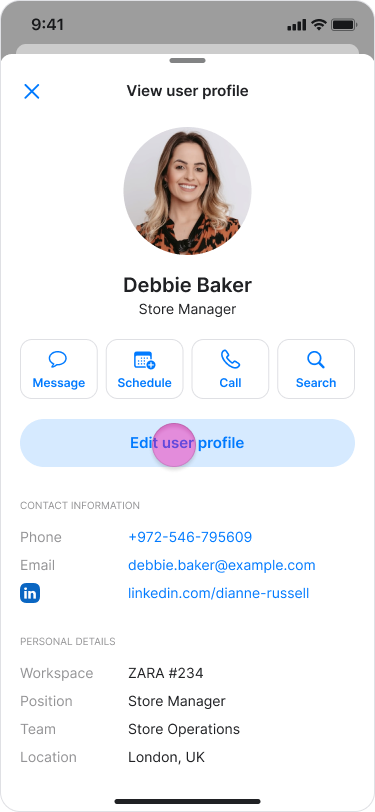
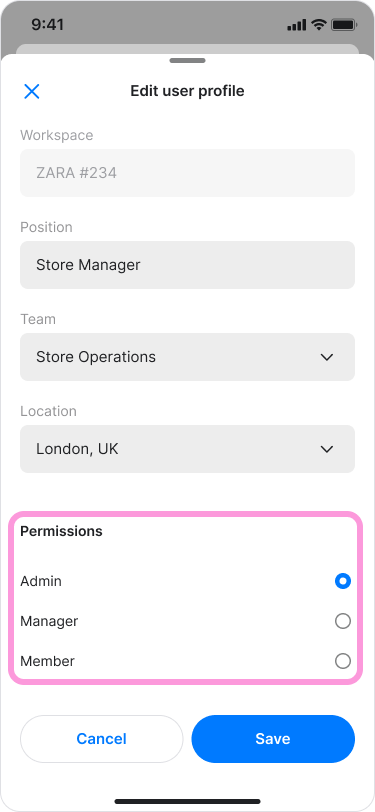
Scroll down to the "Permissions" section.
Select one of the following permissions:
"Admin".
"Manager".
"Member".
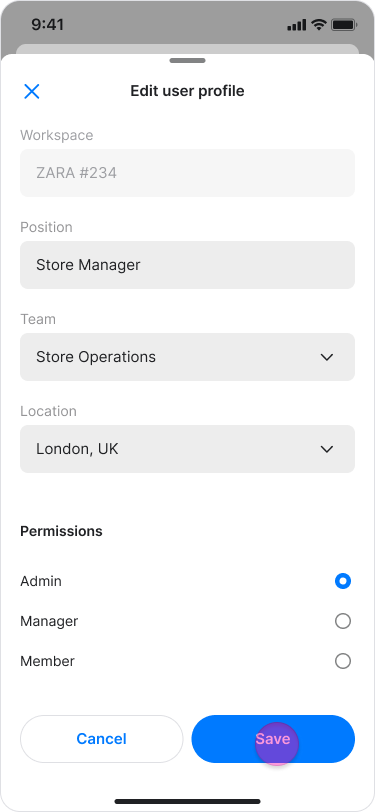
Tap "Save".
Note:
Permissions affect what a team member can do in your workspace.
The original creator of the workspace is automatically assigned the "Admin" role. Admins can manage team member permissions and workspace settings by default.
A manager’s permissions depend on your workspace settings.
On Desktop (Windows, macOS, & Web App)
Click "Zenzap admin" in the left sidebar.
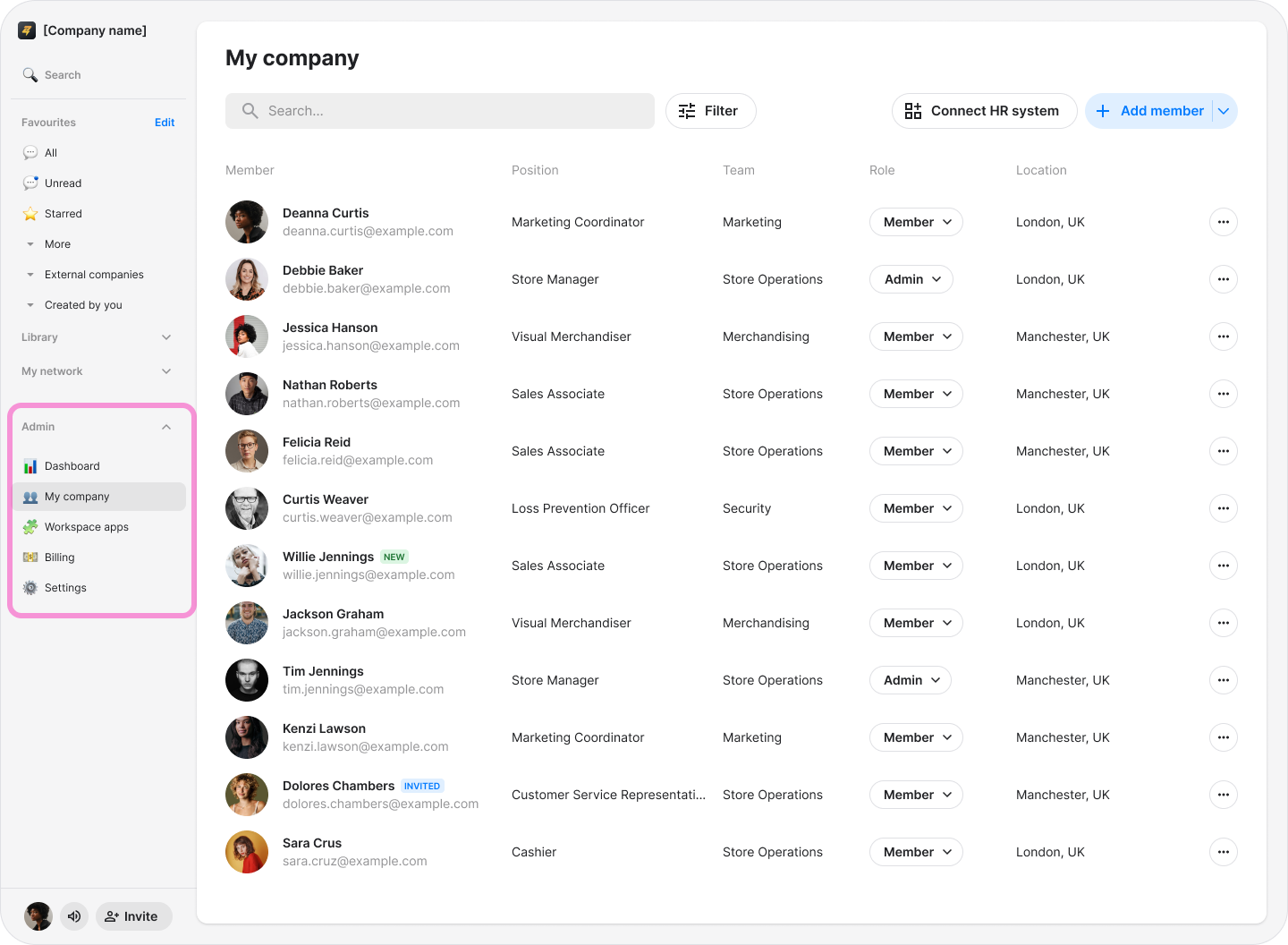
Find the team member whose role you want to change using the search bar or "Filter".
In the "Role" column, click the current role next to the team member’s name.
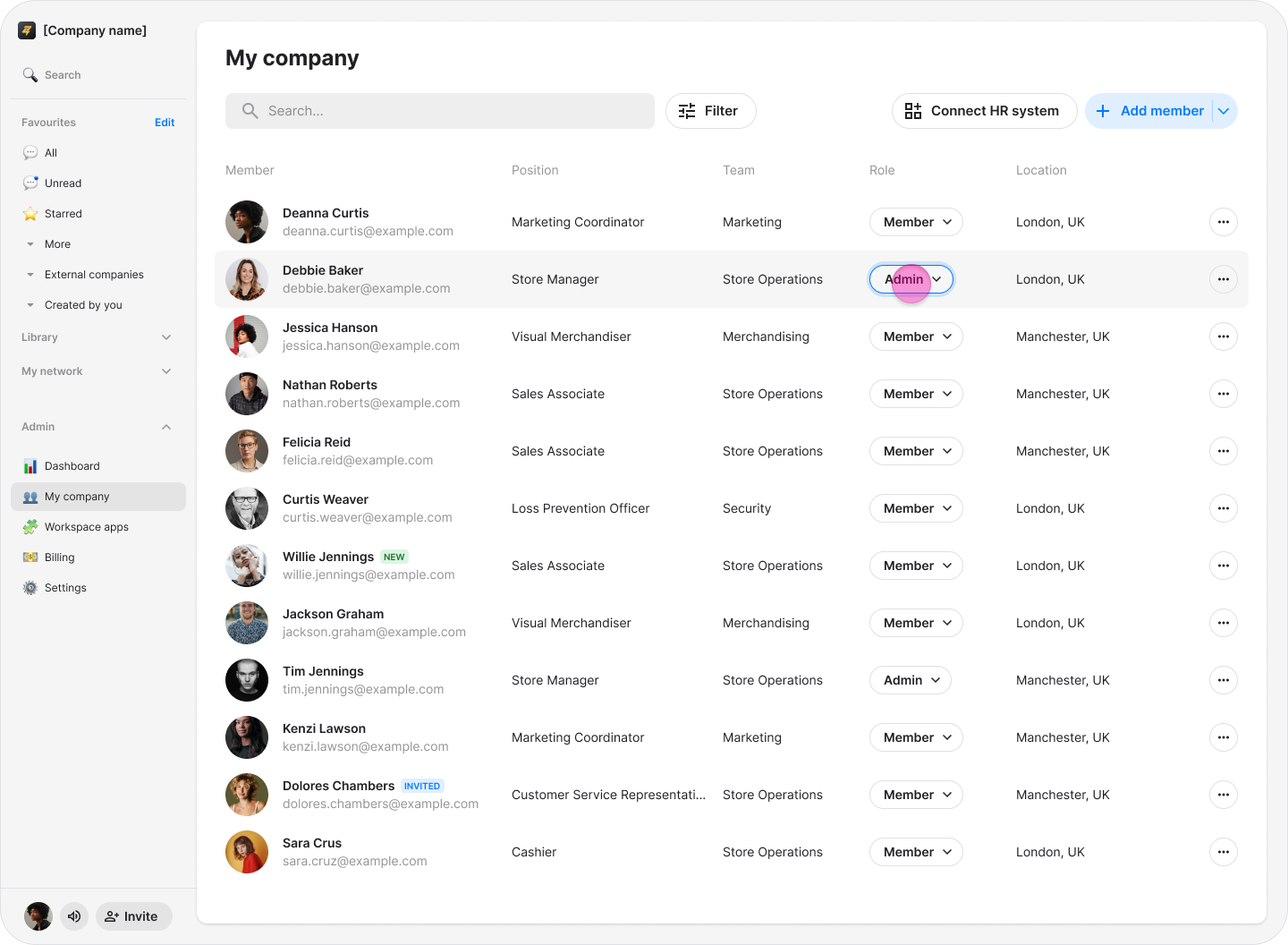
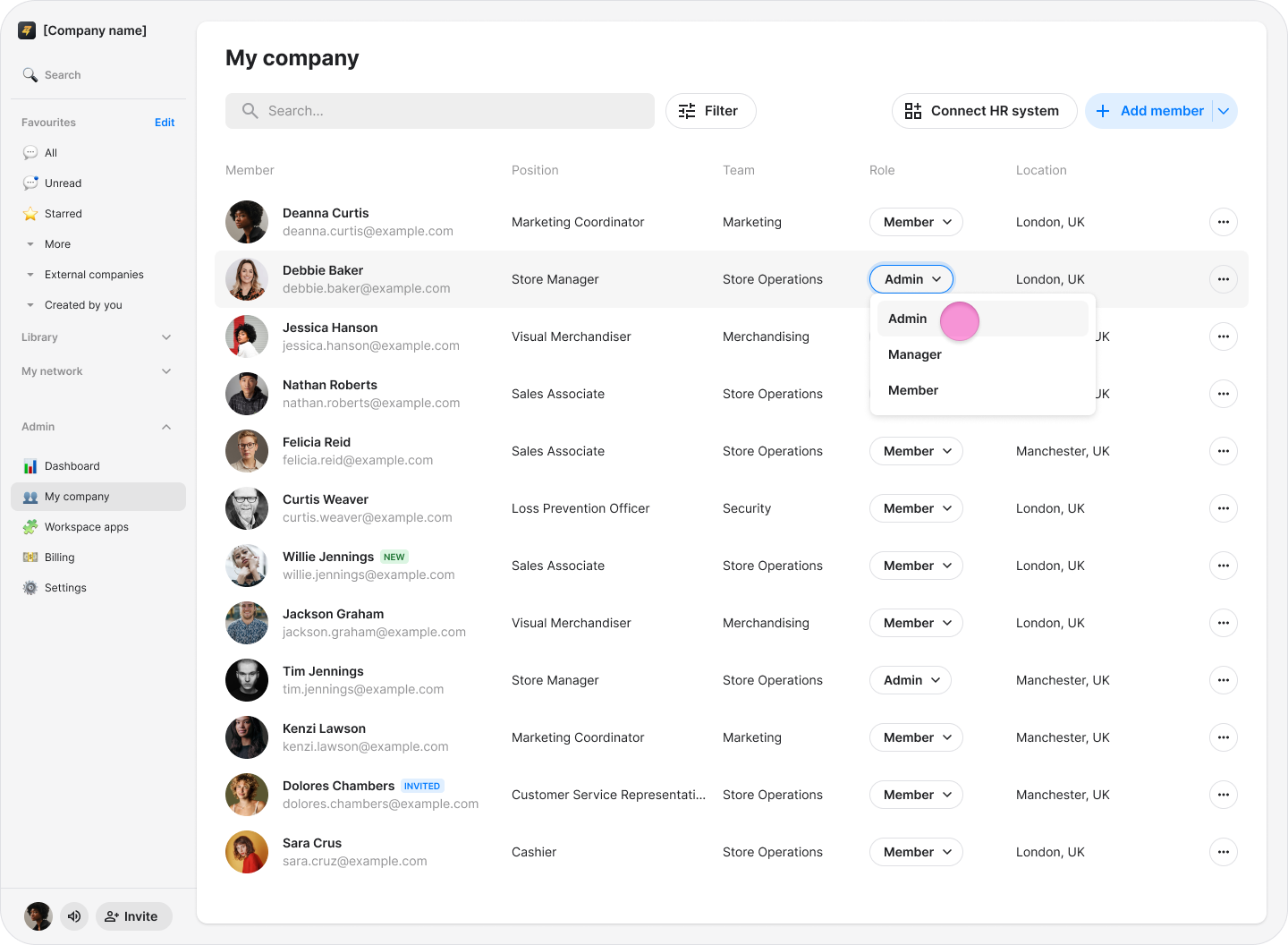
Select one of the following permissions:
"Admin".
"Manager".
"Member".
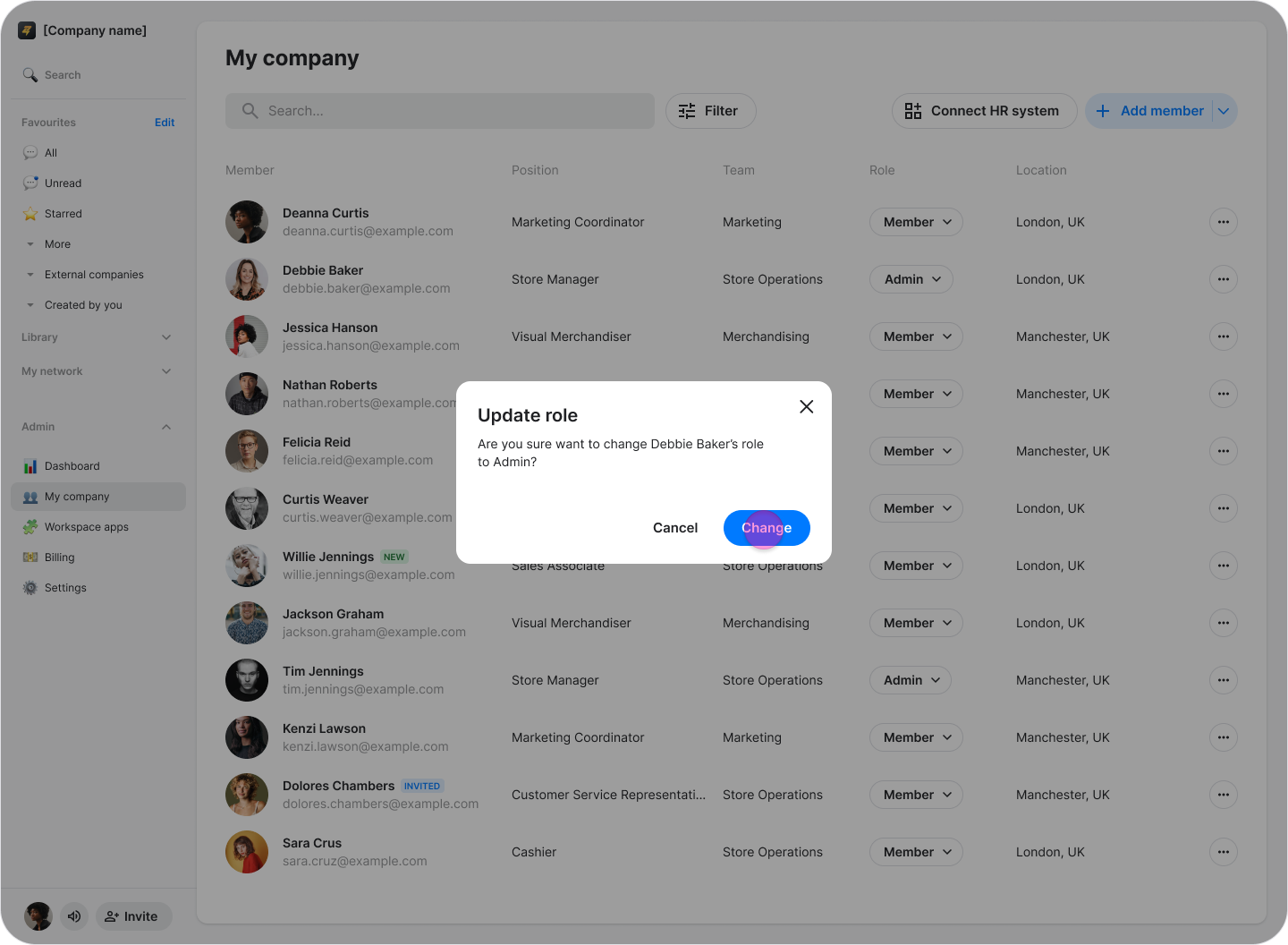
In the "Update role" confirmation window, click "Change".
Note:
Permissions affect what a team member can do in your workspace.
The original creator of the workspace is automatically assigned the "Admin" role. Admins can manage team member permissions and workspace settings by default.
A manager’s permissions depend on your workspace settings.