
View and Filter Team Members
View all members in your workspace and use filters to quickly find admins, new members, pending requests, invitations, and inactive users.
Access: Workspace Admins
On Mobile (iOS & Android)
Tap the "Admin" tab in the bottom menu.
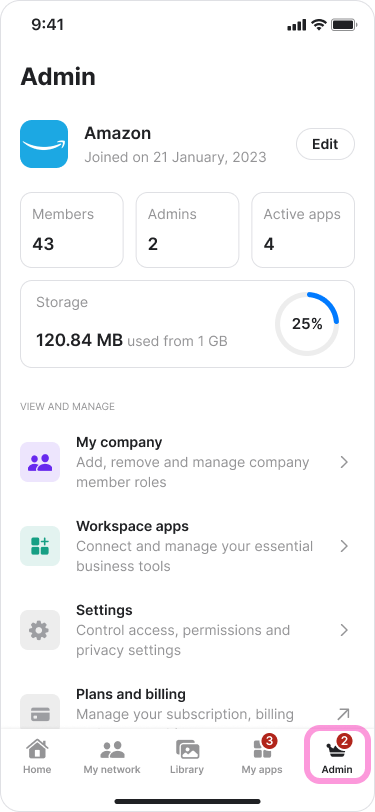
Tap "My Company".
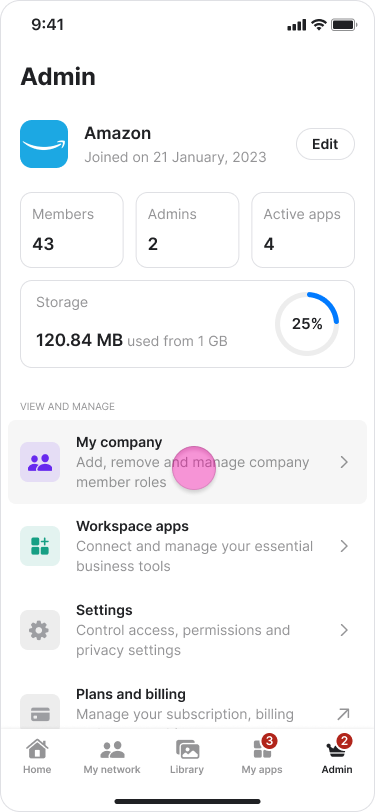
Stay on the "Members" tab.
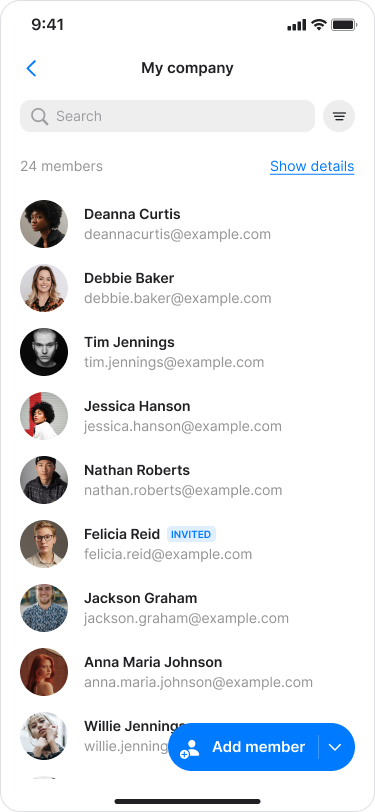
Tap the filter icon on the right side of the search bar.
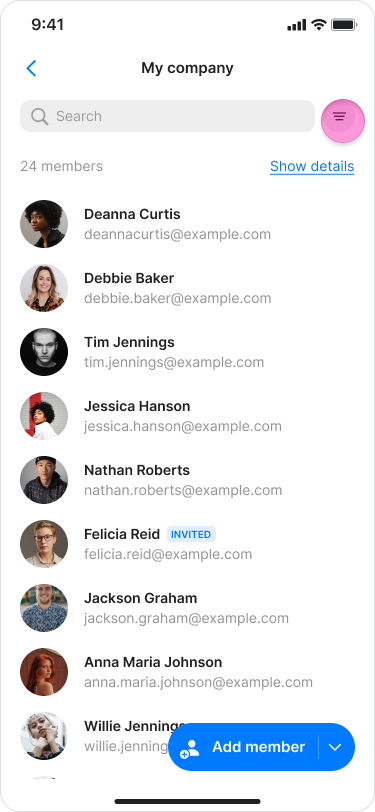
Select one of the following filters:
Role: "Admin", "Manager", or "Member".
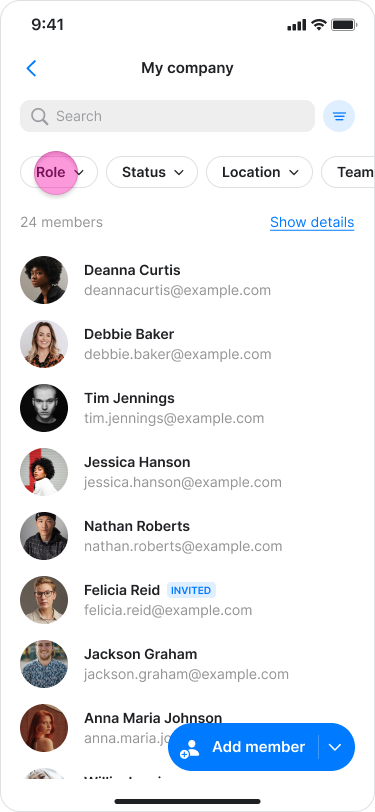
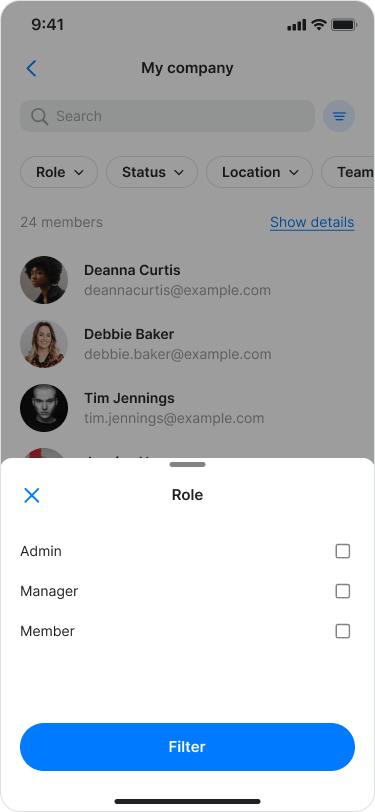
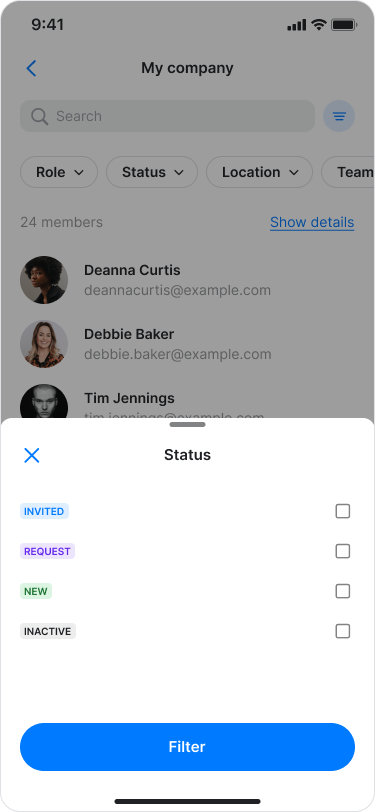
Status: "Active", "Invited", "Request", "New", or "Inactive".
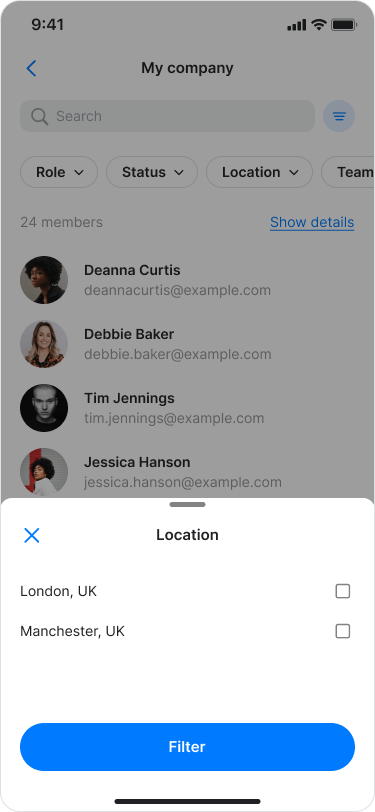
Location: View members based on the location set in their profile.
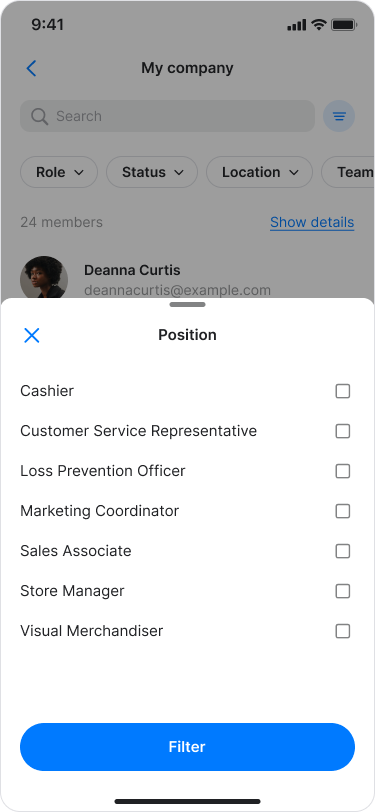
Position: View members based on the position set in their profile
On Desktop (Windows, macOS, & Web App)
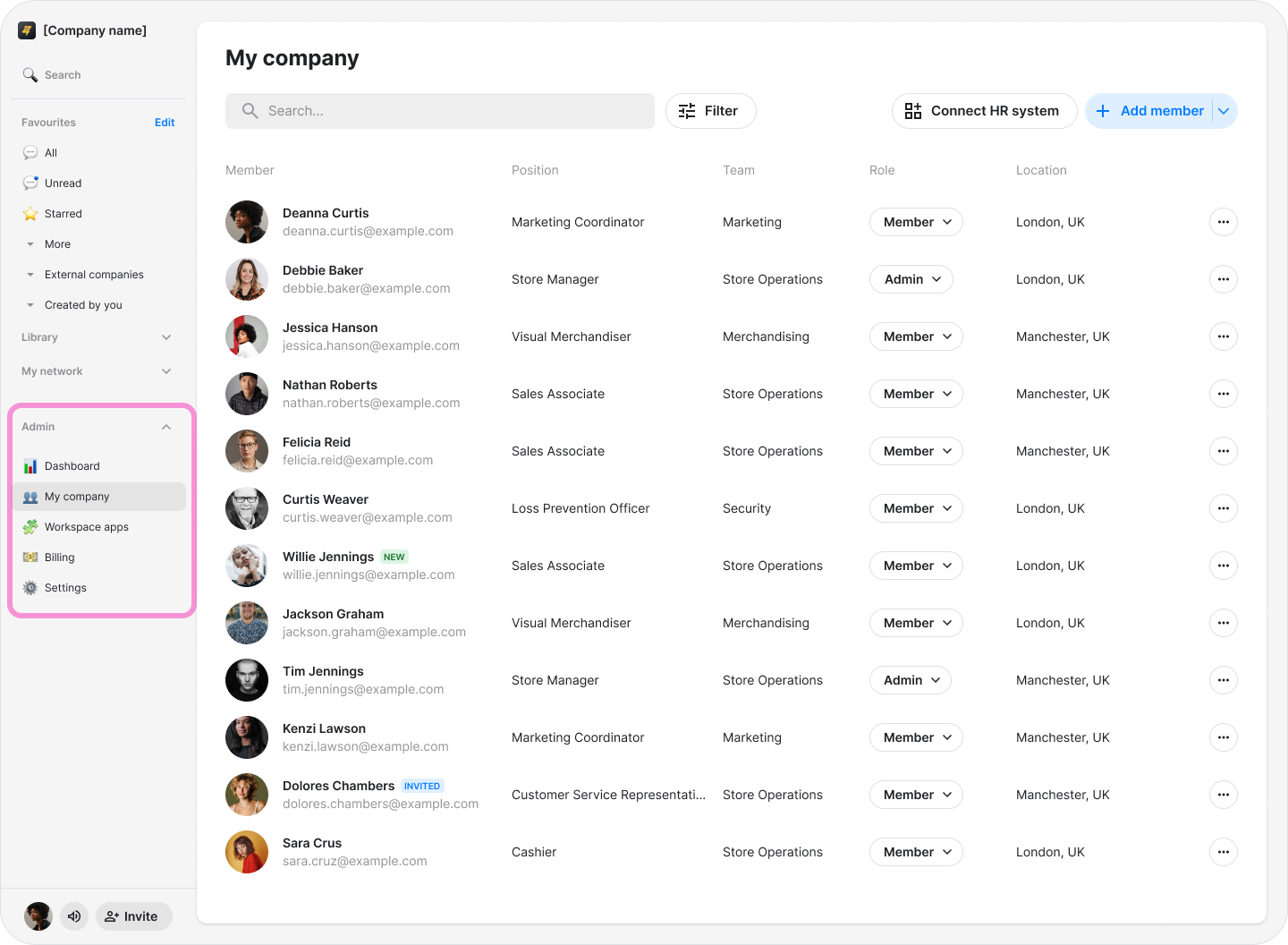
Click "Zenzap admin" in the left sidebar (Windows & Web App), or click "My Company" in the macOS app.
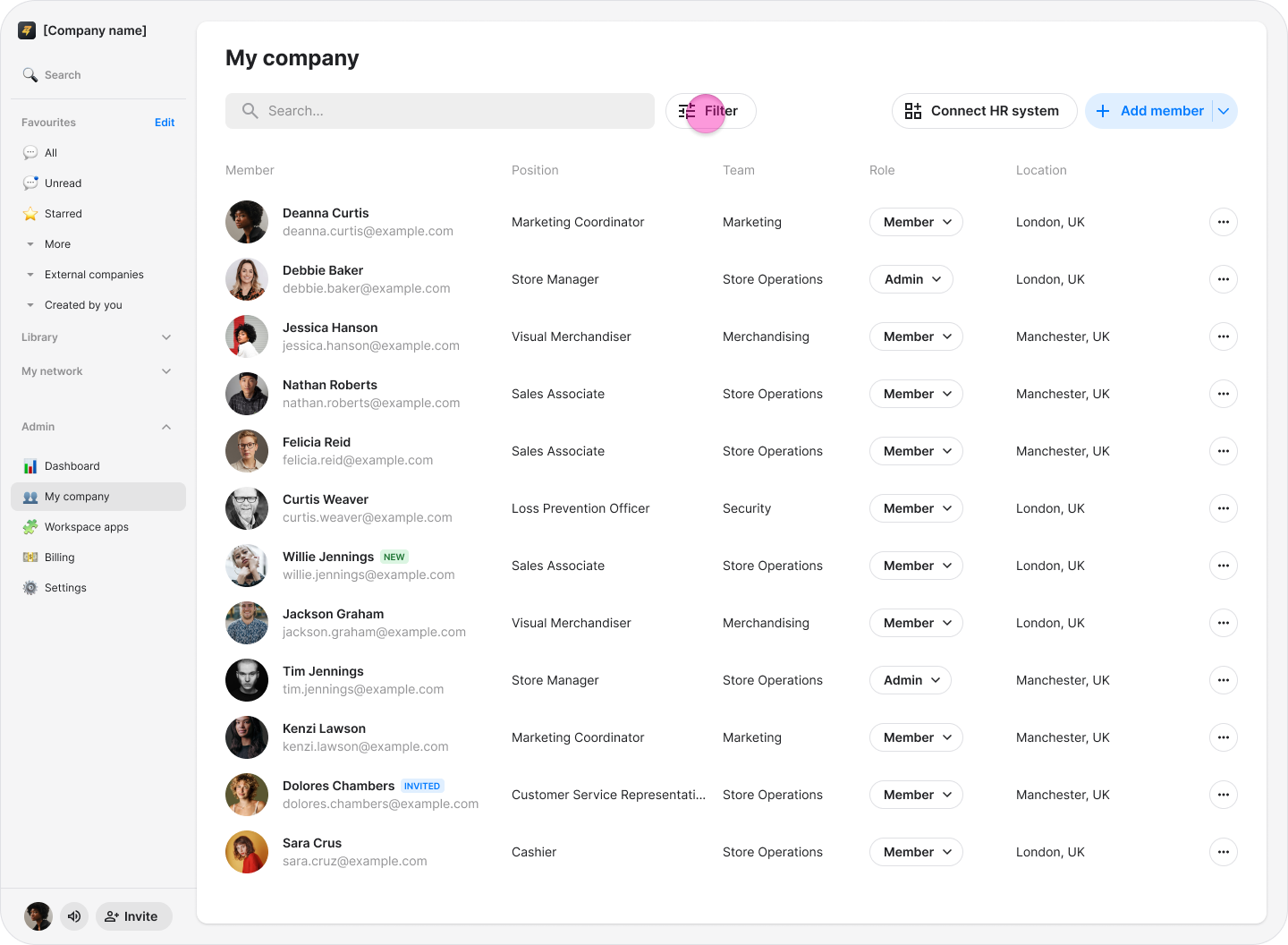
Click the filter icon on the right side of the search bar.
Select one of the following filters:
Role: "Admin", "Manager", or "Member".
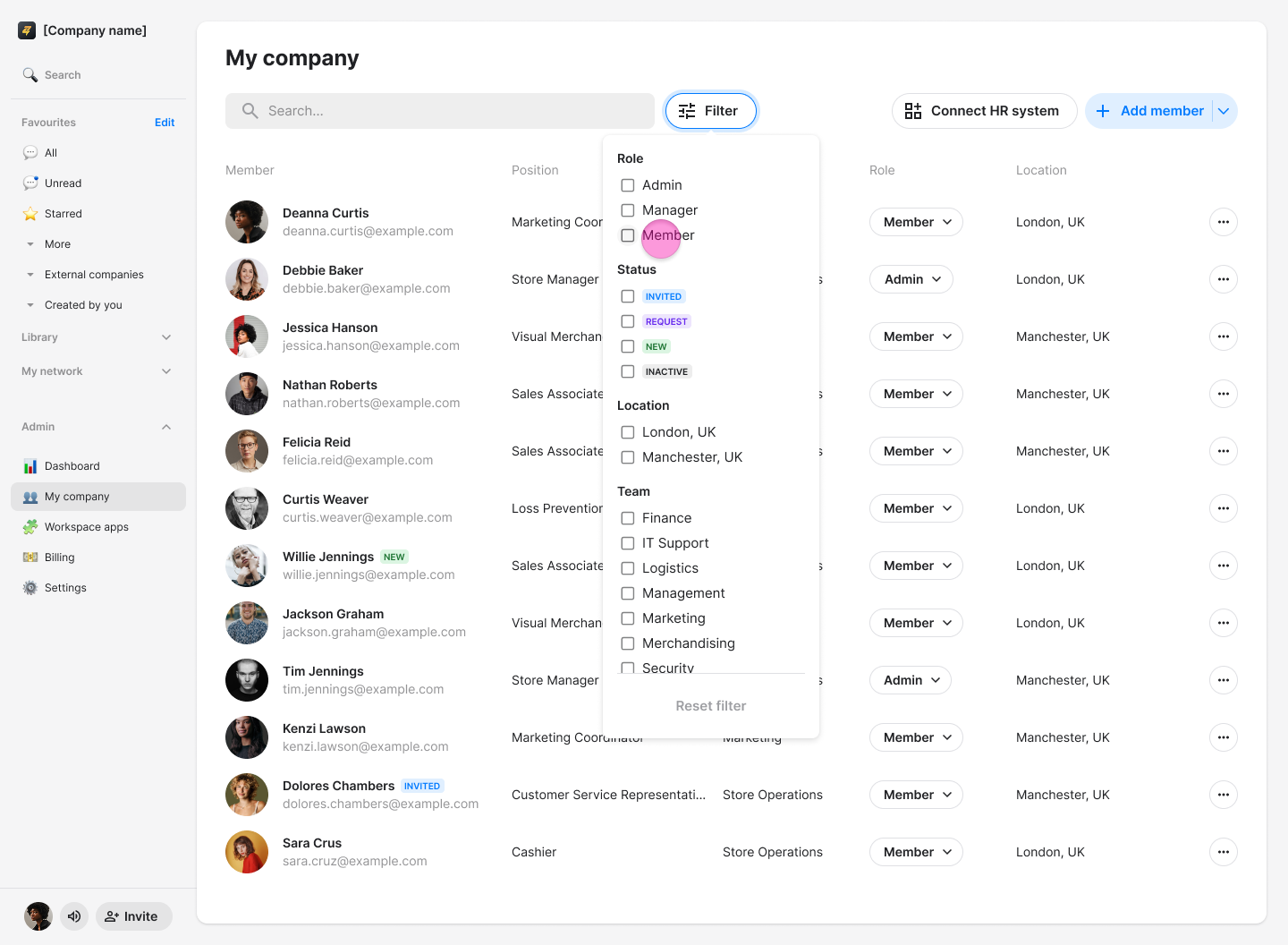
Status: "Active", "Invited", "Request", "New", or "Inactive".
Location: View members based on the location set in their profile.
Position: View members based on the position set in their profile.
Status Filter:
"Active" shows current members of your company.
"Invited" shows users who have been invited but have not yet joined.
"Request" shows users requesting to join your company.
"New" shows recently added members.
"Inactive" shows former company members who no longer have access to your company.