
Limiting Communication
Decide if team members can start a direct message (DM) chat with anyone in the workspace or only with those in their specific group.
Access: Workspace Admins
On Mobile (iOS & Android)
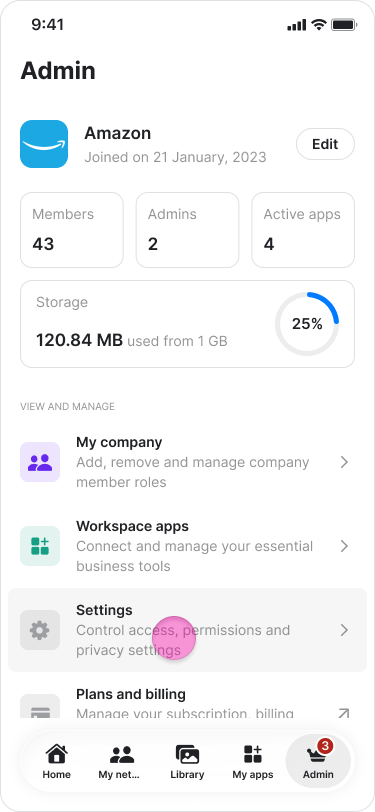
Tap the "Admin" tab at the bottom of the screen.
Tap "Settings" on iOS, or "Workspace settings" on Android.
.
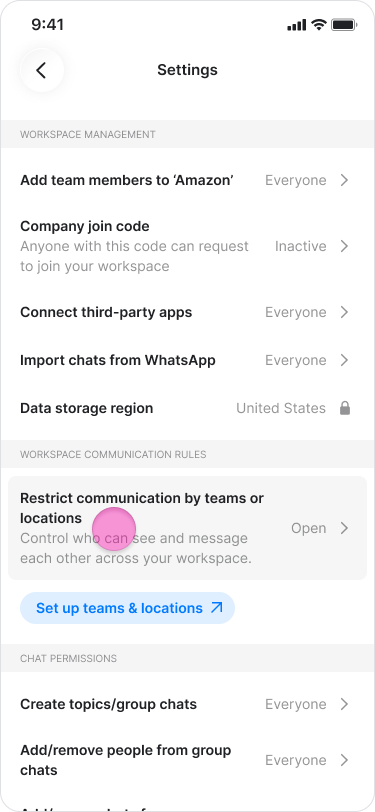
Tap on “Restrict communications by teams or locations”
.
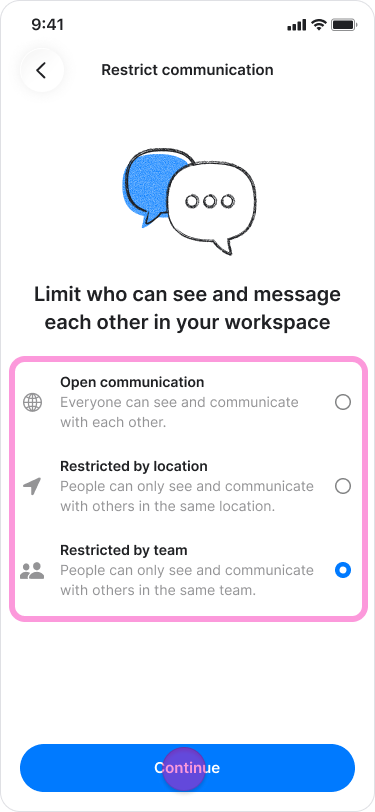
Select your preferred restriction level:
"Open communication": All members can communicate with one another.
"Restricted by location": Members can only message others within their same location.
"Restricted by team": Members can only message others within their same team.
Tap “Continue”.
.
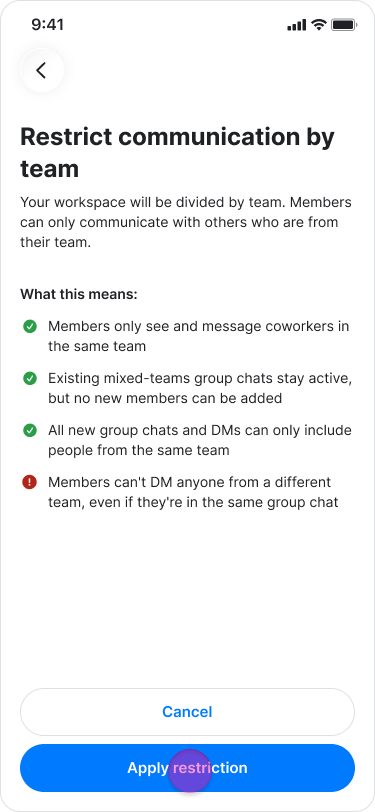
Tap “Apply restriction” to confirm.
.
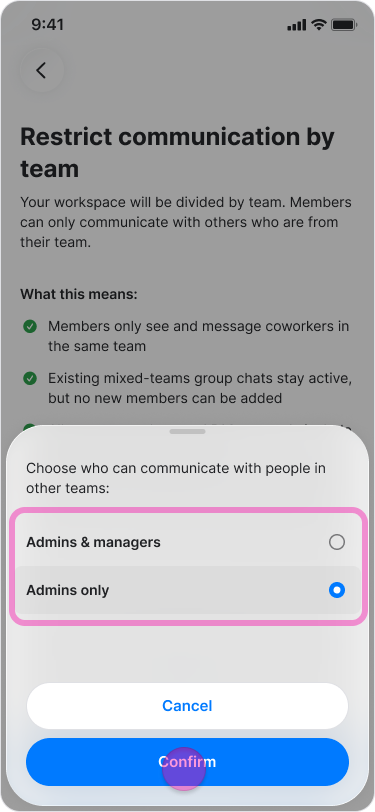
Choose if "Admins" or "Admins & Managers" will be allowed to communicate with people across different teams.
Tap “Confirm”.
.
Note: Communication separation is workspace-wide and applies to all members, except for "Admins" or "Admins & Managers" depending on your selection.
On Desktop (Windows, macOS, & Web App)
Click on "[workspace's name] admin" in the side menu on Windows and Web, or click "My company" under the "Admin" section on macOS.
Click “Teams & Locations” at the top.
Click "Edit settings" under the "Communication boundaries" banner.
Select your preferred restriction level:
"Open communication": All members can communicate with one another.
"Restricted by location": Members can only message others within their same location.
"Restricted by team": Members can only message others within their same team.
Click “Continue”
Click “Apply restriction” to confirm.
Choose if "Admins" or "Admins & Managers" will be allowed to communicate with people across different teams.
Click “Confirm”.
Note: Communication separation is workspace-wide and applies to all members, except for "Admins" or "Admins & Managers" depending on your selecti