
Import Whatsapp Chats
Import your WhatsApp chat history, including attachments and photos, to continue your conversations directly on Zenzap.
On Mobile (iOS)
Importing a Chat
Open WhatsApp.
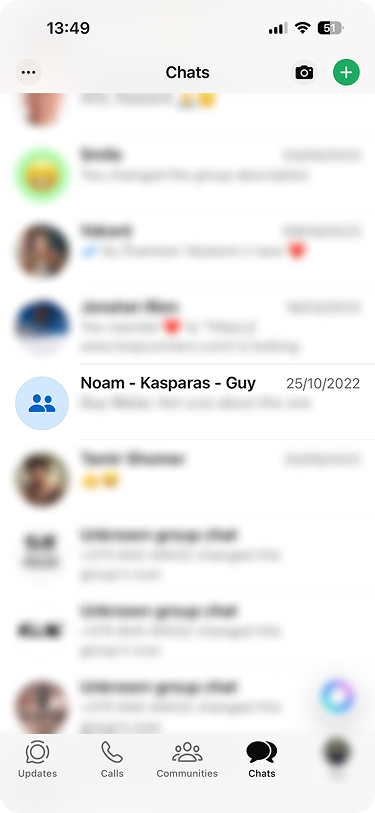
Open a chat you want to export.
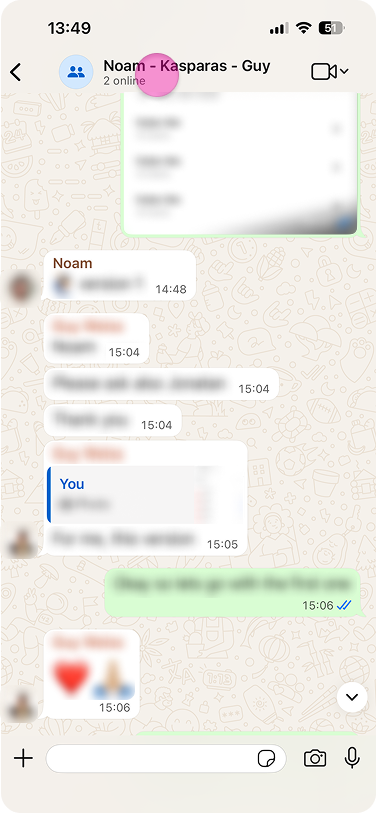
Tap the contact or group name at the top of the chat window.
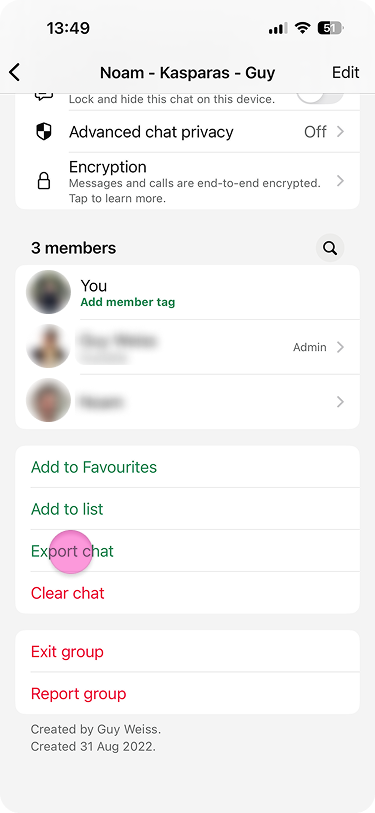
Scroll down and tap “Export Chat”.
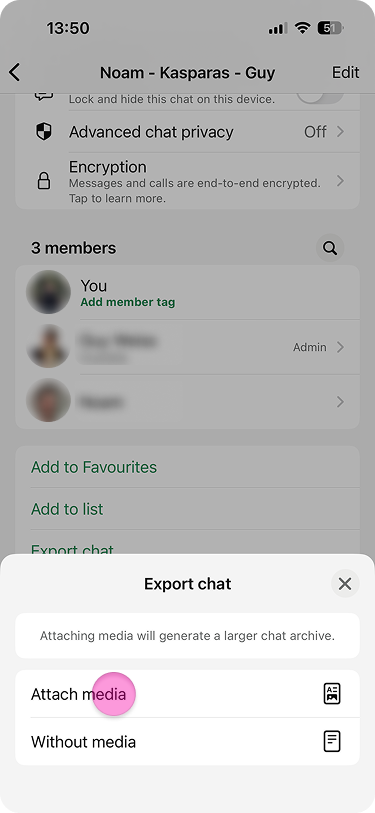
Choose “Attach media”, or “Without media”.
Select the “Zenzap” app.
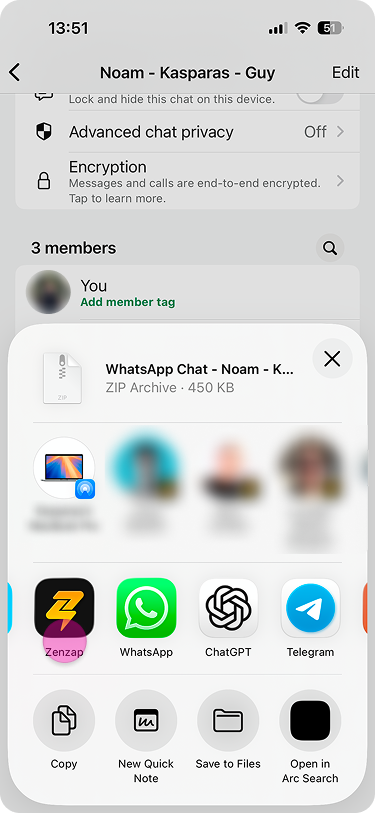
Tap “Next” on the instructions part.
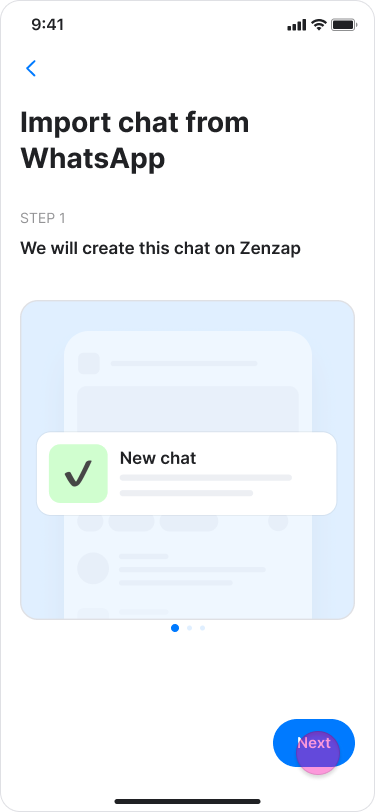
Tap “Start import”.
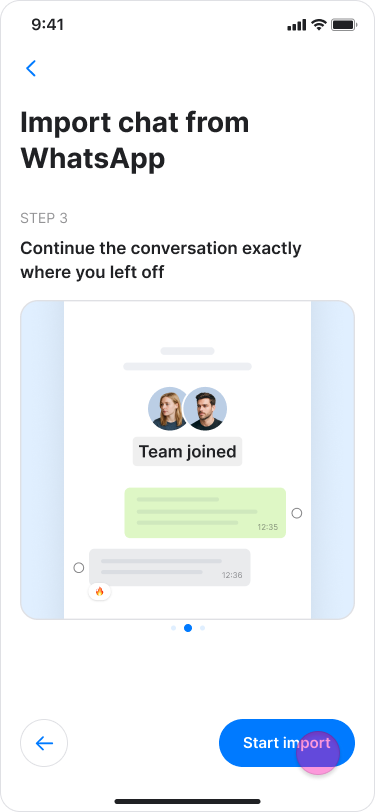
Tap “Next”.
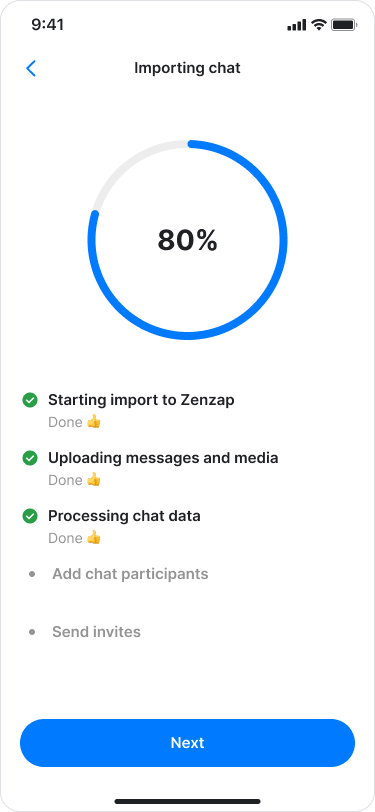
Select the checkbox next to a participant's name to invite them.
Choose to invite them as a "Teammate" or an "External user".
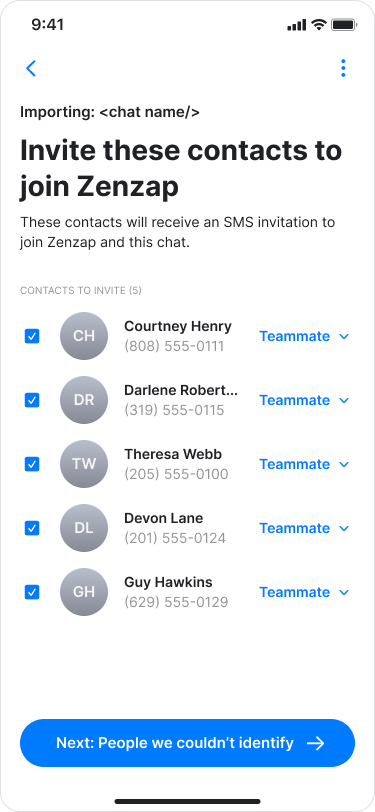
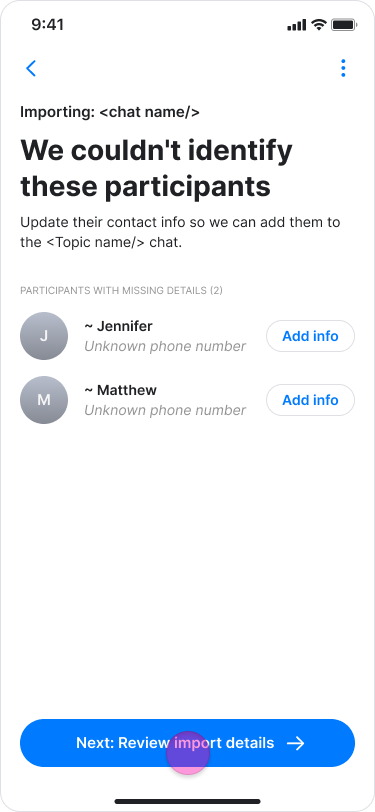
Tap “Next: Review import details”.
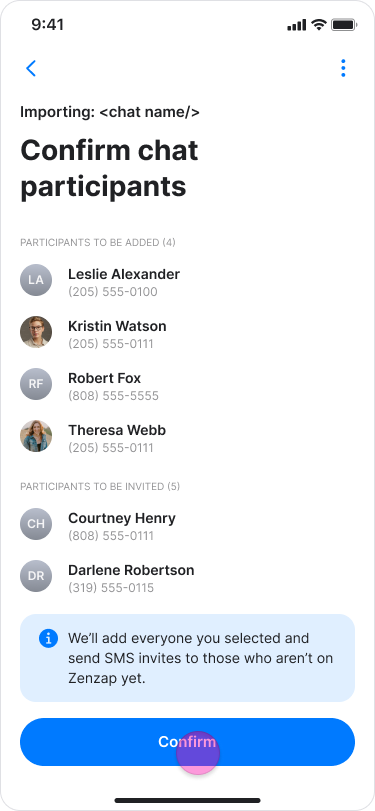
Tap "Confirm" to send the invitations.
If you decide to not invite some of the people, you will see a screen that they won’t get a message.
Tap “Ok”.
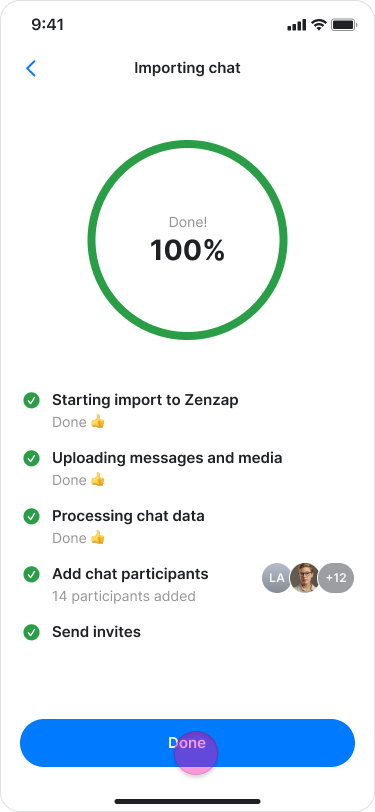
Tap “Done”
Note:
You can continue using your mobile device while the import completes in the background.
If you do not finish the process, a message to continue will appear at the top of your home page under "My Agenda".
To cancel the process, tap the “Three buttons” icon and select "Discard this import", then tap "Cancel import" to confirm.
You can only import one chat at a time.
Managing Invitations
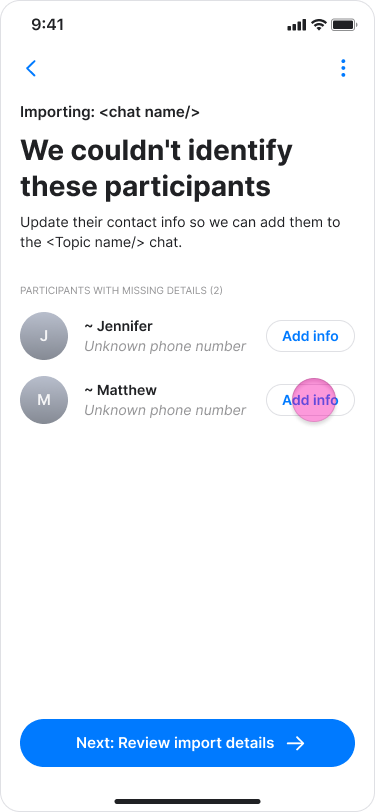
If a participant is not automatically recognized, follow these steps to manage their information:
Tap "Add info".
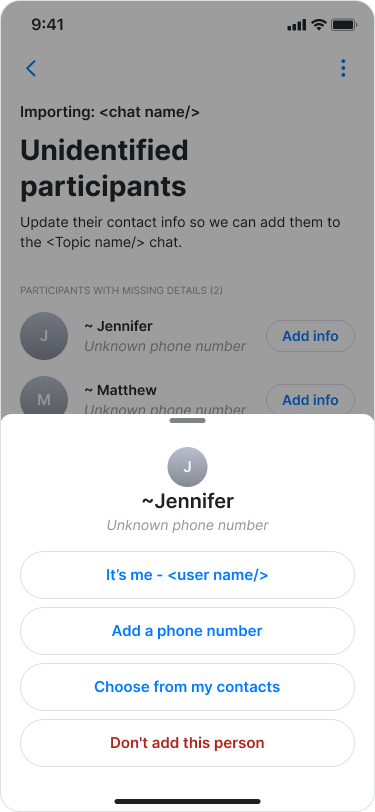
Select one of the following options:
"It’s me": If the participant is you.
"Choose from my contacts": If the person is saved in your phone contacts.
"Add a phone number": To manually provide contact details and to choose to invite them as a "Teammate" or "External user".
"Don’t add this person": If you do not want to include this participant.
..
,
⭐ Pro Feature: Admins can visit "Settings" to manage which users are allowed to import WhatsApp chats.
On Mobile (Android)
Importing a Chat
Open WhatsApp.
Open a chat you want to export.
Tap the three dots in the top right corner.
Tap “More”.
Tap “Export Chat”.
Choose “Include media”, or “Without media”.
Select the “Zenzap” app.
A pop up window will open.
Tap “Next” on the instructions part.
Tap “Start import”.
Tap “Next”.
Check the box near the participants name if you want to invite them.
Choose if you want to invite them as a “Teammate” to your workspace, or as an "External user”.
Tap “Next: Review import details”.
Tap "Confirm" to send the invitations.
If you decide to not invite some of the people, you will see a screen that says these people won’t get a message.
Tap “Done”
Note:
You can continue using your mobile device while the import completes in the background.
If you do not finish the process, a message to continue will appear at the top of your home page under "My Agenda".
To cancel the process, tap the “Three buttons” icon and select "Discard this import", then tap "Cancel import" to confirm.
You can only import one chat at a time.
Managing Invitations
If a participant is not automatically recognized, follow these steps to manage their information:
Tap "Add info".
Select one of the following options:
"It’s me": If the participant is you.
"Choose from my contacts": If the person is saved in your phone contacts.
"Add a phone number": To manually provide contact details and to choose to invite them as a "Teammate" or "External user".
"Don’t add this person": If you do not want to include this participant.
⭐ Pro Feature: Admins can visit "Settings" to manage which users are allowed to import WhatsApp chats.