
Change Workspace Name
Edited
Access: Workspace Admins
On Mobile (iOS & Android)
Tap your workspace logo in the top-left corner of the home screen.
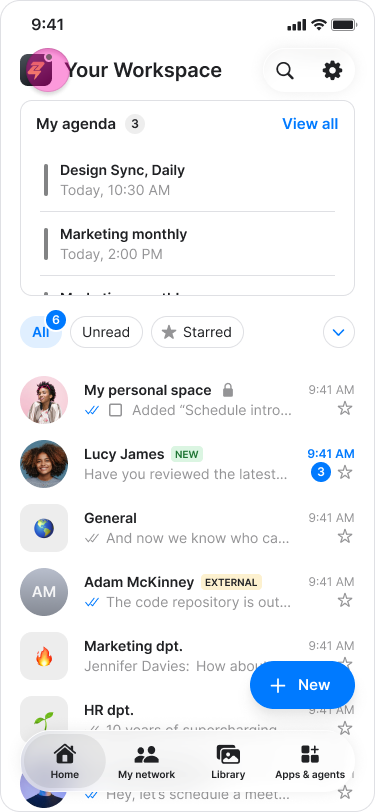
Tap "Edit" next to your current workspace name.
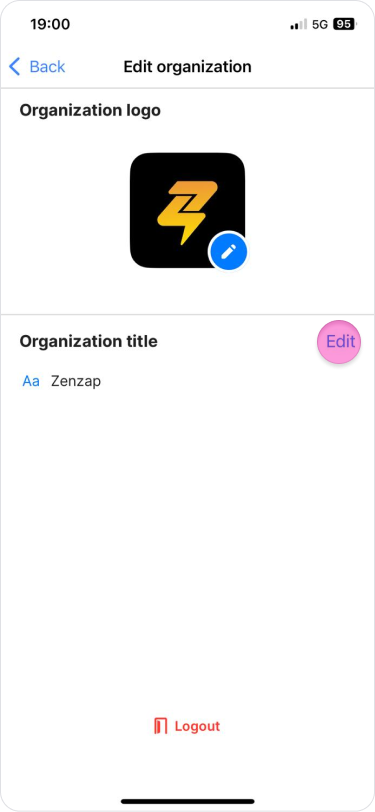
Type the new name for your workspace.
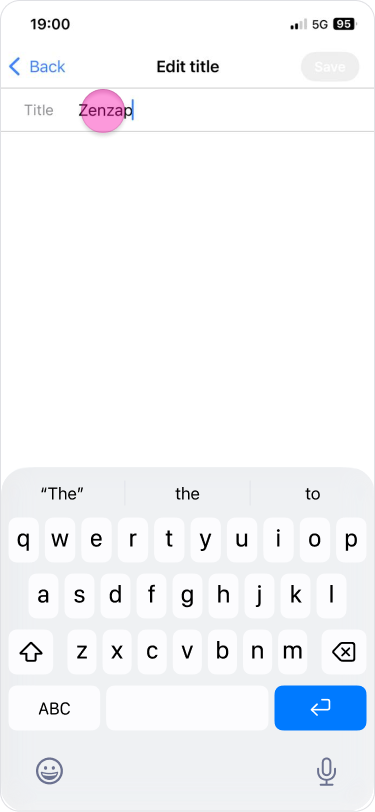
Tap "Save".
Note: You can also change the workspace name by going to the "Admin" tab, tapping "Edit" at the top-right corner, and following steps 3 and 4.
On Desktop (Windows & Web App)
Click your workspace name in the top-left corner.
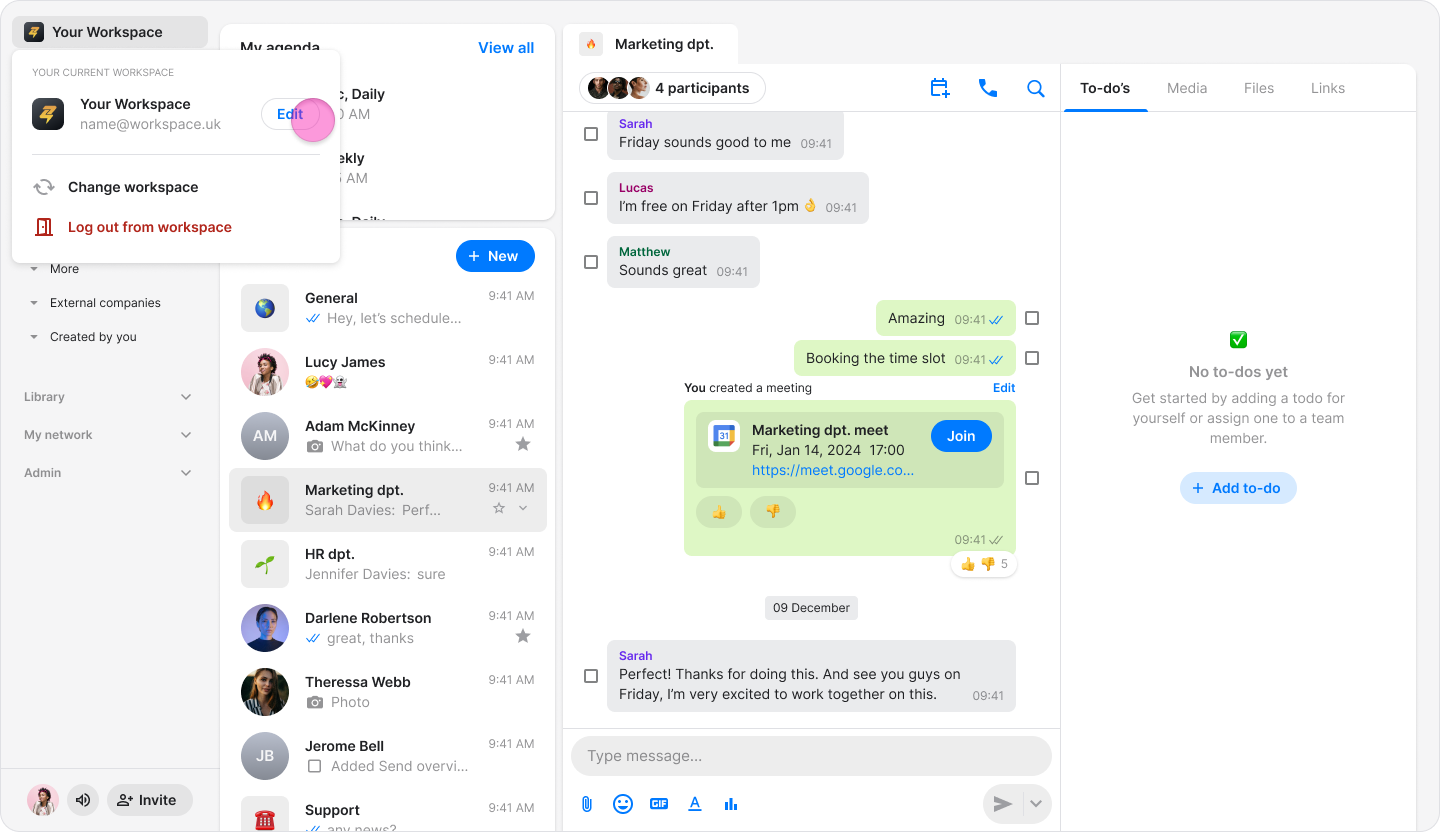
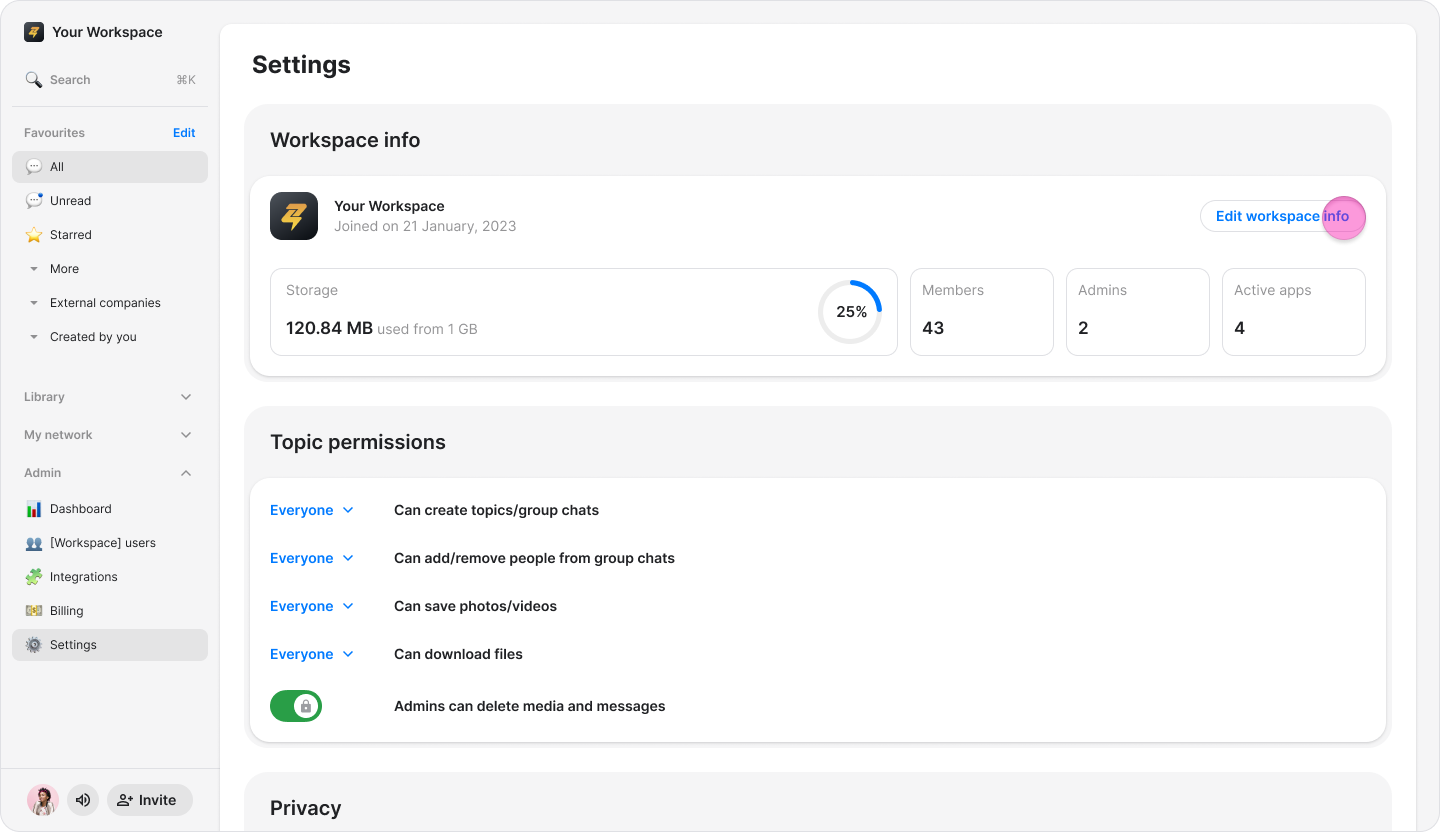
Click "Edit workspace info" next to your current workspace name.
Click the text field under "Workspace name" and type the new name for your workspace.
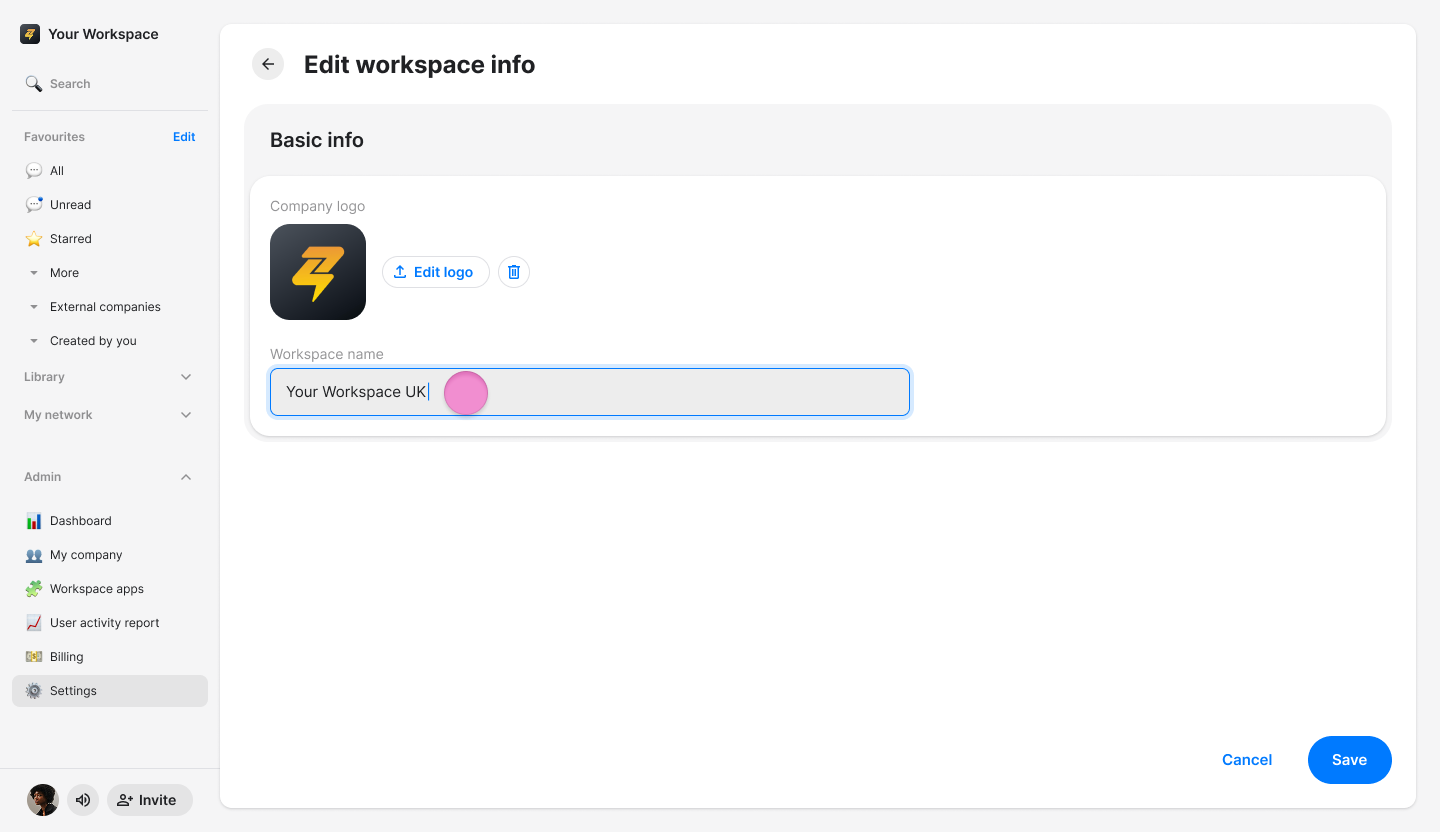
Click "Save".
Note: You can also change the workspace name by clicking on “Organization” at the sidebar menu and follow steps 2-4.