
Manually Inviting Team Members
Add your team members to Zenzap using manual invitations to build your team workspace.
This ensures that once they add their email or phone number during onboarding, they will automatically be added to your workspace.
Access: Depends on your Admin’s settings.
On Mobile (iOS & Android)
Use the Zenzap mobile app to send manual invitations via email or SMS directly to team members.
Go to the “My network” tab on the bottom menu.
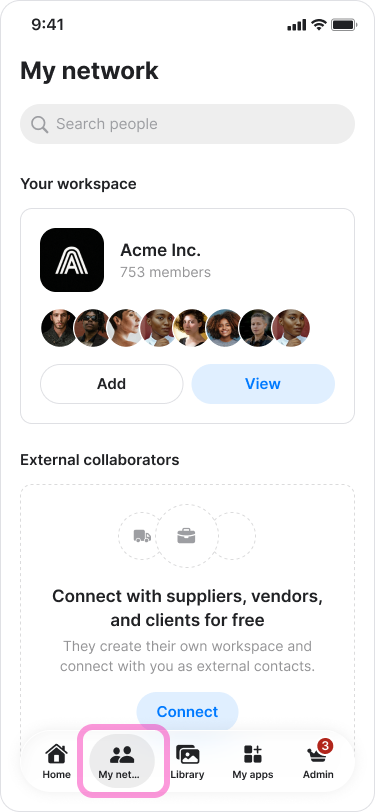
.
Under your “Workspace’s name” tap “Add”.
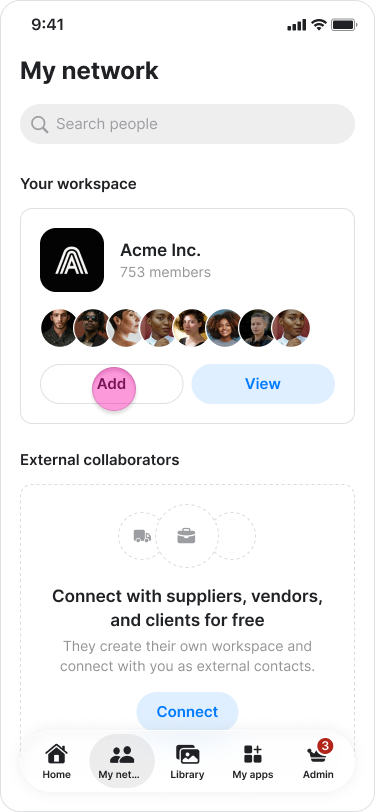
.
Choose “ Add from contacts or by email”.

.
Tap “Next”.
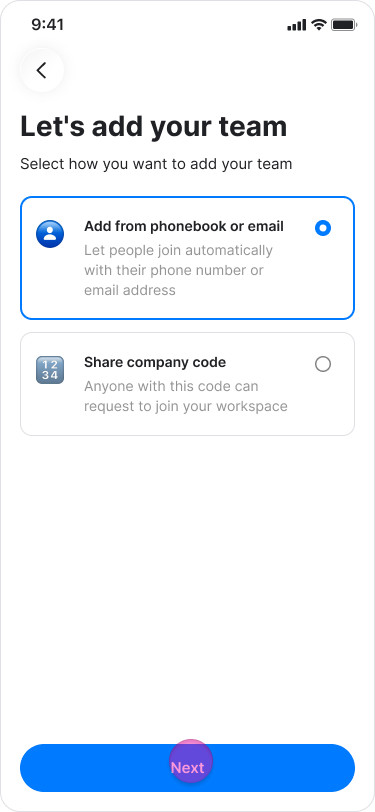
.
Tap “continue” in the pop up message.
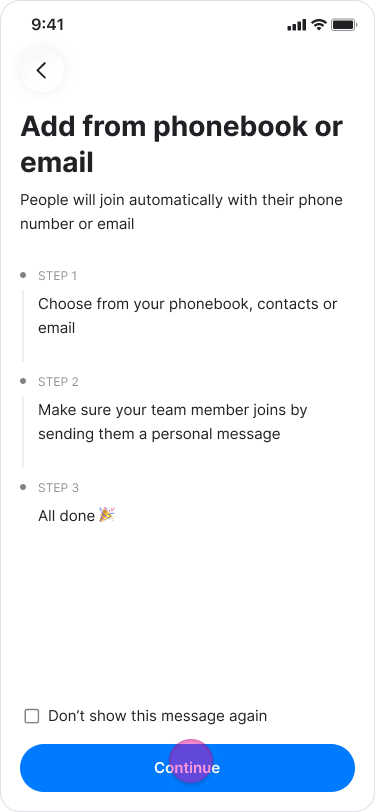
.
Enter their email address or select their contact from the list, and tap "Next".
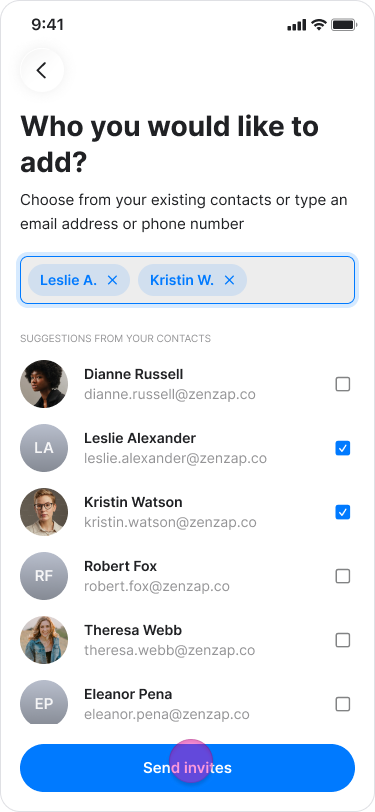
.
Share the invite link and tap “done”.(this step is optional)
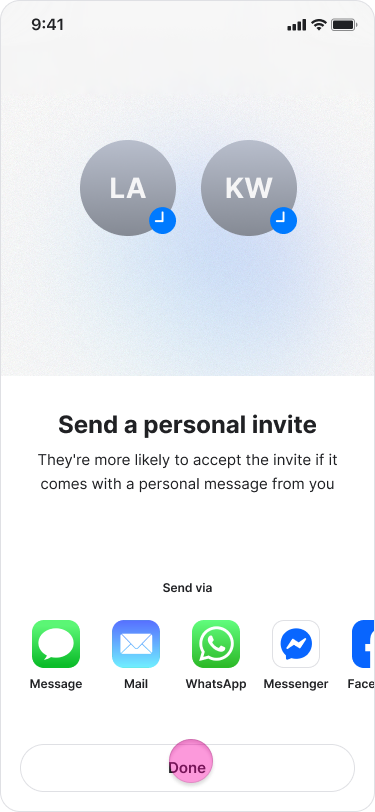
.
This action sends them an SMS or email with a link to join your team on Zenzap. They will automatically be added to your workspace once they complete onboarding using that email or phone number.
Note: For the automatic assignment to work, you must manually add their contact information here; it is not enough to simply copy and share an invite link.
On Desktop (Windows, macOS, & Web App)
Use the Zenzap desktop application to send manual invitations via email.
Click "Invite" at the bottom-left of the screen.
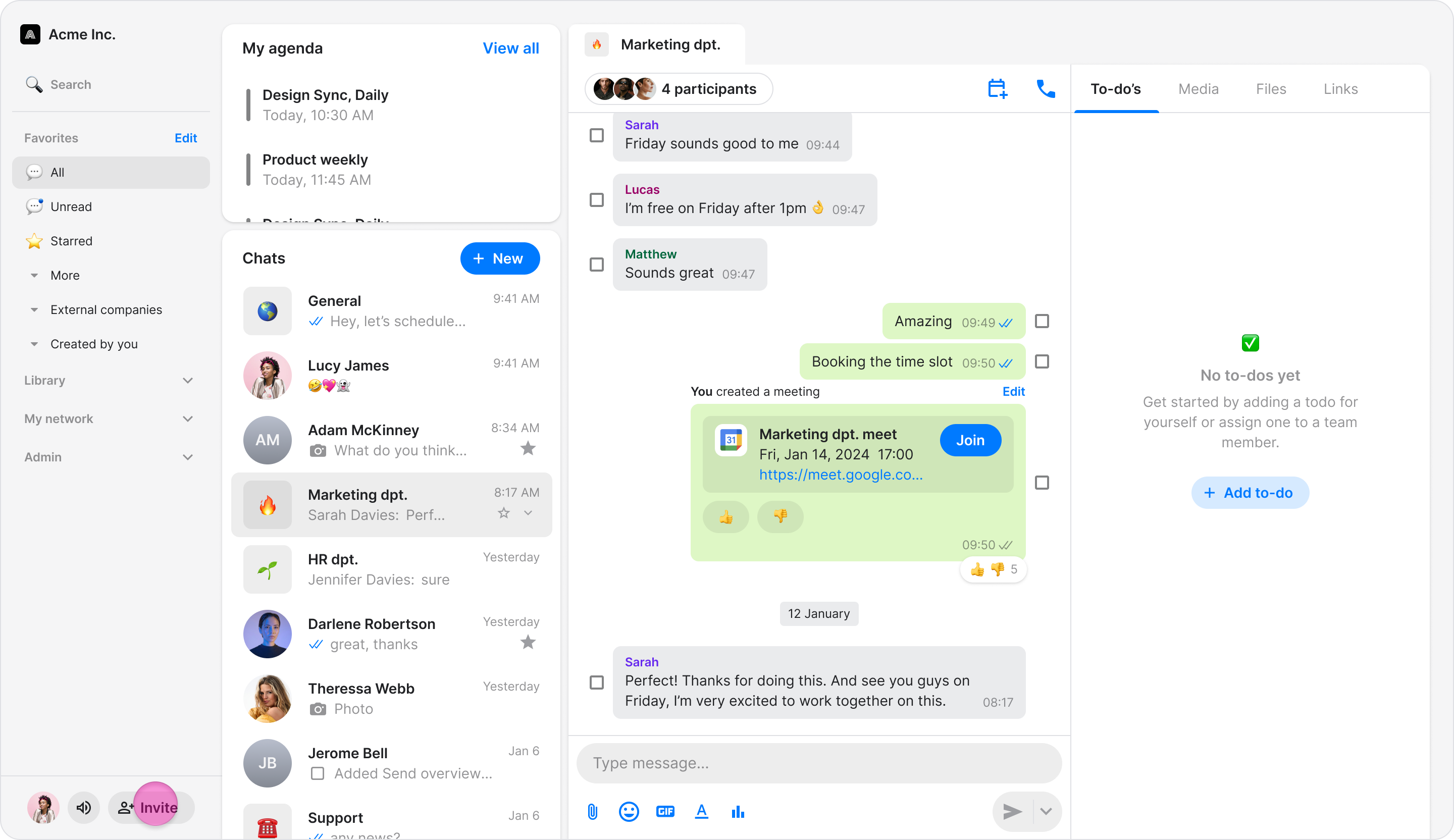
Select "Invite as Teammate" (or your company’s name) from the dropdown menu.
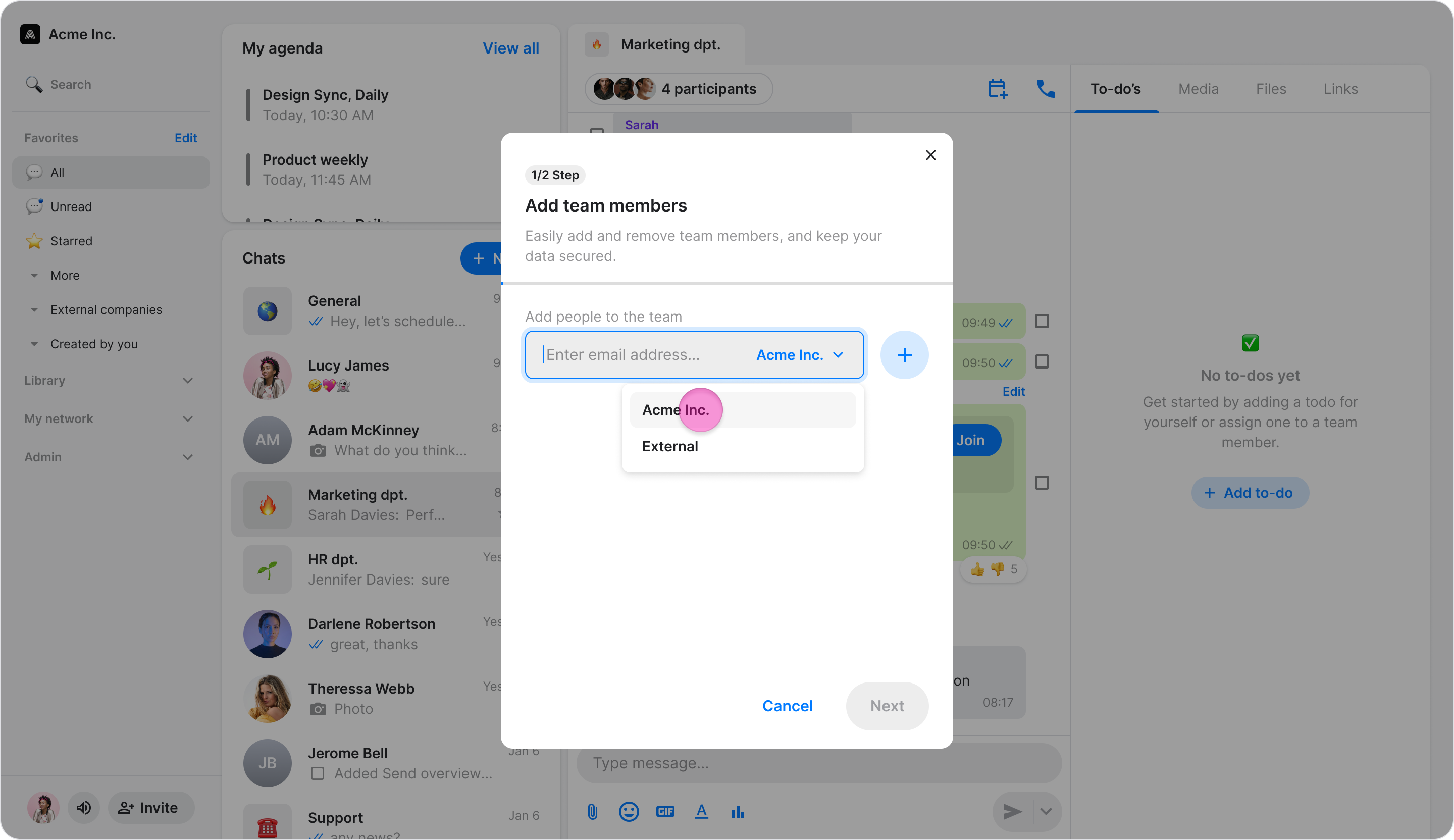
Enter the team member's email address.
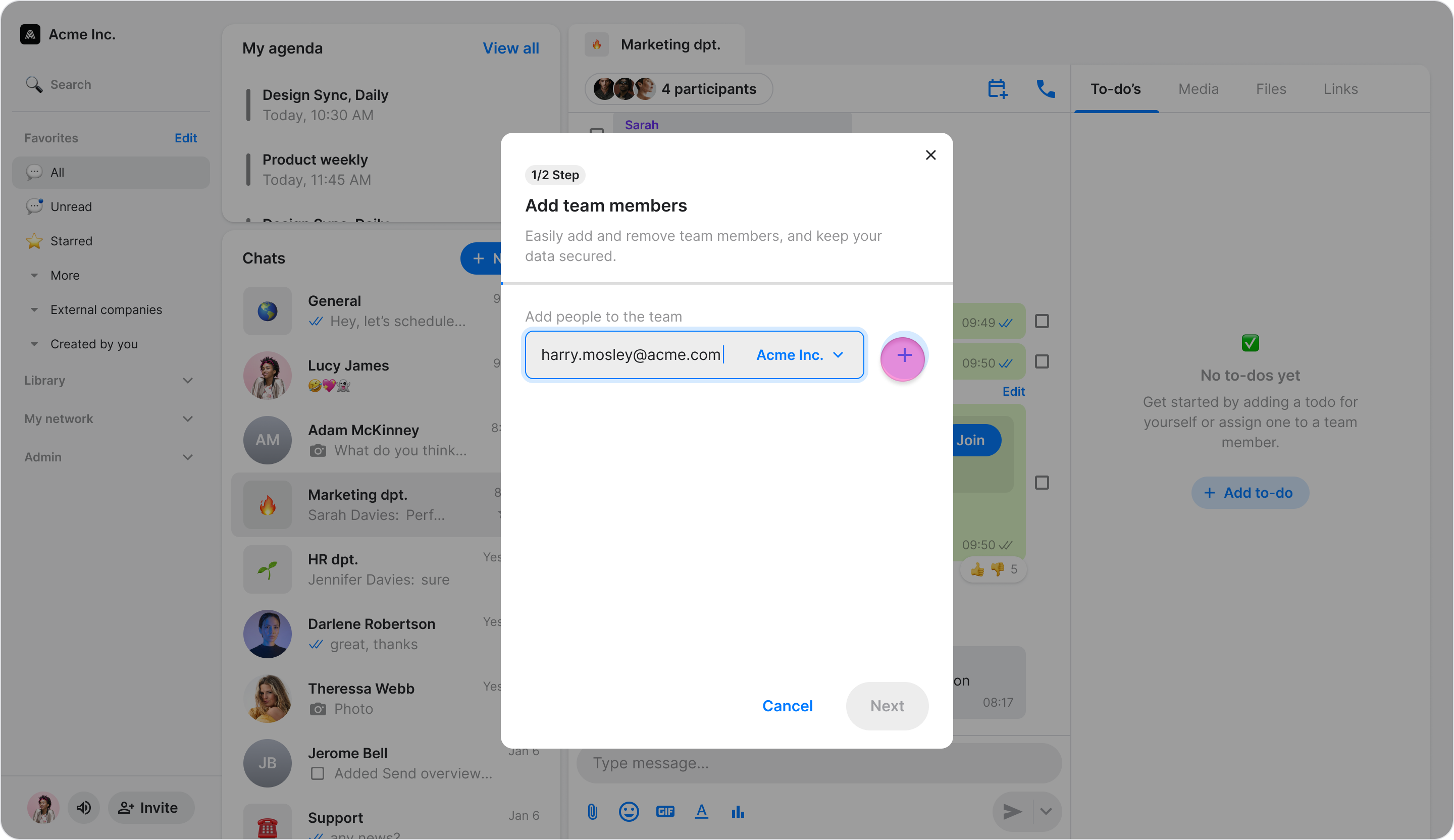
Click "Send" (On Windows, first click "+" and then "Next").
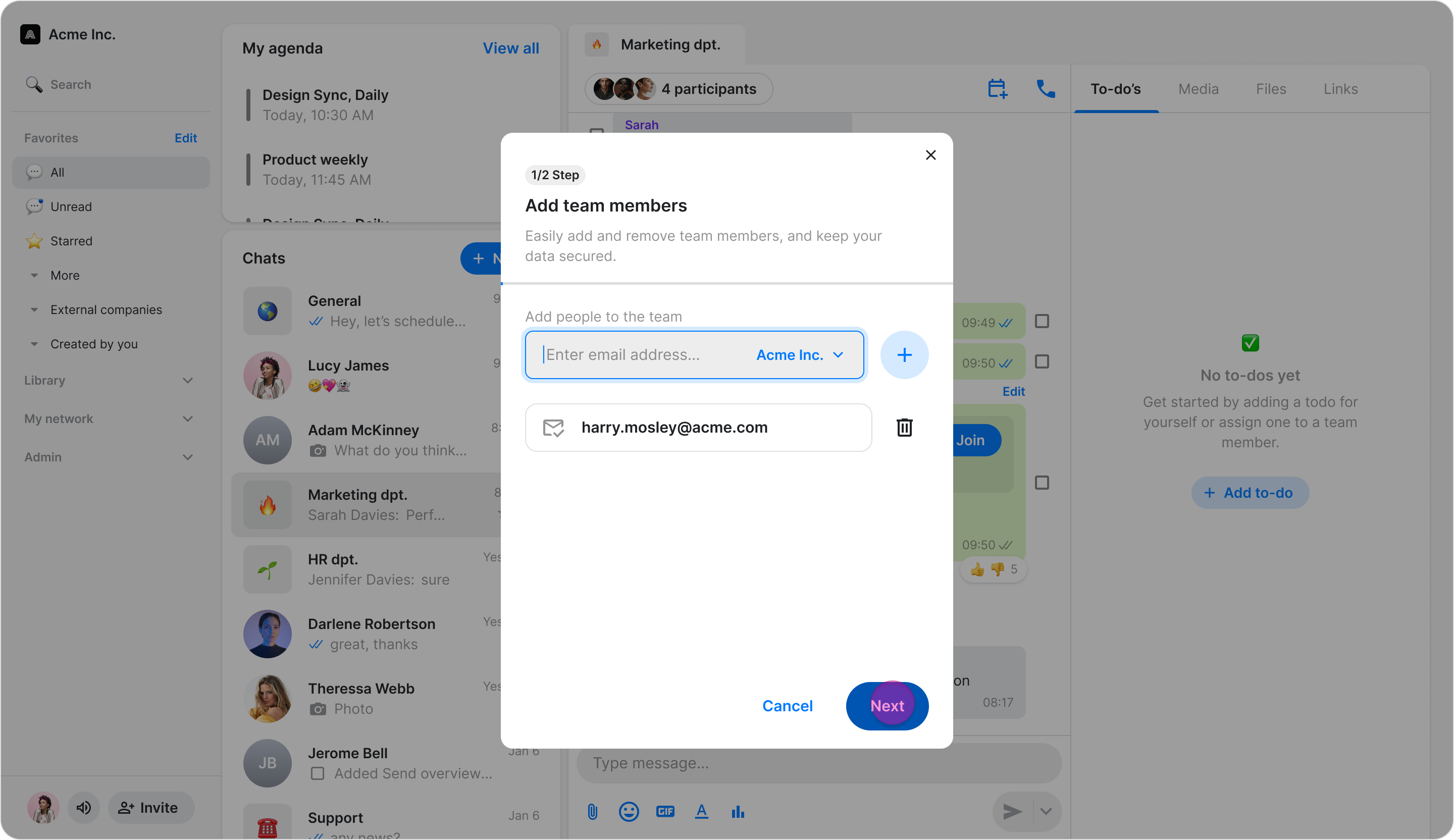
This action sends them an SMS or email with a link to join your team on Zenzap. They will automatically be added to your workspace once they complete onboarding using that email or phone number.
Note: For the automatic assignment to work, you must manually add their contact information here; it is not enough to simply copy and share an invite link.